

Key Takeaways
- Protect Battery Feature: The Protect Battery feature limits the maximum charge of Samsung devices to 85%, helping to extend battery lifespan by reducing wear and tear.
- Enhanced Battery Health: Keeping battery charge between 20% and 85% minimizes degradation, resulting in improved overall battery performance.
- Easy Activation: Users can easily enable the Protect Battery feature through the Settings app, ensuring a hassle-free experience for maintaining battery life.
- User Satisfaction: Many Samsung users report increased battery longevity and reduced anxiety about overcharging and overheating after using the feature.
- Charging Habits: Activating the Protect Battery feature encourages better charging practices, leading to healthier battery management over time.
Have you ever worried about your phone’s battery life? You’re not alone. With all the apps running and constant notifications, it can feel like your Samsung device’s battery drains faster than you can keep up. That’s where the Protect Battery feature comes in, designed to help you extend your battery’s lifespan and keep it healthy.
In this article, you’ll discover how this handy feature works and why it’s a game-changer for your device. Whether you’re a busy professional or a casual user, understanding Protect Battery can help you make the most of your Samsung phone. Let’s explore how this feature can enhance your device experience and keep you powered up longer.
What Is the Protect Battery Feature on Samsung
The Protect Battery feature on Samsung devices helps extend battery lifespan by limiting the maximum charge level to 85%. This prevents your battery from constantly charging to full capacity, which can wear it out faster over time.
Recommended Products

Kastar 2-pack high-capacity BP-70A batteries with slim USB charger. Compatible with Samsung BP-70A / BP70A / EA-BP70A cameras (full model list in description). Each battery: 3.7 V, 1400 mAh, 5.2 Wh; approx. 1.0 oz. (39.4 × 31 × 5.8 mm / 1.55 × 1.22 × 0.23 in). Includes 2 batteries + 1 USB charger + 1 battery case.

Compatibility - BP-70A Li-ion Battery for Samsung DV150F, ES65, ES70, ES80, MV800, PL120, PL170, PL20, PL200, PL80, SL50, SL600, SL605, SL630, ST65, ST66, ST76, ST80, ST90, ST95, ST100, ST150F, ST700, TL105, TL110, TL205, WB30F, WB35F, WB50FCameras
How It Works
- Charging Limits: You can enable this feature in your device settings. Once activated, your phone stops charging beyond 85%, significantly reducing stress on the battery.
- Battery Optimization: Reducing the charge level can slow down chemical reactions within the battery, leading to healthier and longer-lasting performance.
Benefits of Using Protect Battery
- Enhanced Lifespan: Users who activate this feature can potentially double their battery’s effective lifespan.
- Improved Health: Maintaining a charge between 20% and 85% keeps the battery in an optimal range, minimizing degradation.
- Convenience for Users: Casual users and busy professionals benefit from less frequent charging cycles, making it easier to manage battery levels throughout the day.
How to Enable Protect Battery
- Open Settings: Access the Settings app on your Samsung device.
- Select Battery and Device Care: Navigate to the Battery option.
- Tap More Battery Settings: Look for the Protect Battery option.
- Activate It: Toggle the feature on to start limiting charge levels.
By using the Protect Battery feature, you take proactive steps towards maintaining your device’s battery health, ensuring reliable performance over time.
Benefits of the Protect Battery Feature
The Protect Battery feature provides several advantages for maintaining your Samsung device’s battery life and health.
Recommended Products
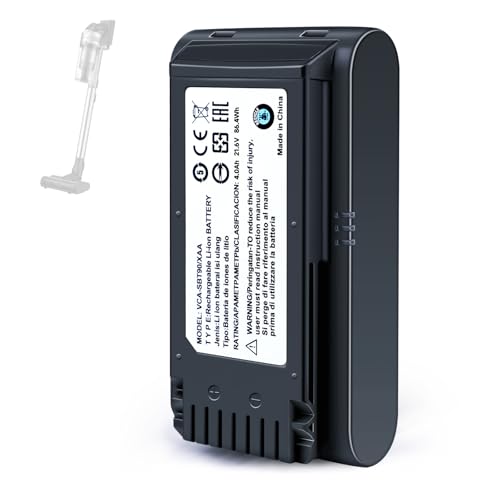
【Specifications】 Model:VCA-SBT90 ;Battery Type: Li_ion, Voltage:21.6V Capacity: 4000mAh ; Color: Gray and black

Compatible Smartwatch Model: This battery kit is specifically designed for Samsung Galaxy Watch 5 40mm (with model SM-R900 SM-R905 series), please double confirm your smartwatch model before purchasing

BP-70A Li-ion Battery for Samsung DV150F ES65 ES70 ES80 MV800 PL120 PL170 PL20 PL200 PL80 SL50 SL600 SL605 SL630 ST65 ST66 ST80 ST90 ST95 ST100 ST150F ST700 TL105 TL110 TL205 WB30F WB35F WB50F
Extended Battery Life
Extended battery life becomes achievable with the Protect Battery feature. By limiting the maximum charge to 85%, you reduce stress on the battery. Reducing the charge frequency minimizes wear and tear, so you can enjoy longer-lasting performance. Users might notice their battery lifespan effectively doubles, thanks to this feature. The longer your battery lasts, the less frequently you must replace it.
Enhanced Safety
Enhanced safety is another significant benefit of the Protect Battery feature. By preventing overcharging, this feature lowers the risk of overheating. Protecting against potential damage, you keep your device safe while preserving battery integrity. Regularly using the Protect Battery feature means you can have peace of mind knowing your device is operating within safe parameters.
How to Enable the Protect Battery Feature
Enabling the Protect Battery feature on your Samsung device is straightforward. Follow these steps to enhance your battery’s lifespan and maintain its health.
Recommended Products

【USB C Fast Charging】This is the only s25 battery case with USB-C input and output port. Unlike others only recharge via USB-C port, you can use a USB-C cable to charge other devices directly. With two-way fast USB-C charging, enjoy up to 20W output and 18W input, ensuring your devices are quickly powered. Note: This charging case is only for Samsung Galaxy S25 6.2inches.

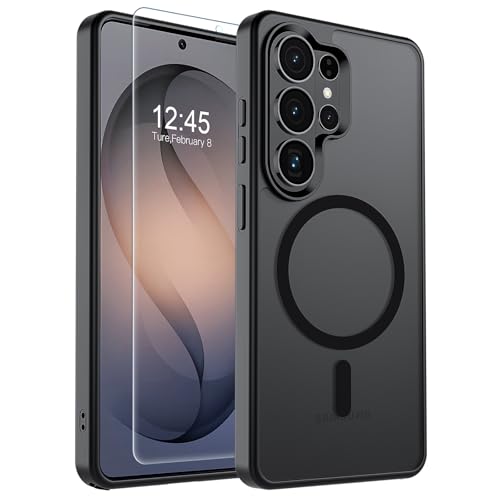
Strong Magnetic Attraction: Powerful built-in magnets, easier place-and-go wireless charging and compatible with wireless Charging
Step-by-Step Guide
- Open Settings: Swipe down from the top of the screen and tap the gear icon to access the settings menu.
- Select Battery and Device Care: Scroll down and select “Battery and device care.”
- Access Battery Options: Tap on “Battery” to see battery settings.
- Find Protect Battery: Look for the “More battery settings” option. Tap it.
- Activate Protect Battery: Toggle the Protect Battery feature on. You’ll see a prompt confirming the change.
After these steps, your device limits its charge to 85%, improving overall battery health.
Troubleshooting Common Issues
You might encounter a few issues when enabling the Protect Battery feature. Here’s how to address them:
- Feature Not Available: Check your device model. The Protect Battery feature works on select Samsung devices, including Galaxy S and Note series.
- Settings Not Saving: Restart your device if changes aren’t saving. Sometimes, a quick reboot helps the system update.
- Battery Not Charging Past 85%: This is normal behavior with Protect Battery active. You’re helping preserve battery capacity.
- App Notifications for Charging: If apps notify you about charging limits, this helps you manage your charging habits.
Follow these troubleshooting tips for a smoother experience while using the Protect Battery feature.
User Experiences and Feedback
Users often express satisfaction with the Protect Battery feature on their Samsung devices. This feature effectively extends battery life and maintains battery health, transforming how many engage with their devices.
Positive Experiences
- Improved Longevity: Users report an increase in their battery lifespan. Many notice that their device holds a charge longer, reducing the need for frequent recharging.
- Less Anxiety: With the feature, users feel more secure while charging. Knowing their battery is capped at 85% alleviates concerns about overcharging and overheating.
Challenges Faced
- Feature Availability: Some users experience frustration when the Protect Battery feature isn’t available on their device models. Samsung includes the feature on recent models, but older devices may lack it.
- Confusion About Charging Behavior: New users sometimes struggle with the fact their battery won’t charge beyond 85%. Understanding this helps ease concerns and reinforces the benefits of the feature.
Practical Insights
- Battery Management: Many find that enabling the Protect Battery feature encourages better charging habits. It promotes charging strategies that optimize battery health.
- User-Friendly Process: Activating the feature requires only a few steps. Accessing the settings menu and enabling battery options takes just moments.
Community Feedback
- Positive User Forums: Online forums display a wealth of shared experiences. Many users recommend the feature to friends and family, highlighting significant improvements in battery performance.
- Shared Tips: Users often exchange tips on complementary practices, such as avoiding extreme temperatures, which further enhance battery longevity.
By leveraging the Protect Battery feature and implementing best practices, users can confidently enjoy their Samsung devices while ensuring optimal battery health.
Conclusion
Embracing the Protect Battery feature on your Samsung device is a smart move for anyone looking to enhance battery health and longevity. By capping the charge at 85% you’re not just extending the life of your battery but also reducing the worry of overcharging.
You can enjoy a more reliable performance without the constant need for charging. Plus with the added safety and peace of mind it offers you can focus on what really matters—using your device without battery anxiety. So go ahead and activate this feature to make the most of your Samsung experience!
Frequently Asked Questions
What is the Protect Battery feature on Samsung devices?
The Protect Battery feature helps extend battery lifespan by limiting charging to 85%. This prevents frequent charging to full capacity, reducing wear and promoting better battery health over time.
How does the Protect Battery feature work?
This feature optimizes battery performance by setting charging limits. It slows down chemical reactions in the battery, thus reducing the stress that leads to faster degradation.
What are the benefits of using Protect Battery?
Using Protect Battery can potentially double a battery’s effective lifespan. It enhances safety by preventing overcharging, reduces anxiety over charging habits, and maintains optimal charge levels for longevity.
How can I enable the Protect Battery feature?
To enable Protect Battery, go to your device’s settings, select “Battery,” then “More battery settings.” From there, you can activate the Protect Battery option to start managing your charging limits.
What issues might I encounter with Protect Battery?
Some users may find the Protect Battery feature unavailable on older models, experience settings not saving, or notice their battery not charging past 85%. Following troubleshooting tips can help resolve these issues.
Are users satisfied with the Protect Battery feature?
Yes, many users report improved battery longevity and reduced anxiety from charging habits. They appreciate the feature’s capability to cap charging at 85%, promoting peace of mind about battery health.
Can Protect Battery be activated on all Samsung devices?
No, the Protect Battery feature isn’t available on all Samsung models. It’s primarily found in newer devices. Please check your device specifications to determine its availability.
