

Key Takeaways
- Identify Background Apps: Background applications significantly drain battery life; regularly check and close unnecessary ones to conserve energy.
- Manage Screen Brightness: Adjusting screen brightness to lower levels or enabling adaptive brightness can greatly reduce battery consumption.
- Optimize Location Services: Disable or set location services to “Battery Saving” mode when not in use to prevent excessive battery drain.
- Update Your Software: Keeping your device software up-to-date helps improve battery performance by addressing inefficiencies.
- Utilize Battery Saver Mode: Activating battery saver during critical times can help extend your phone’s battery life by limiting background activity.
- Monitor Battery Usage Statistics: Regularly review battery usage statistics in settings to identify apps that consume excessive power and manage them accordingly.
Ever wonder why your Android phone seems to lose battery life faster than you can keep it charged? You’re not alone. Many people experience that frustrating moment when they realize their phone’s battery is draining despite minimal usage.
In this article, you’ll discover the common culprits behind your battery woes. From pesky apps running in the background to settings you might not even know are affecting your phone’s performance, we’ll cover it all. By the end, you’ll have practical tips to help extend your battery life and keep your phone going strong throughout the day.
Understanding Battery Drain Issues
Battery drain on Android phones often stems from various factors. Identifying these factors can help you manage your device’s usage more effectively.
Common Causes of Battery Drain
- Background Apps: Apps running in the background consume significant power. Check your recent apps and close any unnecessary ones to save battery life.
- Screen Brightness: High screen brightness leads to faster battery loss. Lower your brightness or enable adaptive brightness to optimize power use.
- Location Services: GPS functions continually drain battery. Turn off location services when not in use or set them to “Battery Saving” mode for less frequent updates.
- Notifications: Frequent notifications can keep your screen awake. Customize notification settings for apps to limit interruptions.
- Outdated Software: Running old software can cause inefficiencies. Regularly check for system updates that often include battery performance improvements.
Tools to Monitor Battery Usage
You can monitor your battery usage through the settings:
- Battery Usage Section: Access this in your device settings. Here, you can see which apps or services consume the most power.
- Battery Saver Mode: Enable this feature during critical times. It reduces background activity and extends battery life.
Practical Tips to Save Battery
- Limit Background Syncing: Disable auto-sync for accounts like email and social media. Check for new updates manually to conserve energy.
- Use Dark Mode: If your device has an OLED screen, utilizing dark mode can save battery since darker pixels require less energy.
- Disable Unused Features: Turn off Wi-Fi, Bluetooth, or mobile data when not in use. These features drain battery even when idle.
By understanding these factors and applying practical solutions, you can enhance your Android phone’s battery performance significantly.
Common Causes of Android Battery Drain
Several factors contribute to the quick depletion of your Android phone’s battery life. Understanding these causes helps in managing and extending your device’s battery performance.
Recommended Products

liteweight
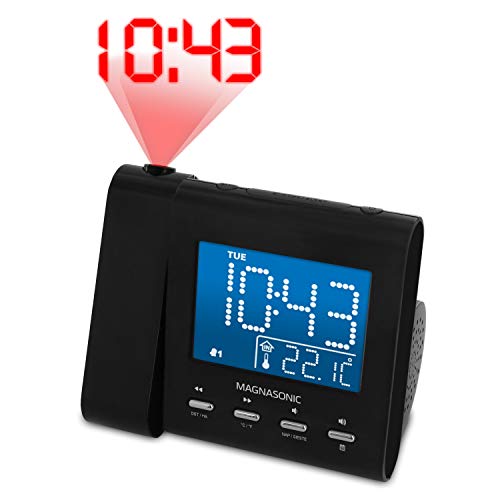
Feature-rich alarm clock radio that offers a large, crystal clear 3.6" blue LCD display that can be dimmed to adjust to your brightness preference

【1080P Dual Recording & 140-Degree Wide-Angle】 Aoocci motorcycle dash cam front and rear cameras has dual cameras with high-quality sensors. They record in 1080P full HD and capture sharp details and vivid colors. HDR support, clear video even at night or in dark places. Low power use, saves energy and protects your motorcycle's battery. Smooth 30fps video: Clear and fluid playback without lag. It has 140° front camera and 140° rear camera, It balances wide coverage and clear details.
Background Apps and Processes
Background apps consume power, even when you’re not actively using them. Apps that sync data, refresh content, or send notifications can quietly drain the battery. You can check which apps are running in the background by navigating to Settings > Battery > Battery Usage. If an app is using more power than expected, consider closing it or adjusting its settings. Limiting background data usage and disabling auto-sync for select apps also reduces drain.
Location Services
Location services access your phone’s GPS to provide location-based features. Constant tracking can significantly impact battery life. To manage this, go to Settings > Location and adjust location access. Use “Battery Saving mode” for less accurate yet battery-friendly tracking. Turn off location services for apps that don’t require them. Regularly check which apps use location services by selecting App Permissions in the location settings.
Screen Brightness and Timeout
High screen brightness settings and long screen timeout durations lead to increased battery consumption. Set your brightness to “Auto” for optimal adjustments based on your surroundings. You can also manually reduce brightness in Settings > Display. Additionally, decrease the screen timeout duration to save battery. A timeout of 30 seconds to 1 minute is often sufficient for most users. Using dark mode, especially on OLED screens, can further reduce battery usage by requiring less power for screen illumination.
How to Identify Battery Drainers
Identifying what drains your Android phone’s battery is crucial for maintaining optimal performance. You can take charge of your device’s battery life by recognizing which factors impact it most.
Checking Battery Usage Statistics
Check your phone’s battery usage statistics to see which apps consume the most power. To do this:
- Open Settings.
- Scroll to Battery or Battery & Performance.
- Select Battery Usage to view a list of apps and their power consumption.
Look for apps with high usage percentages. These are often the culprits of battery drain. For example, if you find a social media app using 30% of your battery, consider closing it when not in use or adjusting its settings.
Using Battery Optimization Features
Utilize battery optimization features to extend battery life. Most Android devices offer built-in tools to reduce background activity for less critical apps. Here’s how to enable optimization:
- Go to Settings.
- Tap on Battery.
- Choose Battery Optimization.
- Select apps you want to optimize.
This action limits how much power apps can consume in the background. Regularly using this feature can lead to noticeable improvements in battery life. Additionally, enable Adaptive Battery if your device supports it, as it learns your usage habits and optimizes battery consumption accordingly.
Tips to Extend Battery Life
Extend your Android phone’s battery life with these practical tips that target key settings and app management.
Recommended Products

Long Battery Life & All-Round Practical Functions: Smart watch is powered by a 1000mAh battery with low-power design, delivering up to 20+ days of usage and 85 days of standby time, fully charged in just 3.5 hours. It comes with a full range of practical tools, including alarm clock, stopwatch, timer, find my phone, camera control, SOS emergency assistance, sedentary reminder and water drinking reminder, eliminating daily troubles.

【Super Fast Charging Power Bank】High speed portable phone charger with advanced PD 3.0 and QC 4.0 Protocol, this battery charger can quickly charge a MacBook Pro 14" from 0% to 47% and an iPhone 15 Pro from 0% to 60% in 30 minutes

【Why Choose This Magnetic Power Bank?】It packs an upgraded 10000mAh capacity, 20W fast charging, and a tiny body all in one. Unlike bulky chargers, it won't block your iPhone's rear camera. The strong magnetic grip holds your phone firmly – no slipping, no wobble. The smart LED display shows exact remaining battery percentage in real-time – so you're never caught off guard. Works with iPhone 18/17/16/15/14/13/12 series, giving you 1.8~2.5 full charges. When used with a magnetic phone case, it also supports fast wireless charging for Samsung Galaxy S26/S25/S25 Ultra, Huawei Mate 70/Pura 80 Pro and most Android phones, no need to remove the case.
Adjusting Settings
- Lower Screen Brightness: Reduce your screen’s brightness manually or activate auto-brightness to adjust according to ambient light.
- Enable Battery Saver Mode: Activate this mode from your settings to limit background processes and notifications, which conserves battery life.
- Limit Location Services: Set GPS access to “Use While Using App” for non-essential apps. This significantly cuts power usage.
- Reduce Screen Timeout: Set your screen to turn off after 30 seconds to 1 minute of inactivity, saving energy.
- Turn Off Connectivity Features: Disable Wi-Fi, Bluetooth, or mobile data when not in use. This prevents your device from constantly searching for connections.
Managing Apps and Services
- Monitor Battery Usage: Check the Battery Usage section in your settings to identify apps consuming excessive power. Uninstall or disable unnecessary ones.
- Limit Background App Activity: Use the battery optimisation feature to restrict background activity for less important apps.
- Disable Auto-Sync: Turn off auto-sync for email or social media accounts. Sync these apps manually to prevent frequent battery drain.
- Uninstall Unused Apps: Remove apps you rarely use. These can still run background processes, draining battery.
- Switch to Dark Mode: If your device has an OLED display, using dark mode reduces power consumption by turning off pixels in dark areas of the screen.
Conclusion
Understanding what’s draining your Android phone’s battery can make a world of difference. By identifying and managing those sneaky background apps and adjusting your settings, you can significantly improve your device’s performance.
Don’t forget to take advantage of features like Battery Saver mode and auto-brightness. Small changes in how you use your phone can lead to longer battery life throughout the day.
With a little bit of awareness and some simple tweaks, you can keep your phone running smoothly and enjoy more time between charges. Happy optimizing!
Frequently Asked Questions
Why is my Android phone’s battery draining quickly?
Battery drain on Android phones typically occurs due to background apps, high screen brightness, GPS usage, frequent notifications, and outdated software. Identifying these factors can help improve battery life.
How can I check which apps are draining my battery?
You can check battery usage in the device settings by going to Battery > Battery Usage. This section will show you which apps consume the most power, allowing you to manage them effectively.
What is Battery Saver mode, and how does it help?
Battery Saver mode is a feature that limits background activity and reduces performance to extend battery life. Enabling this mode can help conserve energy during times when charging isn’t possible.
How does screen brightness affect battery life?
High screen brightness consumes more battery power. To save energy, consider using auto-brightness or lowering your screen brightness manually to a comfortable level.
Can location services cause battery drain?
Yes, constant GPS tracking drains battery life. To minimize this, adjust location settings and disable services for apps that do not require location access.
What are some general tips to extend battery life?
To extend battery life, limit background syncing, enable dark mode on OLED screens, turn off unused features like Wi-Fi and Bluetooth, and reduce screen timeout settings.
What should I do if my phone’s software is outdated?
Keeping your phone’s software updated is essential for battery performance. Check for updates in Settings > System > Software Update and install any available updates to ensure optimal performance.
Why is it important to identify battery drainers?
Identifying battery drainers helps you manage apps and settings efficiently, improving overall performance and battery longevity. It allows you to optimize settings for essential tasks while limiting power-hungry apps.
