

Key Takeaways
- Battery Life Factors: Understand that battery life is influenced by screen brightness, background apps, connectivity features, app usage, and syncing settings.
- Optimize Screen Brightness: Reducing brightness and enabling adaptive settings can significantly save battery life on Samsung Galaxy devices.
- Manage Background Apps: Closing unused background apps and limiting their activity are essential steps to minimize battery drain.
- Adjust Connectivity Settings: Disable Wi-Fi, Bluetooth, and GPS when not in use, as they can quickly deplete battery, especially in low-signal areas.
- Use Power Saving Mode: Activate power-saving mode during critical times to extend battery life by limiting background activity and conserving resources.
- Monitor Battery Usage: Regularly check battery settings to identify high-drain apps and adjust their usage or settings to optimize performance.
Ever wondered why your Samsung Galaxy battery seems to drain faster than you’d like? You’re not alone. Many users face the frustration of constantly searching for a charger or keeping an eye on battery percentages throughout the day.
Understanding Battery Life
Battery life determines how long your Samsung Galaxy lasts between charges. Several factors affect this, including apps, settings, and environmental conditions.
Key Factors Impacting Battery Life
- Screen Brightness: High brightness drains battery faster. Lower brightness or use adaptive brightness to save energy.
- Background Apps: Apps running in the background consume power. Close apps when not in use or disable background activity for non-essential apps.
- Connectivity Features: Wi-Fi, Bluetooth, and GPS use power. Turn off these features when they’re not needed to conserve battery life.
- App Usage: Resource-intensive apps, like games and streaming services, quickly deplete battery. Monitor usage and limit time spent on high-drain apps.
- Updates and Syncing: Frequent syncing and automatic updates can lead to battery drain. Adjust syncing settings for less frequent updates, especially for email and social media.
Practical Tips to Optimize Battery Life
- Enable Power Saving Mode: Activate power-saving mode to reduce performance while extending battery life.
- Limit Notifications: Turn off unnecessary notifications. Notifications wake your screen and consume power.
- Uninstall Unused Apps: Remove apps you rarely use. These apps can still consume battery even if you’re not actively using them.
- Monitor Battery Usage: Check battery settings to identify which apps drain your battery most. Uninstall or limit usage of these apps.
- Update Your Software: Ensure your phone runs on the latest software. Updates can include optimizations for better battery performance.
By understanding and addressing these aspects, you can maximize the battery life of your Samsung Galaxy.
Common Culprits That Drain Battery
Several factors contribute to battery drain in your Samsung Galaxy device. Identifying these culprits helps you manage your battery life effectively.
Recommended Products

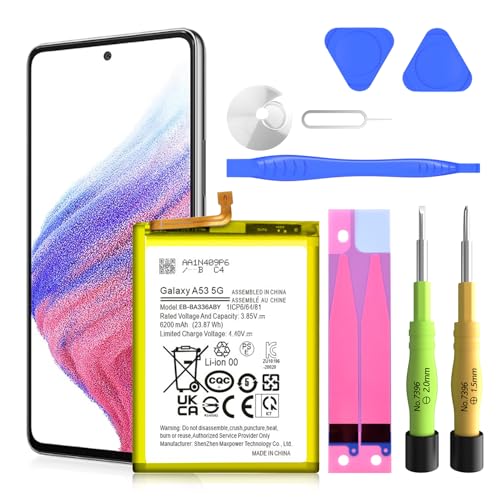
✅【6200mAh High-Capacity Upgrade】Upgraded 6200mAh Li-Polymer Galaxy A53 battery delivers 1200mAh more than the original 5000mAh cell. Extend your Galaxy A53 5G usage significantly – perfect for heavy users and long days out. Brand new 0-cycle cell with built-in over-charge, over-discharge, short-circuit, and over-heat protection.
Background Apps
Background apps continuously run tasks, consuming valuable battery power. Apps like social media, music streaming, and navigation can drain your battery significantly if left running. To minimize this impact, regularly close apps you aren’t using. You can check battery usage in Settings to see which apps consume the most power. Consider disabling background activity for less critical apps.
Connectivity Features
Connectivity features, including Wi-Fi, Bluetooth, and mobile data, can quickly deplete battery life when active. Using these features excessively, especially in areas with weak signals, causes your device to work harder. Turn off Wi-Fi and Bluetooth when they’re not in use. Use Airplane Mode in low-signal regions to reduce battery drain.
Screen Brightness
Screen brightness affects battery life considerably. Higher brightness settings strain the battery more. Lowering your screen brightness to a comfortable level can extend usage time. Enable adaptive brightness to allow your phone to adjust brightness based on light conditions automatically. Furthermore, consider using dark mode to reduce battery strain on AMOLED screens.
Battery Management Tips
You can effectively manage your Samsung Galaxy battery by optimizing settings and using power-saving mode. These simple adjustments can significantly prolong your device’s battery life.
Recommended Products

Compatible Smartwatch Model: This battery kit is specifically designed for Samsung Galaxy Watch 5 40mm (with model SM-R900 SM-R905 series), please double confirm your smartwatch model before purchasing

[PLS CONFIRM DEVICE MODEL] -- The repair kit contains the instruction to guide you step by step installation, and we have professional engineers to answer all your questions about the repair process. Please verify your old battery part number and model before purchasing this replacement battery. Part Number: Scud-WT-N6, Compatible with Samsung Galaxy A10s SM-A107F/DS SM-A107M/DS, Samsung Galaxy A20s SM-A207F/DS SM-A207M/DS SM-A2070, Samsung Galaxy A21 SM-A215U SM-A215U1.

HIGH CAPACITY --- This replacement battery for Samsung Galaxy S10E is 3900mAh high capacity, with more power than original battery.You can use your phone for a longer time!
Optimizing Settings
Adjusting your device settings can make a noticeable difference in battery efficiency. Here are some key settings to modify:
- Screen Brightness: Lower brightness or enable adaptive brightness to match your surroundings.
- Location Services: Turn off GPS or limit it to apps that require it, reducing constant tracking.
- Background Data: Restrict background data for apps that don’t need to refresh constantly, saving battery.
- Notifications: Disable unnecessary app notifications to reduce wake-up events.
- Syncing: Limit synchronization for email and social media apps to manual updates rather than automatic.
Utilizing Power Saving Mode
Power-saving mode optimizes your device’s performance for extended battery life. To use it effectively:
- Activate Power Saving Mode: Go to Settings > Battery and choose Power Saving Mode.
- Select Options: Opt for medium or maximum power savings based on your needs.
- Monitor Battery Usage: Use the Battery settings to see which apps use the most power and adjust settings accordingly.
- Turn Off Unused Features: Disable features like 5G or high refresh rate when not needed to conserve energy.
- Know When to Use It: Turn on power-saving mode during critical moments, such as when battery levels drop below 20%.
By making these adjustments, you can extend your Samsung Galaxy device’s battery life and reduce frustration from frequent charging.
Monitoring Battery Usage
Monitoring battery usage helps identify which apps and features consume the most power. Understanding this information allows you to make necessary adjustments and extend battery life. Utilize your device’s built-in tools and explore third-party solutions to track performance effectively.
Recommended Products
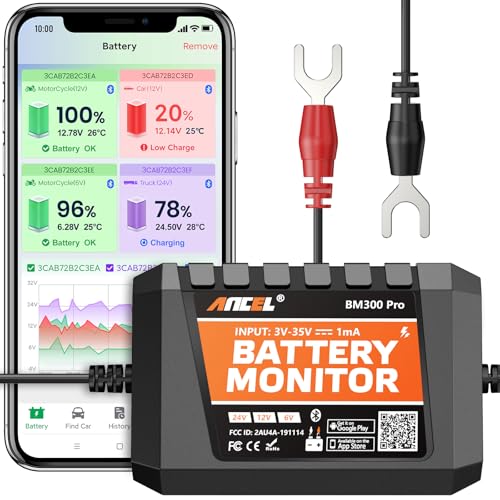
6V, 12V & 24V MONITORING - View voltage, estimated state of charge and temperature through the ANCEL BM300 Pro app. On supported 12V and 24V vehicle systems, review cranking and charging voltage tests. For 6V systems, use voltage, SOC and temperature monitoring; cranking and charging tests are not supported.
- Live Fire OS battery percentage, charging state, and power source

Control Your Appliances and Devices: Control lights, fans, lamps, humidifiers, and any other appliances or electronics that plug into 120V outlets with a 10A Maximum Continuous Load (15A Max Peak Load for up to 1hr/day)
Built-in Battery Usage Tools
Samsung Galaxy devices include built-in battery usage tools that provide insights into energy consumption. Access these features by navigating to Settings > Device Care > Battery > Usage. You’ll see a list of apps, including usage times and battery percentage consumed. Look for apps with high usage that you may not actively use. Consider limiting background activity for these apps by adjusting their settings.
Additionally, utilize Battery Saver Mode found in the same menu to conserve energy when needed. It restricts background data and minimizes visual effects, helping prolong battery life during critical times.
Third-Party Apps
Third-party apps offer enhanced monitoring capabilities. Popular choices include AccuBattery, GSam Battery Monitor, and BatteryGuru. For example, AccuBattery tracks battery health over time and helps identify which apps drain battery life. You can customize alerts for apps that exceed certain thresholds, making it easier to manage power consumption.
Install these apps from the Google Play Store, following the instructions to set them up. Once installed, regularly check the data they provide. You’ll gain valuable insights on usage patterns and learn when to adjust settings or uninstall certain apps to optimize battery performance.
Conclusion
Taking control of your Samsung Galaxy’s battery life doesn’t have to be a daunting task. By understanding the factors that drain your battery and implementing the tips shared, you can enjoy longer usage without constantly searching for a charger.
Regularly checking your battery usage and adjusting settings can make a world of difference. Simple changes like lowering screen brightness and turning off unused connectivity features can help keep your device running smoothly throughout the day.
With a little attention and care, you’ll find that your Galaxy can keep up with your busy lifestyle, letting you focus on what really matters. So go ahead and give these strategies a try—you’ll thank yourself later!
Frequently Asked Questions
What causes rapid battery drain on Samsung Galaxy devices?
Rapid battery drain on Samsung Galaxy devices is often caused by high screen brightness, background apps running, and connectivity features like Wi-Fi and Bluetooth. Weak signals can increase battery consumption as well. Monitoring these factors can help identify the culprits.
How can I optimize my Samsung Galaxy battery life?
To optimize your Samsung Galaxy battery life, enable power-saving mode, limit notifications, uninstall unused apps, lower screen brightness, and turn off connectivity features when not in use. Keeping your software updated also helps.
What is power-saving mode, and how do I activate it?
Power-saving mode reduces your device’s performance and limits background activity to save battery life. To activate it, go to Settings > Battery > Power Saving Mode, and toggle it on. You can customize its settings to suit your needs.
How do I monitor battery usage on my device?
You can monitor battery usage by navigating to Settings > Battery > Battery Usage. This tool shows which apps consume the most power, allowing you to manage them effectively and limit background activity.
Are there any apps that can help with battery management?
Yes, apps like AccuBattery, GSam Battery Monitor, and BatteryGuru can help you track battery health, monitor usage, and manage power consumption more effectively, complementing the built-in tools on your device.
