

Key Takeaways
- Red X Significance: The red X on a Samsung battery indicates a potential battery fault, affecting charging and device recognition.
- Common Causes: Possible reasons for the red X include a defective battery, improper connections, software glitches, and using incompatible chargers.
- Troubleshooting Steps: Effective solutions include inspecting the battery, checking connections, restarting the device, using a different charger, and ensuring software updates are applied.
- Implications of Ignoring the Red X: Failing to address the red X can lead to your device not charging, overheating, and displaying erratic behavior, which can cause further damage.
- Preventive Measures: Regular battery inspections, using compatible chargers, optimizing charging habits, and keeping software updated can help prevent the red X from appearing in the future.
- When to Seek Help: If the red X persists despite troubleshooting efforts, contacting Samsung support or visiting a certified repair center is recommended to avoid further complications.
Have you ever noticed a red X on your Samsung battery and wondered what it means? You’re not alone. Many users encounter this puzzling symbol, often feeling a mix of confusion and concern about their device’s health.
Understanding Samsung Battery Indicators
Samsung devices use various icons to indicate battery status. One of these icons, the red X, commonly raises questions. This section explains what the red X means and how you can address any issues associated with it.
What Does the Red X Mean?
The red X on your Samsung battery typically signals a battery fault. It suggests that the device isn’t charging correctly or that the battery isn’t recognized. If this icon appears, it’s essential to investigate further.
Common Reasons for the Red X
- Defective Battery: A failing or damaged battery can trigger the red X.
- Improper Connection: Loose or damaged charging ports may prevent proper charging.
- Software Glitch: Occasionally, software issues can interfere with battery recognition.
- Incompatible Charger: Using a non-compatible charger can lead to charging problems.
How to Troubleshoot
- Inspect the Battery: Remove and reinsert the battery if your device has one. Check for any visible damage.
- Check Connections: Ensure the charging port is clean and free from debris. A compressed air can help.
- Restart Your Device: A simple restart might resolve software glitches.
- Try a Different Charger: Use the original charger or a certified one to eliminate charging conflicts.
- Update Software: Keep your device’s software up to date, as updates can fix bugs.
When to Seek Help
If the red X persists after troubleshooting, it’s advisable to contact Samsung support or visit a certified repair center. A qualified technician can diagnose the issue more accurately and provide solutions.
Conclusion
By understanding the indicators, you can manage your Samsung battery’s health effectively and resolve issues promptly. Remember to take preventive measures, such as using the right charger and keeping your device updated, to minimize complications in the future.
What Does Red X on Samsung Battery Mean?
The red X on your Samsung battery signals an issue with battery functionality. Understanding this symbol can help you address any problems and maintain your device’s performance.
Recommended Products
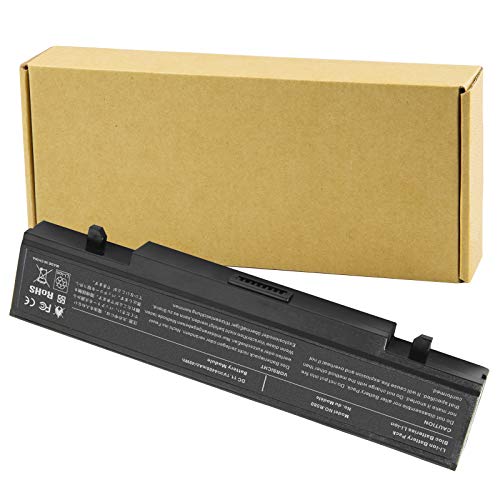
Specifications: Li-ion battery, Rated at 11.1V(10.8V Compatible) 5200mAh
![SHENMZ Galaxy S5 Battery, [Upgraded] 5200mAh Li-ion EB-BG900BBU Replacement Battery for Samsung Galaxy S5 AT&T G900A, G900F, G900H, G900R4, I9600, SM-G900V, SM-G900P, SM-G900T](https://m.media-amazon.com/images/I/41fzKFEGuEL._SL500_.jpg)
❤【HIGH QUALITY,TRUSTWORTHY PREMIUM BATTERY】:This Upgraded S5 battery uses Grade A+ rated battery cells with CE and ROHS certification,ensure last over 1000+ charge cycles. Multiple-protection for safer operation for both user and devices,build-in microchip to prevent over-charging,over-discharging and over-heating.

Easy Big Button Design: The remote includes specialized features like an extra-large enter button, big button universal controls, and tactile feedback, catering specifically to seniors and those with limited dexterity or vision. It aims to provide a more comfortable and accessible user experience.
Possible Causes of the Red X
- Defective Battery: Batteries can wear out or develop faults over time, leading to performance issues. A defective battery might not charge correctly, triggering the red X.
- Improper Connections: Loose or damaged connections between the battery and device can cause recognition failures, leading to the red X.
- Software Glitches: Occasionally, software bugs may prevent the device from accurately reading the battery status. These glitches can display incorrect warnings like the red X.
- Incompatible Chargers: Using non-approved or incompatible chargers may not supply the correct voltage or current, causing charging issues and resulting in the red X appearing.
Implications of the Red X
A red X doesn’t just indicate a warning; it affects your device’s usability. When this symbol appears, your device may:
- Stop Charging: If the battery isn’t recognized properly, it won’t charge, leaving your device unable to power on.
- Start Overheating: A fault may lead to overheating, which can damage both the battery and the device, potentially causing safety hazards.
- Display Erratic Behavior: Software issues linked to battery recognition can lead to unexpected shutdowns or performance lags.
Familiarizing yourself with these implications can help you respond quickly to any problems that arise and ensure your device continues to function optimally.
Troubleshooting Steps
If you see a red X on your Samsung battery, take immediate action to resolve the issue. Follow these troubleshooting steps to identify and address the problem effectively.
Recommended Products

【Compatible Model】:100% compatible with EB-BG766GBY.Please confirm that your device is suitable for this replacement battery by checking the model number before purchasing

HIGH CAPACITY --- This replacement battery for Samsung Galaxy S10E is 3900mAh high capacity, with more power than original battery.You can use your phone for a longer time!

✾Compatible Models: This Battery Suitable for all Galaxy S5 variants.Compatible with SM-G900 Series, SM-G900A, SM-G900P, SM-G900V, SM-G900T, SM-G900F, SM-G900H, SM-G900R4, SM-G900TR, SM-G900W8, SM-G900BVB, i9600, EB-BG900BBC EB-BG900BBU EB-BG900BBE/ for Samsung Galaxy S5 Active SM-G870.
Basic Fixes
- Inspect the Battery: Remove the battery from your device. Look for any physical damage, corrosion, or dirt on the battery terminals. Clean them gently with a soft cloth if needed.
- Check Connections: Ensure the battery is seated correctly in the device. Loose or improper connections can cause the red X. Reinsert the battery firmly.
- Restart the Device: Power off your Samsung device completely. After waiting for about 10 seconds, turn it back on. A simple restart can often clear temporary glitches.
- Try a Different Charger: Use another charger that is compatible with your device. Charging issues might arise from a faulty charger or cable.
- Update Software: Ensure your device’s software is current. Go to Settings > Software Update and check for any available updates. Keeping software up to date can resolve compatibility issues.
Advanced Solutions
- Factory Reset: As a last resort, consider performing a factory reset. Back up your data first, then navigate to Settings > General Management > Reset > Factory Data Reset. This can help fix software-related problems causing the red X.
- Visit a Service Center: If the red X persists after trying these fixes, it’s time for professional help. Visit a certified Samsung repair center or contact Samsung support for further diagnosis.
- Replace the Battery: If the battery is defective, you may need to purchase a replacement. Ensure you choose a battery that is genuine or approved by Samsung to avoid further issues.
- Check Device Settings: Review battery settings under Settings > Device care > Battery. Discover if there are any options related to battery health that may require adjustment.
Following these steps can help you identify and resolve the issue with the red X on your Samsung battery.
Preventive Measures
Taking preventive measures can help you avoid seeing that red X on your Samsung battery in the future. Here are some effective strategies:
Regularly Inspect Your Battery
- Check for Damage: Look for any physical signs of wear or damage on the battery.
- Clean Connections: Ensure the battery terminals and connectors are clean and free from debris.
Use Compatible Chargers
- Avoid Incompatible Chargers: Always use chargers recommended by Samsung to prevent charging issues.
- Inspect Charger Cables: Look for frays or signs of wear on charger cables.
Optimize Charging Habits
- Don’t Overcharge: Disconnect your device when it reaches 100% to extend battery life.
- Avoid Deep Discharges: Try not to let your battery drain completely before recharging.
Update Software Regularly
- Keep Device Updated: Enable automatic software updates to ensure you have the latest features and fixes.
Store Your Device Properly
- Store in Ideal Conditions: Keep your device in a cool, dry place when not in use. Avoid extreme temperatures.
- Maintain Charge Levels: If you’re storing your device for an extended period, aim for a 50% charge.
Implementing these measures can significantly reduce the chances of encountering a faulty battery and prolong the overall lifespan of your device. Always remain proactive about device maintenance to ensure optimal performance.
Conclusion
Seeing a red X on your Samsung battery can be concerning but knowing what it means helps you take the right steps. By understanding the potential issues and following the troubleshooting tips, you can address the problem effectively.
Remember to keep an eye on your battery’s condition and use compatible chargers to avoid future headaches. Regular maintenance and timely responses to warning signs can keep your device running smoothly. If the red X doesn’t go away after your efforts don’t hesitate to reach out to Samsung support for assistance. Taking care of your device ensures it stays reliable for all your needs.
Frequently Asked Questions
What does the red X on my Samsung battery mean?
The red X on your Samsung battery typically indicates a battery fault. This could mean issues with charging, battery recognition, or a defective battery, signaling potential problems that need attention.
Why is my Samsung device showing a red X?
The red X may appear due to several reasons, such as a defective battery, improper connections, software glitches, or using an incompatible charger. Identifying the root cause is essential for troubleshooting.
How can I troubleshoot the red X issue?
To troubleshoot the red X, first inspect the battery for any physical damage. Check connections, restart your device, try a different compatible charger, and ensure your software is updated.
What should I do if the red X persists?
If the red X remains after troubleshooting, contact Samsung support or visit a certified repair center for further diagnosis and assistance with your device.
Can a red X affect my device’s performance?
Yes, a red X can affect device usability by preventing charging, causing overheating, and leading to unexpected shutdowns, which can hinder your overall device performance.
How can I prevent the red X from appearing?
To prevent the red X, regularly check your battery for damage, use compatible chargers, optimize charging habits, keep your software updated, and store your device in ideal conditions.
