

Key Takeaways
- Power Source Dependence: Lenovo laptops require a stable AC power source when operating without a battery, as sudden power loss can cause data loss or damage to the device.
- Performance Limitations: Expect reduced performance and functionality; some models may throttle processing speeds and restrict energy usage for efficiency when not using a battery.
- Decreased Portability: Without a battery, the laptop loses its portability, needing to be connected to an outlet, which limits where you can work.
- Battery Lifespan Management: Using the laptop solely on AC power can extend the battery’s lifespan by reducing charge cycles and avoiding overheating issues.
- Proper Setup Steps: Follow a clear process to operate your Lenovo laptop without a battery, ensuring connections are stable and checking compatibility with your laptop model.
- Risks of Operating Without a Battery: Be aware of potential risks like hardware damage and performance issues due to sudden power fluctuations or using low-quality power adapters.
Have you ever found yourself in a situation where your Lenovo laptop’s battery just won’t hold a charge? It’s frustrating when you need to get work done but can’t rely on your laptop’s power source. You’re not alone in this; many people face the same issue, whether it’s an old battery or one that simply gave out.
Understanding Lenovo Laptops Without Battery
Using a Lenovo laptop without a battery changes how you operate the device. If you find yourself in this situation, knowing what to expect can help you adapt.
Recommended Products
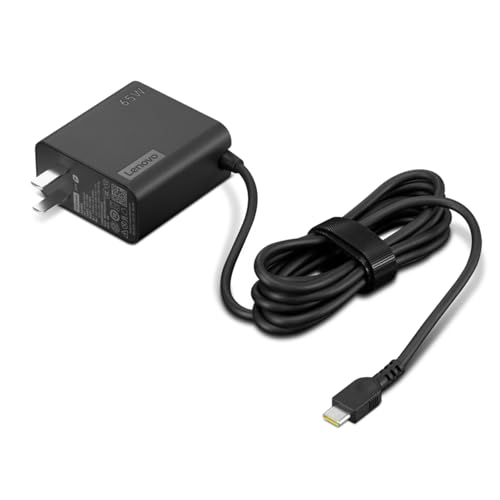
[PORTABLE CHARGING] Slim, light design and extra-long 1.7 m (5.9 ft) cable lets you charge in any spot, making powering up more convenient.
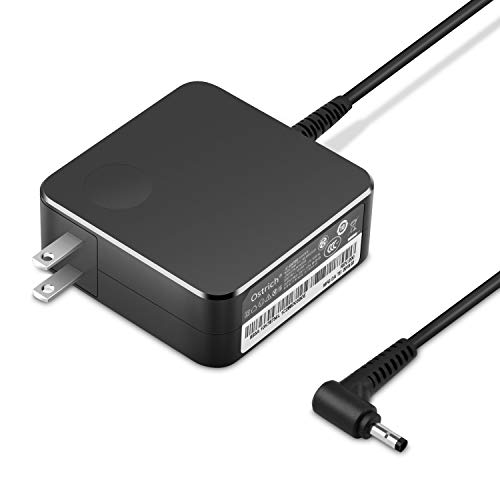
POWER SPECS Output Max: 20V 3.25A 65W/20V 2.25A 45W Input Volt Range: 110-240V/50/60Hz (For Worldwide Use) Compatible with Lenovo Charger Laptop AC Adapter Power Cord

Lenovo Retail Packaged And Factory Sealed Item , Lenovo Part Number 4X20M26268.
Power Supply Requirement
Lenovo laptops depend on a direct AC power supply when the battery is absent. Without the battery, ensure a stable power source to avoid interruptions. A sudden power loss can lead to data loss or damage.
Performance Considerations
Running your laptop without a battery may limit functionality. Some Lenovo models may restrict performance settings for energy efficiency. It’s crucial to monitor how the laptop responds to ensure optimal usage.
Device Portability
Portability takes a hit without the battery. Your laptop transforms into a stationary device. You must keep it near a power outlet for operation. This change may limit the flexibility you had while using the laptop with a functional battery.
Steps to Operate Without a Battery
- Disconnect the power adapter. Ensure your laptop is off before removing the battery.
- Plug in the power adapter. Connect the laptop to a power source using the appropriate power adapter.
- Start the laptop. Power on your device, and it should boot up normally.
Troubleshooting Power Issues
If your laptop doesn’t start, check the following:
- Adapter Connection: Ensure the power adapter is securely plugged into the outlet and the laptop.
- Power Indicator: Look for any status lights on the device. A blinking light often suggests power or connection issues.
- Outlet Functionality: Test another device with the outlet to ensure it’s functioning properly.
Understanding these components equips you to navigate using a Lenovo laptop without a battery effectively.
Reasons to Use Lenovo Laptop Without Battery
Using your Lenovo laptop without a battery can be beneficial in several scenarios. It helps you manage power sources effectively and extends the lifespan of your device. Here are more details on this option:
Power Source Options
Using your Lenovo laptop without a battery means relying solely on the AC adapter for power. This setup can provide an uninterrupted power supply if you remain close to an outlet. Ensure you choose a compatible and high-quality adapter to maintain performance. Using a surge protector further safeguards your laptop from unexpected power surges that may occur during electrical storms or outages. If you need to use your laptop in various locations, carrying a portable power source, like a power bank, can serve as a backup when you’re away from a wall outlet.
Device Longevity
Operating your Lenovo laptop without a battery can enhance its overall lifespan. Frequent charging cycles can wear out batteries over time. By using the laptop directly with an AC connection, you reduce the number of charge cycles your battery endures. This approach can slow down aging and extend battery life if you ever reinstate it. Additionally, avoiding exposure to overheating from prolonged battery operation contributes to better internal component health. Keeping your device clean and well-ventilated while using it plugged in also promotes longevity.
Steps to Use Lenovo Laptop Without Battery
You can easily operate your Lenovo laptop without a battery by following these steps. Ensure a stable power supply to keep your device functioning.
Recommended Products

【THE PERFECT ALTERNATIVE TO THE ORIGINAL CHARGER】Our USB-C switch 2 charger is the perfect alternative to the original chargers of Nintendo Switch 2 and steam deck. From voltage output to pd3.0 fast charging protocol support, its design is fully compatible with OEM chargers. Furthermore, due to the universal USB-C compatibility, this charger is also applicable to other devices, such as for Steam Deck, ASUS Rog Ally, Lenovo, Dell, Samsung, MacBook Laptops and smart phone, tablet etc.

【Power Product Type】 : Max 65W 45W (compatible) AC Input: 100 - 240V 50 - 60Hz, Output: DC 5V/3A, 9V/3A, 12V/3A, 15V/3A, 20V/2.25A, 20V/3.25A. Connector size: USB Type-C

【GaN 120W USB-C Travel Charger for Laptops】 -- This high-power USB-C travel adapter delivers ultra-fast charging for laptops, tablets and phones. USB-C1 supports up to 100W max when used alone, perfectly compatible for MacBook Air / MacBook Pro / Dell XPS / HP Spectre / Lenovo ThinkPad / Steam Deck / Nintendo Switch / iPad Pro / Watch / Kindle / Laptop / Tablet / iPhone 17/ 16 / 15 / 14 Series / Samsung Galaxy Series, computer, and more. A true laptop travel charger for carry-on travel, business travel, backpacking, family vacations, power users and frequent flyers who need reliable charging in different countries
Preparing the Laptop
- Remove the Battery: Power off your laptop, unplug it, and carefully remove the battery. Look for the battery release latch on the bottom of your laptop. Slide it to unlock, then gently lift the battery out.
- Clean the Contacts: Wipe the battery contacts inside the laptop to remove any dust or debris. This ensures a good connection when the battery is reinserted later.
- Check Compatibility: Make sure your laptop model supports operation without a battery. Some models may not function solely on AC power. Refer to your user manual for confirmation.
- Inspect the Power Adapter: Examine your AC adapter for any damage. A faulty adapter can prevent your laptop from powering on. If it’s damaged, replace it with a compatible one.
Connecting to Power
- Connect to AC Power: Plug the AC adapter into your laptop’s power port. Ensure the connection is secure.
- Plug Into a Wall Outlet: Connect the other end of the adapter to a working electrical outlet. Confirm that the outlet is functioning by testing it with another device.
- Power On the Laptop: Press the power button on the laptop. It should boot up normally if properly connected.
- Monitor Power Indicators: Look for any LED indicators on your laptop that signal power status. A steady light typically indicates a successful connection. If not, check your connections again.
By following these steps, you can efficiently use your Lenovo laptop without a battery while preventing potential power issues.
Potential Risks and Considerations
Operating a Lenovo laptop without a battery poses certain risks and considerations that you need to be aware of.
Recommended Products

SPECIFICATION : DC Output 20V 4.5A, Input 100-240V 50-60Hz, Power 90 Watt, Connector Size:7.9*5.5mm(round tip), 3 prongs, Color Black, Condition new, Weight about 0.75lb, To choose the right AC charger, it is important to check your old adapter before to find out these features(output, input, connector size etc.)

65W Switch 2 Charger: GammeefyPro 65W charger is specially designed as a replacement charger for Nintendo Switch 2 (2025), it delivers full-speed power—0 to 80% in just 1.5 hours. Broadly compatible with Switch (2017)/OLED, Steam Deck/OLED, and ROG Ally. Advanced heat-dissipation keeps it cool, extend the lifespan of your charger. Compact design frees up outlet space—perfect for travelers and professionals

HSXIRQA AC Adapter Compatible Fit for Lenovo ThinkCentre Neo 50a 24 27 Gen 5 ThinkCentre neo 50q Gen 4/ Thin Client ThinkCentre Neo 30a 22 24 27 Gen 4 ThinkCentre M70q Gen 1 2 3 4 5 ThinkCentre M73 M75q M83 Tiny ThinkCentre M75q Gen 2 5 ThinkCentre M75n/M75n IoT / M75n Thin Client ThinkCentre M80q Gen 3 4 ThinkCentre M90q Gen 1 2 3 4 5 ThinkCentre M90n-1 Nano/ M90n-1 Nano IoT ThinkCentre M93 M93p Desktop
Performance Issues
Performance may decrease without a battery installed. Some Lenovo laptop models limit functionality to conserve energy. For example, components like the CPU might throttle down, leading to slower processing speeds when performing resource-intensive tasks. You might also experience unexpected shutdowns if there’s a power fluctuation, as the laptop loses its backup power source.
Hardware Damage
Using your laptop without a battery can potentially lead to hardware damage. Consistent voltage drops or sudden power cuts can negatively impact the internal components. For instance, fluctuations in power supply might cause the motherboard to fail, particularly if you don’t use a high-quality power adapter. It’s essential to keep the laptop in a stable environment and ensure the AC adapter is undamaged, as poor-quality adapters can exacerbate these risks.
Conclusion
Using your Lenovo laptop without a battery can be a practical solution when you’re faced with charging issues. Just remember to keep it plugged in to avoid any interruptions. While it might limit portability and performance, you can still get your work done effectively.
By following the steps outlined and keeping an eye on your power supply, you can navigate this situation smoothly. Plus, you’ll help extend your battery’s life for when you need it again. Stay proactive with your laptop’s maintenance and enjoy a reliable computing experience.
Frequently Asked Questions
Can I use my Lenovo laptop without a battery?
Yes, you can operate a Lenovo laptop without a battery, but you need a stable AC power supply to prevent power interruptions. Performance may be limited, and portability will be affected as the laptop must be near a power outlet.
What are the risks of using a laptop without a battery?
Using a laptop without a battery can lead to risks like unexpected shutdowns and potential hardware damage due to voltage drops or power cuts. Ensuring a high-quality power adapter is crucial to mitigate these risks.
How can I troubleshoot battery issues on my Lenovo laptop?
To troubleshoot, check the power adapter for damage, ensure it’s securely connected, and monitor the power indicator lights. If possible, test with another compatible power adapter to determine if the issue lies with the charger or the laptop.
What are the benefits of running a Lenovo laptop without a battery?
Operating without a battery can prolong battery lifespan by reducing charge cycles and can lead to better power management. It also allows for uninterrupted performance as long as a reliable power source is used.
How do I safely operate my Lenovo laptop without a battery?
First, power off the laptop and unplug it. Remove the battery carefully, clean the contacts, and ensure the AC adapter is intact. Then, securely connect the power and check the power indicators for a successful connection.
