

Key Takeaways
- Understanding Battery Saver Mode: Battery saver mode helps extend battery life by reducing features, such as lowering screen brightness and limiting background apps.
- Benefits of Disabling Battery Saver: Turning off battery saver mode improves overall performance, enhances notifications, and provides better media experiences on your Samsung device.
- Steps to Disable Battery Saver: Users can turn off battery saver mode via Device Settings or the Quick Settings panel, ensuring full access to device capabilities.
- Troubleshooting Issues: If battery saver mode won’t deactivate, ensure your battery is above the set threshold, restart your device, and check for software updates.
- Tips for Optimal Performance: To maintain device efficiency and battery life, manage background apps, limit active features, and adjust screen settings appropriately.
Are you tired of your Samsung phone limiting your features just to save battery? You’re not alone. Many users find themselves frustrated when battery saver mode kicks in, dimming the screen and restricting background apps. This can be especially annoying when you need your phone to perform at its best.
Understanding Battery Saver Mode
Battery saver mode helps extend your Samsung phone’s battery life but limits certain features. Understanding its function can assist in deciding when to disable it.
What Is Battery Saver Mode?
Battery saver mode on Samsung devices reduces power consumption. It lowers screen brightness, limits background data, and restricts background app activity. This feature activates automatically when battery levels drop below a specified percentage. You can enable or disable it manually through the settings.
Benefits of Disabling Battery Saver
Disabling battery saver mode restores full functionality to your phone. Features like higher screen brightness and unrestricted background syncing enhance your user experience. For instance:
- Improved Performance: Disabling this mode allows apps to run fully, improving loading times and responsiveness.
- Better Notifications: Background app activity resumes, ensuring you receive timely alerts from messaging and social media apps.
- Enhanced Media Enjoyment: You can enjoy videos and games at optimal brightness and performance levels.
Disabling battery saver mode helps reclaim the phone’s capabilities when you need them most.
Steps To Turn Off Battery Saver On Samsung
You can quickly disable the battery saver mode on your Samsung device using either Device Settings or the Quick Settings panel. Here’s how.
Via Device Settings
- Open Settings: Tap the gear icon on your home screen or in the app drawer.
- Select Battery and Device Care: Scroll down until you see this option and tap on it.
- Tap on Battery: This section contains all battery-related settings.
- Choose Power Saving Mode: You’ll see an option labeled “Power saving mode.” Tap to enter this section.
- Turn Off Power Saving Mode: Toggle the switch off. The mode should no longer restrict your device’s performance or background apps.
Using Quick Settings Panel
- Swipe Down: From the top of your screen, swipe down to reveal the Quick Settings panel.
- Locate Power Saving Icon: Look for the icon that resembles a battery with a small ‘crescent moon’ on it.
- Tap on Power Saving Icon: If the icon is highlighted, tapping it will disable battery saver mode immediately.
- Check for Confirmation: You may see a message indicating that power-saving mode is turned off, confirming the change.
Using these methods, you can restore your Samsung device’s full functionality and enjoy an optimal experience without the restrictions imposed by battery saver mode.
Troubleshooting Common Issues
You might run into issues when trying to turn off battery saver mode on your Samsung device. Here are some common problems and how to fix them.
Recommended Products

Kastar 2-pack high-capacity BP-70A batteries with slim USB charger. Compatible with Samsung BP-70A / BP70A / EA-BP70A cameras (full model list in description). Each battery: 3.7 V, 1400 mAh, 5.2 Wh; approx. 1.0 oz. (39.4 × 31 × 5.8 mm / 1.55 × 1.22 × 0.23 in). Includes 2 batteries + 1 USB charger + 1 battery case.
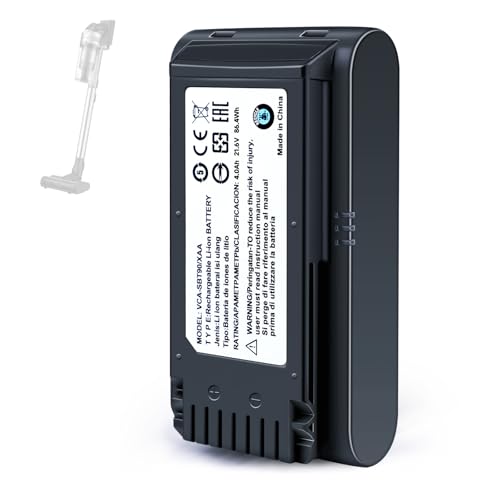
【Specifications】 Model:VCA-SBT90 ;Battery Type: Li_ion, Voltage:21.6V Capacity: 4000mAh ; Color: Gray and black

Battery Type: Lithium-Ion; Battery Voltage: 3.7V; Battery Capacity: 1500mAh
If Battery Saver Won’t Turn Off
If battery saver mode won’t deactivate, check for several factors. First, ensure that your device’s battery percentage is above the threshold for auto-activation. Sometimes, battery saver activates when the charge drops below 15%. If that isn’t the case, restart your device. A simple reboot often resolves minor glitches. Additionally, look for any software updates under Settings > Software Update. Keeping your software updated improves performance and resolves known issues. If these steps don’t work, consider resetting your device settings, which restores settings without deleting your data.
Tips for Optimal Device Performance
To ensure smooth operation of your Samsung device without the confines of battery saver mode, follow these tips:
- Monitor Background Apps: Close unused apps running in the background.
- Disable Unnecessary Features: Turn off features like location services or Bluetooth when not in use.
- Use Dark Mode: Activating dark mode can save battery life on OLED screens.
- Limit Widgets: Minimize the number of active widgets on your home screen which can drain resources.
- Adjust Screen Brightness: Set brightness to automatic adjust instead of manual.
Implementing these practices can help you maintain optimal performance and battery life without relying on battery saver mode.
Conclusion
Turning off battery saver mode on your Samsung device can make a world of difference. You’ll notice improved performance and a more vibrant experience while using your phone. Whether you prefer the Device Settings or the Quick Settings panel, the process is quick and easy.
Don’t forget to keep an eye on your battery usage and adjust settings as needed. By managing background apps and features, you can enjoy both performance and battery life. With your device back to its full potential, you can make the most of every moment. Enjoy your Samsung experience to the fullest!
Frequently Asked Questions
What is battery saver mode on Samsung phones?
Battery saver mode is a feature designed to extend battery life by reducing power consumption. It dims the screen, limits background apps, and restricts certain phone functionalities when the battery level drops below a specific percentage.
How do I turn off battery saver mode on my Samsung phone?
You can turn off battery saver mode through two methods: 1) Go to Device Settings > Battery and Device Care > Battery, and toggle off Power Saving Mode. 2) Swipe down the Quick Settings panel, find the Power Saving icon, and tap it to disable the mode.
Why should I disable battery saver mode?
Disabling battery saver mode can improve your phone’s performance, enhance notifications, and provide a better media experience. This allows you to reclaim your device’s full capabilities when you need them most.
What should I do if I can’t turn off battery saver mode?
If you encounter issues turning off battery saver mode, check the battery percentage, restart your device, and ensure your software is updated. If problems persist, try resetting your device settings.
What are some tips for better performance without battery saver mode?
To maintain optimal performance, monitor background apps, disable unnecessary features, use dark mode, limit widgets, and adjust screen brightness. These practices can improve both performance and battery life on your Samsung device.
