

Key Takeaways
- Understanding Battery Optimization: Battery optimization helps prolong battery life on Google Pixel devices but can restrict background activity that may affect app performance.
- Accessing Settings: Users can easily access battery optimization settings through the Settings app, allowing for customized management of app functionalities.
- Turning Off Optimization: Disabling battery optimization for specific apps ensures they can run in the background without interruptions, improving their performance.
- Global Optimization Management: Users can also adjust global settings for all apps, although it requires careful consideration to maintain a balance between performance and battery conservation.
- Effective Battery Management Tips: Implementing strategies like adjusting brightness, limiting background data, and closing unused apps can enhance overall battery life while ensuring vital apps function optimally.
- When to Disable Optimization: Turn off optimization for essential apps, frequently used applications, or during performance testing to evaluate their efficiency without restrictions.
Are you tired of your Google Pixel’s battery optimization draining your apps’ performance? You’re not alone. Many users find that this feature can interfere with their daily tasks, causing apps to slow down or not run in the background when you need them most.
Understanding Battery Optimization
Battery optimization controls how apps use battery power on your Google Pixel. This feature can save battery life but sometimes limits app functionality.
What Is Battery Optimization?
Battery optimization refers to a set of settings that regulates background activity for apps. When enabled, this feature restricts certain apps from running in the background, which means they might not send notifications or refresh data without opening them. For example, a messaging app may take longer to update, delaying new messages.
Why It Matters for Google Pixel Users
Battery optimization is crucial for maintaining device performance and battery life. For Google Pixel users, this means deciding between conserving battery and ensuring apps function correctly. If an app you depend on, like a navigation or weather app, experiences delays, frustration may arise. Recognizing this trade-off helps you manage app settings effectively, allowing you to prioritize essential apps while benefiting from longer battery life on less essential ones.
How to Access Battery Optimization Settings
Accessing the battery optimization settings on your Google Pixel lets you manage app functionality and battery usage effectively. Follow these simple steps to navigate through your device.
Recommended Products

【1. Brand New 0 Cycle – Not a Pulled Battery】 100% new cells, 0 charge cycles. Absolutely not a pulled or used battery. Capacity is 4614mAh, matching original specifications, ensuring reliable daily battery life.

【Why Don't Sell Increased Capacity Battery 】- Because most of the so-called upgraded batteries on the market are exaggerated, the actual use time does not increase much, but the price is expensive. Our battery capacity and voltage is 100% same as your original Pixel 6 battery, it is a real 4614mAh can be perfectly compatible with the motherboard of your phone, and will not damage the hardware and reduce the service life of phone, true to providing long-lasting battery life.
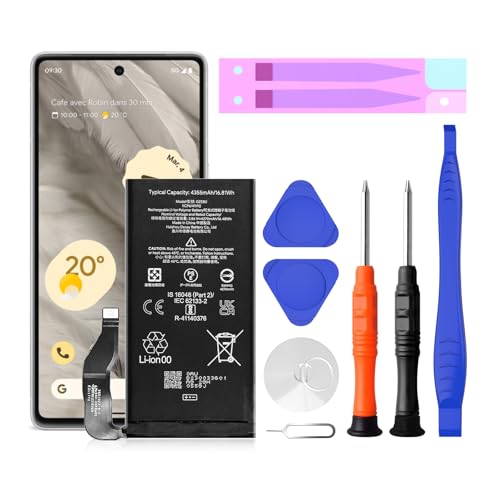
【Pixel 7 battery replacement 】quality battery replacement for Google Pixel 7 perfect fit your phone. It is safer than so-called upgraded high-capacity batteries. No potential risks during use. Multiple protection features to prevent overcharging and prevent overheating. Built-in microchip to ensure safe battery charging and improve battery life. NOTE: Please fully charge and discharge your new battery 3 to 5 cycles to release all capacity of the new battery.
Navigating Through Your Google Pixel
- Open Settings: Swipe down from the top of the screen to reveal the notification shade. Tap the gear icon to enter the Settings menu.
- Select Battery: Scroll down and choose “Battery” from the list of options. This section provides detailed information about battery usage.
- Battery Optimization: Look for “Battery optimization” or “Advanced battery settings.” Tap on it to see a list of apps and their optimization status.
Finding the Right Menu Options
- View Apps: You’ll see the “Apps” option at the top. Tap this to display all installed applications on your device.
- Choose an App: Scroll and select the specific app for which you want to adjust battery optimization. This allows you to customize settings for individual apps.
- Adjust Settings: Once you’ve selected the app, you can choose “Optimize” or “Don’t optimize” based on your preference. Selecting “Don’t optimize” ensures the app runs smoothly in the background.
These steps help you access and manage battery optimization settings, allowing essential apps to function without interruption.
Step-by-Step Guide to Turn Off Battery Optimization
Follow these steps to disable battery optimization on your Google Pixel device, ensuring your essential apps perform optimally.
Individual App Settings
- Open your Settings app.
- Scroll down and tap on Battery.
- Select Battery optimization.
- Choose Not optimized from the drop-down menu.
- Tap on All apps to view your installed applications.
- Find the app you want to modify.
- Tap on the app and select Don’t optimize.
- Confirm by tapping Done.
This process allows you to manage battery optimization for individual apps, ensuring crucial apps like messaging or navigation remain functional in the background.
Global Battery Optimization Settings
- Open your Settings app.
- Scroll down and tap on Battery.
- Select Battery optimization.
- To set global preferences, use the Don’t optimize option under the drop-down menu for all apps.
- After making changes, ensure you review the settings for essential apps to confirm they are correctly configured.
Adjusting global settings impacts all apps, so choose carefully. This allows you to streamline battery usage while ensuring important applications operate efficiently.
Tips for Managing Battery Life
Managing battery life on your Google Pixel enhances its performance and your overall experience. Focus on these strategies to extend battery life while ensuring essential apps function optimally.
Best Practices for Google Pixel Users
- Adjust Brightness: Lower screen brightness or enable adaptive brightness to save battery.
- Limit Background Data: Restrict background data usage for apps that don’t need constant updates.
- Manage Location Services: Use location services only when necessary. Set apps to “While Using” instead of “Always.”
- Close Unused Apps: Regularly close apps running in the background you aren’t using.
- Update Apps: Keep your apps updated to benefit from optimizations and bug fixes.
- Enable Battery Saver: Turn on Battery Saver mode during critical times to limit unnecessary background activity.
When to Consider Turning Off Optimization
- Essential Apps: Turn off optimization for navigation or communication apps to ensure timely notifications and updates.
- Frequent Use: Consider disabling for apps you access regularly, like media or task management apps, as they require constant background access.
- Performance Needs: If an app shows sluggish performance or delays in notifications, disabling optimization may resolve issues.
- Testing Purposes: Disable optimization temporarily to evaluate an app’s performance without restrictions.
Implementing these tips helps you balance battery life with app functionality, leading to a more efficient Google Pixel experience.
Conclusion
Managing battery optimization on your Google Pixel can make a world of difference in how your apps perform. By taking control of these settings you can ensure that essential apps run smoothly while still enjoying decent battery life.
Remember to prioritize the apps that matter most to you and consider adjusting other settings to enhance your overall experience. With a little tweaking you can strike the perfect balance between functionality and battery conservation.
So go ahead and customize your settings to fit your needs. You’ll be glad you did!
Frequently Asked Questions
What is battery optimization on Google Pixel devices?
Battery optimization is a feature that manages how apps use battery power on Google Pixel devices. It limits background activity for apps to conserve battery life but can sometimes hinder app performance, causing delays in notifications and data refreshes.
How does battery optimization affect app performance?
While battery optimization helps save energy, it can slow down apps or prevent them from running in the background. This can disrupt daily activities, particularly for essential apps like navigation or weather.
How can I manage battery optimization settings on my Pixel?
To manage battery optimization, go to Settings > Battery > Battery optimization. From there, you can view all installed apps and choose whether to optimize or not optimize each one based on your preferences.
How do I turn off battery optimization for specific apps?
To turn off optimization for specific apps, navigate to Settings > Battery > Battery optimization, select the app you want to adjust, and choose the “Don’t optimize” option to ensure it performs optimally.
What tips can I use to extend battery life on my Pixel?
To extend battery life, adjust screen brightness, limit background data, manage location services, close unused apps, keep apps updated, and enable Battery Saver mode during critical times.
When should I consider turning off battery optimization?
Consider turning off battery optimization for essential apps, frequently used apps, or when app performance is critical, especially for tasks like navigation or messaging that require constant updates.
