

Key Takeaways
- Understand Battery Transfer: Familiarize yourself with reverse wireless charging, a feature that enables one Android device to charge another when needed.
- Check Compatibility: Ensure both devices support reverse wireless charging by consulting user manuals or device settings before attempting a transfer.
- Activate and Position: Enable the reverse charging feature in settings and place the devices back-to-back for effective power transfer.
- Monitor the Charging Process: Keep an eye on visual indicators or notifications on both devices to confirm charging status and efficiency.
- Consider External Battery Packs: For a reliable backup, using an external battery pack can provide an alternate solution for charging multiple devices in emergencies.
- Prepare Your Device: Always back up important data and check compatibility to ensure a smooth battery transfer experience.
Have you ever found yourself in a pinch, realizing your Android phone’s battery is running low while your friend’s device is fully charged? It’s a common scenario, and knowing how to transfer battery power between devices can be a lifesaver.
Understanding Battery Transfer
Transferring battery power between Android devices can help in times of need. This process typically occurs using a method called reverse wireless charging. Many modern Android smartphones support this feature, allowing one phone to charge another wirelessly.
How Reverse Wireless Charging Works
- Check Compatibility: Ensure both devices support reverse wireless charging. Look in the settings or the user manual for details. Not all devices offer this feature.
- Activate Reverse Charging: On the device with a charged battery, navigate to settings. Find the option for reverse wireless charging and toggle it on. This allows the device to send power to another phone.
- Position Devices: Align the back of the two devices. Position the phone receiving charge directly over the one transferring power. This alignment is crucial for effective charging.
- Monitor Charging: Watch both devices during the charging process. The transferring phone may display notifications or icons indicating charging status.
Benefits of Battery Transfer
- Emergency Situations: Battery transfer provides a quick solution when one device runs low unexpectedly.
- Convenience: It eliminates the need for cables and charging stations.
- Eco-Friendly: Reducing the number of dead batteries reduces waste.
Considerations for Effective Battery Transfer
- Distance: Keep the phones close together to ensure efficient charging.
- Obstacles: Remove any cases or objects that may interfere with the connection.
- Battery Health: Frequent battery transfers might affect the lifespan of both devices’ batteries.
Understanding these steps makes transferring battery power a practical solution for low battery situations. Knowing how to leverage your device’s capabilities enhances your overall experience and keeps you connected.
Methods for Transferring Battery to Another Android
Transferring battery power between Android devices is simple and efficient. Here are two primary methods you can use.
Recommended Products

[Compatible with iPhone and Android Devices] Enabled wireless charging devices or devices with receivers, such as compatible with iPhone 17/17 Pro/17 Pro Max/Air/16/16 Plus/16 Pro Max/15/15 Plus/15 Pro/15 Pro Max/14/14 Plus/14 Pro/14 Pro Max/13/13 mini/13 Pro/13 Pro Max/iPhone 12/12 mini/12 Pro/12 Pro Max, compatible with Samsung Galaxy S25/S24/S23/S22/S21/S20/ S20+/S10 and so on; 5W charging mode works on Any wireless-charging-enabled devices like Google Pixel 3/3XL/4XL

⍟ Colorful cable make colorful life ⍟ --- Select the color resonates with you, makes you happy and energizes you. Or just simply choose the color that match your devices!

Extensive Compatibility: 15W Samsung wireless charger fast charging compatible with Samsung Galaxy S25 Ultra/S25 Plus/S25 edge/S25/S24 FE/S24 Plus/S24 Ultra/S23 Ultra/S23 FE/ Google Pixel 10/10 Pro/10 Pro XL/9a/9/9 Pro XL/9 Pro/8a/8Pro/8/7A/7/7 Pro/6/Motorola razr+ 2024/razr 2024/Edge/G Stylus 5G/G Power 2024 2023 2022, Edge 50 Ultra Pro, X50 Ultra X40, Razr 50 Ultra, Razr 2023-2022. 10W Fast wireless charging mats compatible with Samsung Galaxy S22/S21/S20/S10/S9/S8 . 7.5W wireless Charging docks for iPhone 16/16 Pro Max/16 Plus/15/15 Pro Max/14/13/12. 5W standard wireless charger for Airpods 3/2/Pro. Note:Pls ensure your phone model can support wireless charging.
Using Battery Sharing Feature
- Check Compatibility: Ensure both devices support reverse wireless charging. Look for specifications in user manuals or settings.
- Activate Reverse Charging: On your device, go to Settings > Battery > Reverse Wireless Charging. Toggle it on to enable the feature.
- Position the Devices: Place the device with more charge back-to-back with the device needing power. Align them correctly to ensure effective transfer.
- Monitor the Charging: Watch for visual indicators like charging icons on both devices. This helps confirm that the transfer is happening.
This method offers a quick and cable-free way to share battery life.
Using External Battery Packs
- Purchase a Compatible Pack: Select an external battery pack that supports USB-C or micro USB connections, depending on your devices.
- Connect the Devices: Use a compatible charging cable to connect the dead Android to the external battery pack.
- Power On the Pack: Press the power button on the battery pack to start the charging process. Many packs show LED indicators to display battery levels.
- Check Charging Status: Monitor the Android’s charging screen to confirm it’s receiving power.
External battery packs provide a robust solution for emergencies, especially when multiple devices require charging.
Preparing Your Android Device
Preparing your Android device for battery transfer ensures a smooth process. You’ll want to follow these essential steps for effective results.
Recommended Products

Enjoy Wireless Charge Life: No Cables No Connectors, Get Rid of the Shackle of Charging Cables, Forget Cables and Prolong the Life of Your Charging Port.
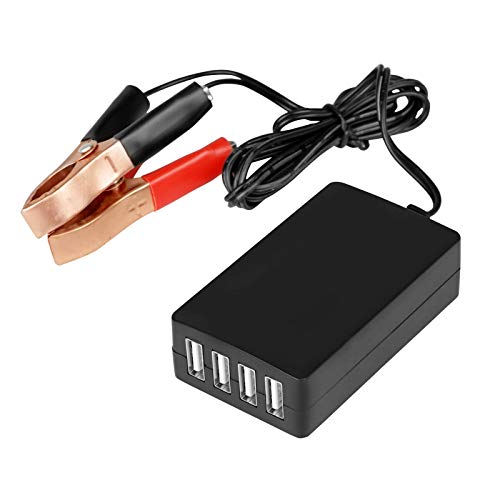
Input voltage: DC 8-35V, (12V/24V lead-acid battery or lithium-ion battery can be changed to 5V)
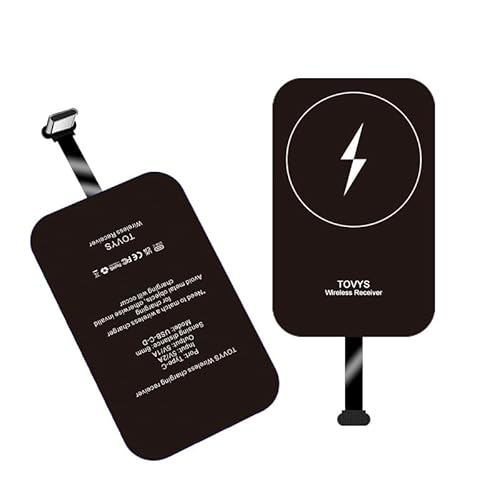
· Universal Type-C Compatibility: Works seamlessly with any device featuring a USB-C port, including Android phones, tablets, wireless earbud cases, and more. The perfect upgrade for non-wireless charging models.
Ensuring Compatibility
Check that both Android devices support reverse wireless charging. This feature is available in many modern smartphones. Search the specifications for both devices to confirm compatibility. If you’re unsure, visit the manufacturer’s website or refer to the user manual. Devices often require similar models or brands to function correctly.
Backing Up Important Data
Always back up important data before attempting any process that involves your device’s battery. Use cloud services, like Google Drive, to save photos and documents. Alternatively, connect your device to a computer and copy files over manually. Most Android phones include backup options in the settings under “System” or “Backup.” Protecting your data ensures you don’t lose anything valuable if something goes wrong during the battery transfer.
Step-by-Step Guide for Battery Transfer
Transferring battery power between Android devices is simple with the right steps. Follow this guide for smooth and efficient battery sharing.
Recommended Products

🔋【30W Fast Wireless Charger】Wireless charger 30W, Works with the all wireless charger of phones, including the latest iPhones, Samsung phones and wireless earbuds.Tip: This wireless charger is not magnetic wireless charging and will not suck on the phone.

3-in-1 Drop-and-Charge Convenience with Up to 3x10W Wireless Output – Simplify your daily charging routine with this 3 in 1 wireless charging station that lets you place your phone or earbuds down and charge without dealing with multiple cables. Designed to reduce cord clutter and keep your setup more organized, it supports charging up to 3 compatible devices at once, with up to 10W max wireless charging per device. It keeps your most-used devices together in one easy-to-reach spot so they are easier to find, easier to manage, and ready when you need them. Ideal for charging before bed, during the workday, or in the morning at your nightstand, desk, dorm, apartment, or office.
![Yootech [2 Pack] Wireless Charger,10W Max Wireless Charging Pad](https://m.media-amazon.com/images/I/41SLlobHEkL._SL500_.jpg)
▶[TWO PACK DESIGN]: Comes with two wireless charging pads in the package. You can use one to charge your with AirPods and the other one to charge your phone, or use one at home and one at office. Great combination for a family or one with two mobile phones and with AirPods
Transferring Using Built-In Features
- Check Compatibility: Ensure both Android devices support reverse wireless charging. Most modern smartphones, like the Samsung Galaxy series, have this feature.
- Activate Reverse Charging: Open the settings on your device. Look for “Battery” or “Connection” options. Enable the reverse charging feature.
- Position the Devices: Place the devices back-to-back. Align them carefully to ensure a strong connection. If needed, adjust the positions slightly.
- Monitor the Charging Process: Pay attention to the visual indicators on both screens. You should see a notification when charging begins. Observe the percentage increase on the receiving device.
Transferring Using External Devices
- Purchase a Compatible External Battery Pack: Look for one that provides the correct voltage and connector type for your devices. Brands like Anker or RAVPower have reliable options.
- Connect the Devices: Use the supplied charging cable. Connect the dead device to the external battery pack.
- Power on the Pack: Most packs have a power button. Press it to start the charging process.
- Check the Charging Status: On the dead device, look for charging indicators. You’ll see a battery icon or percentage increase if the connection is successful. Keep an eye on both devices to ensure optimal charging.
Conclusion
Knowing how to transfer battery power can really save the day when you’re in a pinch. With modern Android devices offering features like reverse wireless charging and the option to use external battery packs, staying connected is easier than ever.
Just remember to check compatibility and keep your devices close for the best results. Whether you’re sharing with a friend or using a portable charger, you can enjoy the convenience of keeping your phone charged without the hassle of cables.
So next time your battery’s running low, you’ve got the tools and tips to keep your device powered up and ready to go.
Frequently Asked Questions
What is reverse wireless charging on Android phones?
Reverse wireless charging is a feature found in many modern Android smartphones that allows one device to charge another wirelessly. This means you can transfer battery power from your fully charged phone to another device, like a friend’s phone, simply by placing them back-to-back.
How do I check if my phone supports reverse wireless charging?
To check if your Android phone supports reverse wireless charging, go to your device’s settings. Look for a section called “Battery” or “Wireless Charging.” If you see options related to battery sharing or reverse charging, your phone likely supports this feature.
How can I activate reverse wireless charging on my device?
To activate reverse wireless charging, go to your phone’s settings, find the “Battery” menu, and look for “Reverse Wireless Charging” or “Battery Sharing.” Toggle it on, and ensure that both devices are back-to-back for effective charging.
What are the steps for transferring battery power between devices?
To transfer battery power, ensure both devices support reverse charging. Activate reverse charging on the donor phone, place it back-to-back with the receiving phone, and monitor the charging process through visual indicators on the screens.
Can I use an external battery pack for charging?
Yes, you can use an external battery pack. Purchase a compatible one, connect it to the device with a charging cable, power on the pack, and check the charging status on your Android device to ensure it’s receiving power.
What should I do to prepare my devices for battery transfer?
Preparing your devices involves checking compatibility for reverse wireless charging, activating the feature, and ensuring both devices are clean and free of obstacles. It’s also wise to back up important data to prevent loss during the transfer.
Are there any benefits to transferring battery power?
Transferring battery power can provide quick solutions during emergencies, offers convenience without cables, and is environmentally friendly as it helps reduce electronic waste by extending device life.
How can I ensure an effective battery transfer process?
To ensure an effective battery transfer, keep the devices close together, remove any obstacles between them, and regularly check both devices for any notifications regarding charging status. This ensures smooth and uninterrupted power sharing.
