

Key Takeaways
- Understanding Battery Life: Battery performance is influenced by hardware, software, and user habits, making it essential to grasp these components for optimization.
- Key Factors: Screen brightness, app usage, network connectivity, and location services significantly affect battery drain, so managing these can enhance battery longevity.
- Testing Tools: Utilize built-in options and third-party apps like AccuBattery, GSam Battery Monitor, and Battery Historian to effectively monitor battery health and usage.
- Calibration Techniques: Regularly calibrate your battery by fully charging and discharging your device to improve accuracy in battery performance readings.
- Common Issues: Address frequent battery drain problems by managing app backgrounds, adjusting brightness, and optimizing location services for better battery health.
Ever wondered why your Android phone seems to lose battery life faster than it should? You’re not alone. Many people face this frustrating issue, especially when they rely on their devices for everything from work to staying connected with friends.
Understanding Battery Life
Battery life on Android devices refers to the duration your phone operates before needing a recharge. Several factors influence this life, including your phone’s hardware, software, and usage patterns. Knowing how these elements interact can help you maximize battery performance.
Key Factors Affecting Battery Life
- Screen Brightness: Higher brightness levels consume more power. Adjusting brightness settings or using adaptive brightness helps conserve battery.
- Apps Usage: Background applications drain battery continuously. Regularly check which apps run in the background and close unnecessary ones.
- Network Connectivity: Active connections, like Wi-Fi or Bluetooth, impact battery life. Turn them off when not in use.
- Location Services: GPS and location-based services consume significant energy. Disable these features when they’re not required.
Real-World Examples
- Streaming Video: Continuously streaming video online can reduce battery life significantly. Watching downloaded content helps preserve charge.
- Gaming: Playing graphics-intensive games drains battery faster. Consider lowering graphics settings or playing during charging.
Tips to Monitor and Improve Battery Life
- Check Battery Usage: Go to Settings > Battery to see how apps and services affect your battery. Uninstall or disable apps that use excessive power.
- Enable Battery Saver Mode: Activating this mode limits background activity and reduces performance to extend battery life.
- Update Software: Regularly update your Android OS. Updates often include enhancements that improve battery efficiency.
Tools for Testing Battery Life
Utilize built-in tools or third-party apps to assess battery health:
| Tool | Purpose |
|---|---|
| Battery Historian | Provides detailed usage statistics |
| AccuBattery | Tracks battery charge cycles and health |
| GSam Battery Monitor | Offers insights into app usage and drain |
Understanding these aspects of battery life can guide you in taking actionable steps to extend your Android’s functionality throughout the day.
Methods to Test Battery Life on Android
Testing battery life on your Android device involves leveraging built-in tools or third-party applications to get a detailed analysis of battery performance.
Recommended Products

🔋High Value Battery Tester: BM200 is your go-to solution for 12V lead-acid and lithium battery. Equipped with advanced features like voltage & cranking & charging system test, abnormal alarm and real-time trip records.This battery monitor ensures your car battery is always in optimal condition. Whether it's for your car, motorcycle, truck, RV or boat, this 12V battery tester has got you covered. Get it, and forget winter breakdown worries.
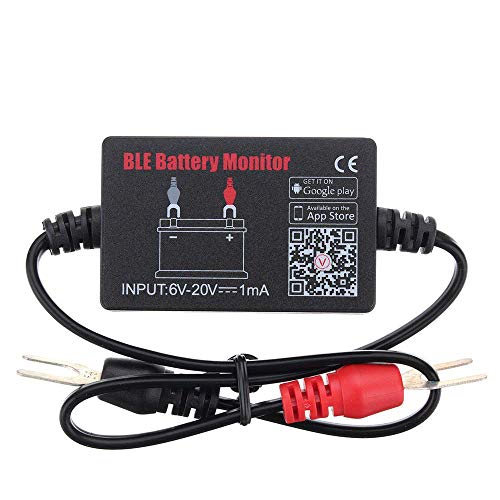
SIMULTANEOUSLY MONITOR UP TO 4 OF 12V BATTERIES: Download APP "BM2", you can monitor 1 of 12v batteries. If you have more batteries, please Download APP "BM3", you can simultaneously monitor up to 4 of these devices(APP BM2/FREE,APP BM3/ NOT FREE)
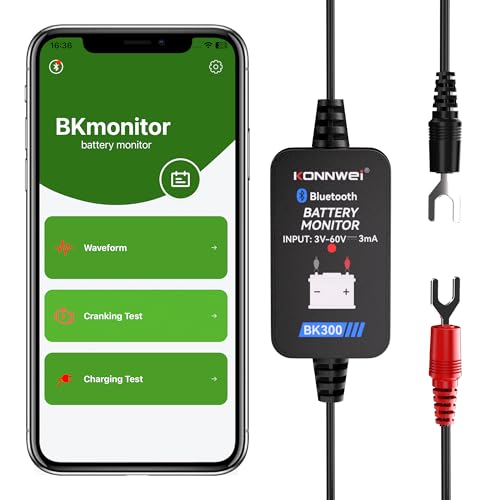
【Car Battery Monitor Assistant】The BK300 battery monitor is equipped with advanced features such as voltage, starting and charging system testing, and real-time trip logging.Works with Lead-acid, AGM Flat/Spiral, EFB,VRLA,GEL and Lithium batteries—never face winter breakdowns again.
Built-In Battery Usage Tools
Android devices come equipped with built-in battery usage tools. To access these tools, navigate to Settings > Battery > Battery Usage. Here, you’ll see a list of apps showing how much battery each app consumes. This overview helps you identify apps that may drain battery quickly. Additionally, you may find options to view historical battery usage. This data allows you to analyze daily or weekly trends, making it easier to adjust usage habits.
Third-Party Apps for Battery Testing
Third-party applications offer comprehensive insights into your device’s battery life. Here are a few reliable options:
- AccuBattery: Offers detailed battery health screening and tracks battery usage over time. It helps you understand charging habits and provides forecasts for battery lifespan.
- GSam Battery Monitor: Displays advanced statistics on battery usage, including app consumption, CPU wake locks, and more. This app can pinpoint problems causing excessive battery drain.
- Battery Historian: A more technical tool that lets you visualize battery usage data. It captures comprehensive historical data about your battery’s performance.
Download one of these apps from the Google Play Store, follow the setup instructions, and start monitoring your battery life actively. Regularly checking this information gives you insights into how to optimize your battery performance effectively.
Tips for Accurate Battery Testing
Testing your battery life accurately ensures you understand your device’s performance. Follow these guidelines to achieve reliable results.
Recommended Products

【Package Content】 - 2 Pack battery tester, Opp bag. Weight light and easy to carry.

Calibration Techniques
- Charge fully: Start by charging your device to 100%. This step resets the battery gauge and provides a baseline for testing.
- Discharge completely: Use your phone until it shuts down due to low battery. This process can help recalibrate the battery indicator.
- Repeat: Conduct this full charge and discharge cycle two or three times. Doing this helps improve the accuracy of the battery readings.
Environmental Factors to Consider
- Temperature: Keep your device in a temperature range of 32°F to 95°F (0°C to 35°C) for optimal performance. Extreme temperatures can affect battery life significantly.
- Signal Strength: Weak network signals cause your phone to consume more power. Test your battery life in areas with strong signals for accurate results.
- Screen Brightness: Use a consistent screen brightness level when running tests. Turning brightness to maximum can lead to exaggerated battery drain readings.
Implementing these tips can enhance the accuracy of your battery tests, giving you valuable insights into your device’s performance.
Analyzing the Results
Understanding battery life testing results helps you optimize performance effectively. Once you gather data, it’s crucial to interpret what those numbers mean for your device.
Recommended Products

Catch Battery Problems Early: Featured in two videos by Project Farm, a popular YouTube channel with millions of subscribers, the ANCEL BA101 helps you quickly spot battery issues before they leave you stranded. It provides easy-to-understand readings for State of Health (SOH), State of Charge (SOC), voltage, current, CCA, plus cranking and charging system tests, so you can better understand your battery and help avoid unexpected breakdowns
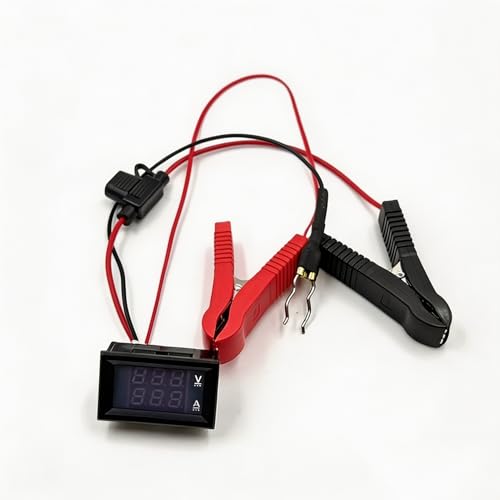
NO-DISCONNECT SAFE TESTING: Innovative design allows you to track down parasitic battery drain without disconnecting the vehicle's electrical system. This completely prevents vehicle computer (ECU) resets, loss of radio codes, and anti-theft system lockouts, ensuring a hassle-free diagnostic process.

Replaceable in-line fuses protect both the meter and tester in the event a high current source on the vehicle is left on
Interpreting Battery Usage Statistics
Examine the battery usage statistics for insights into how various apps affect your battery life. Focus on the percentage each app consumes. Apps with high usage rates may drain your battery quickly. For instance, if a streaming app uses 30% of your battery, consider limiting its use or adjusting settings for lower consumption. Review the historical usage trends as well. If you notice a spike during certain periods, it may indicate an issue that needs attention. Prioritize apps that contribute the most to your battery drain and explore alternatives or settings adjustments.
Common Issues and Solutions
Identify common issues that may arise during battery testing. Here are some frequent problems and their solutions:
- Inaccurate Readings: A device that displays inconsistent battery statistics may require calibration. Fully charge your phone, then let it discharge completely to recalibrate the battery gauge.
- Battery Drain While Idle: If your phone loses power quickly when not in use, background apps may run unnecessarily. Limit background activity through Settings > Apps > [App Name] > Battery > Background Restriction.
- High Brightness Settings: Excessive screen brightness can contribute to battery drain. Adjust brightness to a lower, comfortable level or enable adaptive brightness in Settings > Display.
- Location Services: Constant use of GPS can deplete battery life. Restrict location services to “While using the app” or turn them off for apps that don’t require them.
By addressing these common issues, you can establish better battery health, ensuring your Android device remains reliable throughout the day.
Conclusion
Testing your Android’s battery life doesn’t have to be a daunting task. With the right tools and techniques you can gain valuable insights into how your device performs throughout the day. Whether you choose to use built-in settings or third-party apps you’ll be better equipped to identify what’s draining your battery.
By regularly monitoring your battery usage and implementing the tips discussed you can extend your device’s life and optimize its performance. Remember to keep an eye on environmental factors and app behaviors to maintain a healthy battery. With a little effort you’ll enjoy a more reliable Android experience that keeps up with your daily needs.
Frequently Asked Questions
What causes rapid battery drain on Android phones?
Rapid battery drain on Android phones can be caused by various factors, including high screen brightness, excessive app usage, poor network connectivity, and location services running in the background. Other factors like outdated software or hardware issues may also contribute to decreased battery performance.
How can I improve my Android phone’s battery life?
To improve your Android phone’s battery life, consider dimming your screen brightness, closing unused apps, enabling battery saver mode, and regularly updating your software. Monitoring battery usage in the settings can also help identify apps that drain your battery.
What tools can help test battery life?
There are several tools to test battery life on Android devices. Built-in battery usage insights can be accessed through Settings > Battery > Battery Usage. Additionally, third-party apps like AccuBattery, GSam Battery Monitor, and Battery Historian can provide detailed analysis for better understanding battery performance.
How can I accurately test my Android phone’s battery?
For accurate battery testing, fully charge and discharge your device multiple times to reset the battery gauge. Maintain a consistent screen brightness and test in areas with strong signal reception. This regular calibration helps ensure more reliable results.
What should I do if my battery drains while the phone is idle?
If your battery drains while idle, check for apps that may be running in the background using location services or push notifications. Also, disabling unnecessary background data allowed for apps and ensuring your device software is up to date can help mitigate this issue.
