

Key Takeaways
- Monitor Battery Usage: Regularly check which apps are consuming the most battery by accessing your Android device’s settings.
- Identifying Problem Apps: Focus on apps with high battery usage percentages and unusual activity patterns to determine what might be draining your battery.
- Manage Background Activity: Restrict background data and activity for apps that you don’t use frequently to help conserve battery life.
- Optimize App Settings: Adjust location settings, sync frequency, and notifications to minimize unnecessary battery consumption.
- Utilize Third-Party Monitoring Apps: Consider downloading apps like AccuBattery or GSam Battery Monitor for deeper insights into battery usage trends and statistics.
- Regular Updates: Keep your apps updated to benefit from performance enhancements and bug fixes that can help reduce battery drain.
Ever wondered why your Android phone seems to drain battery faster than usual? You’re not alone. Many people face this frustrating issue, especially when they’re trying to get through the day without constantly reaching for a charger.
Identifying which apps are gobbling up your battery can make a big difference. By knowing what’s draining your power, you can take simple steps to extend your phone’s life. This article will guide you through the process of checking battery usage on your device, helping you regain control and keep your phone running longer.
Understanding Battery Usage on Android
Understanding how your Android device uses battery power helps you manage its performance effectively. This section breaks down the importance of battery management and common issues that can lead to excessive drain.
Why Battery Management Matters
Battery management plays a crucial role in enhancing device longevity. When you monitor battery usage, you can identify which apps consume excessive power. Unnecessary high consumption can lead to frustration, especially when you depend on your device throughout the day. Controlling battery usage allows you to optimize performance, extend battery life, and reduce the frequency of charging.
Common Battery Drain Issues
Several factors contribute to battery drain on your Android device. Recognizing these issues aids in effective management.
- Background Apps: Apps running in the background continue to consume battery without your knowledge.
- Location Services: Constant use of GPS drains battery significantly, especially if multiple apps access location data.
- Display Brightness: High screen brightness settings can quickly deplete battery levels.
- Notifications and Syncing: Frequent notifications and automatic syncing with cloud services lead to increased power usage.
- Outdated Apps: Installing updates for apps can enhance performance and fix bugs that contribute to battery drain.
Addressing these issues can lead to noticeable improvements in your device’s battery life.
How to Access Battery Usage Information
Accessing battery usage information helps you identify apps draining power on your Android device. You can do this directly through your phone’s settings or by using third-party applications.
Recommended Products

🔋High Value Battery Tester: BM200 is your go-to solution for 12V lead-acid and lithium battery. Equipped with advanced features like voltage & cranking & charging system test, abnormal alarm and real-time trip records.This battery monitor ensures your car battery is always in optimal condition. Whether it's for your car, motorcycle, truck, RV or boat, this 12V battery tester has got you covered. Get it, and forget winter breakdown worries.
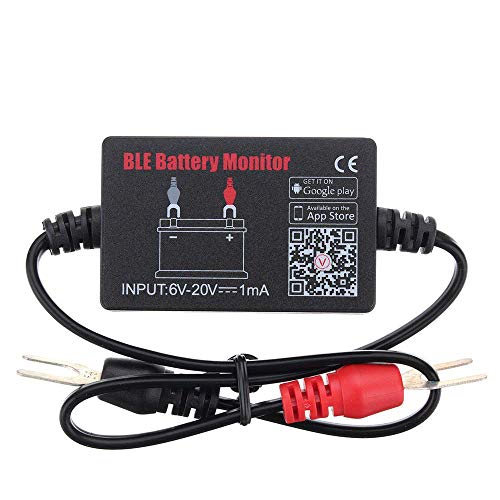
SIMULTANEOUSLY MONITOR UP TO 4 OF 12V BATTERIES: Download APP "BM2", you can monitor 1 of 12v batteries. If you have more batteries, please Download APP "BM3", you can simultaneously monitor up to 4 of these devices(APP BM2/FREE,APP BM3/ NOT FREE)
- Live Fire OS battery percentage, charging state, and power source
Using Android Settings
- Open the Settings app on your Android device.
- Scroll down and tap Battery.
- Select Battery Usage or App Battery Usage.
- Review the list of apps, noting how much battery each app consumes.
This method provides a quick overview of your battery usage patterns, allowing you to identify specific apps that may need adjustment or removal.
Third-Party Apps for Monitoring
- Download battery monitoring apps like AccuBattery, GSam Battery Monitor, or BatteryGuru from the Google Play Store.
- Install and launch the app.
- Navigate through the app’s interface to view detailed statistics on battery consumption, including usage over time and wake lock statistics.
Third-party apps often offer more in-depth analysis and insights compared to the built-in settings. They help you make informed decisions about which apps to limit or uninstall to save battery life.
Identifying High Battery Usage Apps
You can get insights into which apps use the most battery power by reviewing the battery usage data on your Android device. This information helps you manage your device’s performance effectively and make informed decisions about app usage.
Recommended Products
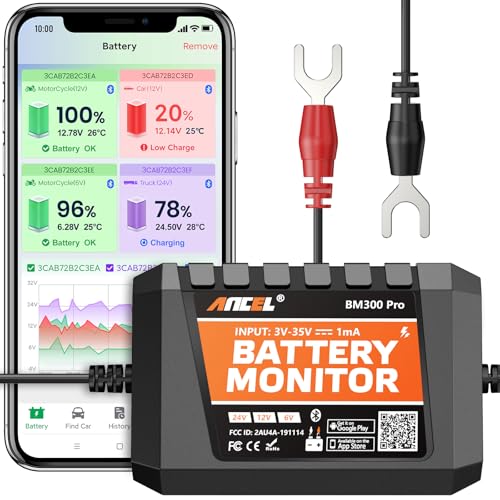
6V, 12V & 24V MONITORING - View voltage, estimated state of charge and temperature through the ANCEL BM300 Pro app. On supported 12V and 24V vehicle systems, review cranking and charging voltage tests. For 6V systems, use voltage, SOC and temperature monitoring; cranking and charging tests are not supported.
【Medically Accurate】- Digital blood pressure monitor with high-end measurement accuracy. Our bluetooth blood pressure monitor not only provide blood pressure readings but also tracks pulse rate, allowing you to understand your physical condition anytime and anywhere.

【All-in-One Wireless Battery Monitor】ANCEL BM200 PRO is a 12V lead-acid battery monitor that integrates wireless transmission, multifunctional testing, and intelligent alerts to provide round-the-clock battery health protection for your vehicles, boats, and other motorized equipment. Supporting Type-C and solar power, it features high/low temperature and low voltage alarms,displaying real-time battery load tester 12v automotive health percentage, crank and charge test results, temperature, voltage, and RF signal strength.
Interpreting Battery Usage Data
When you access battery usage data, you’ll see a list of apps along with the percentage of battery each app consumes. Understanding this data is crucial for identifying problem apps.
- Sort by Most Usage: Look for the apps that consume the highest percentage. Usually, these apps are running in the background or using resources continuously.
- Time in Use: Check the screen-on time versus total usage time. An app with high usage but low screen-on time may indicate background activity.
- Check for Abnormal Activity: If an app you rarely use shows significant usage, it may be running processes that drain your battery.
Apps That Commonly Drain Battery
Several types of apps are known for high battery consumption. Identifying these can help you take action when necessary.
- Social Media Apps: Apps like Facebook, Instagram, and Twitter often run background updates and notifications, leading to increased battery usage.
- Navigation and Map Apps: Google Maps and similar apps use GPS continuously, significantly draining battery life, especially during long trips.
- Streaming Services: Services like Netflix and Spotify consume a lot of power while streaming audio or video content.
- Games: High-performance games demand processing power and graphics, affecting battery life quickly.
- Messaging Apps: Apps that sync constantly, like WhatsApp or Slack, may cause battery drain if notifications are frequent.
By managing these high battery usage apps, you can optimize your device’s life and minimize frequent charging.
Tips for Managing Battery Usage
Managing battery usage is essential for keeping your Android device running smoothly. Implement these tips to optimize app settings and minimize power drain from background activities.
Recommended Products


LONG BATTERY LIFE FOR ALL-DAY RIDING - Up to 7 hours recording at 1080P and 4.5 hours at 4K. Ideal for long-distance touring, adventure riding and motorcycle road trips

THE FIRST SHOTGUN MIC WITH 32-BIT FLOAT – Captures clip-free audio every time without setting gain, so filmmakers and content creators never have to worry about missing a take due to clipping or bad levels.
Optimizing App Settings
- Adjust Location Settings: Limit location access for apps. Use “Allow only while using the app” for GPS-dependent apps like navigation and maps.
- Reduce Sync Frequency: Modify sync settings for email and social media apps. Change syncing from real-time to hourly or daily to save battery.
- Lower Brightness: Set your screen brightness to a lower level or enable adaptive brightness, adjusting automatically based on surroundings.
- Manage Notifications: Disable non-essential notifications from apps. This reduces background activity and keeps the screen off, saving battery.
- Update Apps: Regularly update apps. Developers often release updates that improve performance and reduce battery consumption.
Disabling Background Activity
- Limit Background Data: Go to App settings, select an app, and disable “Background data” to restrict its activity when not in use.
- Use Battery Saver Mode: Enable Battery Saver Mode in your device settings. This feature limits background activity automatically.
- Restrict App Background Activity: On Android devices, you can restrict certain apps from running in the background. Navigate to Settings > Apps, select the app, and disable “Background activity.”
- Turn Off Unused Apps: Uninstall or disable apps you rarely use. This prevents them from consuming battery even when not in active use.
- Use Data Saving Features: Many apps offer data-saving features that limit background activity. Turn these features on for apps that provide them.
By following these strategies, you can significantly reduce battery drain from apps and enhance your overall usage experience.
Conclusion
Keeping an eye on which apps are draining your battery can make a world of difference for your Android experience. By taking the time to check battery usage and adjust settings accordingly, you can enjoy longer-lasting power throughout your day.
Don’t forget to explore third-party apps for even deeper insights into your battery consumption. With a few simple tweaks and some mindful management, you’ll be well on your way to optimizing your device’s performance and minimizing those frustrating charging sessions.
So go ahead and take charge of your battery life—you’ve got this!
Frequently Asked Questions
What causes rapid battery drain on Android phones?
Rapid battery drain on Android phones is often caused by background apps, high display brightness, frequent use of location services, and outdated applications. Managing these factors can lead to better battery life.
How can I check battery usage on my Android device?
To check battery usage, go to your phone’s Settings, select Battery, and view the list of apps along with their power consumption. This helps identify which apps are draining your battery the most.
What apps are typically responsible for high battery usage?
Common culprits for high battery usage include social media apps, navigation tools, streaming services, gaming apps, and messaging platforms. Monitoring these can help you reduce battery drain.
How can I optimize my Android battery life?
You can optimize your Android battery life by adjusting location access, reducing sync frequency, lowering screen brightness, managing notifications, disabling background activity for apps, and using Battery Saver Mode.
Are there tools to analyze battery consumption on Android?
Yes, third-party applications like AccuBattery, GSam Battery Monitor, and BatteryGuru can provide detailed insights into your battery consumption patterns, helping you make informed decisions about app usage.
How often should I update my apps for better battery performance?
Regularly updating your apps is important as updates often include performance improvements and bug fixes that can enhance battery efficiency. Check for app updates at least once a month.
Can location services affect my phone’s battery life?
Yes, constant use of location services can significantly drain your battery. It’s advisable to limit location access to only when necessary or switch to battery-saving modes in location settings.
What steps can I take to reduce battery draining from notifications?
To reduce battery consumption from notifications, you can adjust app settings to limit notifications, disable unnecessary ones, and manage how frequently apps can send you alerts.
