
Close Menu
Battery Spotlight
    Battery Spotlight
    • Home
    • Phone Batteries
    • Laptop Batteries
    • Car Batteries
      • Golf Cart Batteries
    • Battery Info
      • Battery Chargers
      • Battery Life
      • Battery Maintenance
      • Marine Batteries
      • Rechargeable Batteries
      • Solar Batteries
    • About Us
      • Contact
    Battery Spotlight
    Navigation: Home » Laptop Batteries » How to Remove a Dell Laptop Battery Safely and Store it Correctly
    Laptop Batteries

    How to Remove a Dell Laptop Battery Safely and Store it Correctly

    Jackson DoyleBy Jackson DoyleAugust 8, 20245 Mins Read
    Share Facebook Twitter Pinterest LinkedIn Tumblr Email WhatsApp Copy Link
    Share
    Facebook Twitter LinkedIn Pinterest Email Copy Link

    Ever found yourself in a pinch, needing to replace the battery in your Dell laptop but unsure where to start? Picture this: you’re on the go, and your laptop’s battery is on its last legs. What do you do? Fear not, as we’ve got you covered! In this article, we’ll walk you through the simple steps to safely remove the battery from your Dell laptop.

    Table of Contents

    Toggle
    • Checking the Model and Series of Your Dell Laptop
    • Powering Down the Laptop and Disconnecting External Devices
    • Removing the Battery Cover and Securing Necessary Tools
    • Taking Out the Battery Carefully
    • Safely Storing the Battery and Final Checks
    • Final Checks
    • Conclusion
    • Frequently Asked Questions
    • How should I store my Dell laptop battery after removal?

    Have you ever struggled with the thought of damaging your laptop while trying to swap out the battery? You’re not alone. By the end of this read, you’ll gain the confidence and know-how to smoothly remove your Dell laptop’s battery without any hassle. Say goodbye to the worry of potential mishaps and hello to a seamless battery replacement process.

    Checking the Model and Series of Your Dell Laptop

    To check the model and series of your Dell laptop, follow these steps:

    • Look for a label on the bottom of your laptop with the service tag or express service code.
    • Visit the Dell website and enter the service tag or express service code.
    • Note down the model and series information displayed on the website.

    Understanding your Dell laptop’s model and series is crucial for finding the correct battery replacement.

    Powering Down the Laptop and Disconnecting External Devices

    When it’s time to take out the battery from your Dell laptop, the first step is ensuring your device is powered down and disconnected from any external devices. Here’s how you can do it:

    • Save any ongoing work and close all open applications.
    • Disconnect the laptop from the charger and turn it off by clicking on the Start menu and selecting Shut Down.

    Next, disconnect any external devices such as a mouse, keyboard, or USB drives to avoid accidentally damaging them during the battery removal process.

    Make sure to handle all external devices with care when removing them from your laptop.

    Pro Tip: Using gentle movements and taking your time is key to avoid any accidental damage while disconnecting external devices.

    Removing the Battery Cover and Securing Necessary Tools

    When removing the battery from your Dell laptop, the first step is to locate and remove the battery cover. This cover is usually situated on the underside of your laptop and is secured by screws or clips. Here’s how you can proceed:

    • Find a flat surface to work on to prevent any components from rolling away.
    • Power off your laptop and unplug it from any external devices.
    • Close any open applications and save your work to avoid data loss.
    SEE ALSO  Unlocking the Power: Sharing Battery on Samsung Devices Explained

    Next, you’ll need a few basic tools to complete this task efficiently:

    Tools Needed
    Small screwdriver
    Anti-static wrist strap (optional)

    Once you’re ready with the necessary tools, you can move on to the next steps in the battery removal process.

    Recommended Products
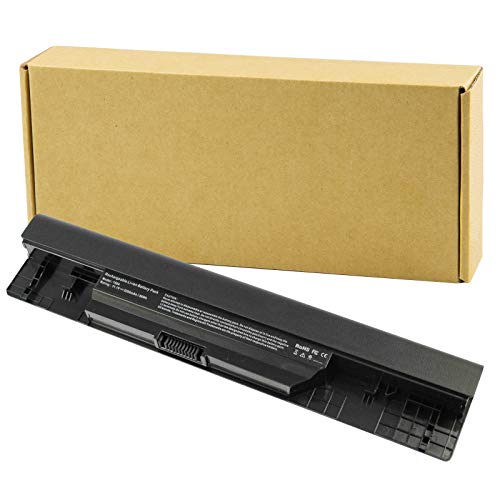
    Futurebatt Laptop New 5200mAh Battery for Dell Inspiron 1464 1564 1764 JKVC5 312-1021
    Futurebatt Laptop New 5200mAh Battery for Dell Inspiron 1464 1564 1764 JKVC5 312-1021

    Specifications: 6 Cell, Li-ion battery, Rated at 11.1V(10.8V Compatible) 5200mAh

    VIEW LATEST PRICE

    As an affiliate, we earn on qualifying purchases.

    4GVMP Laptop Battery for Dell Latitude 5400 5500 5410 5510 E5400 E5500 Inspiron 7590 7591 7791 2-in-1 Precision 3540 3550 Series P84F P84F001 P42E P42E001 P98G001 P80F001 RF7WM C5GV2 H82T6 7.6V 68Wh
    4GVMP Laptop Battery for Dell Latitude 5400 5500 5410 5510 E5400 E5500 Inspiron 7590 7591 7791 2-in-1 Precision 3540 3550 Series P84F P84F001 P42E P42E001 P98G001 P80F001 RF7WM C5GV2 H82T6 7.6V 68Wh

    【4GVMP Battery gives new life to your laptop】68Wh standard rechargeable battery type 4GVMP 7.6V is made of A-grade battery cells, high-quality components, flame-retardant casings, and high-quality materials for intelligent control chips, making the overall battery life more than 1000 cycles. It has give your laptop a great battery life. It stays charged for a good amount of time when not plugged in. for dell Latitude 5400 battery also include 2 free screwdrivers

    VIEW LATEST PRICE

    As an affiliate, we earn on qualifying purchases.

    Futurebatt New Replacement Battery for Dell DJ1J0 451-BBZL PGFX4 ONFOH DJ1JO,for Dell Latitude 12 7000 7280 7480 Series [42Wh 11.4V]
    Futurebatt New Replacement Battery for Dell DJ1J0 451-BBZL PGFX4 ONFOH DJ1JO,for Dell Latitude 12 7000 7280 7480 Series [42Wh 11.4V]

    BRAND NEW Replacement Battery 451-BBZL PGFX4 ONFOH DJ1JO,Safe and reliable.

    VIEW LATEST PRICE

    As an affiliate, we earn on qualifying purchases.

    Taking Out the Battery Carefully

    When removing the battery from your Dell laptop, it’s crucial to handle it with care to avoid any damage. Here’s how you can safely take out the battery:

    • Locate the Battery: Depending on your Dell laptop model, the battery is usually found on the underside. It’s a rectangular or square unit that can be easily identified.
    • Release the Latch: Look for the release latch or switch near the battery. Slide or press it in the designated direction to unlock the battery.
    • Lift the Battery: Once the latch is released, gently lift the battery from its compartment. Be mindful not to force it out to prevent any breakage.
    • Disconnect the Cable (If Applicable): Some Dell laptops may have a cable connecting the battery to the motherboard. If so, carefully detach the cable from its connector.
    • Set the Battery Aside: Place the removed battery in a safe and dry location away from heat or direct sunlight.
    • Inspect for Damage: Before reinserting the battery, inspect it for any signs of damage, such as leaks or bulges. If you notice any issues, refrain from using the battery.
    • Proceed with Caution: Handle the battery delicately and avoid bending or dropping it to maintain its functionality.
    SEE ALSO  How to Safely Remove the Battery from Your Gateway Laptop: Step-by-Step Guide

    Remember, ensuring the safe removal of the battery not only prolongs its lifespan but also prevents any potential mishaps.

    Recommended Products

    68Wh 3HWPP Replacement Battery for Dell Latitude 5410 5510 5501 5401 5411 5511 Precision 3541 3551,Inspiron 7706 2-in-1, Inspiron 17 7500 7506 2-in-1 Black 03HWPP 10X1J N2NLL 1VY7F 451-BCMN 15.2V
    68Wh 3HWPP Replacement Battery for Dell Latitude 5410 5510 5501 5401 5411 5511 Precision 3541 3551,Inspiron 7706 2-in-1, Inspiron 17 7500 7506 2-in-1 Black 03HWPP 10X1J N2NLL 1VY7F 451-BCMN 15.2V

    Specifications: Replacement Battery for Dell laptop Replacement Battery; Our 3HWPP Battery Replacement for Dell 68wh Standard Rechargeable battery Type 3HWPP 15.2V; Voltage: 15.2V; Capacity:68Wh; Cells:4 cells; Color: Black;Condition: New; Battery lasts: 3-6 hours, Packages includes: 1x 3HWPP Battery,2 x Free Screwdrivers,1x Instruction for Laptop battery

    VIEW LATEST PRICE

    As an affiliate, we earn on qualifying purchases.

    Rome Tech Dell Inspiron CMOS Battery CR2032 3V – BIOS RTC Coin Cell Replacement for Dell Inspiron 15 3511, 15 1564, 15 3555, 15 3559, 15 3565, 15 3567, 3568, 15 5566, 5583, 15 7560, 7572-1 Pack
    Rome Tech Dell Inspiron CMOS Battery CR2032 3V – BIOS RTC Coin Cell Replacement for Dell Inspiron 15 3511, 15 1564, 15 3555, 15 3559, 15 3565, 15 3567, 3568, 15 5566, 5583, 15 7560, 7572-1 Pack

    Rome Tech Dell Inspiron CMOS Battery Replacement – This dell inspiron cmos battery is a CR2032 3V BIOS RTC coin cell designed to restore motherboard clock and BIOS settings in compatible Dell Inspiron laptops. Please verify your exact model before purchasing.

    VIEW LATEST PRICE

    As an affiliate, we earn on qualifying purchases.

    42Wh WDX0R Laptop Battery Replacement for Dell Inspiron 15 5570 7573 7579 7569 5578 5565 5567 5568 5775 5579 7560 7570 13 5378 5368 7375 7368 7378 17 5765 5767 5770 3780 3790 P58F P75F P66F P69G 3CRH3
    42Wh WDX0R Laptop Battery Replacement for Dell Inspiron 15 5570 7573 7579 7569 5578 5565 5567 5568 5775 5579 7560 7570 13 5378 5368 7375 7368 7378 17 5765 5767 5770 3780 3790 P58F P75F P66F P69G 3CRH3

    Specification - Dell laptop WDXOR Replacement Battery Type: Li-ion; Voltage: 11.4V; Capacity: 42WH; Cells:3-Cell; Model: WDX0R. !!! Notice!!! Not compatible with 33YDH(56Wh 4-Cell) or YYRD6(42Wh 3-Cell), please check the original battery before purchasing to make sure it is compatible

    VIEW LATEST PRICE

    As an affiliate, we earn on qualifying purchases.

    Safely Storing the Battery and Final Checks

    After successfully removing the battery from your Dell laptop, it’s crucial to store it properly to maintain its condition. Here’s how to do it:

    • Store the battery in a cool, dry place away from direct sunlight or extreme temperatures.
    • Avoid leaving the battery unused for long periods; aim to use it at least once every few weeks to keep it in good shape.
    • If you’re storing the battery for an extended period, make sure to charge it to around 50% before storage to prevent deep discharge.
    SEE ALSO  Maximize Laptop Battery Life: Tips for Charging and Usage

    Recommended Products

    Dell 11-14 EcoLoop Pro Sleeve - CV5423 - Organizer, Front Zippered Pocket, Weather-resistant, Luggage Pass Through, Padded Carry Handles, Detachable Shoulder Strap, Nylex Lining Material - Black
    Dell 11-14 EcoLoop Pro Sleeve - CV5423 - Organizer, Front Zippered Pocket, Weather-resistant, Luggage Pass Through, Padded Carry Handles, Detachable Shoulder Strap, Nylex Lining Material - Black

    OceanCycle Certified Ocean-bound Plastic: The exterior main fabric is made with 100% ocean-bound plastic from approximately 8 recycled plastic bottles collected from ocean coastline or major waterways

    VIEW LATEST PRICE

    As an affiliate, we earn on qualifying purchases.

    Universal Electronics Accessories Travel Organizer - Zipper Mesh Adapter Case for Laptop, Notebook, Tablet, Power, Mouse, Cord, USB Accessories - Red
    Universal Electronics Accessories Travel Organizer - Zipper Mesh Adapter Case for Laptop, Notebook, Tablet, Power, Mouse, Cord, USB Accessories - Red

    This organizer bag is made of durable nylon with zipper closure,and hand strap is attached for convenient carry. Mesh see-through net give you a clear vision for inside accessories.

    VIEW LATEST PRICE

    As an affiliate, we earn on qualifying purchases.

    Tofun Laptop Chargers Case,Zipper Mesh Electronics Accessories Bag for Laptop Tablet Power/Mouse/Cord/USB Accessories,Black
    Tofun Laptop Chargers Case,Zipper Mesh Electronics Accessories Bag for Laptop Tablet Power/Mouse/Cord/USB Accessories,Black

    Made of nylon with smooth zippers,breathable mesh, and a see-through design for easy visibility. Includes a convenient carrying loop.

    VIEW LATEST PRICE

    As an affiliate, we earn on qualifying purchases.

    Final Checks

    Before concluding the battery removal process, perform these final checks to ensure everything is in order:

    • Inspect the battery for any signs of damage, such as leaks or swelling.
    • Check the battery contacts for any debris or dirt that may affect connectivity.
    • Verify that all cables are securely disconnected from the battery compartment.
    • Do a final check of the laptop to ensure no components were damaged during the removal process.

    Remember, proper storage and maintenance of your laptop battery are essential to prolong its lifespan and maintain its efficiency.

    Conclusion

    That’s it for safely removing the battery from your Dell laptop. Remember to store it properly in a cool, dry place and perform necessary checks before storage. Taking these steps will help prolong your battery’s lifespan and keep it running efficiently. Happy computing!

    Frequently Asked Questions

    How should I store my Dell laptop battery after removal?

    After removing your Dell laptop battery, store it in a cool, dry place and avoid extended periods of non-use. It is recommended to charge the battery to around 50% before storing it long-term. Additionally, make sure to inspect for any damage, clean the battery contacts, disconnect cables, and check your laptop for potential damage post-removal. Proper storage and maintenance are key to extending the battery’s lifespan and efficiency.

    Share. Facebook Twitter Pinterest LinkedIn Tumblr Email WhatsApp Copy Link
    Jackson-Doyle
    Jackson Doyle

      Battery industry professional with 5+ years of experience. Bachelor of Science in Electrical Engineering from Georgia Tech. Specializes in power systems and renewable energy.

      Related Posts

      Laptop Batteries

      Maximize Your Laptop Battery Life: Effective Tips You Need to Know

      January 6, 2025
      Laptop Batteries

      Unlocking the Power: Does MSI Battery Calibration Really Work?

      January 2, 2025
      Laptop Batteries

      Does the Samsung S7 Have a Removable Battery? Understanding the Implications

      December 31, 2024
      Laptop Batteries

      Ultimate Guide: Where to Buy Authentic Laptop Batteries Directly from Manufacturers

      December 28, 2024
      Laptop Batteries

      5 Signs Your Laptop Battery Is Dead: Tips to Extend Battery Life

      December 27, 2024
      Laptop Batteries

      Should You Replace Your Laptop Battery? Signs, Tips & Lifespan Facts

      December 26, 2024
      Add A Comment
      Leave A Reply Cancel Reply

      Search
      Affiliate Disclaimer

      As an Amazon Associate I earn from qualifying purchases.

      Latest Articles

      How to Replace Battery in Samsung Phone: A Step-by-Step Guide for Easy Replacement

      Android Batteries

      How to Remove Battery from Samsung Smart TV Remote: A Step-by-Step Guide for Easy Replacement

      Android Batteries

      How to Check Your Battery Health on Samsung: Simple Methods to Extend Your Phone’s Lifespan

      Android Batteries

      How Much Is a Battery for a Samsung Galaxy S6: Pricing and Replacement Options Explained

      Android Batteries

      How to Remove Battery from Samsung Galaxy S7: A Step-by-Step Guide for Easy DIY Fixes

      Android Batteries

      Why is My Battery Going Down While Charging Android – Effective Solutions to Fix the Issue

      Android Batteries
      Battery Spotlight

      Battery Spotlight is a website dedicated to helping you solve common battery problems.

      Read more about us here

      Affiliate Disclaimer
      As an Amazon Associate I earn from qualifying purchases.

      Site Navigation
      • Above Mirror Bathroom Lighting
      • Android Batteries
      • Bathroom Pendant Lighting
      • Battery Chargers
      • Battery Life
      • Battery Maintenance
      • Car Batteries
      • Ceiling Lighting Ideas
      • Golf Cart Batteries
      • Japandi Lighting
      • Laptop Batteries
      • Marine Batteries
      • Mood Lighting Living Room
      • Phone Batteries
      • Rechargeable Batteries
      • Reviews
      • Solar Batteries
      • Uncategorized
      • Vaulted Ceiling Lighting
      Latest Articles

      How to Replace Battery in Samsung Phone: A Step-by-Step Guide for Easy Replacement

      How to Remove Battery from Samsung Smart TV Remote: A Step-by-Step Guide for Easy Replacement

      How to Check Your Battery Health on Samsung: Simple Methods to Extend Your Phone’s Lifespan

      How Much Is a Battery for a Samsung Galaxy S6: Pricing and Replacement Options Explained

      How to Remove Battery from Samsung Galaxy S7: A Step-by-Step Guide for Easy DIY Fixes

      • Home
      • About
      • Contact
      • Privacy Policy
      • Editorial Policy
      • Disclaimer
      • Terms and Conditions
      • Affiliate Disclosure
      © 2026 Battery Spotlight

      Type above and press Enter to search. Press Esc to cancel.