

Key Takeaways
- Understand Battery Features: The Samsung S10 uses a non-removable 3,400 mAh lithium-ion battery, which can benefit from regular maintenance to prolong its lifespan.
- Essential Tools Needed: Gather important tools like a small Phillips head screwdriver, a plastic pry tool, and tweezers for a safe battery removal process.
- Step-by-Step Removal Process: Always power off the device, warm the back cover, and carefully follow the steps to disconnect the battery and remove it without causing damage.
- Safety and Precautions: Handle the battery cautiously to avoid damage, and inspect for any signs of swelling or wear before replacing or disposing of it.
- Troubleshooting Tips: Common issues like the device not turning on or battery overheating can often be fixed by checking connections, using different chargers, or enabling battery saver mode.
- Proper Disposal: Dispose of old batteries in accordance with local regulations to protect the environment and ensure personal safety.
Ever found yourself in a situation where your Samsung S10 just won’t turn on or is acting up? You’re not alone. Many users face issues that can often be resolved by removing and reinserting the battery. But if you’re not sure how to do it, it can feel a bit daunting.
Overview of Samsung S10 Battery
The Samsung S10 features a non-removable lithium-ion battery with a capacity of 3,400 mAh. This battery provides adequate power for daily tasks, allowing you to use apps, browse the internet, and watch videos throughout the day.
Battery performance may decline over time due to factors like heavy usage and software updates. When faced with issues like sluggish performance or the device not turning on, removing the battery can reset the connection and possibly resolve the problem.
The S10 battery is designed with safety in mind, equipped with mechanisms to prevent overheating and overcharging. However, if you experience frequent overheating, it’s important to check for software updates or consult with Samsung customer support.
For battery longevity, consider these tips:
- Charge regularly: Avoid letting the battery drain completely. Frequent partial charges can enhance the lifespan.
- Use battery saver mode: Activate this mode when the battery level dips below 20%. It limits background processes and conserves energy.
- Monitor app usage: Some apps consume more battery than others. Check your device settings to identify and manage high-consuming apps.
Maintaining your battery’s health can significantly improve your Samsung S10 experience.
Tools Required for Battery Removal
Removing the battery from your Samsung S10 requires specific tools to ensure a smooth and safe process. Having the right tools on hand makes the task much easier.
Recommended Products

HIGH CAPACITY --- This replacement battery for Samsung Galaxy S10 Plus is 4500mAh high capacity, with more power than original battery.You can use your phone for a longer time!

【Compatible Model】It is compatible with Samsung Galaxy S10 SM-G973, EB-BG973ABU, EB-BG973ABE, G973A, G973T, G973V, G973P, G973R4. Not for S10 Plus. Please double identify check your phone model matches before purchasing the battery.

COMPATIBILITY: This battery only fits for Samsung Galaxy S10, SM-G973F, SM-G973U, SM-G973W, SM-G973U1, SM-G9730, SM-G973N, SM-G973X, SCV41, SM-G973C. Please carefully confirm your phone model before purchase.
Essential Tools
- Small Phillips Head Screwdriver: This screwdriver is necessary to remove the screws securing the back cover.
- Plastic Pry Tool: A plastic pry tool helps you gently disconnect seams without damaging the device’s casing or internal components.
- Tweezers: Use tweezers for precision when handling small components, such as connectors or screws.
Optional Tools
- Suction Cup Tool: This tool can aid in lifting the back cover off the device without risking damage.
- Magnetic Mat: A magnetic mat keeps small screws and components organized and prevents them from getting lost during the removal process.
- Heat Gun or Hair Dryer: Applying gentle heat to the edges of the back cover can soften the adhesive, making it easier to remove.
With these tools at your disposal, you’ll be well-equipped to remove the battery from your Samsung S10 safely and efficiently.
Step-by-Step Guide on How to Take Battery Out of Samsung S10
Follow these steps for a smooth battery removal process from your Samsung S10.
Recommended Products

Compatible Model: Replacement Battery Galaxy S10 plus. Compatible with Samsung Galaxy S10 Plus Carriers, include Galaxy S10 Plus EB-BG975ABU G975V( Verizon ),G975A( AT&T ),G975T( T-Mobile ),G975P( Sprint ), G975R4(US Cellular) NOT for Other Samsung Model. Please Confirm Your Phone Model From Phone Back Cover to Avoid Wrong Order

【Compatible Model】:This Battery Model is EB-BG973ABU,Compatible with Samsung Galaxy S10, SM-G973F, SM-G973U, SM-G973W, SM-G973U1, SM-G9730, SM-G973N, SM-G973X, SCV41, SM-G973C series. NOT work for Galaxy S10 Plus.Please confirm your phone model and your old battery part number before placing an order.
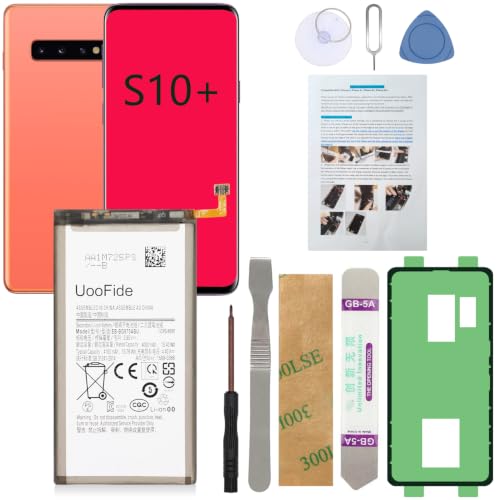
【Latest IC Chip Smart Power Housekeeper 】- Use the latest cost-effective smart IC chip on the market now which same as the original Galaxy S10+ battery, combined with the latest science and technology at the same time, so that the battery has an exclusive smart power housekeeper which can intelligently control and distribute the power, maximize power conversion rate. Longer power life without bothering about running out of power and shut down some apps all the time.
Power Off Your Device
Ensure your Samsung S10 is entirely powered off. Press and hold the power button until the power menu appears, then tap “Power off.” This step prevents any electrical issues during battery removal.
Remove the Back Cover
Use a heat gun or hair dryer to warm the edges of the back cover. This softens the adhesive, making it easier to remove. While the back is warm, insert a plastic pry tool between the cover and the phone body. Gently pry around the edges until the cover pops off. Be careful not to damage the cover or the internal components.
Disconnect the Battery
Locate the battery connector on the motherboard. Use a small Phillips head screwdriver to remove the screws securing the connector cover. Once secure, lift the connector away from the battery gently using tweezers. Ensure you handle it carefully to avoid damaging any components.
Take Out the Battery
After disconnecting, use the plastic pry tool to carefully lift the battery from its compartment. Always handle the battery cautiously. Avoid puncturing or bending it. Once it’s removed, you can replace it with a new one or proceed with troubleshooting.
These steps guarantee a safe and effective battery removal from your Samsung S10.
Tips for Battery Removal
- Prepare your workspace. Clear a flat, well-lit area to work on. Use a soft cloth or mat to prevent scratches on the device.
- Gather your tools. Ensure you have all the necessary tools within reach. A small Phillips head screwdriver, a plastic pry tool, and tweezers are essential.
- Power off your device. Always turn off your Samsung S10 before beginning the battery removal process. This prevents potential damage and ensures safety.
- Use heat carefully. If the back cover is difficult to remove, apply gentle heat using a heat gun or hair dryer to soften the adhesive. This makes it easier to lift the cover.
- Pry open the device slowly. Insert the plastic pry tool between the back cover and the phone body. Carefully slide it around the edges to detach the adhesive without damaging the cover.
- Disconnect the battery. Locate the battery connector on the motherboard. Use the tweezers to carefully lift the connector straight up without pulling on the cable.
- Remove the battery cautiously. After disconnecting, gently lift the battery from its compartment. Avoid using excessive force to prevent rupturing the battery.
- Check for damage. Inspect the battery for any signs of swelling or damage before reinserting or replacing it. A damaged battery needs professional disposal.
- Follow up with proper disposal. Dispose of the old battery in accordance with local regulations. Many electronics stores offer recycling for lithium-ion batteries.
- Reassemble properly. If you’re reinstalling the battery, ensure the connector is securely attached and align the back cover before pressing it down firmly to seat the adhesive.
Stick to these tips for a smoother battery removal experience.
Troubleshooting Common Issues
When dealing with issues on your Samsung S10, you may encounter specific problems that are common among users. Here’s how to address these effectively.
Recommended Products

Replacement type-c usb charging data port charger dock connector for Samsung Galaxy S10 G973/ S10 Plus G975/ S10e G970 smartphone

Compatibility: This replacement USB Type-C charging port is intended for Samsung Galaxy S10 5G Model: SM-G977U To ensure your phone is the right fit, take a look at: Settings -> About Phone -> Model name/Model number.

10 Precision Tools in One Kit :This phone cleaning kit packs 10 ultra-slim nylon brushes plus integrated hook tips that sweep & lift lint, dust and even pet hair fromUSB-C and 3.5 mm ports,Soft material prevents phone scratches
Device Won’t Turn On
- Check the Battery Connection: If your device doesn’t turn on, ensure that the battery is securely connected. Remove the battery and reconnect it properly.
- Try a Different Charger: Use a different charging cable and adapter to rule out issues with your current charger.
- Perform a Forced Restart: Hold the volume down and power buttons for about 10 seconds to attempt a restart.
Battery Overheating
- Inspect for Damage: Check for any visible signs of damage on the battery or device. A swollen battery needs replacement immediately.
- Limit Background Apps: Close unused applications that may be consuming battery power excessively.
- Enable Battery Saver Mode: Activating this mode can help reduce power consumption and prevent overheating.
Slow Performance
- Clear App Cache: Navigate to Settings > Apps and clear cache for heavy apps to enhance performance.
- Uninstall Unused Apps: Remove applications that you don’t use to free up resources.
- Check for Software Updates: Regularly updating your software can improve system performance and fix bugs.
Inconsistent Charging
- Inspect the Charging Port: Ensure there’s no debris or lint in the charging port. Clean it gently using a toothpick or a soft brush.
- Try Different Charging Accessories: Using different cables or adapters can help identify if the charger is the issue.
- Perform a Battery Calibration: Let the battery drain completely, then charge it to 100% without interruption to recalibrate the battery.
Battery Replacement Considerations
- Use Genuine Parts: When replacing the battery, always choose certified Samsung parts to ensure compatibility and safety.
- Follow Safety Guidelines: Ensure your device is powered off before attempting to remove the battery to prevent short circuits.
- Dispose of Old Batteries Properly: Follow local regulations for disposing of lithium-ion batteries to protect the environment.
By following these practical steps, you can efficiently troubleshoot common issues with the Samsung S10, ensuring your device runs smoothly.
Conclusion
Taking the battery out of your Samsung S10 might feel a bit daunting at first but with the right tools and steps, you can do it safely and effectively. By following the guide and tips provided, you can troubleshoot common issues and even extend your battery’s lifespan.
Remember to handle everything with care and keep an eye on your device’s performance over time. If you ever feel unsure, don’t hesitate to reach out to Samsung support for assistance. You’ve got this, and soon enough, your S10 will be back to running smoothly!
Frequently Asked Questions
What should I do if my Samsung S10 won’t turn on?
If your Samsung S10 won’t turn on, start by checking the battery connection and trying a different charger. Performing a forced restart by holding down the power and volume down buttons for about 10 seconds can also help. If the problem persists, consider removing the battery and reinserting it.
How can I remove the battery from my Samsung S10?
To remove the battery from your Samsung S10, you’ll need a Phillips head screwdriver, plastic pry tool, and tweezers. Power off the device, prepare your workspace, use heat to soften the adhesive, carefully pry open the device, disconnect the battery, and then remove it.
What tools do I need to replace the Samsung S10 battery?
Essential tools for replacing the Samsung S10 battery include a small Phillips head screwdriver, a plastic pry tool, and tweezers. Optional tools like a suction cup tool, magnetic mat, and heat gun or hair dryer can also help during the process.
How can I maintain my Samsung S10 battery health?
To maintain your Samsung S10 battery health, charge it regularly and enable battery saver mode when the charge is low. Monitor high-consuming apps and update your software to ensure optimal performance.
What causes my Samsung S10 battery to overheat?
Overheating can be caused by heavy app usage, software glitches, or using incompatible charging accessories. Check for software updates and limit background app activity to help reduce overheating issues.
How do I troubleshoot slow performance on my Samsung S10?
To troubleshoot slow performance, clear the app cache, uninstall unused applications, and check for software updates. Additionally, ensure that your device has sufficient storage space available for optimal operation.
What should I consider when replacing the Samsung S10 battery?
When replacing your Samsung S10 battery, use genuine parts and follow safety guidelines. Dispose of old batteries properly and ensure that you reassemble the device correctly to prevent any issues.
How do I know if my Samsung S10 battery needs replacement?
Signs that your Samsung S10 battery may need replacement include rapid battery drain, the device not holding a charge, or physical damage to the battery. If you notice these issues, consider replacing the battery.
