

Key Takeaways
- Understanding Battery Percentage: Knowing your battery percentage is crucial for managing device usage and preventing unexpected shutdowns during critical moments.
- Enabling Battery Percentage: Easily display the battery percentage on Android devices through the Settings menu, with steps varying for Android versions 10 and newer versus 9 and older.
- Use of Third-Party Apps: If native settings don’t support battery percentage, apps like Battery Widget Reborn and GSam Battery Monitor can provide detailed battery information and display options.
- Troubleshooting Issues: Common problems include not seeing the battery percentage or displaying incorrect values; restarting the device or checking settings often resolves these issues.
- Customization for User Preferences: Tailor your battery display preferences to fit your lifestyle, enhancing convenience and reducing battery anxiety during daily usage.
Ever found yourself wondering how much battery life you really have left on your Android device? It’s a common scenario—your phone’s about to die, and you’re left scrambling for a charger. Knowing your battery percentage can help you manage your usage better and avoid those last-minute panics.
This article will guide you through the simple steps to display the battery percentage on your Android device. Whether you’re using a Samsung, Google Pixel, or another brand, you’ll find it easy to keep an eye on your battery life. By the end, you’ll have the peace of mind that comes with knowing exactly how much charge you’ve got left.
Understanding Battery Percentage on Android
Battery percentage on Android shows how much charge remains in your device. Tracking this percentage helps you manage your device’s usage effectively. Here’s how to display it.
Why Battery Percentage Matters
Battery percentage provides insight into your device’s remaining power. Knowing this helps you decide when to recharge. Running out of battery often leads to stress and downtime.
How to Show Battery Percentage
Displaying the battery percentage varies by device model. Follow these steps based on your Android version:
For Android 10 and Newer
- Open Settings: Tap the gear icon in your app drawer or notification shade.
- Select Battery: Scroll down and find “Battery.”
- Enable Battery Percentage: Look for an option labeled “Battery percentage” and toggle it on.
For Android 9 and Older
- Access Settings: Open the Settings app from your home screen.
- Go to About Phone: Scroll to the bottom and select “About phone.”
- Tap on Status: Look for “Status,” then find “Battery level.” This only shows the current charge, not a percentage on the status bar.
Confirming Your Settings
Once enabled, the battery percentage will appear in the upper right corner of your home screen. You might see an icon indicating remaining power along with the percentage.
Additional Tips
- Using Widgets: Use a battery widget for a more prominent display on your home screen. Apps like “Battery Widget” can provide detailed stats.
- Battery Saver Mode: Consider enabling this mode when the charge dips below 20%. It helps extend battery life by reducing background activity.
Keeping an eye on your battery percentage enhances how you use your Android device. Following these steps ensures you stay informed and ready to recharge when necessary.
Why Display Battery Percentage?
Displaying battery percentage offers crucial insights into your device’s power status. Knowing the exact percentage helps you manage your usage more effectively and prevents unexpected shutdowns.
Importance of Tracking Battery Life
Tracking battery life is essential for optimal device performance. You gain the ability to monitor usage patterns and adjust habits accordingly. For example, if your battery often drops quickly during video streaming, you can limit playback time or reduce screen brightness. By staying informed, you can recharge before the power dips too low, which enhances your device’s longevity and functionality.
User Preferences
User preferences for battery display vary widely. Some people prefer a simple icon that indicates battery status, while others want precise percentages. Those who travel frequently or work in demanding environments benefit from seeing exact numbers. Tailoring how you receive battery information makes daily usage more convenient and stress-free. Most Android devices allow customization, ensuring you find a setup that suits your lifestyle.
Methods to Show Battery Percentage on Android
You can easily display the battery percentage on your Android device using different methods. Here are the main options.
Native Settings
To enable battery percentage through native settings, follow these steps:
- Open Settings: Tap on the gear icon on your home screen or app drawer.
- Navigate to Battery: Scroll down and select “Battery” or “Battery & performance.”
- Enable Battery Percentage: Look for the option labeled “Battery percentage” and toggle it on. This displays the percentage in the status bar at the top of your screen.
For Android 9 and earlier, you may find this option under “About phone” in the settings.
Using Third-Party Apps
If your Android version doesn’t support displaying battery percentage, third-party apps can help. Here are a couple of popular apps:
- Battery Widget Reborn: This app offers customizable widgets that show battery stats, including percentage, directly on your home screen.
- GSam Battery Monitor: This app provides detailed information about your battery usage and includes a live battery percentage display.
To use these apps, download them from the Google Play Store, then follow the in-app instructions to set them up. They enhance monitoring and managing your battery life efficiently.
Troubleshooting Display Issues
At times, you may encounter problems with the battery percentage display on your Android device. Identifying common problems and their solutions can help restore accurate battery monitoring.
Recommended Products

Applicable Product Model: IP5‑15 series ,for Android models Mate 60+ 5G/5S/6/6P/7/7P/8/8P/X/XS forMax/XR/11/11 Pro/11 Pro Max. 12/12min/12 Pro/12 Pro for Max/13/13mini/13 Pro/13 Pro for Max, 14 15promax

🔋 Prevents Battery Drain: Some vehicles often keep cigarette lighter sockets powered even when the engine is off. This adapter features a dedicated Master Power Switch that instantly cuts all power to the 3 sockets and 5 USB ports with one click. You can park securely without worrying about parasitic draw draining your battery, while the individual socket switches let you toggle your dashcam or FM transmitter independently while driving.
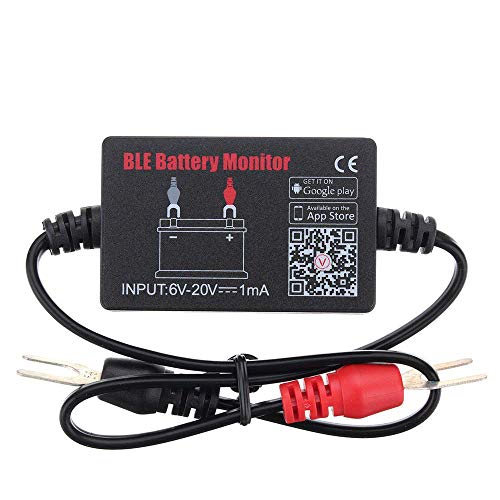
SIMULTANEOUSLY MONITOR UP TO 4 OF 12V BATTERIES: Download APP "BM2", you can monitor 1 of 12v batteries. If you have more batteries, please Download APP "BM3", you can simultaneously monitor up to 4 of these devices(APP BM2/FREE,APP BM3/ NOT FREE)
Common Problems
- Battery Percentage Not Visible
Battery percentage might not appear even after enabling it. This can happen due to software glitches or incorrect settings.
- Incorrect Battery Percentage
Sometimes, the displayed percentage doesn’t match the actual battery level. This issue can arise from outdated software or battery calibration.
- Battery Widget Issues
If you’re using a battery widget, it may display outdated information. This occurs if the app isn’t updated or synced correctly.
Solutions and Tips
- Restart Your Device
If the battery percentage isn’t showing, restarting your device often resolves minor glitches. Hold the power button and select “Restart.”
- Check Settings
Go to Settings > Battery and ensure the “Battery percentage” option is enabled. Sometimes, toggling it off and on refreshes the display.
- Update Software
Check for system updates in Settings > Software update. Installing the latest version can fix bugs affecting battery display.
- Calibrate Your Battery
For incorrect readings, calibrate your battery by fully charging it, then draining it completely before charging it back to 100%. This can help reset the battery’s reporting.
- Examine Third-Party Apps
If using a battery widget, ensure it’s updated or consider switching to a different app. Look for high-rated battery monitoring apps in the Play Store that are reliable.
- Contact Support
If these solutions don’t work, reaching out to your device manufacturer’s support can help resolve persistent display issues.
Conclusion
You now have the tools to keep an eye on your battery percentage and manage your device more effectively. By enabling the battery percentage display you can easily monitor your power levels and avoid those last-minute charging panics.
Remember that whether you prefer the built-in settings or a third-party app there’s a solution that fits your needs. A little customization goes a long way in making your Android experience smoother and more efficient.
So go ahead and take control of your battery life. With just a few simple steps you’ll be well on your way to smarter usage and less stress. Happy charging!
Frequently Asked Questions
How do I display the battery percentage on my Android device?
To show the battery percentage on your Android device, go to the Settings app, select “Battery,” and toggle on the “Battery percentage” option. For Android 9 and older, check the “About phone” section instead.
Why is it important to track my battery percentage?
Monitoring your battery percentage helps you understand your device’s remaining power, allowing for timely recharging. This practice reduces the risk of sudden shutdowns and enhances overall device usage.
What should I do if the battery percentage isn’t displaying?
If the battery percentage isn’t visible, try restarting your device, verifying settings, updating your software, or checking third-party apps. If the problem persists, consider contacting support for assistance.
Can I use apps to monitor battery percentage?
Yes! For devices without a built-in option, you can download third-party apps like Battery Widget Reborn and GSam Battery Monitor. These apps provide customizable widgets and detailed battery usage information.
How can I extend my Android battery life?
To extend battery life, enable Battery Saver Mode when your charge goes below 20%. Additionally, keep track of your battery percentage and adjust your usage habits accordingly.
