

Key Takeaways
- Understanding Alerts: Low battery alerts on Samsung devices include visual, auditory, and vibrational notifications to ensure you notice when your battery is low.
- Importance of Notifications: Setting low battery warnings is crucial to avoid unexpected shutdowns and allows for timely charging, enhancing device usability.
- Customization Steps: Adjust low battery notifications by navigating to Settings > Battery and device care > Battery, and set your preferred warning percentages.
- Common Warning Levels: Familiarize yourself with standard warning levels (20%, 10%, and 5%) to manage your device’s battery effectively.
- Troubleshooting Tips: If notifications are silent or not functioning, check sound settings, volume levels, and potential app conflicts that may disrupt battery alerts.
Ever been in the middle of an important call or scrolling through your favorite app, only to see that dreaded low battery alert pop up? It’s frustrating when your phone decides to give up on you right when you need it the most. Luckily, you can take control of your device’s battery notifications to avoid those last-minute panics.
Understanding Low Battery Warnings on Samsung
Low battery warnings on Samsung devices alert you when the battery level drops to a critical point. These notifications help prevent unexpected shutdowns during important tasks. Recognizing how these warnings work can enhance your device’s usability.
Types of Low Battery Notifications
- Visual Alerts: A pop-up message appears on your screen when battery levels fall below a specific threshold. The message typically includes the current battery percentage.
- Auditory Alerts: Your device emits a sound when the battery is low. This ensures you notice the alert, even if the phone is in your pocket or bag.
- Vibrational Alerts: If you usually keep your phone on silent, vibrational warnings activate. This method provides a discreet way to notify you of low battery levels.
Importance of Setting Warnings
Setting low battery warnings allows for timely charging. Without them, you risk running out of power right when you need your phone the most. These warnings prevent last-minute searches for a charger, allowing smoother usage.
How to Adjust Low Battery Notifications
To optimize low battery notifications, follow these steps:
- Open Settings: Swipe down from the top of your screen and tap the gear icon.
- Go to Battery: Scroll down and select “Battery and device care.”
- Select Battery: Tap on “Battery” to see detailed settings.
- Adjust Notifications: Look for options related to battery status alerts. Here, set your preferred percentage for low battery notifications.
By customizing these settings, you gain control over when and how you’re alerted about low battery levels. Adjusting this not only enhances your experience but also ensures your device stays functional when you need it.
Common Battery Levels for Alerts
Samsung devices commonly use the following percentages for low battery alerts:
| Battery Level | Type of Notification |
|---|---|
| 20% | First warning alert |
| 10% | Second warning alert |
| 5% | Final alert, device shutting down soon |
These predefined levels provide a clear guideline for managing your device’s power effectively. Adjust these settings based on your typical usage to prevent interruptions.
Final Thoughts on Low Battery Management
Understanding and customizing low battery warnings helps maintain device performance. Stay proactive about battery management. Adjust the settings according to your daily routine to minimize disruptions and enhance your overall experience.
Accessing Battery Settings
Accessing battery settings on your Samsung device is straightforward. You’ll find options to customize low battery warnings and other related features.
Navigating to Settings Menu
- Tap on the Settings icon on your home screen or app drawer.
- Scroll down until you see Battery and device care.
- Select Battery to enter the battery settings.
Finding Battery Options
- In the Battery menu, look for More battery settings at the bottom.
- Tap on Battery percentage to see options for notifications.
- Enable the feature to receive alerts when your battery reaches specific levels, like 20%, 10%, or 5%.
By following these steps, you can easily manage low battery notifications to keep your device running smoothly throughout the day.
Setting Up Low Battery Warning
Receive timely alerts about your battery status by setting up low battery warnings on your Samsung device. Customize these warnings to suit your preferences for a smoother experience.
Recommended Products
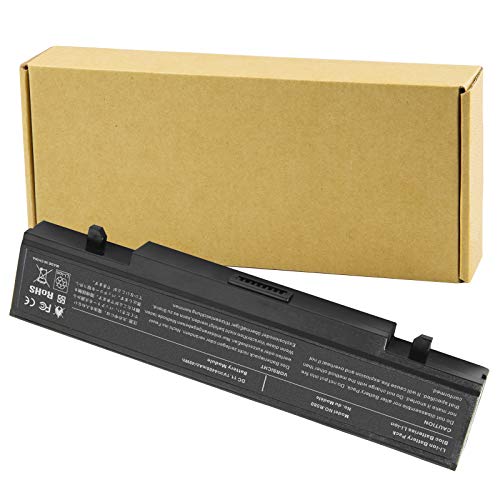
Specifications: 6 Cell, Li-ion battery, Rated at 11.1V(10.8V Compatible) 5200mAh

Know when doors and windows are opened or closed
Customizing Battery Percentage
- Open Settings from your home screen or app drawer.
- Tap on Battery and device care.
- Select Battery.
- Find the option for Battery percentage. Toggle it on if it’s off. This will display your battery percentage in the status bar.
- Adjust the battery warning levels by navigating to More battery settings or Advanced settings. Here, you can determine at which percentages (20%, 10%, or 5%) you want alerts to pop up.
Enabling Alerts
- From the Battery settings, ensure Battery notifications are activated.
- Check the alert sounds. You can set distinct tones for different battery levels or use vibrate mode for notifications.
- Enable App notifications for essential apps that may affect battery usage. This helps you monitor and manage power-hungry applications.
- Periodically review your settings to make sure they meet your needs. Adjusting the warning levels or notification types can enhance your overall experience.
Troubleshooting Common Issues
Sometimes, you might encounter issues with low battery notifications on your Samsung device. Here are some common problems and solutions.
Notification Silence
If notifications are silent, check your device’s sound settings. Ensure that:
- Volume levels for notifications are turned up.
- Do Not Disturb mode isn’t activated, as it can silence alerts.
- App-specific notification settings allow alerts for battery warnings.
If notifications still don’t sound, restart your device. This can reset temporary glitches.
App Conflicts
Certain apps may interfere with battery notifications. To identify and resolve this:
- Review installed apps that run in the background.
- Check for apps that use excessive battery, causing system notifications to malfunction.
- Uninstall or disable apps you don’t frequently use to see if performance improves.
If an app remains problematic, consider reporting the issue through the Galaxy Store for assistance.
Conclusion
Managing your low battery warnings on your Samsung device can make a world of difference. By customizing your alerts you’ll stay informed without the stress of sudden shutdowns. Remember to check your settings regularly to ensure everything’s working smoothly.
Don’t forget to enable distinct sounds for different battery levels so you can easily recognize when it’s time to charge. With a little effort in tweaking these settings you’ll enhance your overall experience and keep your device running when you need it most. Happy charging!
Frequently Asked Questions
How do low battery alerts work on Samsung devices?
Low battery alerts on Samsung devices include visual, auditory, and vibrational prompts to notify users when the battery reaches critical levels. Specifically, alerts trigger at 20%, 10%, and 5%, helping you stay aware before your device shuts down unexpectedly.
Can I customize my low battery notifications?
Yes, you can customize your low battery notifications by going to Settings > Battery and device care > Battery options. Here, you can set different alerts for battery levels and adjust the sounds to match your preferences.
What should I do if my low battery notifications are silent?
If your low battery notifications are silent, check your sound settings, ensure Do Not Disturb mode is disabled, and look into app-specific notification settings. Restarting your device can also resolve temporary issues.
How can I access battery settings on my Samsung device?
To access battery settings, open the Settings menu, then select “Battery and device care.” Find the Battery options, where you can adjust notifications, warning levels, and other settings related to battery performance.
How can I improve my battery management?
You can improve battery management by regularly reviewing and adjusting your notification settings, enabling alerts for specific battery levels, and monitoring power-hungry apps. Consider disabling or uninstalling apps that you don’t frequently use to minimize conflicts.
