

Key Takeaways
- Understanding Battery Importance: Regularly monitoring battery life ensures smooth operation and prevents unexpected shutdowns of your Android device.
- Factors Affecting Battery Life: Key elements like screen brightness, background apps, connectivity, location services, and app updates significantly influence battery performance.
- Accessing Battery Settings: Utilize both the Quick Settings menu and the Settings app to check battery status, usage, and health easily.
- Monitoring App Usage: Identify power-hungry applications by reviewing battery usage stats, which allows for effective management to extend battery life.
- Utilizing Third-Party Apps: Enhance your battery monitoring capabilities with apps like AccuBattery and GSam Battery Monitor for detailed insights and recommendations.
- Optimization Tips: Implement recommended strategies from battery apps and manage app settings to prolong your device’s battery life effectively.
Ever found yourself scrambling for a charger while your phone teeters on the edge of a dead battery? You’re not alone. Many of us rely on our Android devices throughout the day, and keeping an eye on battery life can be a game-changer.
Understanding Battery Life on Android
Battery life on Android devices plays a crucial role in daily usage. Knowing how to keep an eye on your battery status helps you manage your device better and avoid unplanned shutdowns.
Importance of Monitoring Battery Life
Monitoring battery life ensures your device runs smoothly throughout the day. Battery anxiety often arises when you’re away from a charger. By checking your battery status regularly, you can make adjustments to settings that prolong battery life. For example, you might reduce screen brightness or limit background app activity. Such actions help you keep your device functional when it matters most.
Factors Affecting Battery Performance
Several factors influence your device’s battery performance. Understanding these can help you optimize your usage:
- Screen Brightness: High brightness drains the battery quickly. Adjust it to a lower level for extended use.
- Background Apps: Apps running in the background consume battery. Limit unnecessary apps to save power.
- Connectivity: Constant use of Wi-Fi, Bluetooth, and mobile data depletes battery life. Turn off these features when not in use.
- Location Services: GPS usage significantly impacts battery performance. Disable location services for apps that don’t require it.
- App Updates: Outdated apps may cause battery drain. Keep your apps updated for the best performance.
By keeping these factors in mind and adjusting as needed, you can significantly improve your Android device’s battery life.
Accessing Battery Settings
You can easily check your Android device’s battery status using the settings menu. This feature allows you to monitor battery health, screen usage, and applications that consume power. Two primary methods exist to access these settings.
Recommended Products

🔋High Value Battery Tester: BM200 is your go-to solution for 12V lead-acid and lithium battery. Equipped with advanced features like voltage & cranking & charging system test, abnormal alarm and real-time trip records.This battery monitor ensures your car battery is always in optimal condition. Whether it's for your car, motorcycle, truck, RV or boat, this 12V battery tester has got you covered. Get it, and forget winter breakdown worries.
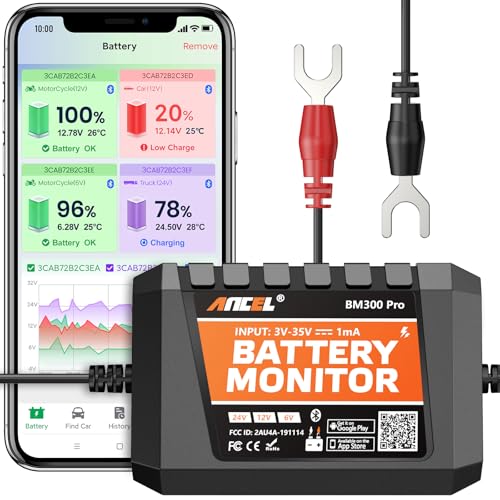
6V, 12V & 24V MONITORING - View voltage, estimated state of charge and temperature through the ANCEL BM300 Pro app. On supported 12V and 24V vehicle systems, review cranking and charging voltage tests. For 6V systems, use voltage, SOC and temperature monitoring; cranking and charging tests are not supported.
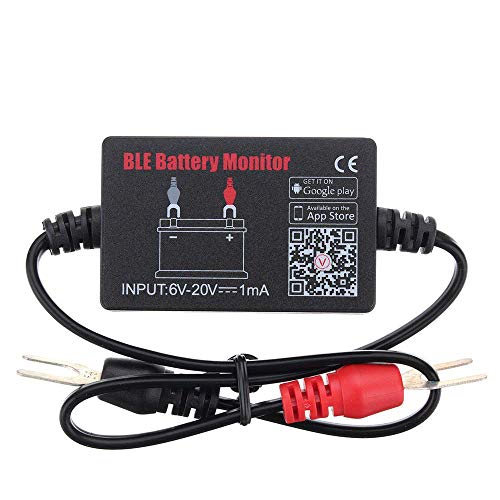
SIMULTANEOUSLY MONITOR UP TO 4 OF 12V BATTERIES: Download APP "BM2", you can monitor 1 of 12v batteries. If you have more batteries, please Download APP "BM3", you can simultaneously monitor up to 4 of these devices(APP BM2/FREE,APP BM3/ NOT FREE)
Using the Quick Settings Menu
- Swipe Down: Pull down the notification shade from the top of your screen.
- Locate the Battery Icon: Look for the battery icon, typically near the top right corner.
- Tap the Icon: A quick tap opens a summary of your battery status, including percentage and estimated time left.
This method provides a fast way to view battery life without digging deeper into the settings.
Navigating Through the Settings App
- Open Settings: Go to your app drawer and find the “Settings” app.
- Select Battery: Scroll down and tap on “Battery.” This section details battery usage and health.
- Review Usage: Explore usage stats to see which apps consume the most power.
Through this route, you gain insights into battery performance, allowing you to make necessary adjustments. Regularly checking these settings can prolong your device’s battery life.
Checking Battery Usage by Apps
Monitoring app battery usage allows you to optimize your device’s performance. Knowing which apps consume more power helps you make changes that prolong battery life.
Recommended Products


LVNOON LB1A series Smart active balance BMS lithium battery protection board fit for Li-ion NCM LFP LiFePo4 LTO Battery Management System 3S to 24S 100A 120A 150A 200A Continuous charge/discharge current available to choose with smartphone APP control

**No Monthly Fees, No SIM Required**: Enjoy hassle-free tracking with our GPS device that eliminates subscriptions and monthly fees. Connect effortlessly via a free app for Android and iOS to monitor real-time locations of your vehicles, pets, and valuables, making it the ideal, budget-friendly tracking solution for daily use and travel adventures.
Identifying Battery-Draining Applications
Access the battery usage feature to spot the apps that drain your battery.
- Open the Settings app.
- Scroll down and tap on Battery or Battery & performance.
- Tap on Battery usage or a similar option, depending on your device.
This list displays apps ranked by battery consumption. For example, if social media apps show high usage, you might consider limiting their background activity to save power.
Managing App Battery Usage
Adjusting settings for power-hungry apps can extend battery life significantly.
- Open the Settings app.
- Navigate to Apps & notifications.
- Select the app you want to manage.
- Tap on Battery.
You’ll find options like Background restrictions or Battery optimization. Enable these features to restrict app activities when they’re not in use.
By regularly checking these settings, you’ll maintain better control over your Android device’s battery life.
Utilizing Third-Party Apps
Third-party apps can enhance your ability to monitor battery life on your Android device. These apps offer features that provide deeper insights into your battery’s performance and usage.
Recommended Apps for Battery Monitoring
- AccuBattery: AccuBattery monitors battery health and charging habits. It provides detailed statistics on charge cycles, capacity, and estimated battery life based on usage patterns.
- GSam Battery Monitor: GSam Battery Monitor displays battery consumption data with clear graphs. It identifies which apps are draining your battery and shows usage trends over time.
- BatteryGuru: BatteryGuru focuses on improving battery life through smart suggestions. It offers tips to extend battery longevity based on your usage, along with real-time statistics.
- BetterBatteryStats: BetterBatteryStats helps you analyze battery wake locks, which can hinder battery performance. It offers a detailed report on how apps affect battery life.
- Droid Hardware Info: Droid Hardware Info provides information about your device’s battery specifications. It displays battery temperature, voltage, and health, helping you understand your battery’s condition.
Features to Look for in Battery Apps
- Usage Statistics: Look for apps that provide detailed statistics on which apps consume the most battery. This guide helps you identify power-hungry applications.
- Charging Analysis: Choose apps that analyze charging habits. They can inform you about battery cycles, including full and partial charges.
- Notifications: Find apps that send alerts for excessive battery usage or when certain apps drain battery life significantly. Alerts can help you take action quickly.
- Tips for Optimization: Prioritize apps that offer practical tips to improve battery life. Recommendations based on your usage can make a noticeable difference.
- User-Friendly Interface: Select apps with intuitive designs. A simple layout makes it easier to access information and understand battery health at a glance.
Conclusion
Keeping an eye on your Android device’s battery life can make all the difference in your daily routine. By regularly checking your battery settings and being mindful of how you use your apps, you can prevent unexpected shutdowns and extend your device’s longevity.
Utilizing the built-in tools and third-party apps can give you valuable insights into your battery’s performance. With a few simple adjustments to your settings and habits, you’ll find it easier to stay connected without the constant worry of running out of power. So go ahead and take control of your battery life—you’ll be glad you did!
Frequently Asked Questions
How can I monitor my Android device’s battery life effectively?
You can monitor your Android device’s battery life by checking the Quick Settings Menu for battery percentage and estimated time left. Additionally, explore the Settings app for detailed battery usage stats and identify apps that consume the most power.
What are some tips to prolong my Android battery life?
To extend your Android battery life, reduce screen brightness, limit background app activity, and manage connectivity features like Wi-Fi and Bluetooth. Additionally, consider adjusting location services settings and regularly updating your apps.
Why is it important to check battery usage by apps?
Checking battery usage by apps helps you identify which applications drain your battery the most. By managing these apps, such as limiting their background activity, you can significantly improve your device’s overall battery performance.
What third-party apps can I use for battery monitoring?
Some recommended third-party apps for battery monitoring include AccuBattery, GSam Battery Monitor, BatteryGuru, BetterBatteryStats, and Droid Hardware Info. These apps provide insights into battery health, consumption, and optimization tips.
How do I access the battery optimization settings on my Android device?
To access battery optimization settings, go to the Settings app, select “Apps & notifications,” choose the app you want to optimize, and enable features like Background restrictions or Battery optimization for better battery efficiency.
