

Key Takeaways
- Understanding Battery Cycles: A battery cycle represents the total charge a battery endures when it discharges and recharges to 100%. Monitoring cycles is essential to maintain device health and performance.
- Importance of Monitoring: Regularly tracking battery cycles helps identify battery health and performance issues, such as faster drainage or slower charging, indicating potential battery replacement needs.
- Methods to Check Cycles: You can view battery cycles on Android through built-in settings (varying by manufacturer) or via third-party apps like AccuBattery and GSam Battery Monitor, which provide detailed insights.
- Analyzing Data: Battery cycle counts reflect how many times the battery has charged and discharged, with a typical lifespan between 300 to 500 cycles. Understanding these counts helps gauge when to consider a battery replacement.
- Best Practices for Maintenance: To prolong battery life, keep charge levels between 20% and 80%, avoid overnight charging, use original chargers, limit background app usage, and regularly adjust device settings for optimal performance.
Ever wondered how long your Android phone’s battery will last? You’re not alone. Many people face the frustration of a phone that seems to drain faster than it should. Understanding battery cycles can help you manage your device’s health and performance better.
Understanding Battery Cycles
Understanding battery cycles is crucial for maintaining your Android phone’s performance. A battery cycle indicates the process of discharging and recharging your battery to 100%. Acquainting yourself with battery cycles helps you keep your device running longer and more efficiently.
What Are Battery Cycles?
Battery cycles refer to the total amount of charge a battery holds. When you use 100% of your battery’s capacity, it counts as one cycle. For example, using 50% of your battery one day and recharging it fully, then using 50% the next day, still counts as one cycle. Android batteries typically last around 300 to 500 cycles, depending on the device and usage patterns.
Importance of Monitoring Battery Cycles
Monitoring battery cycles helps you gauge your device’s health. Regularly checking can reveal how much life your battery has left. You might notice a decline in performance as the cycles increase. For instance, if your phone drains quickly or charges slower, it’s a sign that you may be nearing the end of your battery’s lifespan. Keeping tabs on battery cycles allows you to make informed decisions—like when to replace your battery or invest in a new device.
Methods to See Battery Cycles on Android
Understanding battery cycles helps maintain your Android device’s health. There are two effective methods to check these cycles: using built-in settings and leveraging third-party apps.
Using Built-in Settings
Some Android devices provide battery usage information through settings. To access this feature, follow these steps:
- Open the Settings app on your device.
- Scroll down and select Battery.
- Tap on Battery Usage.
- Look for options that mention battery history or details. Some devices may display battery cycles directly.
This built-in feature varies by manufacturer, so the exact steps could differ. Explore your settings to find detailed battery information specific to your device.
Third-Party Apps
If your device lacks built-in cycle data, third-party apps can fill the gap. Here are popular apps that show battery cycles:
- AccuBattery: This app tracks battery health and provides cycle counts. It gives detailed statistics on charge cycles and discharges.
- GSam Battery Monitor: This tool offers comprehensive battery information, including usage patterns and charge cycles.
- BatteryGuru: This app provides insights into battery health and helps optimize your battery’s lifespan.
To use these apps, download them from the Google Play Store, install, and follow the app-specific guides to view your battery cycles. Each app offers unique features that can assist in monitoring and managing battery performance effectively.
Analyzing Battery Cycle Data
Understanding your battery cycle data can help you assess the overall health and lifespan of your Android device’s battery. Regular monitoring offers insights into how your usage patterns impact battery performance.
Interpreting Battery Cycle Counts
Battery cycle counts indicate how many times your battery has fully charged and discharged. Each full cycle lasts from 0% to 100%, even if this occurs over multiple partial charges. For example, charging your device from 50% to 100% two times counts as one full cycle. A higher cycle count suggests your battery is aging, as most batteries function well for 300 to 500 cycles. You can check your battery cycle count using tools like AccuBattery or through specific settings in some Android devices.
Evaluating Battery Health
Battery health reflects how much of your battery’s original capacity remains. A battery with 80% health means it holds 80% of its initial charge. You can evaluate this metric via third-party apps, which provide detailed health statistics. Look for features indicating capacity and cycle count. If your battery shows signs of degradation—such as quicker drainage or inconsistent charges—consider replacement options. Keeping your battery above 20% and avoiding extreme temperatures can help maintain its health.
Tips for Maintaining Battery Health
Maintaining battery health helps prolong the lifespan and efficiency of your Android device. Implementing simple practices makes a significant difference.
Recommended Products

【Why Choose This Magnetic Power Bank?】It packs an upgraded 10000mAh capacity, 20W fast charging, and a tiny body all in one. Unlike bulky chargers, it won't block your iPhone's rear camera. The strong magnetic grip holds your phone firmly – no slipping, no wobble. The smart LED display shows exact remaining battery percentage in real-time – so you're never caught off guard. Works with iPhone 18/17/16/15/14/13/12 series, giving you 1.8~2.5 full charges. When used with a magnetic phone case, it also supports fast wireless charging for Samsung Galaxy S26/S25/S25 Ultra, Huawei Mate 70/Pura 80 Pro and most Android phones, no need to remove the case.
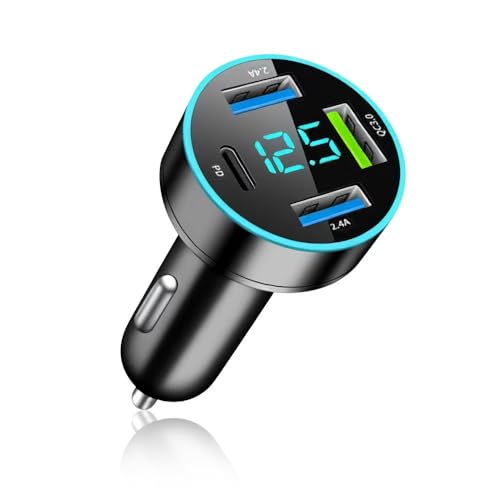
【LED Voltage Display】:This cigarette lighter usb charger is equipped with LED voltage display, which can monitor the voltage status of the vehicle battery in real time. Through the display, users can clearly understand the health of the vehicle's battery to ensure a normal charging and usage experience

Best Practices for Charging
- Charge regularly: Keep your battery between 20% and 80% for optimal health. This range reduces stress on the battery, extending its life.
- Avoid overnight charging: While many devices have safeguards, consistently charging overnight can cause heat buildup. Heat is detrimental to battery performance.
- Use original chargers: Always use the manufacturer’s charger or high-quality replacements. Poor-quality chargers can damage your battery.
- Disconnect when fully charged: Unplug your device once it reaches 100%. Continuous charging can lead to overcharging, negatively impacting battery life.
Avoiding Battery Drain
- Limit background apps: Close unnecessary apps running in the background. Many apps consume power without your knowledge.
- Adjust settings: Lower your screen brightness and use battery saver mode when possible. Simple adjustments can significantly reduce power consumption.
- Turn off location services: Disable GPS and location services when not in use. These features drain battery quickly when active.
- Update apps regularly: Ensure you keep your apps updated. Developers often optimize apps for better battery performance in updates.
By following these tips, you’ll keep your Android battery in good shape, allowing it to perform efficiently for longer periods.
Conclusion
Keeping an eye on your Android battery cycles can make a world of difference in your device’s performance. By understanding how many cycles your battery has gone through you can better assess its health and decide when it might be time for a replacement.
Utilizing built-in settings or handy third-party apps gives you the power to track this information easily. Plus with a few simple maintenance tips you can extend your battery’s lifespan and keep your device running smoothly.
Taking these steps will help ensure that your Android stays reliable and ready for whatever you need it to do. So go ahead and start monitoring those battery cycles today!
Frequently Asked Questions
How many battery cycles does an Android phone typically last?
Android batteries usually last between 300 to 500 charge cycles. Understanding these cycles is crucial for assessing your device’s health and performance over time.
How can I check the battery cycles on my Android device?
You can check battery cycles using built-in settings by navigating to the Settings app, selecting Battery, and looking for battery usage information. Alternatively, third-party apps like AccuBattery can provide detailed insights.
What are the signs that my Android battery needs replacement?
Signs that your Android battery may need replacement include rapid drainage, inconsistent charging, and a significantly reduced overall capacity. Regular monitoring can help identify these issues.
How can I maintain my Android battery’s health?
To maintain battery health, keep the charge between 20% and 80%, avoid extreme temperatures, limit background apps, and use original chargers. Following these practices can help prolong battery lifespan.
What does battery health mean for my Android device?
Battery health refers to the remaining capacity of your device’s battery compared to when it was new. A higher cycle count usually indicates deterioration in battery health.
