

Key Takeaways
- Optimize Display Settings: Lower brightness, enable adaptive brightness, and switch to dark mode to significantly extend battery life on your Samsung S23 Ultra.
- Manage Connectivity: Disable 5G in low coverage areas, turn off Bluetooth and Wi-Fi when not in use, and inhibit location services for non-essential apps to save power.
- Limit Background Activity: Regularly close background apps and manage which apps can run in the background to conserve battery resources.
- Utilize Power Saving Features: Activate power saving mode and adapt settings based on your usage patterns to maximize battery longevity.
- Stay Updated: Regularly update your device to ensure optimal performance and battery management through the latest software enhancements.
- Explore Battery Optimization Tools: Utilize built-in features like Adaptive Battery and consider third-party apps to monitor and manage battery consumption effectively.
Ever found yourself frantically searching for a charger when your Samsung S23 Ultra is running low on battery? You’re not alone. With all the features packed into this powerhouse, it’s easy to drain that battery faster than you’d like.
But don’t worry. This article will share simple yet effective tips to help you extend your battery life. From adjusting settings to managing apps, you’ll learn practical strategies that fit right into your daily routine. Say goodbye to that anxiety of running out of juice and hello to a phone that keeps up with your busy life.
Understanding Battery Life on Samsung S23 Ultra
Battery life plays a crucial role in your daily phone experience. Knowing how different features and settings affect performance helps you maximize the longevity of your Samsung S23 Ultra.
Key Features Impacting Battery Performance
- Display Settings: The Samsung S23 Ultra boasts a vibrant display. Higher brightness levels and a high refresh rate can significantly drain the battery. Adjust these settings to optimize usage by lowering brightness or using adaptive brightness.
- 5G Connectivity: While offering fast internet, 5G can consume more battery power. If you’re in an area with weak 5G coverage, switch to 4G LTE or turn off 5G to extend battery life.
- Location Services: Apps using GPS continuously can lead to battery drain. Disable location services for apps that don’t require it or set GPS to “Battery saving” mode.
- Background App Activity: Some apps run in the background, consuming battery. Limit background activity by navigating to settings and disabling it for non-essential apps.
- Power-hungry Apps: Identify apps using the most battery. Check the battery usage statistics in your settings to find and manage these applications.
Common Battery Drain Issues
- Outdated Software: Running outdated software can lead to inefficiencies. Regularly update your device to the latest software for optimal performance and battery management.
- Live Wallpapers and Widgets: While visually appealing, live wallpapers and excessive widgets drain battery quickly. Use static wallpapers and limit home screen widgets for better efficiency.
- Push Notifications: Frequent push notifications can increase battery use. Consider adjusting notification settings to minimize alerts from apps that aren’t essential.
- Bluetooth and Wi-Fi: Leaving Bluetooth and Wi-Fi on when not in use can sap battery life. Turn them off when you’re not connected to any devices or networks.
- Heavy Usage of Multimedia: Streaming videos or gaming can consume significant battery power. Limit heavy media usage when you can’t recharge immediately.
Understanding these aspects equips you with the knowledge to enhance the battery life of your Samsung S23 Ultra effectively. By implementing the tips provided, you can enjoy prolonged use without running to a charger frequently.
Practical Tips to Save Battery on Samsung S23 Ultra
Saving battery on your Samsung S23 Ultra is achievable with simple adjustments. Implementing a few strategies can help you enjoy extended usage without frequent charging.
Recommended Products

[PLS CONFIRM DEVICE MODEL]-- The repair kit contains the instruction to guide you step by step installation, and we have professional engineers to answer all your questions about the repair process. Please verify your old battery part number and model before purchasing this replacement battery. Compatible with Samsung Galaxy S23 Ultra SM-S918, S918V, S918A, S918T, S918P, S918R4, S918U, S918U1, EB-BS918ABY. ★NOT FOR Samsung Galaxy S23, S23+, S23 FE★

✅【Precise Compatibility】 Direct replacement for OEM battery model EB-BS918ABY. Fits Samsung Galaxy S23 Ultra: SM-S918B, S918B/DS, S918U, S918U1, S918W, S918N, S918E, S918E/DS. Please verify your phone model in Settings > About Phone before ordering.

Compatible Phone Model: This battery kit is specifically designed for Samsung Galaxy S23 Ultra(with model SM-S918 series), NOT work for Galaxy S23 or S23 Plus, please double confirm your phone model before purchasing
Adjusting Display Settings
Adjust display settings to enhance battery life. Here are key adjustments:
- Reduce Brightness: Lower your screen brightness manually or enable adaptive brightness to adjust automatically based on ambient light.
- Shorten Screen Timeout: Set the screen timeout to 30 seconds or 1 minute. This helps your display turn off quickly when not in use.
- Use Dark Mode: Activate dark mode in settings. It minimizes battery drain by using less power on OLED displays.
- Disable Always On Display: Turn off Always On Display to prevent your screen from using power when it’s not in use.
Managing App Usage
Managing apps effectively can prevent unnecessary battery drain. Focus on these tips:
- Close Background Apps: Regularly close apps running in the background. This frees up resources and reduces battery usage.
- Limit Location Services: Restrict location access for apps that don’t require it. Use “While Using the App” settings wherever possible.
- Check Battery Usage: Access battery settings to identify power-hungry apps. Force stop or uninstall apps that heavily drain your battery.
- Disable Push Notifications: Turn off notifications for non-essential apps. This minimizes background activity and extends battery life.
Utilizing Power Saving Modes
Using power saving modes helps conserve battery for longer periods. Consider these options:
- Enable Power Saving Mode: Activate power saving mode through settings. This reduces performance and limits background data.
- Set Adaptive Battery: Enable adaptive battery to allow your device to prioritize usage based on your habits. It learns over time which apps you use most.
- Create Custom Power Plans: Adjust power modes based on your needs. You can select options like Medium power saving to optimize features while saving battery.
- Schedule Power Saving: Schedule power saving mode to activate during certain hours. This ensures your phone conserves energy during downtime.
Implementing these practical tips can significantly enhance the battery life of your Samsung S23 Ultra.
Advanced Techniques for Power Management
Improve your Samsung S23 Ultra’s battery life with these advanced techniques. You can significantly reduce battery consumption with just a few adjustments.
Recommended Products

【Compatibility】: Designed for Samsung Galaxy S23 Ultra ONLY — fits SM‑S918B / SM‑S918U / SM‑S918U1 (all S918 series); battery part number EB‑BS918ABY; does NOT...
Limit Background Activity
Limit background activity to save battery life. Disable background data for apps you don’t use often. To do this:
- Open Settings.
- Tap Apps.
- Select the app.
- Tap Mobile data.
- Toggle off Allow background data usage.
Also, restrict background app activity:
- Go to Settings.
- Tap Battery and device care.
- Select Battery.
- Choose App power management.
- Enable Put unused apps to sleep.
These actions prevent unnecessary resource usage.
Optimize Connectivity Features
Optimize your connectivity features to conserve battery life. Keeping Bluetooth, Wi-Fi, and mobile data off when not in use can make a difference. Simply toggle them off in the quick settings menu.
You can also adjust your location settings:
- Open Settings.
- Tap Location.
- Set Mode to Battery saving instead of High accuracy.
Turning on Airplane mode in low-signal areas reduces battery drain. Just tap the Airplane icon in the quick settings menu. Consider scheduling automatic connection toggling when you know you won’t need the features.
By implementing these advanced techniques, you can maximize your Samsung S23 Ultra’s battery performance.
Tools and Apps for Battery Optimization
Utilizing the right tools and apps can enhance your Samsung S23 Ultra’s battery life. Here are some excellent options to consider.
Recommended Products
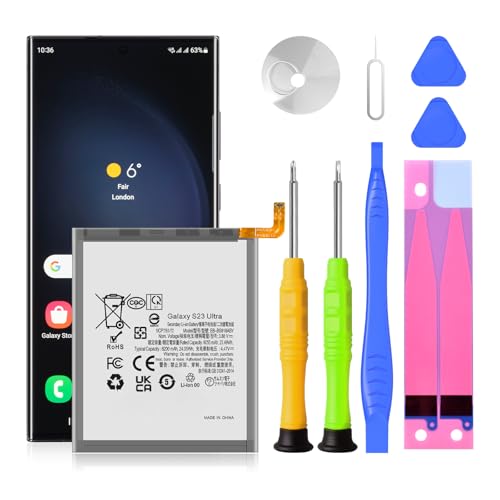
♛【Battery Compatible Model】: This Upgraded Super High Capacity Galaxy S23 Ultra battery replacement compatible Galaxy S23 Ultra SM-S918U SM-S918U1 SM-S918B, EB-BS918ABY Phone Battery.

[Compatible Models] Developed especially for Samsung Galaxy S23 Ultra, this replacement battery is compatible with models SM-S918B, SM-S918U, and SM-S918U1/DS. [Note: Not compatible with Samsung Galaxy S23, S23 Plus, or any other Galaxy models.]
Built-In Battery Saver Features
Your Samsung S23 Ultra offers several built-in features to help manage battery usage effectively.
- Power Saving Mode: Activate this mode to extend battery life by limiting background activity and reducing performance.
- Adaptive Battery: This feature learns your app usage patterns and restricts power to apps you seldom use, conserving energy.
- Battery Usage Statistics: Access settings to view detailed stats on which apps consume the most power. This insight allows you to manage usage efficiently.
- Dark Mode: Enable dark mode to reduce energy consumption, especially on AMOLED screens, which consume less power when displaying black pixels.
Third-Party Applications
Numerous third-party applications can further aid in optimizing battery performance.
- Greenify: This app identifies apps that drain battery and puts them into hibernation when not in use, minimizing background activity.
- SD Maid: Use this app to clean up unnecessary files and free up storage, which can lead to improved battery performance by reducing background processes.
- Lifesaver: This utility provides vital statistics on your device’s power consumption and helps manage apps effectively.
- Battery Doctor: This app offers one-tap optimization, automatically identifying power-hungry apps and guiding you on how to reduce their battery impact.
Implementing these built-in features and third-party applications ensures you maximize your Samsung S23 Ultra’s battery life, allowing you to stay connected longer without constant recharging.
Conclusion
With these tips in your toolkit you can take control of your Samsung S23 Ultra’s battery life. By making a few simple adjustments and being mindful of your app usage you’ll find that your phone can keep up with your busy days without constantly searching for a charger.
Remember to regularly check your settings and stay updated on new features that can help optimize your device. Embracing these strategies not only helps you extend battery life but also enhances your overall smartphone experience. Enjoy your time with your S23 Ultra knowing you’ve got the power to make it last!
Frequently Asked Questions
What causes battery drain on the Samsung S23 Ultra?
Battery drain can be caused by various factors, including high display brightness, active location services, background app activity, and connectivity features like 5G and Bluetooth. Outdated software and power-hungry apps can also contribute to the problem.
How can I extend battery life on my Samsung S23 Ultra?
To extend battery life, reduce display brightness, shorten screen timeout, and enable Dark Mode. Manage apps by closing unnecessary ones, limiting location services, and turning off non-essential notifications. Utilize power saving modes and consider third-party battery optimization apps for better management.
What are the best settings to save battery?
Optimal settings for battery saving include using a lower screen brightness, activating adaptive battery features, and enabling power saving mode. Additionally, switching location services to battery saving mode and turning off Bluetooth and Wi-Fi when not in use can help conserve energy.
Are there any apps that can help with battery optimization?
Yes, the Samsung S23 Ultra has built-in battery optimization features like Power Saving Mode and Battery Usage Statistics. Third-party apps such as Greenify, SD Maid, Lifesaver, and Battery Doctor can also assist in managing battery consumption effectively.
How does background app activity affect battery life?
Background app activity can significantly drain battery life, as apps continue to consume resources even when not in use. Limiting background data for less-used apps and putting unused apps to sleep can reduce this impact and prolong battery life.
