

Key Takeaways
- Understand Battery Performance: Knowing how battery performance works helps prevent unnecessary drain, allowing for optimal usage throughout the day.
- Importance of Battery Saving: Implementing battery-saving strategies extends the time between charges and prolongs your phone’s overall battery lifespan.
- Manage Screen Brightness and Background Apps: Lower screen brightness and close unused apps to reduce power consumption significantly.
- Optimize Location Services: Limit location access for specific apps and use Battery Saving mode to minimize GPS-related battery drain.
- Utilize Power Saving Modes: Activate Power Saving and Maximum Power Saving Modes to conserve battery life effectively during low battery situations.
- Leverage Battery Optimization Settings and Apps: Use built-in settings and third-party battery saver apps to track usage patterns and limit background activities for enhanced battery management.
Are you tired of your Samsung A12’s battery dying when you need it most? You’re not alone. Many users face the frustration of constantly searching for a charger or worrying about battery life throughout the day.
The good news is there are simple steps you can take to extend your phone’s battery life. This article will share practical tips and tricks to help you make the most of your device, ensuring it lasts longer between charges. With just a few adjustments, you can enjoy your phone without the constant battery anxiety.
Understanding Battery Performance
Understanding how your Samsung A12’s battery performs helps maximize its lifespan. Knowing the basics can prevent unnecessary battery drain and ensure you get the most out of your device.
Importance of Battery Saving
Battery saving is crucial for maintaining your phone’s usability throughout the day. When you conserve battery life, you reduce the frequency of charging sessions. This not only extends the time between charges but also prolongs the overall battery lifespan. Key strategies include adjusting screen brightness, disabling unused applications, and utilizing battery saver modes. For instance, enabling Power Saving Mode can limit background activity and optimize performance, allowing you to use your phone longer.
Factors Affecting Battery Life
Several factors affect battery life on your Samsung A12.
- Screen Brightness: Higher brightness levels consume more power. Lower the brightness or set it to auto-adjust based on ambient light.
- Background Apps: Certain apps continue running in the background, using up valuable battery. Close apps you’re not actively using or restrict background data.
- Network Connectivity: Poor network signals lead to increased battery usage. Turn off Wi-Fi or mobile data when not in use, especially in low-signal areas.
- Location Services: GPS and location-based apps continuously drain battery. Turn off location services for apps that don’t need them or set them to “While Using.”
- Notifications: Frequent notifications from various apps can keep your screen active. Limit notifications or turn off those you find unnecessary.
Addressing these factors can significantly improve your A12’s battery performance.
Essential Tips for Saving Battery
Saving battery life on your Samsung A12 is straightforward with some simple adjustments. Here are practical tips to help you extend your device’s usage time.
Recommended Products

🎋【Compatible Model】EB-BA217ABY Replacement Battery for Samsung Galaxy A12 SM-A125F SM-A125U SM-A125M[Note: Not for Galaxy A11,Galaxy A13 or other Phone Models]
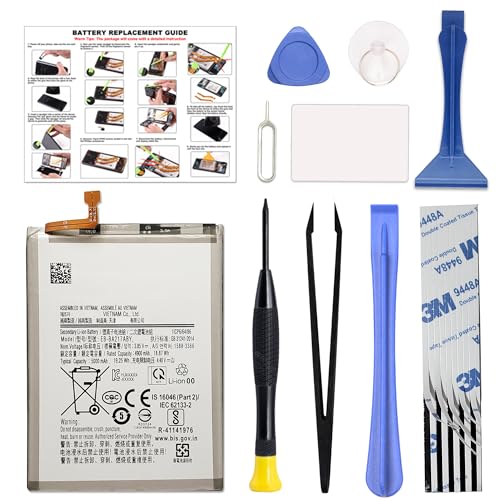
COMPATIBILITY: This battery only fits for Samsung Galaxy A12 & A21s. Please carefully confirm your phone model before purchase.

✅【6200mAh MEGA CAPACITY】 Supercharge your Samsung Galaxy A12 with this massive 6200mAh upgraded battery – far exceeding the original capacity. Enjoy of regular usage or marathon streaming and gaming sessions without hunting for a charger. Ideal for heavy users, travelers, and anyone tired of daily recharging.
Adjusting Screen Brightness
Reducing your screen brightness minimizes battery consumption.
- Open Settings.
- Tap Display.
- Drag the Brightness slider down to a comfortable level.
- Enable Adaptive brightness to automatically adjust brightness based on surrounding light.
Managing Background App Usage
Background apps often drain battery unnecessarily.
- Open Settings.
- Select Apps.
- Tap on the app you want to restrict.
- Choose Battery and toggle Allow background activity to Off.
Close apps you aren’t using by swiping them away in the recent apps view.
Optimizing Location Services
Location services frequently consume battery power.
- Open Settings.
- Tap Location.
- Set Location mode to Battery saving for less intensive usage.
- Disable location access for specific apps under App permissions.
Using these strategies effectively enhances your Samsung A12’s battery life, ensuring you stay connected longer without frequent charging.
Utilizing Battery Saver Modes
Battery saver modes on the Samsung A12 provide efficient ways to extend your device’s battery life. Using these modes can significantly decrease power consumption and help you prolong usage between charges.
Recommended Products

[Compatibility] Only for samsung galaxy A12 screen replacement , model ( A125 A127) ,6.5 inch ,with Frame . Please confirm the model before purchasing. Note: No Repair Tools Included

Compatible Models: This A12 Battery For Samsung Galaxy A12 SM-A125U SM-A125F SM-A125M.EB-BA217ABY

HIGH CAPACITY --- This replacement battery for Samsung Galaxy A10S is 5150mAh high capacity, with more power than original battery.You can use your phone for a longer time!
Power Saving Mode
Power Saving Mode activates features that reduce battery drain. It limits background data, lowers screen brightness, and disables animations. To enable it, follow these steps:
- Open the Settings app.
- Select Battery and Device Care.
- Tap on Battery.
- Choose Power Saving Mode and toggle it on.
Using Power Saving Mode, you can gain several hours of additional battery life. This mode is ideal during low-battery situations or when you won’t be able to charge your phone for a while.
Maximum Power Saving Mode
Maximum Power Saving Mode takes battery conservation a step further. It restricts usage to essential apps and features while keeping your phone functional. Here’s how to enable it:
- Go to Settings.
- Tap on Battery and Device Care.
- Select Battery.
- Choose Maximum Power Saving Mode and switch it on.
This mode limits your device to only calling, messaging, and a few essential apps. You’ll notice a significant increase in battery life, making it perfect for emergencies or extended periods without charging.
Apps and Features for Battery Management
You can optimize battery life on your Samsung A12 by adjusting specific settings and leveraging effective apps. Here are some practical options.
Recommended Products

Kill Running Applications


🚀 Instant Performance Boost – Stop background apps to free memory and speed up your Fire Tablet.
Battery Optimization Settings
Accessing battery optimization settings on your Samsung A12 can significantly reduce power consumption. Start by navigating to Settings > Battery and Device Care > Battery > Background Usage Limits. This menu allows you to:
- Put unused apps to sleep: Limit background activity for apps you rarely use.
- Manage apps: Restrict specific apps from running in the background.
You can also enable Adaptive battery by going to Settings > Battery > More Battery Settings. This feature learns your app usage patterns and limits battery for apps you don’t use often. Switching to Power Saving Mode under the Battery section reduces performance and prevents background data usage, extending battery life.
Third-Party Battery Saver Apps
Several third-party battery saver apps can help enhance your Samsung A12’s battery management. Here are a few popular options:
- Greenify: This app identifies background apps that drain power and helps you hibernate them when not in use.
- AccuBattery: Track battery health and usage patterns, giving you insights into how to extend battery life effectively.
- Battery Doctor: Optimize your device and manage background processes to improve battery longevity.
Before installing any app, read user reviews and check the features to find one that suits your needs. These apps can be valuable tools for managing battery life, especially when your device requires extra care during long days away from the charger.
Conclusion
With a few simple adjustments you can significantly boost your Samsung A12’s battery life. By being mindful of your settings and managing background apps you’ll find that your device can keep up with your busy lifestyle.
Utilizing features like Power Saving Mode and Adaptive brightness can make a world of difference. Plus don’t forget about those handy third-party apps that can help you monitor and optimize your battery usage.
Staying connected and enjoying your phone without the constant worry of charging is totally achievable. So go ahead and implement these tips to make the most out of your Samsung A12’s battery life.
Frequently Asked Questions
What are common reasons for Samsung A12 battery drain?
Many factors can cause battery drain on the Samsung A12, including high screen brightness, multiple background apps running, poor network connectivity, and frequent location service usage. Managing these elements can greatly enhance battery life.
How can I extend the battery life of my Samsung A12?
To extend your A12’s battery life, reduce screen brightness, use battery-saving modes, limit background app activity, and optimize location settings. Implementing these strategies can help you stay connected longer without frequent charging.
What is Power Saving Mode on the Samsung A12?
Power Saving Mode on the Samsung A12 reduces battery drain by limiting background data, lowering screen brightness, and disabling animations. Activating this mode can provide several extra hours of battery life based on usage.
How does Adaptive Brightness work on the Samsung A12?
Adaptive Brightness automatically adjusts your screen’s brightness based on the surrounding light and your preferences. This feature not only improves visibility but also aids in conserving battery life by preventing unnecessary brightness.
Can third-party apps help with battery management on my Samsung A12?
Yes, third-party apps like Greenify, AccuBattery, and Battery Doctor can assist in managing battery usage. They offer features to monitor battery health, put unused apps to sleep, and help extend battery life effectively.
What is Maximum Power Saving Mode?
Maximum Power Saving Mode is a feature that limits your Samsung A12 to essential apps and functions, significantly extending battery life. It’s useful for emergencies or when you know you won’t have access to a charger for an extended period.
