

Key Takeaways
- Monitor Battery Usage: Regularly check battery settings to identify apps consuming the most power and take action to limit their activity.
- Adjust Screen Settings: Lower your screen brightness and minimize screen timeout duration to conserve battery life effectively.
- Utilize Power Saving Modes: Activate power-saving modes such as “Power Saving” and “Maximum Power Saving” to significantly reduce battery consumption.
- Limit Background Apps: Restrict background activity for non-essential apps through the battery management settings to prevent unnecessary drain.
- Manage Location Services: Optimize location service settings by using Battery Saving Mode and limiting access for apps that do not require constant tracking.
- Keep Apps Updated: Regularly update your phone’s software and applications to ensure optimal performance and better battery efficiency.
Ever found yourself frantically searching for a charger when your Samsung phone’s battery is on the brink of dying? You’re not alone. Many people struggle with battery life, especially when they’re on the go or relying on their phones for important tasks.
Understanding Battery Life on Samsung Phones
Battery life on Samsung phones can vary based on usage patterns and settings. A few factors contribute to how long your battery lasts.
Common Reasons for Battery Drain
- High Screen Brightness: Keeping the screen brightness at maximum levels consumes a significant amount of battery.
- Background Apps: Applications running in the background, like social media or streaming services, continue to use power even when you’re not actively using them.
- Location Services: GPS-enabled apps can drain battery life when left active for long periods.
- Push Notifications: Frequent alerts from apps can cause your phone to wake up and use battery power.
- Outdated Apps: Running outdated applications may lead to increased battery consumption due to poor optimization.
Importance of Managing Battery Usage
Managing battery usage plays a vital role in extending your Samsung phone’s battery life. Employing effective strategies enhances battery longevity.
- Monitoring Usage: Check the battery settings to see which apps consume the most power. This allows you to make informed decisions on app usage.
- Optimizing Settings: Use features like battery saver mode during critical times to limit background activities while still allowing essential notifications.
- Limiting Connectivity: Turn off Wi-Fi, Bluetooth, and mobile data when not in use. Each connection drains battery life.
- Adjusting Display Settings: Lowering screen brightness and reducing screen timeout can significantly improve battery performance.
- Regular Updates: Keeping your phone’s software and apps updated ensures optimization for better battery usage.
By understanding battery life and actively managing your device’s settings, you can enhance your Samsung phone’s efficiency and make it last longer between charges.
Tips to Save Battery on My Samsung Phone
You can take several steps to save battery on your Samsung phone. Implementing these tips helps extend your device’s battery life and keeps it functioning smoothly.
Recommended Products

POWER ANYWHERE YOU WANT IT: Charge up any of your devices with the Galaxy Magnetic Wireless Battery Pack. Whether you want to plug in to the USB-C port or use the built-in magnetic wireless charger, the 5,000mAh battery is waiting to power you up throughout the whole day.

Charging comfort on the go with super-fast charging function up to 45W
Adjusting Screen Brightness and Screen Timeout
Adjust your screen brightness to reduce battery consumption. Set it to a lower level or enable adaptive brightness to automatically adjust based on the surroundings. Additionally, minimize your screen timeout duration. A shorter timeout helps the display turn off faster when not in use, conserving energy.
Utilizing Power Saving Modes
Activate power-saving modes for significant battery savings. Samsung phones typically offer a variety of modes, like “Power Saving” and “Maximum Power Saving.” These modes limit background data and decrease performance to extend battery life. You can customize settings within these modes based on your preferences.
Limiting Background App Activity
Restrict background app activity to prevent unnecessary battery drain. Access the settings menu, go to “Battery,” and select “App Power Management.” Here, you can put unused apps to sleep or restrict background activity for specific applications. This process minimizes power usage by apps when you’re not using them actively.
Settings to Check for Battery Optimization
Optimizing your settings is crucial for extending battery life on your Samsung phone. You can make a significant difference with just a few adjustments.
Recommended Products

✅Compatibility: This stylus pen is compatible for iOS/Android touchscreens. It can not only work for Lenovo/SAMSUNG/HUAWEI/Vivo/Mi and other brand tablets, but also can work for iPhone, iOS/Android/Harmony OS, and other system cellphones. NOTE: This stylus pen not compatible for iPad & Microsoft tablets and windows systems
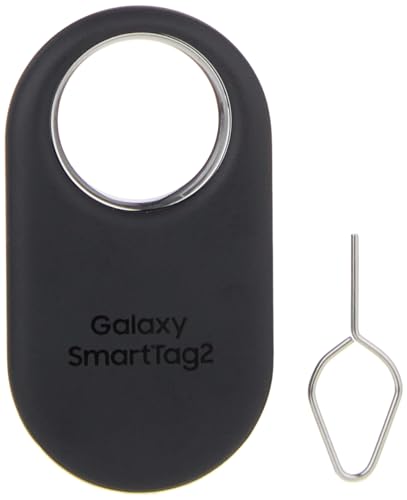
Find your things with ease: The SmartThings Find app uses Bluetooth and ultra-wideband (UWB) technology to locate and keep track of your stuff

Apps Using Too Much Battery
Monitoring apps that drain battery helps you manage usage effectively. Go to Settings > Battery and Device Care > Battery > App Power Management. Here, you’ll see a list of apps with significant battery usage.
- Uninstall non-essential apps: Remove apps you rarely use. This reduces background activity.
- Restrict background activity: Tap on the app and select Battery Usage. Choose Restricted to limit its activity when not in use.
- Turn off app notifications: Disable notifications for less important apps. Navigate to Settings > Apps and select the app to adjust its notification settings.
Location Services Management
Location services can significantly impact battery life. Set these services to optimize usage. Access them through Settings > Location.
- Use High Accuracy selectively: Set Location to Battery Saving Mode when you don’t need precise tracking. This mode uses Wi-Fi and mobile networks instead of GPS.
- Manage location access: Review which apps have access to your location and limit it to essential ones. Tap on App permissions to adjust settings.
- Disable location services when not needed: Switch off location services entirely when you don’t need them. Use the quick settings panel for easy access.
By checking these settings and making adjustments, you can enhance battery life on your Samsung phone effectively.
Conclusion
Taking control of your Samsung phone’s battery life can make a world of difference. By making a few simple adjustments to your settings and being mindful of your app usage you can keep your phone running longer when you need it most.
Remember to regularly check for apps that drain your battery and consider limiting their background activity. Utilizing power-saving modes and adjusting your display settings can also help stretch that battery life.
With these tips in mind you’ll be better prepared to tackle your day without worrying about finding a charger. Enjoy your Samsung phone to the fullest and keep it powered up for all your important moments!
Frequently Asked Questions
How can I improve battery life on my Samsung phone?
To improve battery life on your Samsung phone, try adjusting screen brightness, utilizing power-saving modes, and limiting background app activity. You can also check App Power Management in Settings to monitor and restrict battery-draining apps.
What causes my Samsung phone’s battery to drain quickly?
Common reasons for fast battery drain include high screen brightness, numerous background apps, active location services, and frequent push notifications. Outdated applications can also contribute to rapid battery depletion.
How do I adjust screen brightness to save battery?
To adjust screen brightness, go to Settings > Display. From there, you can either manually set the brightness or use the adaptive brightness feature, which automatically adjusts based on your environment.
What is the App Power Management feature?
The App Power Management feature allows you to view and manage apps that use a lot of battery. You can restrict background activity and notifications for specific apps to help conserve power.
Should I use location services on my Samsung phone?
Location services can drain battery, so it’s best to use Battery Saving Mode when precise location tracking isn’t needed. Review app permissions and turn off location services when not using location-dependent apps.
How often should I update my apps to save battery?
Regularly updating your apps is essential as updates can improve app efficiency and reduce battery drain. Check for updates regularly in the Google Play Store to ensure optimal performance.
What is power-saving mode on Samsung phones?
Power-saving mode reduces your phone’s performance and limits background data usage to extend battery life. You can activate it through Settings > Battery and Device Care > Battery for better battery management.
