

Key Takeaways
- Understand Battery Usage: Regularly check battery usage statistics in your Android settings to identify apps that consume significant power and affect your device’s performance.
- Restrict App Activity: Customize individual app settings, including restricting background data and disabling unnecessary notifications, to reduce battery drain effectively.
- Utilize Battery Saver Mode: Enable Battery Saver Mode when your battery is low to extend its life by limiting background processes and performance.
- Monitor Background Activity: Regularly review and optimize background activity for high-drain apps to prevent them from consuming battery when they are not in active use.
- Leverage Third-Party Tools: Consider using apps like Greenify and AccuBattery for enhanced battery management, allowing you to hibernate background apps and gain insights into battery consumption.
- Stay Informed with Alerts: Set up notifications for low battery levels and unusual app usage to proactively manage your device’s battery health.
Ever find yourself frantically searching for a charger because your phone’s battery is draining faster than you can keep up? You’re not alone. Many Android users struggle with apps that secretly guzzle power, leaving you with a dead phone when you need it most.
Understanding Battery Usage on Android
Battery drain is a common concern for Android users. Managing which apps consume your battery is crucial for maintaining an optimal device performance.
Importance of Battery Management
Battery management enhances your phone’s longevity and efficiency. High battery usage can lead to frequent charging, impacting your daily routine. Monitoring and adjusting app settings helps you identify power-hungry applications. By taking control, you create a more seamless experience and reduce battery anxiety.
How Android Tracks App Usage
Android tracks app usage through built-in settings and analytical tools. You can find battery usage stats by navigating to Settings > Battery > Battery Usage. Here, you’ll see the percentage of battery each app consumes. Android also categorizes usage by foreground and background activity, giving you insight into which apps drain battery most efficiently. Notably, system apps may consume battery too, emphasizing the need for comprehensive management.
Identifying Apps with High Battery Usage
Identifying the apps that drain your battery helps you manage usage effectively. Android devices provide tools to track battery consumption, making it easier to pinpoint the culprits.
Recommended Products

🔋High Value Battery Tester: BM200 is your go-to solution for 12V lead-acid and lithium battery. Equipped with advanced features like voltage & cranking & charging system test, abnormal alarm and real-time trip records.This battery monitor ensures your car battery is always in optimal condition. Whether it's for your car, motorcycle, truck, RV or boat, this 12V battery tester has got you covered. Get it, and forget winter breakdown worries.
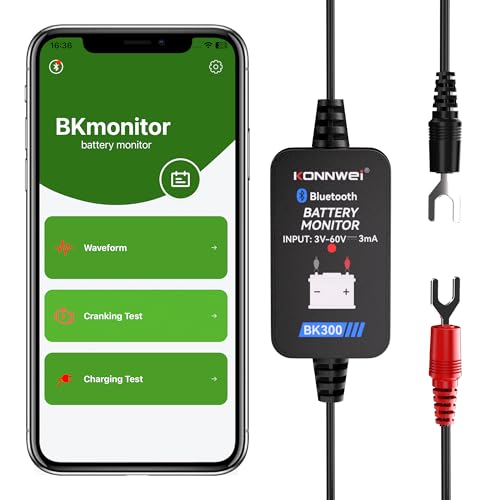
【Car Battery Monitor Assistant】The BK300 battery monitor is equipped with advanced features such as voltage, starting and charging system testing, and real-time trip logging.Works with Lead-acid, AGM Flat/Spiral, EFB,VRLA,GEL and Lithium batteries—never face winter breakdowns again.
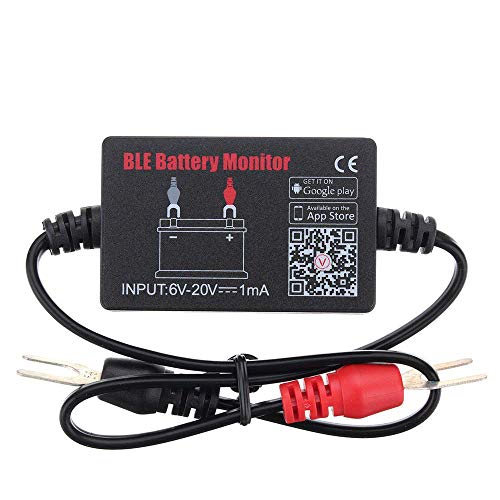
SIMULTANEOUSLY MONITOR UP TO 4 OF 12V BATTERIES: Download APP "BM2", you can monitor 1 of 12v batteries. If you have more batteries, please Download APP "BM3", you can simultaneously monitor up to 4 of these devices(APP BM2/FREE,APP BM3/ NOT FREE)
Accessing Battery Usage Statistics
- Open Settings on your Android device.
- Tap on Battery.
- Select Battery Usage.
- Review the list of apps shown, which displays the percentage of battery each app has consumed over a specific time frame.
- Tap on individual apps for more details about their background and foreground activity.
This information allows you to see which apps contribute most to battery drain, enabling you to make informed decisions on restricting or adjusting their usage.
Understanding Battery Drain Factors
- Foreground Activity: Apps actively in use can consume substantial battery power. Streaming video or playing games generally leads to higher consumption.
- Background Activity: Apps running in the background may still drain your battery. Check for apps that refresh content or use location services without your knowledge.
- Notifications: Frequent notifications can exhaust battery life. Certain social media or messaging apps often use significant energy for these updates.
- Complex Functionality: Apps that access hardware features like GPS, Bluetooth, or high-resolution graphics typically increase battery usage.
- App Updates: Update apps regularly, as developers often optimize performance and battery efficiency.
By recognizing these factors and monitoring battery usage statistics, you gain control over which apps remain active, leading to better battery management.
Methods to Restrict High Battery Usage Apps
You can manage high battery usage apps effectively by utilizing several methods. Here are some practical steps to help reduce battery drain on your Android device.
Changing App Settings
You can customize app settings to minimize battery consumption.
- Access App Settings: Open your device’s Settings, then navigate to Apps.
- Select the App: Tap on the high battery usage app you want to adjust.
- Restrict Background Data: Enable the “Restrict background data” option to limit the app’s activity when not in use.
- Turn Off Notifications: Disable unnecessary notifications that might wake up the device.
Limiting Background Activity
Reducing background activity can significantly lower battery drain.
- Open Battery Settings: Go to Settings, then tap on Battery.
- View App Usage: Select “Battery usage” to see which apps are consuming power in the background.
- Optimize Background Activity: For apps with high usage, select “Background restriction” to prevent them from running when they don’t need to.
- Manage Permissions: Adjust permissions for apps that access location and other hardware features excessively.
Utilizing Battery Saver Mode
Activating Battery Saver Mode can extend your device’s life when battery levels are low.
- Enable Battery Saver: Go to Settings, then Battery, and toggle on Battery Saver Mode.
- Customize Settings: Choose to restrict background data and limit performance to save energy.
- Schedule Activation: Set your device to activate Battery Saver Mode automatically when the battery reaches a specific percentage, typically around 15%.
By applying these methods, you can effectively restrict apps that use excessive battery power, leading to a more efficient device.
Additional Tools and Features
Managing battery usage on your Android device can be enhanced with additional tools and features. You can employ various methods to track and optimize battery consumption effectively.
Third-Party Apps for Battery Management
Numerous third-party apps exist to help manage battery usage. Apps like Greenify or AccuBattery provide detailed insights into battery drain and app activity.
- Greenify: This app hibernates background apps, preventing them from using battery when not in active use. It helps you maintain a well-optimized device, improving overall battery life.
- AccuBattery: This tool measures actual battery usage for individual apps. You can see which apps are consuming the most power and take action accordingly.
- Battery Guru: This app offers battery-saving tips based on your usage patterns. It includes customizable notifications for unused apps, encouraging battery-saving habits.
Using these apps, you can pinpoint high-drain applications and adjust their settings based on your needs.
Notifications and Alerts for Battery Optimization
Utilizing notifications and alerts can significantly assist in battery management.
- Battery Saver Alerts: Many Android devices allow you to enable notifications when battery levels drop below a certain percentage. Set alerts to activate Battery Saver Mode automatically at 20% battery.
- Usage Notifications: Some devices send alerts for apps that drain too much battery over time. Stay informed of any unusual battery use, allowing you to react promptly.
- Optimization Reminders: Enable reminders to run battery optimization services weekly. This can help maintain efficiency by regularly checking app settings and performance.
These tools and notifications keep your battery usage in check, allowing for a more sustainable Android experience.
Conclusion
Managing battery usage on your Android device doesn’t have to be a hassle. By keeping an eye on which apps are draining your battery and making a few simple adjustments, you can enjoy a longer-lasting charge. Remember to utilize built-in settings and consider third-party apps that can help you monitor and optimize usage.
Taking control of your battery life means fewer frantic searches for a charger and more time enjoying your device. With these strategies in place, you’ll be well on your way to a more efficient and worry-free Android experience. So go ahead and make those changes—you’ll thank yourself later!
Frequently Asked Questions
What causes rapid battery drain on Android devices?
Rapid battery drain on Android devices is commonly caused by power-hungry apps running in the foreground or background. Frequent notifications, complex functionalities that access hardware, and outdated apps can also contribute to this issue.
How can I check which apps are draining my battery?
You can check battery consumption by going to your device’s Settings, selecting “Battery,” and then “Battery Usage.” This shows which apps are using the most power and helps identify potential culprits.
What steps can I take to reduce battery drain?
To reduce battery drain, restrict background data for high-usage apps, disable unnecessary notifications, and activate Battery Saver Mode. Optimizing app permissions also helps limit background activity.
Are there any tools to help manage battery usage?
Yes, there are several third-party apps like Greenify, AccuBattery, and Battery Guru that can help monitor and optimize battery usage on Android devices, providing insights into app activity and offering practical tips.
How does Battery Saver Mode work?
Battery Saver Mode helps extend battery life by limiting background activity, reducing performance, and turning off features that consume power. You can customize its settings and schedule activation for convenience.
