

Key Takeaways
- Understanding Battery Issues: Samsung S2 tablet users commonly experience diminished battery performance over time due to factors like app usage and screen brightness.
- Essential Tools Required: Key tools for battery replacement include a small Phillips screwdriver, plastic opening tool, tweezers, suction cup, and an anti-static wrist strap to protect internal components from static damage.
- Step-by-Step Procedure: Follow the systematic steps of powering off the device, removing the back cover, disconnecting the old battery, installing the new battery, and reassembling the tablet to ensure a successful battery replacement.
- Safety First: Always power off the tablet, maintain a clean workspace, and handle components with care to avoid electrical hazards and damage.
- Tips for Success: Avoid common mistakes such as neglecting to gather all tools, rushing the process, or forgetting to test the tablet after replacement to confirm functionality.
- Proper Disposal of Old Battery: Ensure that you dispose of the old battery responsibly by taking it to a recycling center to minimize environmental impact.
Is your Samsung S2 tablet running out of juice faster than it used to? You’re not alone. Many users find that over time, battery performance diminishes, leaving you frustrated and searching for a solution.
Overview of Samsung S2 Tablet
The Samsung S2 Tablet features a sleek design, a high-resolution display, and powerful performance. It comes equipped with a 9.7-inch or 8-inch screen, providing vibrant visuals for watching videos or browsing the web. The tablet operates on Android, offering access to a wide range of apps through the Google Play Store.
You’ll find the Galaxy S2 Tablet has various storage options, typically ranging from 32GB to 64GB. Its expandable memory slot allows you to add a microSD card for additional space. Furthermore, this tablet supports multitasking, letting you run multiple apps simultaneously without lag.
Battery life is a key feature of the Samsung S2 Tablet. It usually holds up to 15 hours of usage on a single charge. However, as noted, users often face issues with battery performance over time. Various factors, such as app usage and screen brightness, affect battery longevity.
For connectivity, Samsung S2 Tablets include Wi-Fi and optional LTE support, enabling you to stay connected anywhere. The inclusion of a Bluetooth feature allows for easy pairing with headphones, speakers, and other devices.
This tablet’s lightweight design and portability make it a convenient choice for on-the-go use. It’s ideal for both personal entertainment and professional tasks, catering to a wide range of user needs.
Tools Required for Battery Replacement
Replacing the battery in your Samsung S2 tablet requires specific tools to ensure a smooth process. Here’s a list of what you’ll need.
Recommended Products
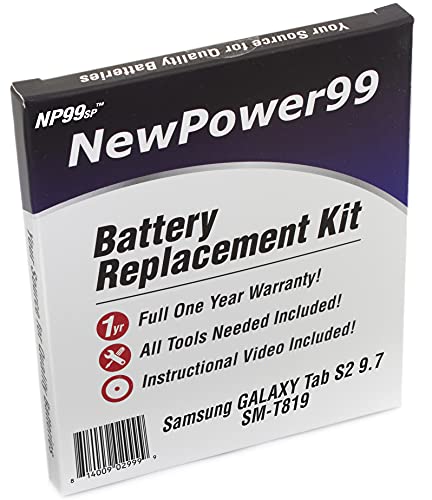
Guaranteed for One Full Year - 5800 mAh Rechargeable Lithium Polymer Battery

Compatible Smartwatch Model: This battery kit is specifically designed for Samsung Galaxy Gear S2 (with model SM-R720 series) and Gear S2 Classic (with model SM-R732 series), please double confirm your smartwatch model before purchasing

3900 mAh Rechargeable Battery - Guaranteed for One Full Year!
Essential Tools
- Small Phillips screwdriver: Use this for removing screws securing the back cover and battery.
- Plastic opening tool: Utilize this to gently pry open the tablet without damaging it.
- Tweezers: Keep these handy for handling small screws and connectors.
- Suction cup: Employ this tool to help lift the screen or back cover without causing cracks.
- Anti-static wrist strap: Wear this to prevent static electricity from damaging internal components.
Optional Tools
- Heat gun or hair dryer: Apply gentle heat to soften adhesive if the back cover is difficult to remove.
- Spudger: This flat tool aids in opening the device more effectively than a plastic tool.
- Magnetic mat: Use this to keep screws organized during the process, preventing loss.
- Cleaning cloth: Keep a soft cloth ready to clean surfaces as you work.
With these tools at your disposal, you can efficiently replace the battery in your Samsung S2 tablet.
Step-by-Step Guide on How to Replace Battery in Samsung S2 Tablet
Follow these steps to successfully replace the battery in your Samsung S2 tablet. Each stage is essential for ensuring a smooth process.
Preparing the Tablet for Battery Replacement
- Power off your tablet completely. This prevents any electrical issues during the replacement.
- Gather all necessary tools: small Phillips screwdriver, plastic opening tool, tweezers, suction cup, and anti-static wrist strap.
- Work in a clean, static-free environment to avoid damaging the components.
Removing the Back Cover
- Use the suction cup to lift the back cover gently. Position it near one edge.
- Insert the plastic opening tool between the back cover and the tablet body. Slide it around the edges to loosen the cover.
- Carefully detach the back cover and set it aside. This exposes the internal components.
Disconnecting the Old Battery
- Locate the battery connector, usually at the bottom of the device.
- Use tweezers to lift the connector carefully. Avoid pulling on the wires.
- Remove the old battery by gently prying it free with the plastic opening tool.
Installing the New Battery
- Position the new battery in the same slot as the old one.
- Connect the battery to the motherboard by pressing the connector firmly into place.
- Ensure the connection is secure to provide proper power.
Reassembling the Tablet
- Align the back cover with the tablet body.
- Press down firmly along the edges to snap it back into place.
- Power on your tablet to confirm the new battery works correctly.
Follow these steps closely to replace your tablet’s battery and restore its performance.
Tips for Successful Battery Replacement
Successfully replacing your Samsung S2 tablet’s battery requires attention to detail. Follow these tips to ensure a smooth process.
Safety Precautions
- Power Off Your Device: Always power off the tablet before starting. This prevents electrical hazards.
- Use an Anti-Static Wrist Strap: Wearing this strap protects your tablet’s internal components from static electricity.
- Keep Work Area Clean: Clutter can lead to misplaced screws or tools. A clean workspace helps maintain order.
- Handle Components with Care: Avoid touching the battery terminals directly, as oil from your fingers can affect performance.
- Dispose of the Old Battery Properly: Take your old battery to a recycling center. Improper disposal can be harmful to the environment.
Common Mistakes to Avoid
- Neglecting to Gather Tools: Collect all necessary tools before starting the replacement. Missing tools can cause delays.
- Rushing the Process: Take your time during each step. Fumbling can cause damage to your tablet.
- Forgetting to Disconnect the Battery: Always disconnect the battery connector first, preventing accidental short circuits.
- Omitting Screen Protector: If you remove the screen, ensure you have a soft cloth or protector. This prevents scratches during the process.
- Failing to Test After Replacement: After reinstalling, charge your tablet and test functionality. This step confirms successful installation.
Conclusion
Replacing the battery in your Samsung S2 tablet can breathe new life into your device. By following the steps outlined and keeping safety in mind, you can enjoy improved performance and longer usage times. Remember to take your time and handle each component with care.
With a little effort you’ll have your tablet running smoothly again. Whether you’re using it for work or play it’s worth the investment in a new battery. Happy tinkering and enjoy your revitalized tablet experience!
Frequently Asked Questions
What causes battery drain in Samsung S2 tablets?
Battery drain in Samsung S2 tablets can be attributed to various factors, including app usage, high screen brightness, and background processes. Over time, the battery may degrade, leading to shorter usage times. Regularly updating apps and optimizing settings can help extend battery life.
How do I know if my Samsung S2 tablet battery needs replacement?
Signs that your Samsung S2 tablet battery may need replacement include rapid battery drain, overheating during use, failure to charge, or swelling of the battery. If you experience these issues, it may be time to consider a new battery.
What tools do I need to replace the battery in my Samsung S2 tablet?
To replace the battery in a Samsung S2 tablet, you will need a small Phillips screwdriver, a plastic opening tool, tweezers, a suction cup, and an anti-static wrist strap. Having these tools ready will make the process easier and safer.
Can I replace the battery myself?
Yes, you can replace the battery yourself by following a detailed step-by-step guide. It’s essential to ensure safety precautions are in place, such as turning off the device and using an anti-static wrist strap to prevent damage.
What safety precautions should I take during battery replacement?
During battery replacement, always power off the device, use an anti-static wrist strap, keep your workspace clean, and handle components gently. Also, properly dispose of the old battery to ensure safety and environmental compliance.
What common mistakes should I avoid when replacing my battery?
Common mistakes to avoid include failing to gather all necessary tools, rushing through the process, neglecting to disconnect the battery before removal, forgetting to use a screen protector, and not testing the tablet after the replacement is complete.
