Close Menu
Battery Spotlight
    Battery Spotlight
    • Home
    • Phone Batteries
    • Laptop Batteries
    • Car Batteries
      • Golf Cart Batteries
    • Battery Info
      • Battery Chargers
      • Battery Life
      • Battery Maintenance
      • Marine Batteries
      • Rechargeable Batteries
      • Solar Batteries
    • About Us
      • Contact
    Battery Spotlight
    Navigation: Home » Laptop Batteries » How to Safely Remove the Battery from Your Lenovo Laptop: Step-by-Step Guide
    Laptop Batteries

    How to Safely Remove the Battery from Your Lenovo Laptop: Step-by-Step Guide

    Jackson DoyleBy Jackson DoyleJuly 20, 20245 Mins Read
    Share Facebook Twitter Pinterest LinkedIn Tumblr Email WhatsApp Copy Link
    Share
    Facebook Twitter LinkedIn Pinterest Email Copy Link

    Ever wondered how to tackle that tricky task of removing the battery from your Lenovo laptop? Picture this: You’re in need of a battery replacement, but the thought of navigating through your laptop’s internals seems daunting. Fear not, as we’ve got you covered with a simple guide to help you breeze through this process with confidence.

    Table of Contents

    Toggle
    • Prepare your workspace
    • Turn off the laptop
    • Remove the back cover
    • Unplug the battery connector
    • Remove the battery
    • Conclusion
    • Frequently Asked Questions
    • How do I remove the battery from my Lenovo laptop?
    • Why is it important to refer to the laptop manual when removing the battery?

    Prepare your workspace

    When it comes to preparing your workspace for removing the battery in your Lenovo laptop, a few simple steps can make the process smoother for you. Here are some key tips to get you started:

    • Find a clear, well-lit area: Ensure you have enough space to work comfortably without feeling cramped. Good lighting can help you see the components clearly.
    • Gather the necessary tools: You’ll typically need a screwdriver (often a small Phillips-head), an anti-static wrist strap (optional but recommended), and a flat, stable surface to place your laptop.
    • Power off and unplug your laptop: This step is crucial for your safety and to prevent any damage to the laptop or yourself. Make sure it’s completely powered down and disconnected from any power source.
    • Organize your workspace: Keep track of the screws you remove by using a small container or a piece of tape to hold them. This will help you remember where each screw goes when reassembling your laptop.

    By following these workspace preparation tips, you’ll set yourself up for a successful battery removal process.

    Turn off the laptop

    To remove the battery from your Lenovo laptop, the first step is to turn it off completely. This is crucial for your safety and to prevent any damage to the laptop during the battery removal process.

    Here are the steps to follow:

    • Save your work and close all open applications.
    • Shut down your laptop from the Start menu.
    • It’s important to wait a few minutes after shutting down to ensure the laptop is completely powered off.
    SEE ALSO  How to Optimize Samsung S21 Battery Life: Debunking Common Myths

    By turning off your laptop properly, you’re setting the stage for a successful battery removal process.

    Remove the back cover

    When it comes to removing the battery in your Lenovo laptop, the first step is to remove the back cover. Here’s how you can do it:

    • Locate the screws: Identify and remove the screws that secure the back cover in place.
    • Use a screwdriver: Grab a screwdriver that matches the size and type of screws used on the back cover.
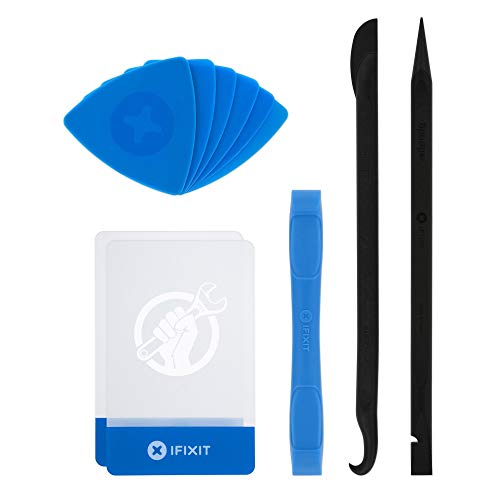
    • Carefully pry open: Gently pry open the back cover using a plastic opening tool or your fingers.

    Remember, proper handling and care during this step are essential to avoid damaging the back cover or the internal components of your laptop.

    Recommended Products

    Oruiiju 6 Piece Metal Spudger Pry Tool Kit for Electronics Repair with Laptop, Cell Phone, Tablet, Computer, Electronics Repair
    Oruiiju 6 Piece Metal Spudger Pry Tool Kit for Electronics Repair with Laptop, Cell Phone, Tablet, Computer, Electronics Repair

    Versatile Screen Disassembler Pry Tool: Includes ultra-thin metal opening picks, 3 non-slip metal spudgers, and 2 pry tools with clear markings for various repair tasks on laptops,cell phones, and more.

    VIEW LATEST PRICE

    As an affiliate, we earn on qualifying purchases.

    3 Piece Anti Static Black Plastic Spudger ESD Safe Pry Opening Tool for Mobile Phone Tablet Laptop Repair Tools Kit
    3 Piece Anti Static Black Plastic Spudger ESD Safe Pry Opening Tool for Mobile Phone Tablet Laptop Repair Tools Kit

    Material: Carbon fiber plastic; Length: approx 150 mm

    VIEW LATEST PRICE

    As an affiliate, we earn on qualifying purchases.

    COHK Metal Spudger repair opening pry tool for Apple iPod, iPhone and iPad (5-Pieces)
    COHK Metal Spudger repair opening pry tool for Apple iPod, iPhone and iPad (5-Pieces)

    Ultra-thin steel pry tool for opening iPhones, iPads, Samsung and many more

    VIEW LATEST PRICE

    As an affiliate, we earn on qualifying purchases.

    Unplug the battery connector

    When unplugging the battery connector in your Lenovo laptop, it’s essential to handle this step with care to avoid any damage. Here’s how you can safely proceed:

    • Locate the battery connector: Look for the connector that secures the battery in place. It’s usually a small white or black plug attached to the motherboard.
    • Gently unplug the connector: Using your fingers, carefully grasp the connector and pull it straight out from its socket on the motherboard. Ensure you do this slowly and steadily to prevent any mishaps.
    • Avoid using excessive force: If you encounter resistance while unplugging the connector, double-check its alignment. Never force the connector out as it can lead to damage.
    SEE ALSO  How to Safely Remove the Battery from Your Gateway Laptop: Step-by-Step Guide

    Remember, taking your time and being gentle with this process is crucial to ensure that you safely remove the battery connector from your Lenovo laptop.

    Recommended Products
    EFOHANA L15L4PC2 L15M4PC2 Laptop Battery Replacement for Ideapad Yoga 710-14IKB 710-14ISK 710-15IKB 710-15ISK Series Notebook 5B10K90802 5B10K90778 7.6V 53Wh 6974mAh 4-Cell
    EFOHANA L15L4PC2 L15M4PC2 Laptop Battery Replacement for Ideapad Yoga 710-14IKB 710-14ISK 710-15IKB 710-15ISK Series Notebook 5B10K90802 5B10K90778 7.6V 53Wh 6974mAh 4-Cell

    【Specifications】Model:L15L4PC2 // Battery type: Li-ion // Voltage: 7.6V // Capacity:60Wh 3912mAh // 100% New from Manufacturer. Top circuit boards and smart chip.

    VIEW LATEST PRICE

    As an affiliate, we earn on qualifying purchases.

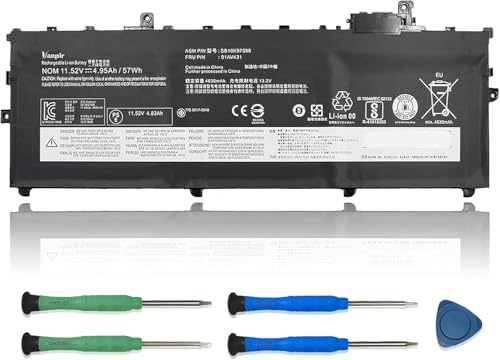
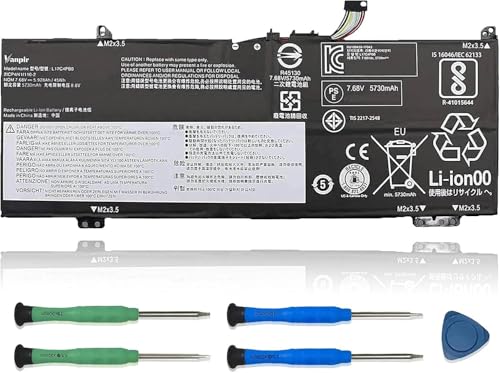
    VANPIR L17C4PB0 Laptop Battery, 7.68V 45Wh 5928mAh Compatible with Lenovo Flex 6-14IKB 14ARR 530S-14ARR 530S-14IKB 530S-15IKB Series Notebook L17M4PB0 L17C4PB2 L17M4PB2 5B10Q16066 5B10Q16067
    VANPIR L17C4PB0 Laptop Battery, 7.68V 45Wh 5928mAh Compatible with Lenovo Flex 6-14IKB 14ARR 530S-14ARR 530S-14IKB 530S-15IKB Series Notebook L17M4PB0 L17C4PB2 L17M4PB2 5B10Q16066 5B10Q16067

    【Specifications】Model: L17C4PB0 / Type: Li-ion / Voltage: 7.68V / Capacity: 45Wh 5928mAh

    VIEW LATEST PRICE

    As an affiliate, we earn on qualifying purchases.

    VANPIR L16M6PC1 Laptop Battery 11.52V 72Wh 6268mAh Replacement for Lenovo Yoga 720-15IKB Series Notebook L16L6PC1 L16C6PC1 5B10M53745 5B10M53743 5B10M53744
    VANPIR L16M6PC1 Laptop Battery 11.52V 72Wh 6268mAh Replacement for Lenovo Yoga 720-15IKB Series Notebook L16L6PC1 L16C6PC1 5B10M53745 5B10M53743 5B10M53744

    【Specifications】Model: L16M6PC1 / Type: Li-ion / Voltage: 11.52V / Capacity: 72Wh 6268mAh

    VIEW LATEST PRICE

    As an affiliate, we earn on qualifying purchases.

    Remove the battery

    When it comes to removing the battery from your Lenovo laptop, it’s essential to proceed with caution and care.

    • Locate the battery: You’ll typically find the battery near the center or the bottom of the laptop.
    • Unscrew and remove: Using the appropriate screwdriver, carefully remove any screws securing the battery in place.
    • Disconnect the battery: Gently unplug the battery connector from the motherboard, ensuring you apply even pressure and avoid any abrupt movements.
    • Remove the battery: Once the battery connector is detached, you can safely lift the battery out of its compartment.

    Remember, each laptop model may have slight variations in the battery removal process, so always refer to your device’s specific manual for guidance. Safe removal ensures smooth maintenance and replacement processes down the line.

    SEE ALSO  Efficient Samsung Widgets: Reduce Battery Drain Now

    Recommended Products

    72Wh 61++ 01AV427 01AV425 Battery for Lenovo ThinkPad T480 T470 P51S P52S T570 T580 A485 A475 TP25 Series SB10K97584 SB10K97585 01AV490 01AV492 X50M08812 4X50M08812 01AV422 01AV423 01AV428
    72Wh 61++ 01AV427 01AV425 Battery for Lenovo ThinkPad T480 T470 P51S P52S T570 T580 A485 A475 TP25 Series SB10K97584 SB10K97585 01AV490 01AV492 X50M08812 4X50M08812 01AV422 01AV423 01AV428

    Specification: Battery type:Li-ion Voltage:10.8V Capacity:72Wh Cells:6cell. Rrecharge cycles:500; The battery is durable and has overcurrent protection, anti-overcharge, anti-overdischarge and temperature control functions.

    VIEW LATEST PRICE

    As an affiliate, we earn on qualifying purchases.

    DMKAOLLK 01AV423 01AV424 Battery for Lenovo ThinkPad T480 T470 T580 T570 P51S P52S A485 A475 TP25 Series SB10K97580 SB10K97597 01AV452 01AV422
    DMKAOLLK 01AV423 01AV424 Battery for Lenovo ThinkPad T480 T470 T580 T570 P51S P52S A485 A475 TP25 Series SB10K97580 SB10K97597 01AV452 01AV422

    Specifications: Battery Model: 01AV423 SB10K97580, Voltage: 11.4V Capacity: 24Wh ; Cells: 2-cell; Color: Black ,Condition :New,Packages includes: 1x 01AV423 Battery,2 x Screwdrivers,1x Instruction for Lenovo t480 Battery

    VIEW LATEST PRICE

    As an affiliate, we earn on qualifying purchases.

    GHU Lenovo Laptop Battery Replacement Compatible with Lenovo G460 G565 G470 G475 G560 B570 G780 V360 V570 Z470 Z560 Z565 Z570 Z575 L09S6Y02 L09M6Y02 L09L6Y02 L10P6Y22 L09C6Y02 L10C6Y02 57Y6454
    GHU Lenovo Laptop Battery Replacement Compatible with Lenovo G460 G565 G470 G475 G560 B570 G780 V360 V570 Z470 Z560 Z565 Z570 Z575 L09S6Y02 L09M6Y02 L09L6Y02 L10P6Y22 L09C6Y02 L10C6Y02 57Y6454

    Ultimate Compatibility: The Lenovo replacement battery is designed for a wide range of models, including Lenovo G460, G560, G570, G575, G770, G780, B470, B570, V360, V370, V470, Z370, Z460, Z465, Z470, Z475, Z560, Z565, Z570, Z575, and more. This new battery fits part numbers such as 57Y6454, 57Y6455, FRU 121001056, and FRU 121001071, ensuring reliable and efficient power for your Lenovo laptop. (Full Details in Description)

    VIEW LATEST PRICE

    As an affiliate, we earn on qualifying purchases.

    Conclusion

    You’ve now learned the essential steps to safely remove the battery from your Lenovo laptop. Remember to handle the process with care and refer to your laptop’s manual for any model-specific instructions. By following these guidelines, you can ensure a smooth battery removal process and maintain your laptop effectively. Happy troubleshooting!

    Frequently Asked Questions

    How do I remove the battery from my Lenovo laptop?

    To remove the battery from your Lenovo laptop, locate the battery, unscrew any securing screws, disconnect the battery connector gently from the motherboard, and lift the battery out of its compartment.

    Why is it important to refer to the laptop manual when removing the battery?

    Referring to the laptop manual is crucial because removal processes may vary by model. It ensures you follow the correct steps for your specific laptop, preventing damage and ensuring proper maintenance and replacement in the future.

    Share. Facebook Twitter Pinterest LinkedIn Tumblr Email WhatsApp Copy Link
    Jackson-Doyle
    Jackson Doyle

      Battery industry professional with 5+ years of experience. Bachelor of Science in Electrical Engineering from Georgia Tech. Specializes in power systems and renewable energy.

      Related Posts

      Laptop Batteries

      Maximize Your Laptop Battery Life: Effective Tips You Need to Know

      January 6, 2025
      Laptop Batteries

      Unlocking the Power: Does MSI Battery Calibration Really Work?

      January 2, 2025
      Laptop Batteries

      Does the Samsung S7 Have a Removable Battery? Understanding the Implications

      December 31, 2024
      Laptop Batteries

      Ultimate Guide: Where to Buy Authentic Laptop Batteries Directly from Manufacturers

      December 28, 2024
      Laptop Batteries

      5 Signs Your Laptop Battery Is Dead: Tips to Extend Battery Life

      December 27, 2024
      Laptop Batteries

      Should You Replace Your Laptop Battery? Signs, Tips & Lifespan Facts

      December 26, 2024
      Add A Comment
      Leave A Reply Cancel Reply

      Search
      Affiliate Disclaimer

      As an Amazon Associate I earn from qualifying purchases.

      Latest Articles

      How to Replace Battery in Samsung Phone: A Step-by-Step Guide for Easy Replacement

      Android Batteries

      How to Remove Battery from Samsung Smart TV Remote: A Step-by-Step Guide for Easy Replacement

      Android Batteries

      How to Check Your Battery Health on Samsung: Simple Methods to Extend Your Phone’s Lifespan

      Android Batteries

      How Much Is a Battery for a Samsung Galaxy S6: Pricing and Replacement Options Explained

      Android Batteries

      How to Remove Battery from Samsung Galaxy S7: A Step-by-Step Guide for Easy DIY Fixes

      Android Batteries

      Why is My Battery Going Down While Charging Android – Effective Solutions to Fix the Issue

      Android Batteries
      Battery Spotlight

      Battery Spotlight is a website dedicated to helping you solve common battery problems.

      Read more about us here

      Affiliate Disclaimer
      As an Amazon Associate I earn from qualifying purchases.

      Site Navigation
      • Above Mirror Bathroom Lighting
      • Android Batteries
      • Bathroom Pendant Lighting
      • Battery Chargers
      • Battery Life
      • Battery Maintenance
      • Car Batteries
      • Ceiling Lighting Ideas
      • Golf Cart Batteries
      • Japandi Lighting
      • Laptop Batteries
      • Marine Batteries
      • Mood Lighting Living Room
      • Phone Batteries
      • Rechargeable Batteries
      • Reviews
      • Solar Batteries
      • Uncategorized
      • Vaulted Ceiling Lighting
      Latest Articles

      How to Replace Battery in Samsung Phone: A Step-by-Step Guide for Easy Replacement

      How to Remove Battery from Samsung Smart TV Remote: A Step-by-Step Guide for Easy Replacement

      How to Check Your Battery Health on Samsung: Simple Methods to Extend Your Phone’s Lifespan

      How Much Is a Battery for a Samsung Galaxy S6: Pricing and Replacement Options Explained

      How to Remove Battery from Samsung Galaxy S7: A Step-by-Step Guide for Easy DIY Fixes

      • Home
      • About
      • Contact
      • Privacy Policy
      • Editorial Policy
      • Disclaimer
      • Terms and Conditions
      • Affiliate Disclosure
      © 2026 Battery Spotlight

      Type above and press Enter to search. Press Esc to cancel.