

Ever wondered how to remove the battery from your Lenovo laptop without breaking a sweat? Picture this: you’re on the go, and your laptop battery is running low. You need a quick fix, but you’re not sure where to start. Well, worry no more! In this article, we’ve got you covered with a step-by-step guide on removing the battery from your Lenovo laptop effortlessly.
Have you ever found yourself struggling to remove your laptop battery, feeling like it’s an impossible task? You’re not alone. Many laptop users face this dilemma. But fear not, as we’re here to make your life easier. By the end of this article, you’ll be equipped with the knowledge and confidence to tackle this task like a pro.
By mastering the art of removing your Lenovo laptop battery, you’ll have the power to prolong its lifespan and ensure optimal performance. Say goodbye to battery woes and hello to a seamless experience with your device. Let’s dive in and discover the simple yet essential steps to keep your Lenovo laptop running smoothly.
Prepare for Battery Removal
When it comes to removing the battery from your Lenovo laptop, preparation is key. Here’s what you need to do before you start:
- Gather your tools: You’ll need a small screwdriver or a tool kit that came with your laptop.
- Power off your laptop: Make sure your laptop is turned off before you begin. This is crucial for your safety and for preventing any damage to the laptop.
- Unplug the charger: Disconnect the charger from your laptop to avoid any electrical hazards during the removal process.
Now that you’re all set, let’s move on to the next steps.
Turn off the Laptop
- Save any ongoing work and close all open applications.
- Click on the Start menu and select Shut Down.
- Make sure the laptop is completely powered down before proceeding further with the battery removal process.
Locate the Battery
When removing the battery from your Lenovo laptop, the first step is to locate where the battery is housed. Here’s how you can find the battery on your laptop:
- Check the bottom of your laptop for a latch or release button that secures the battery compartment.
- Some Lenovo laptops have removable batteries, while others may have internal batteries that are not easily accessible.
- Refer to your laptop’s user manual or the manufacturer’s website for specific instructions on locating the battery.
By knowing the exact location of the battery, you’ll be better prepared for the next steps in the removal process.
Remove the Battery
Let’s get started on safely removing the battery from your Lenovo laptop.
- Ensure your laptop is powered off before proceeding.
- Locate the battery – it’s usually on the bottom of the laptop.
- Look for a latch, button, or slider to release the battery compartment.
- Consult your user manual if you’re unsure where the battery is located.
- Gently remove the battery – it should slide or lift out easily.
- Avoid pulling or forcing the battery out to prevent damage.
Remember, each Lenovo model may have slight variations in the removal process. Always handle the battery with care to avoid any mishaps.
Recommended Products

HIGH QUALITY: Thin flexible steel blade easily slips between the tightest gaps and corners.

【Specifications】Model: L19C4PDC // Battery type: Li-ion // Voltage: 15.36V // Capacity: 71Wh/4675mAh // 100% New from Manufacturer. Top circuit boards and smart chip

【Specifications】Model: L17C4P71 Voltage: 15.36V Capacity: 54Wh/3520mAh Battery type: Li-ion. Also comes with installation tools
Safely Store the Battery
To prevent any damage or mishaps, it’s important to Safely Store the Battery if you’ve removed it from your Lenovo laptop. Here’s how you can ensure the battery remains in good condition:
- Avoid Extreme Temperatures: Keep the battery in a cool, dry place away from direct sunlight.
- Do Not Stack Objects On Top: Make sure no heavy objects are placed on the battery to avoid any physical damage.
- Use the Original Packaging: If possible, store the battery in the original packaging or a protective case to prevent scratches or dents.
- Regularly Check the Battery: Periodically inspect the battery for any signs of swelling, leakage, or damage. If you notice any issues, replace the battery promptly.
By following these simple steps, you can preserve the battery’s lifespan and ensure it remains in good condition for future use.
Recommended Products
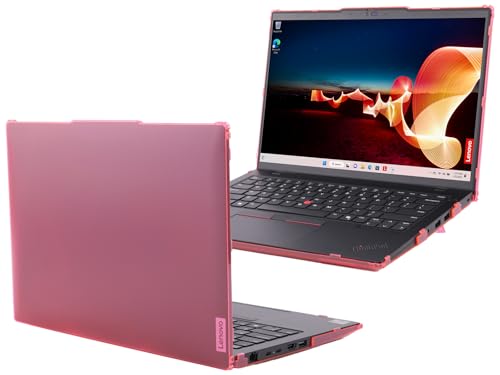
☞⚠❤️🛑⭕️‼️ NOTE: Before placing order, PLEASE make sure to verify your laptop model number as this case is MODEL specific and NOT interchangeable. ‼️⭕️🛑❤️⚠☜

☞⚠❤️🛑⭕️‼️ NOTE: Before placing order, PLEASE make sure to verify your laptop model number (normally there is a label at the bottom of your laptop) as this case is MODEL specific and NOT interchangeable. ‼️⭕️🛑❤️⚠☜

Precision Fit for 14” Devices: Designed specifically for Lenovo ThinkPad 14-inch laptops and fits devices up to 344 x 247 x 24 mm, while also accommodating compatible MacBook Air and MacBook Pro models
Conclusion
Remember to handle your Lenovo laptop’s battery with care once you’ve removed it. Storing it properly is crucial for its longevity. Avoid exposing it to extreme temperatures, stacking objects on top of it, and always use the original packaging or a protective case. Regularly inspect the battery for any signs of swelling, leakage, or damage to ensure it stays in good condition. These simple steps will help you maintain your battery’s lifespan and keep it ready for future use.
Frequently Asked Questions
How should I store the battery after removing it from my Lenovo laptop?
It is recommended to store the battery in a cool, dry place away from extreme temperatures. Avoid stacking heavy objects on top of the battery to prevent damage. You can use the original packaging or a protective case to keep the battery safe. Additionally, make sure to check the battery regularly for any signs of swelling, leakage, or damage to maintain its condition.
