

Key Takeaways
- Understand the importance of battery removal for troubleshooting, maintenance, and extending your Lenovo laptop’s lifespan.
- Prioritize safety by powering down the device, unplugging the power adapter, and managing static electricity before starting the battery removal process.
- Gather essential tools, including a Phillips screwdriver, plastic pry tool, and anti-static wrist strap, for a smooth battery removal experience.
- Follow a step-by-step guide that includes shutting down the laptop, accessing the battery compartment, and safely disconnecting the battery from the motherboard.
- Be aware of common battery-related issues, such as rapid battery drain and overheating, to identify when removal or replacement is necessary.
- If encountering difficulties during battery removal, double-check latches, use gentle pressure, and inspect for hidden screws before seeking further assistance.
Have you ever faced a situation where your Lenovo laptop just won’t turn on? It can be frustrating, especially when you suspect the battery might be the culprit. Knowing how to remove the battery can be a game changer, whether you need to replace it or simply reset your device.
Understanding Your Lenovo Laptop
Knowing your Lenovo laptop’s components is vital. Understanding how to remove the battery can prevent common problems and extend your device’s lifespan.
Importance of Battery Removal
Removing the battery plays a key role in troubleshooting and maintenance. This action lets you reset the laptop, helping clear temporary errors. If the battery needs replacement, knowing how to remove it ensures you can swap it out easily. Furthermore, when cleaning your laptop, accessing the battery compartment helps maintain a dust-free environment and optimal performance.
Safety Precautions Before Starting
Prioritizing safety prevents accidents or damage while working on your laptop. Follow these precautions:
- Power Down: Always turn off your laptop completely before starting the battery removal process.
- Unplug: Disconnect the power adapter to eliminate electric shock risks.
- Static Electricity: Wear an anti-static wristband or touch a grounded metal object to discharge static electricity.
- Work Surface: Choose a clean, flat surface to avoid dropping screws or components.
- Keep Tools Handy: Use the right tools, like a screwdriver, to make the process smoother.
Adhering to these safety measures ensures a trouble-free battery removal experience.
Tools Required
When removing the battery from a Lenovo laptop, having the right tools simplifies the process. You’ll need a few essentials to ensure a safe and effective battery removal.
Recommended Products

【Tech Specs & 100% New Products】Model: L18M4PH0 Voltage: 7.68V Capacity:60Wh/7820mAh Battery type: Li-ion. (We only use grade A battery cells that provide up to 500 recharge cycles over the life of the battery.Come with screwdrivers.)

【Specifications】Model: L18D3PF2 L18M3PFA Voltage: 15.52V Capacity: 60.3Wh/5235mAh Also comes with installation tools

【Customer First】24 x 7 email support. For assistance with the L19M3P73 battery, please visit our product detail page OR please contact us by email at any time, (Note: Amazon return windows will be closed after one month. After that, you can click on seller store name on right corner, you can see "Ask a question" on the page and contact directly for any problem.).
Essential Tools for Battery Removal
- Screwdriver: A Phillips screwdriver will fit most battery screws. Choose one that matches the size of your laptop’s screws.
- Plastic Pry Tool: This tool helps safely detach the battery without damaging the casing. It minimizes the risk of scratches.
- Anti-static Wrist Strap: Use this to prevent static electricity from damaging internal components. It keeps you grounded and protects your laptop.
Optional Tools for Enhanced Safety
- Tweezers: Helpful for manipulating small screws in tight spaces. Tweezers provide precision during the removal process.
- Flashlight: A flashlight illuminates dark corners inside the laptop. Good visibility aids in locating hidden screws and connections.
- Soft Cloth: Placing your laptop on a soft surface prevents scratches. This extra protection keeps your device looking new.
Gather these tools before starting the battery removal procedure. Each tool contributes to a smoother, safer experience.
Step-by-Step Guide on How to Remove the Battery From a Lenovo Laptop
Follow these steps to safely remove the battery from your Lenovo laptop. Each section provides specific instructions to make the process straightforward.
Recommended Products

Specifications: Battery Model: 01AV423 SB10K97580, Voltage: 11.4V Capacity: 24Wh ; Cells: 2-cell; Color: Black ,Condition :New,Packages includes: 1x 01AV423 Battery,2 x Screwdrivers,1x Instruction for Lenovo t480 Battery

Specification: Battery type: Li-ion Voltage: 11.1V Capacity: 2060mAh/24Wh. The battery is durable and has overcurrent protection, anti-overcharge, anti-overdischarge and temperature control functions.

【Specifications】Battery Voltage: 11.4V. Capacity: 24Wh. Cells: 3-Cells. Battery life: Up to 500 recharge cycles over the life of the battery.
Preparing Your Laptop
- Power Down Your Laptop: Shut down your laptop completely to avoid any electrical issues.
- Unplug the Power Adapter: Remove the power cord from the laptop to ensure no power supply.
- Manage Static Electricity: Wear an anti-static wrist strap or touch a grounded metal surface to prevent static discharge.
- Work on a Clean Surface: Use a flat, clean area to avoid losing screws or tools during the process.
Accessing the Battery Compartment
- Flip the Laptop Over: Lay the laptop upside down on a soft surface to avoid scratches.
- Locate the Battery Latches: Identify the battery release latches, typically found near the center or edges of the battery compartment.
- Slide the Latches: Depending on your model, slide the latches in the unlock position. Some latches require you to hold them in place while removing the battery.
Safely Disconnecting the Battery
- Lift the Battery: Gently lift the battery from its compartment while ensuring you hold the latches in the unlocked position.
- Disconnect the Connector: If your model has an attached connector, carefully pull it away from the motherboard. Avoid using excessive force to prevent damage.
- Remove the Battery Completely: Once it’s free, place the battery on a non-conductive surface to prevent any short-circuiting.
These steps ensure a safe and effective battery removal process. Always refer to your specific Lenovo laptop model’s manual for additional guidance.
Common Issues and Troubleshooting
Troubleshooting battery-related issues in a Lenovo laptop can simplify resolving common problems. Understanding specific symptoms helps determine the necessary steps to take.
Recommended Products
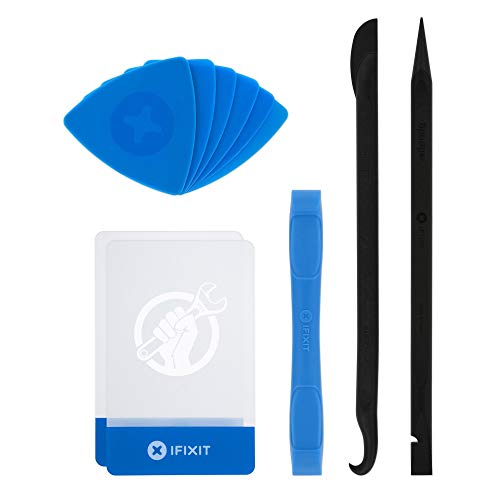
EFFECTIVE: Open your tech device and safely remove components with ease. Essential for DIY repairs like displays, batteries, motherboards, headphone jacks, joysticks, and more.

【Universal】These spudger kit and pry tools professional designed for disassembling a variety of electronics - iPhone, android phone, laptop, tablet, apple watch, iPad, iPod, Macbook, computer, LCD screen, battery and more

Heavy duty prying tool for phone/ laptop repair.
Identifying Battery Problems
Look for signs that indicate battery issues. These often include:
- Laptop not powering on: This could signal a dead battery.
- Rapid battery drain: If the battery depletes much faster than usual, it’s a sign of deterioration.
- Inconsistent performance: Device performance may fluctuate if the battery isn’t functioning correctly.
- Overheating: An overheating battery can indicate potential failure.
Check the battery indicator in the operating system for health status. You can also review the battery diagnostics available in Lenovo Vantage software for troubleshooting assistance.
What to Do If the Battery Won’t Budge
If the battery won’t move during removal, follow these steps:
- Double-check latches: Ensure the battery latches are fully unlocked. Sometimes minor adjustments can help release the battery.
- Apply gentle pressure: When lifting the battery, use a soft, steady force to avoid damaging connectors.
- Use a plastic pry tool: Slide a plastic pry tool along the edges if the battery feels stuck. Be careful to prevent damage.
- Check for screws: Some models may require removing screws that secure the battery. Inspect closely for any hidden screws.
- Cool down the laptop: Let the laptop sit for a bit if it’s warm. Cooling can sometimes help with battery removal.
If issues persist, consult the user manual specific to your Lenovo model or reach out to Lenovo support for assistance.
Conclusion
Removing the battery from your Lenovo laptop can seem daunting but with the right tools and steps it becomes a manageable task. By following the guidelines provided you’re not only addressing potential issues but also taking proactive measures to maintain your device’s health.
Remember to prioritize safety throughout the process and don’t hesitate to consult your laptop’s manual for model-specific tips. Keeping your laptop clean and ensuring its components are functioning well will go a long way in extending its lifespan.
Now that you know how to remove the battery you’re better equipped to troubleshoot and maintain your Lenovo laptop like a pro. Happy tinkering!
Frequently Asked Questions
What should I do if my Lenovo laptop won’t turn on?
If your Lenovo laptop won’t turn on, start by checking the power adapter and battery. Remove the battery to reset the device and reconnect it after a few seconds. If the laptop still doesn’t power on, consult Lenovo Vantage for diagnostics or consider contacting Lenovo support for further assistance.
How do I remove the battery from my Lenovo laptop?
To remove the battery, first, power down the laptop and unplug it. Flip the laptop over, locate the battery latches, and slide them to unlock. Gently lift the battery out, disconnect any attached connectors, and place it on a non-conductive surface. Always refer to your specific model’s manual for guidance.
What tools do I need to remove the battery from a Lenovo laptop?
Essential tools for battery removal include a Phillips screwdriver, a plastic pry tool, and an anti-static wrist strap. Optional tools like tweezers, a flashlight, and a soft cloth can also be helpful. Having these tools ready makes the removal process smoother and safer.
What are the safety precautions before removing the battery?
Before removing the battery, ensure the laptop is powered down and unplugged. Manage static electricity using an anti-static wrist strap, work on a clean surface, and handle tools carefully. These precautions help prevent damage to both you and the laptop.
How can I tell if my Lenovo laptop’s battery is failing?
Signs of a failing battery include the laptop not turning on, rapid battery drain, inconsistent performance, and overheating. Use Lenovo Vantage to check the battery indicator and diagnose any issues. If symptoms persist, consider replacing the battery or seeking professional help.
What should I do if the battery won’t budge during removal?
If the battery won’t budge, check the battery latches to ensure they’re fully unlocked. Apply gentle pressure with a plastic pry tool, look for any hidden screws, and let the laptop cool down if it’s hot. If it remains stuck, refer to the user manual or contact Lenovo support.
