

Key Takeaways
- Types of Samsung Laptop Batteries: Understand the different types, including removable and built-in batteries, which affect the removal process.
- Proper Removal Importance: Follow correct procedures to prevent damage, ensure safety, and improve battery lifespan while troubleshooting power issues.
- Essential Tools Needed: Gather necessary tools like a Phillips screwdriver, plastic pry tool, and anti-static wrist strap for a smoother battery removal experience.
- Step-by-Step Process: Follow clear steps, including powering down the laptop, locating the battery compartment, and safely removing the battery while ensuring locks are disengaged.
- Troubleshooting Tips: Learn how to handle common issues, such as stuck batteries and verifying lock positions, to facilitate easier battery removal.
- Battery Maintenance Practices: Implement regular care tips, including charging wisely and calibrating the battery, to enhance performance and longevity.
Have you ever faced a situation where your Samsung laptop just won’t turn on, and you suspect the battery might be the culprit? You’re not alone. Many users find themselves in this frustrating scenario, wondering how to safely remove the battery to troubleshoot or replace it.
This article will guide you through the simple steps to remove your Samsung laptop battery with ease. Whether you’re looking to swap it out for a new one or just need to reset your device, you’ll find clear instructions and helpful tips. By the end, you’ll feel confident tackling this task on your own.
Understanding Samsung Laptop Batteries
Samsung laptop batteries play a crucial role in your device’s performance. Knowing their types and the importance of proper removal helps in maintenance and troubleshooting.
Types of Samsung Laptop Batteries
- Lithium-Ion Batteries: Most Samsung laptops use lithium-ion batteries. These batteries charge quickly and offer longer life cycles compared to other types.
- Removable Batteries: Some older Samsung laptop models feature removable batteries. You can easily take these out for replacement or troubleshooting.
- Built-In Batteries: Many newer models come with built-in batteries. These require you to disassemble the laptop for replacement, which might complicate the process.
Importance of Proper Removal
- Prevents Damage: Proper removal minimizes the risk of damaging internal components or the battery itself.
- Safety First: Following the correct procedure ensures that you avoid electrical shocks or short circuits.
- Improves Lifespan: Regularly replacing or maintaining your battery extends its overall lifespan and performance.
- Troubleshooting Aid: Removing the battery can help you troubleshoot power issues more effectively, allowing you to identify whether the battery is at fault.
Tools Required for Battery Removal
Before removing the Samsung laptop battery, gather your tools. Having everything on hand makes the process smoother and safer.
Recommended Products

LMQ 22 pcs opening pry tools kit for smart phone,laptop,computer tablet,electronics, apple watch, iPad, iPod, computer, LCD screen, battery and more disassembly and repair.
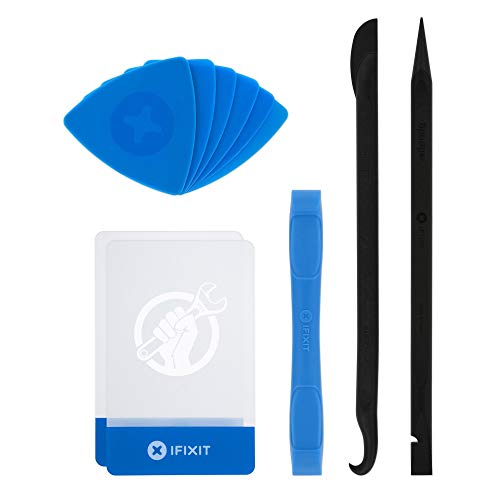
EFFECTIVE: Open your tech device and safely remove components with ease. Essential for DIY repairs like displays, batteries, motherboards, headphone jacks, joysticks, and more.

Kaisi 20 pcs opening pry tools kit for smart phone,laptop,computer tablet,electronics, apple watch, iPad, iPod, Macbook, computer, LCD screen, battery and more disassembly and repair
Essential Tools
- Phillips screwdriver: You’ll need a small Phillips screwdriver for most Samsung laptop battery compartments.
- Plastic pry tool: This tool helps safely detach plastic bezels without damaging surfaces.
- Anti-static wrist strap: Use this strap to prevent electrostatic discharge, which can damage internal components.
- Flashlight: A flashlight assists in seeing inside cramped spaces or poorly lit areas.
Optional Tools
- Tweezers: Tweezers can help retrieve small screws that may be hard to reach.
- Magnetic tray: Keep screws organized and prevent losing them with a magnetic tray.
- Compressed air: Use compressed air to clean dust from inside the laptop before installation.
Gathering the right tools ensures a hassle-free battery removal process.
Step-by-Step Guide on How to Remove Samsung Laptop Battery
Follow these steps to safely remove the battery from your Samsung laptop.
Power Down and Unplug Your Laptop
Ensure your laptop is completely powered down. Unplug the power adapter from the wall and the laptop. Disconnect all peripherals such as USB devices and external monitors to avoid any electric shock during the removal process.
Locate the Battery Compartment
Identify the battery compartment on the underside of your laptop. Look for a panel or cover that typically displays a battery icon. If unsure, refer to your laptop’s user manual for the exact location of the battery compartment.
Release the Battery Locks
Locate the battery locks securing the battery in place. Most Samsung laptops feature sliding locks on either side of the battery. Slide the locks to the “unlocked” position. Listen for a click, which indicates the battery is ready for removal.
Remove the Battery Safely
Gently lift the battery out of its compartment. Use both hands for stability and avoid using excessive force. If the battery feels stuck, check for additional locks or clips that may need adjustment. Once removed, place the battery on a clean, flat surface to prevent any damage.
These steps allow for safe battery removal, enabling further troubleshooting or replacement as needed.
Troubleshooting Common Issues
Removing a Samsung laptop battery can sometimes lead to additional challenges. Here are tips to address common issues you might encounter.
If the Battery Doesn’t Come Out
If the battery doesn’t come out easily, it’s important to check a few things.
- Verify Battery Lock Position: Ensure that the battery locks are fully in the unlocked position. Sometimes, they may need a more assertive push or slide.
- Inspect for Cables: Look for any connected cables or wires that may interfere with battery removal. Gently disconnect any that are accessible.
- Look for a Hidden Lock: Some Samsung models may include a hidden release mechanism. Consult your laptop’s user manual for specific instructions regarding your model.
Handling a Stuck Battery
When the battery feels stuck, follow these practical tips to safely handle the situation.
- Wiggle the Battery Gently: Slightly wiggle the battery while attempting to pull it out. This movement can help dislodge any minor obstructions.
- Use a Plastic Pry Tool: If the battery is still stuck, a plastic pry tool can help. Insert it gently along the edges of the battery compartment. Be cautious not to damage surrounding components.
- Try Compressed Air: If dirt or debris is causing the issue, use compressed air to blow around the battery edges. This can clear any blockages without physical interference.
- Avoid Excessive Force: Never exert excessive force when trying to remove the battery. Applying too much pressure can damage the battery or laptop internals.
Following these steps can help you troubleshoot common issues you might encounter during the battery removal process.
Final Thoughts on Battery Maintenance
Maintaining your Samsung laptop battery enhances performance and longevity. Regular checks and proper handling can prevent issues that affect your laptop’s efficiency.
Battery Care Tips
- Charge Wisely: Charge your battery when it dips below 20%. Avoid letting it drop to zero frequently.
- Avoid Overheating: Keep your laptop in a cool, ventilated area. High temperatures can degrade battery life.
- Calibrate Periodically: Perform a full charge and discharge cycle every few months. This helps maintain accurate battery life readings.
- Clean Contacts: Check battery contacts for dirt or corrosion. Use a dry cloth to clean them gently.
- Store Properly: If not using the laptop for an extended period, store the battery at 40-60% charge in a cool place.
Safety Precautions
- Power Down: Always turn off your laptop before removing the battery. This reduces the risk of short circuits.
- Use the Right Tools: Use a Phillips screwdriver and pry tool designed for laptops. Using inappropriate tools can cause damage.
- Handle with Care: Avoid dropping or applying pressure on the battery. This prevents potential internal damage.
Troubleshooting Battery Issues
- Check Connections: Ensure the battery is seated correctly. Loose connections can cause powering issues.
- Look for Indicators: If your laptop fails to charge the battery, check for error messages or indicator lights. These can provide clues to the issue.
- Replace When Necessary: If the battery doesn’t hold a charge after these checks, consider replacement. Lithium-ion batteries typically last 2-3 years.
By following these guidelines, you can effectively manage your battery’s health and performance. Familiarity with your laptop’s battery will empower you to monitor its condition actively.
Conclusion
Taking the time to remove and inspect your Samsung laptop battery can make a world of difference. You’ve learned how to do it safely and effectively which empowers you to troubleshoot issues or replace the battery when needed. Remember that handling your battery with care and using the right tools is key to avoiding any damage.
Regular maintenance and mindful usage will help extend your battery’s lifespan. By keeping an eye on its health and following the tips provided, you can ensure your laptop runs smoothly for years to come. So go ahead and take charge of your device’s performance—you’ve got this!
Frequently Asked Questions
What should I do if my Samsung laptop won’t turn on?
If your Samsung laptop won’t turn on, first check the power source and ensure it’s plugged in. If power isn’t the issue, try removing the battery and holding the power button for 15 seconds. Reinsert the battery and power it on. If it still doesn’t start, a battery replacement or technical support may be necessary.
How do I safely remove the battery from my Samsung laptop?
To safely remove the battery, first power down and unplug your laptop. Locate the battery compartment, then release the battery locks. Carefully take out the battery, ensuring not to apply excessive force. A detailed guide can provide further step-by-step instructions.
What tools do I need for battery removal?
Essential tools for removing a Samsung laptop battery include a Phillips screwdriver, a plastic pry tool, an anti-static wrist strap, and a flashlight. Optional tools, like tweezers, a magnetic tray, and compressed air, can also enhance the process and should be gathered beforehand.
What types of batteries do Samsung laptops use?
Samsung laptops generally use lithium-ion batteries, which can be removable or built-in. Removable batteries facilitate easier troubleshooting and replacement, while built-in batteries may require professional assistance for removal. Understanding your laptop’s battery type helps with maintenance and care.
How can I troubleshoot battery removal issues?
If a battery doesn’t come out easily, verify the battery lock position and check for connected cables. Inspect for hidden locks and gently wiggle the battery if it’s stuck. Using a plastic pry tool or compressed air can help, but avoid applying excessive force to prevent damage.
How can I maintain my laptop battery’s health?
To maintain your laptop battery’s health, charge wisely, avoid overheating, and periodically calibrate the battery. Regularly clean battery contacts and store the battery properly. Following these tips can significantly enhance battery performance and longevity.
When should I replace my Samsung laptop battery?
Consider replacing your Samsung laptop battery if it holds a charge poorly, shows signs of swelling, or if your laptop frequently shuts down unexpectedly. Checking battery health indicators can help determine if a replacement is necessary.
