

Key Takeaways
- Necessary Tools: Essential tools for battery removal include a Philips-head screwdriver, plastic pry tool, anti-static wrist strap, flashlight, and a soft cloth to ensure a safe and effective process.
- Step-by-Step Procedure: Follow a clear sequence: power down the laptop, disconnect the power source, locate battery latches, and remove the battery carefully to prevent damage.
- Troubleshooting Common Issues: Be prepared to tackle issues like difficulty in removing the battery or detection problems post-reinstallation by checking latch positions, ensuring proper alignment, and restarting the laptop.
- Safety Precautions: Always power down your device, discharge residual power, protect against static electricity, and work in a clean and dry environment to safeguard your Lenovo ThinkPad during battery removal.
- Model Specificity: Identify your ThinkPad model before beginning, as battery removal methods may vary between models, with some requiring screws instead of latches.
- Battery Health Checks: Utilize Lenovo’s diagnostics tools if the battery is not detected after reinstallation to evaluate its health and functionality before considering a replacement.
Have you ever found yourself needing to remove your Lenovo ThinkPad battery but felt unsure where to start? You’re not alone. Many users face this situation, whether it’s for maintenance, troubleshooting, or simply replacing an old battery.
Tools Needed For Battery Removal
Removing a Lenovo ThinkPad battery requires specific tools to simplify the process. Gather the following items before starting:
- Screwdriver: A Philips-head screwdriver is essential for unscrewing components that secure the battery.
- Plastic Pry Tool: This tool helps avoid damage to the laptop casing while separating components.
- Anti-Static Wrist Strap: Use this strap to prevent static electricity buildup, which can harm internal components.
- Flashlight: Illumination aids in clearly seeing battery compartments, especially in low-light environments.
- Soft Cloth: Keep this cloth handy for cleaning surfaces and creating a safe workspace.
Having these tools ready streamlines the battery removal, making the process efficient and straightforward.
Recommended Products

HIGH QUALITY: Thin flexible steel blade easily slips between the tightest gaps and corners.

【Specifications】Model: L17C4P71 Voltage: 15.36V Capacity: 54Wh/3520mAh Battery type: Li-ion. Also comes with installation tools
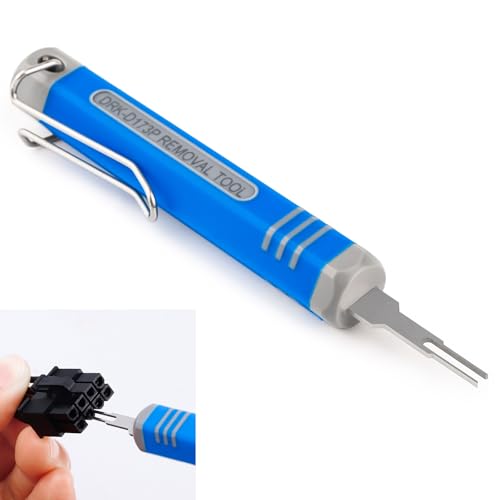
[Universal Extraction Tool] The DRK-D173P is a Molex pin extractor (equivalent to Molex 11-03-0044), specifically designed for Molex Mini-Fit Jr. 5557 and 5559 power connectors (ATX/EPS/PCI-E). This Mini-Fit Series terminal atx pin extractor tool is ideal for professional and technical use.
Step-By-Step Guide
Follow these steps to successfully remove the battery from your Lenovo ThinkPad. This process ensures safe handling and avoids potential damage to your device.
Recommended Products

Battery type: Li-ion; Capacity: 48Wh; Voltage: 10.8V ; Cells: 6-cell;Color: Black

♣Battery type: Li-ion; Capacity: 2600mAh Voltage: 14.8V;Cells: 4-cell. The battery is durable and has overcurrent protection, anti-overcharge, anti-overdischarge and temperature control functions.

6 cell Li-ion battery, rated at 5200mAh and 11.1V The battery is durable and has overcurrent protection, anti-overcharge, anti-overdischarge and temperature control functions.
Powering Down The Laptop
- Shut down your laptop completely. Make sure all applications are closed.
- Wait a few seconds. Confirm the laptop is powered off before proceeding.
Disconnecting The Power Source
- Unplug the power adapter from the laptop. Ensure it’s completely disconnected.
- Check for any connected peripherals. Remove them as a precautionary measure.
Locating The Battery Release Latches
- Flip your ThinkPad over gently. The battery will be on the bottom side.
- Identify the battery release latches. Typically, there are one or two slide latches holding the battery in place.
Removing The Battery
- Slide the latches to the unlocked position. Ensure they move smoothly.
- Lift the battery from its slot. Hold the corners and pull gently upward to detach it from the laptop.
Using these steps, you can remove the battery safely and efficiently.
Troubleshooting Common Issues
Removing the Lenovo ThinkPad battery can lead to a few common issues. Here’s how to troubleshoot them.
Difficulty In Battery Removal
If you encounter difficulty in removing the battery, check these factors:
- Latches Not Engaging: Ensure the battery release latches are fully in the unlocked position. Sometimes, they may feel stuck. Recheck their alignment.
- Physical Obstructions: Inspect for any objects or debris that might block the battery slot. Clean the area gently with a soft cloth.
- Battery Type: Remember that some ThinkPad models use screws instead of latches for battery release. Ensure you’ve identified your model correctly.
Battery Not Detected After Reinstallation
- Reconnect Properly: Make sure the battery is aligned correctly with the connectors. A misalignment can lead to detection issues.
- Restart the Laptop: Power down your ThinkPad completely and then restart. This can trigger the system to recognize the battery.
- Check BIOS Settings: Enter the BIOS setup during boot by pressing the designated key (usually F1 or F2). Look for battery settings. Ensure it’s enabled.
- Battery Health: If the issue persists, check the battery’s health using Lenovo’s diagnostics tools. A faulty battery may require replacement.
Safety Precautions
Taking proper safety precautions ensures a smooth battery removal process for your Lenovo ThinkPad. Follow these guidelines before starting:
Power Down
Always power down the laptop completely. This reduces risks associated with electrical currents. Disconnect the power adapter to prevent accidental power-up when you’re working.
Discharge Residual Power
Touch a grounded metal object after unplugging the laptop. This action discharges residual power, minimizing the chances of static electricity damaging internal components.
Protect Against Static
Wear an anti-static wrist strap while working on your laptop. Connect it to a grounded surface to prevent static discharge from harming sensitive electronics. If you don’t have a strap, regularly touch metal parts of the laptop case.
Work in a Clean Environment
Ensure your workspace is clean and well-lit. Avoid clutter that could lead to distractions. Use a soft cloth to place your ThinkPad on, protecting its surface from scratches.
Use Proper Tools
Utilize the correct tools, such as a Philips-head screwdriver and a plastic pry tool. Using improper tools can cause damage. Avoid any sharp objects that could scratch or puncture components.
Avoid Moisture
Keep liquids away from your work area. Spills can cause short circuits or other electrical issues. Ensure hands are dry and free from any substances that might conduct electricity.
Check for Updates
Before starting, confirm your laptop’s firmware and BIOS are up to date. Updates may address issues related to battery management and power functionality.
Following these safety precautions safeguards not just your laptop, but also ensures a stress-free battery removal process.
Conclusion
Removing your Lenovo ThinkPad battery doesn’t have to be a daunting task. With the right tools and a step-by-step approach, you can handle it like a pro. Remember to prioritize safety by powering down your laptop and taking precautions against static electricity.
If you run into any hiccups during the process, don’t hesitate to refer back to the troubleshooting tips provided. Keeping your laptop in top shape is all about regular maintenance, and knowing how to remove the battery is a valuable skill. Enjoy your newly refreshed device and the peace of mind that comes with understanding its inner workings.
Frequently Asked Questions
How do I remove the battery from my Lenovo ThinkPad?
To remove the battery from your Lenovo ThinkPad, power down the laptop, disconnect from any power source, and flip it over. Locate the battery release latches, typically one or two slide latches, and slide them to the unlocked position. Gently lift the battery out from its slot. Make sure to follow safety precautions to avoid any damage.
What tools do I need to remove the battery?
You will need a Philips-head screwdriver, a plastic pry tool, an anti-static wrist strap, a flashlight, and a soft cloth. These tools help ensure a safe and efficient battery removal process while protecting your laptop from damage.
What should I do if I can’t remove the battery?
If you have trouble removing the battery, ensure the latches are fully unlocked and check for any physical obstructions. Double-check that you’re using the correct technique for your specific ThinkPad model. If issues persist, consult the manufacturer’s guidelines or seek professional assistance.
Why might my battery not be detected after reinstalling?
If your battery is not detected after reinstalling, double-check if it is properly connected to the laptop. Restart your device and check BIOS settings to ensure the battery is recognized. You may also use Lenovo’s diagnostics tools to assess battery health.
Are there safety precautions I should take when removing the battery?
Yes, always power down your laptop completely and discharge residual power by touching a grounded metal object. Use an anti-static wrist strap to avoid static electricity damage, work in a clean environment, and ensure the tools are suitable for the task.
