

Key Takeaways
- Preparation is Key: Gather all necessary tools, including a Phillips screwdriver, plastic pry tool, anti-static wrist strap, tweezers, and a soft cloth to create a safe workspace before starting the battery removal process.
- Safety First: Always power down the laptop and disconnect the power adapter to prevent electrical shock or short-circuiting while handling internal components.
- Step-by-Step Removal: Follow a structured approach—power down, access the battery compartment, disconnect the battery, and carefully remove it to minimize the risk of damage.
- Regular Troubleshooting: Familiarize yourself with common battery issues like charging problems, quick drains, detection failures, and overheating, which can enhance your troubleshooting skills.
- Check for Damage: Inspect the battery and connectors for any signs of damage before proceeding with removal, following manufacturer guidelines for model-specific safety instructions.
- Maintenance Matters: Regularly clean vents and check power settings to improve performance and prolong the lifespan of your Lenovo Legion battery.
Have you ever found yourself in a situation where your Lenovo Legion laptop just won’t charge or hold power? It can be frustrating when a simple battery issue disrupts your productivity. Whether you’re facing a dead battery or just need to replace it, knowing how to remove it safely is key.
Tools Needed For Battery Removal
You need specific tools to safely remove the battery from a Lenovo Legion laptop. Here’s what you’ll want to gather:
- Screwdriver Set
Use a Phillips screwdriver, typically a #0 or #1 size, for removing screws. A magnetic screwdriver can help prevent dropping screws.
- Plastic Pry Tool
This tool helps to gently pry open the device without scratching or damaging any surfaces. Look for a thin, flat plastic prying tool.
- Anti-Static Wrist Strap
Wear an anti-static wrist strap to prevent electrostatic discharge damaging your laptop’s components. Connect it to a grounded surface.
- Tweezers
Use fine-tipped tweezers for handling small screws and connectors. Tweezers can assist in reaching tight spots.
- Soft Cloth or Mat
Spread a soft cloth or mat on your work surface. This will protect the laptop and keep screws safe.
- Flashlight
A flashlight provides extra illumination in tight spaces. This tool makes it easier to see screws and connectors.
Gather these tools before you start the battery removal process. Proper tools make the job easier and safer.
Recommended Products
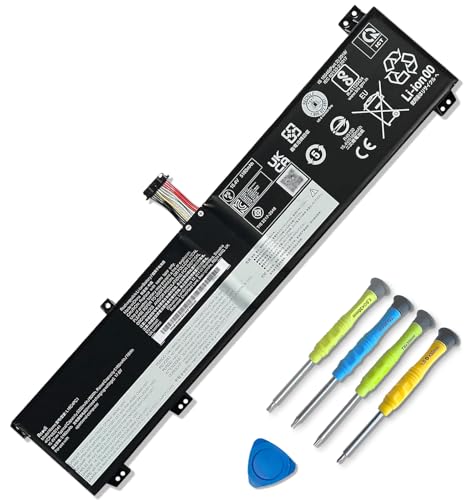
<1>Model: L19C4PC1 . Voltage: 15.4V . Capacity: 80Wh/5335mAh . Color: Black . 100% brand new. (Please open the back case of your laptop and check out the exact part number of your laptop's original battery Before placing your order)

49-in-1 Precision Screwdriver Set: This small screwdriver set includes 24 double-ended bits covering Torx, Phillips, Flathead, Torx Security, Pentalobe, Tri-wing, Hex, and more. Designed for electronics repair, this compact yet complete kit meets daily repair needs for phones, laptops, gaming consoles, glasses, and small devices
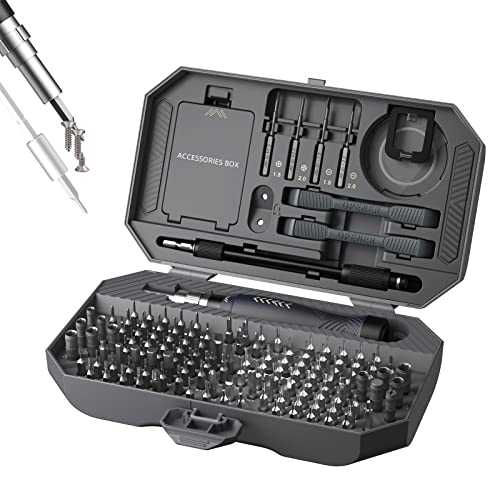
【MULTIPURPOSE TOOL】 This 164-in-1 compact screwdriver set with torx t5 screwdriver, whether you think of it as a laptop repair tool kit or a mobile phone repair kit, this versatile screwdriver set will be one of the most suitable electronics repair tool set for professional and hobbyist.
Step-By-Step Guide
Follow these steps to safely remove the battery from your Lenovo Legion laptop. Each step is crucial for ensuring proper handling and avoid damage.
Recommended Products

【Specifications】 ①L14S3P24 battery for Lenovo Legion Replacement Battery, ②Type: Li-ion; ③Our L14S3P24 Battery Replacement for Lenovo 45wh Standard L14S3P24 Rechargeable li-ion battery.④Voltage: 11.25V; ⑤Capacity: 45Wh 4050mAh; ⑥Color: Black;⑦Condition: New;

Battery Specifications:Model Type:L14M3P24;Voltage:11.1V Capacity:45WH/4050mAh.Work Or Play For Extended Periods, No Power Concerns
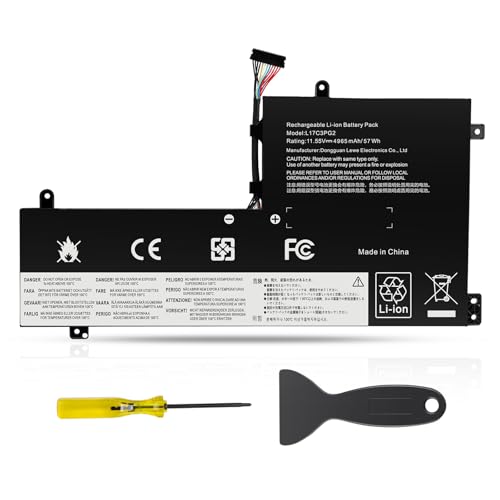
【Specifications】Battery Voltage: 11.55V. Capacity: 57Wh. Cells: 3-Cells. Battery life: Up to 500 recharge cycles over the life of the battery.
Preparing Your Workspace
- Clear a flat surface to work on.
- Gather your tools: Phillips screwdriver, plastic pry tool, anti-static wrist strap, tweezers, soft cloth or mat, flashlight.
- Ensure good lighting for visibility during the process.
Powering Down the Laptop
- Completely shut down your laptop.
- Disconnect the power adapter from the laptop.
- Wait at least 30 seconds to ensure all residual power is drained.
Accessing the Battery
- Flip your laptop upside down.
- Locate the battery compartment, usually marked with battery symbols.
- Remove any screws securing the back panel using your Phillips screwdriver.
Disconnecting the Battery
- Locate the battery connector on the motherboard.
- Gently pull up on the connector using your tweezers or plastic pry tool.
- Ensure no wires are damaged during disconnection.
Removing the Battery
- Identify any tabs or clips holding the battery in place.
- Carefully unclip or slide these to free the battery.
- Lift the battery out of the compartment and place it on your soft cloth or mat for safety.
Following these steps helps you remove the battery correctly and safely. Always handle the components with care to prevent any damage.
Safety Precautions
When removing the Lenovo Legion battery, prioritizing safety is crucial. Follow these precautions for a smooth process:
- Power Down
Ensure the laptop is completely off before starting. Powering down prevents electrical short circuits.
- Disconnect Power Source
Unplug the power adapter and any connected peripherals to avoid shocks or damage.
- Use Anti-Static Wrist Strap
Wear an anti-static wrist strap for grounding. This minimizes the risk of static electricity damaging sensitive components.
- Work on a Flat Surface
Choose a clean, flat surface for your workspace. This reduces the chances of dropping components or losing small parts.
- Keep Tools Organized
Arrange your tools within reach. Using a mat can help prevent slipping and keep everything neat.
- Handle Components with Care
Be gentle when touching internal parts. Rough handling can lead to damage.
- Check for Damage
Inspect the battery and connectors for any visible damage before removal. Avoid proceeding if you spot any issues.
- Read Manufacturer’s Guidelines
Always refer to the Lenovo Legion manual for specific safety instructions related to your model.
By adhering to these safety measures, you ensure a safe environment while removing the battery from your Lenovo Legion laptop.
Troubleshooting Common Issues
When dealing with battery issues on your Lenovo Legion laptop, several common problems may arise. Identifying these issues early can make the troubleshooting process much simpler.
Laptop Won’t Charge
- Check Power Adapter: Ensure the power adapter is functioning. Look for indicator lights; a flickering or off light suggests a problem.
- Inspect Charging Port: Examine the charging port for debris or damage. Clean gently with a soft brush if necessary.
- Test Different Outlets: Plug the charger into various wall outlets. Sometimes, the issue lies with the outlet rather than the laptop.
Battery Drains Quickly
- Close Unused Applications: Frequent use of heavy applications drains battery quickly. Close any open programs you’re not using.
- Adjust Power Settings: Switch to power-saving mode. This setting reduces screen brightness and limits background activity.
- Check for Updates: Ensure your operating system and drivers are up-to-date. Software updates often contain important performance fixes.
Battery Not Detected
- Reinsert the Battery: If the battery isn’t recognized, try removing and reinserting it. Make sure it’s seated properly in its compartment.
- Check BIOS Settings: Access the BIOS menu during startup to ensure the battery is detected. If not, it may signal a deeper hardware issue.
- Perform a Hard Reset: Power off your laptop, disconnect the charger, and hold down the power button for 10-15 seconds to drain any remaining power.
Overheating Issues
- Clean Vents: Dust buildup can block ventilation. Use compressed air to clean the vents and fan areas.
- Avoid Blocked Surfaces: Ensure the laptop is on a hard, flat surface for proper airflow. Using it on soft surfaces can trap heat.
- Monitor Usage: Intensive tasks can cause overheating. Limit heavy multitasking to moderate usage for better cooling.
Identifying and solving these battery-related issues can enhance your Lenovo Legion’s performance and prolong battery lifespan.
Conclusion
Knowing how to safely remove the battery from your Lenovo Legion laptop can save you time and frustration. By following the steps outlined and taking the necessary precautions, you can tackle battery issues with confidence.
Remember to gather your tools and create a tidy workspace before you start. Whether you’re replacing the battery or troubleshooting, a little preparation goes a long way.
With the right approach, you’ll keep your laptop running smoothly and extend its lifespan. Don’t hesitate to refer back to the guide whenever you need a refresher. Happy troubleshooting!
Frequently Asked Questions
What are common charging issues with Lenovo Legion laptops?
Common charging issues include the laptop not charging, the battery draining quickly, or the battery not being detected. Users can troubleshoot by checking the power adapter, inspecting the charging port, and testing with different outlets.
How do I safely remove the battery from a Lenovo Legion laptop?
To safely remove the battery, power down the laptop, disconnect it from the power source, and wait for residual power to drain. Use the appropriate tools to access the battery compartment and gently disconnect the battery.
What tools do I need for battery removal?
You will need a Phillips screwdriver, a plastic pry tool, an anti-static wrist strap, tweezers, a soft cloth or mat, and a flashlight. These tools ensure a safe and effective battery removal process.
Why is it important to wear an anti-static wrist strap?
Wearing an anti-static wrist strap prevents static electricity from damaging sensitive laptop components while you work on the battery, ensuring a safer and more effective procedure.
What should I do if my Lenovo Legion laptop battery is overheating?
To combat overheating, clean the laptop vents, ensure it’s on a hard, flat surface, and monitor usage. Regularly maintaining your laptop can help avoid overheating issues.
How can I prolong my Lenovo Legion laptop battery life?
To prolong battery life, close unused applications, adjust power settings, and keep your software updated. Regularly check the battery’s health, and avoid extreme temperatures to maintain performance.
When should I consider replacing my Lenovo Legion laptop battery?
Consider replacing your battery if it’s not holding a charge, drains quickly, or is physically damaged. Regular monitoring can help determine when a replacement is necessary.
Is it safe to work on my Lenovo Legion laptop without any prior experience?
While the battery removal process can be straightforward, if you lack experience, it’s advised to consult the user manual or seek professional help to avoid accidental damage.
