

Key Takeaways
- Understanding the Battery Widget: The battery widget provides real-time battery information, helping users monitor charge levels and power settings on their Lenovo laptops.
- Steps to Remove the Widget: Users can remove the battery widget through the Settings menu by navigating to Personalization and adjusting Taskbar notification settings.
- Uninstallation Options: Apart from disabling the widget, users can uninstall it via the Control Panel or disable startup entries through Task Manager to prevent it from reappearing.
- Troubleshooting Tips: If the widget can’t be removed or keeps reappearing, restarting the laptop and ensuring all related startup settings are adjusted can help resolve these issues.
- Alternative Monitoring Tools: Consider using dedicated battery monitoring software such as BatteryCare or HWMonitor for enhanced insights on battery health and performance.
- Utilizing Built-in Features: Windows includes features like Battery Saver Mode and Battery Report for effective battery management, allowing a clean workspace without relying on widgets.
Are you tired of that battery widget taking up space on your Lenovo laptop? You’re not alone. Many users find these widgets can clutter their desktop and distract from a clean workspace.
Understanding The Battery Widget
The battery widget displays important information about your laptop’s battery status. Knowing how it functions helps in deciding whether you want to keep it or remove it.
What Is The Battery Widget?
The battery widget is a small application on your Lenovo laptop’s desktop. It shows real-time data about your battery’s charge level, estimated time remaining, and power settings. This widget can be visible on your taskbar or desktop, depending on your settings.
Purpose Of The Battery Widget
The main purpose of the battery widget is to provide quick access to battery status and performance insights. It helps you monitor the remaining power and encourages efficient charging habits. This information is especially useful when you’re on the go, ensuring you’re never caught off guard with a low battery.
How To Remove The Battery Widget
Removing the battery widget from your Lenovo laptop can simplify your desktop and declutter your workspace. Follow the steps below for a clear guide.
Step-by-Step Guide
- Access Settings: Click on the Start menu, then select the “Settings” gear icon.
- Navigate to Personalization: In the Settings window, choose “Personalization.”
- Select Taskbar: Click on “Taskbar” from the left menu.
- Locate Notification Area: Scroll down to the “Notification area” section.
- Select Turn System Icons On or Off: Click on this option to manage which icons appear.
- Toggle Battery Widget: Find the battery widget option and toggle it off.
- Close Settings: Exit the settings window. The widget should now be removed.
Additional Methods
- Uninstall via Control Panel:
- Open the Control Panel from the Start menu.
- Click on “Programs,” then “Programs and Features.”
- Look for the battery widget application in the list, click on it, and select “Uninstall.”
- Remove from Startup:
- Press
Ctrl + Shift + Escto open Task Manager. - Go to the “Startup” tab.
- Locate the battery widget, right-click, and choose “Disable.”
By following these methods, you can effectively remove the battery widget and enhance your desktop experience.
Troubleshooting Common Issues
You may encounter a few problems when trying to remove the battery widget from your Lenovo laptop. Here’s how to address them effectively.
Inability To Remove The Widget
If you can’t remove the battery widget, ensure you’re following the correct steps. Navigate to the Settings menu, then Personalization, and select Taskbar. From there, check the Notification area settings. If the widget remains, restart your laptop. Sometimes, a restart refreshes the system settings, allowing changes to take effect. If the issue persists, consider updating your operating system, as outdated software can hinder functionalities.
Widget Reappearing After Removal
If the widget reappears after you’ve removed it, adjust your startup settings. Open the Task Manager by pressing Ctrl + Shift + Esc. In the Startup tab, look for entries related to the battery widget and disable them. If the widget continues to appear after rebooting, check for startup applications in the Control Panel. Uninstall any associated software that may be automatically reinstalling the widget. Keeping your software environment minimal reduces conflicts with settings changes.
Alternatives To The Battery Widget
Removing the battery widget doesn’t mean you can’t monitor your battery’s status. Several alternatives can help you keep an eye on battery life.
Recommended Products

[Fast Intelligent Charging] SOURNOVA Surface book 3 charger maximum output 127W, according to your surface intelligent output 127W, 102W, 65W, 44W, 39W, 36W, 24W, while providing higher charging performance, even when playing can also increase the power

【Please Note】102W Surface charger is not compatible with Surface Laptop Studio 2 which requires a power input of 127W. Check your device's charging power before purchase
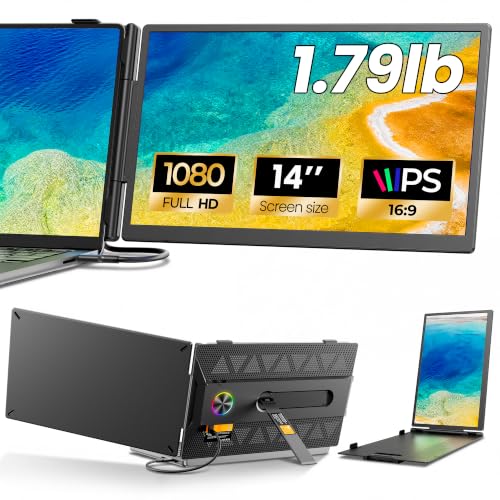
𝐀𝐝𝐝 𝐀 𝐒𝐞𝐜𝐨𝐧𝐝 𝐒𝐜𝐫𝐞𝐞𝐧 𝐀𝐧𝐲𝐰𝐡𝐞𝐫𝐞:Expand your laptop with a 14-inch FHD display for documents, email, spreadsheets, video calls, research, streaming, and more. This laptop screen extender supports Extend and Mirror modes, helping remote professionals, students, and travelers reduce tab switching and create a flexible dual-screen workspace at home, in the office, or on the go.
Other Battery Monitoring Tools
Consider using dedicated battery monitoring software. These tools often provide in-depth statistics that the built-in battery widget may miss. Options include:
- BatteryCare: Offers detailed battery information, including cycle count and discharge/charge statistics.
- HWMonitor: Displays real-time temperature and voltages, alongside battery health.
- BatteryInfoView: Provides extensive battery details, including manufacturer, serial number, and design capacity.
These tools enhance your awareness of battery health and performance, contributing to better maintenance practices.
Built-In Windows Features
You can take advantage of built-in Windows features for effective battery management. Some include:
- Battery Saver Mode: Activate this mode to conserve battery life by limiting background activity during low battery.
- Battery Report: Access this feature by running the command
powercfg /batteryreportin the Command Prompt. It generates a detailed report on battery usage and health, helping you make informed decisions. - Power Settings: Navigate to Settings > System > Power & sleep to adjust settings for sleep and display timing based on battery life.
These features optimize your laptop’s performance without the need for extra widgets, allowing you to maintain a clean workspace.
Conclusion
Removing the battery widget from your Lenovo laptop can really help you create a cleaner and more focused workspace. By following the simple steps outlined in the article you can easily declutter your desktop and improve your overall experience.
If you ever run into issues during the removal process don’t hesitate to restart your laptop or check your startup settings. Remember there are also plenty of alternative tools and built-in features that can help you keep track of your battery life without the need for a widget.
Enjoy your tidier desktop and the newfound space to focus on what really matters!
Frequently Asked Questions
What is a battery widget on Lenovo laptops?
The battery widget is a small application that displays real-time information about your laptop’s battery, including charge level, estimated time remaining, and power settings. It helps users monitor battery performance and encourages efficient charging habits.
How can I remove the battery widget from my Lenovo desktop?
To remove the battery widget, go to the Settings menu, select Personalization, then Taskbar. From there, manage the Notification area and toggle the battery widget off. You can also uninstall it via the Control Panel or disable it using Task Manager.
What should I do if the battery widget keeps reappearing?
If the battery widget reappears after removal, ensure you have adjusted your startup settings in Task Manager. Additionally, check the Control Panel for any associated software that might be reinstalling the widget.
Are there alternative methods to monitor my battery status?
Yes, alternatives include using dedicated battery monitoring software such as BatteryCare, HWMonitor, and BatteryInfoView. You can also utilize built-in Windows features like Battery Saver Mode, Battery Report, and adjustable Power Settings for effective battery management.
What troubleshooting steps can I take if I can’t remove the battery widget?
Ensure you’re following the correct removal steps. If you’re still having issues, try restarting your laptop to see if that resolves the problem. If not, revisit the startup settings in Task Manager for potential conflicts.
