

Key Takeaways
- Why Remove the Battery: Understanding when and why to remove the battery is crucial for troubleshooting charging issues, replacing faulty batteries, cleaning, and resetting hardware.
- Safety First: Always power off the laptop, unplug the charger, and ground yourself before attempting to remove the battery to avoid electric shock and static damage.
- Step-by-Step Removal: Properly follow the step-by-step guide to safely remove the battery, ensuring the use of the right tools like a Phillips-head screwdriver.
- Battery Maintenance Tips: Keep the battery charged between 20%-80%, avoid extreme temperatures, and disconnect peripherals to extend battery life and efficiency.
- Regular Software Updates: Regularly update your operating system and applications to improve battery performance and efficiency.
- Monitor Battery Health: Use built-in tools or third-party applications to monitor battery health to identify any potential issues early on for timely replacements.
Ever found yourself struggling with a laptop that just won’t charge? If you own a Lenovo Ideapad 100, you might need to remove the battery for troubleshooting or replacement. It’s a common issue, and knowing how to handle it can save you time and frustration.
Overview of Lenovo Ideapad 100
The Lenovo Ideapad 100 is a versatile laptop designed for everyday tasks like browsing the web, streaming videos, and handling documents. It’s lightweight, making it easy to carry around. The laptop features a 15.6-inch display, offering a clear view for various applications. With multiple configurations, you can find models with Intel or AMD processors, suitable for different performance needs.
Key Features
- Display: 15.6-inch HD panel for clear visuals.
- Processors: Options include Intel Celeron, Pentium, or AMD A-series processors.
- Storage: SSD or HDD options to meet storage requirements.
- Ports: USB 2.0, USB 3.0, HDMI, and an audio jack for connectivity.
User Experience
The Lenovo Ideapad 100 provides a comfortable user experience with a responsive keyboard and trackpad. Battery life typically lasts around 4-5 hours, depending on usage. Primarily aimed at students and casual users, it balances performance and affordability.
Understanding the specifications and features will help you troubleshoot effectively, especially when dealing with common issues such as battery problems. Keeping the laptop well-maintained ensures optimal functionality, which includes knowing how to remove and replace the battery when necessary.
Importance of Removing the Battery
Removing the battery from your Lenovo Ideapad 100 holds significant importance for effective troubleshooting and maintenance. Understanding the process ensures safety and enhances the laptop’s performance.
Recommended Products

Specifications:Model:L15L4A01; Voltage:14.8V;Capacity:33Wh;100% brand new from manufacture. Grade A cells ensure fast charges and low power consumption.

Specifications :Model:L18C4PF3 ; Voltage:15.36V;Capacity:45Wh ;100% brand new from manufacture. Grade A product ensure fast charges and low power consumption.
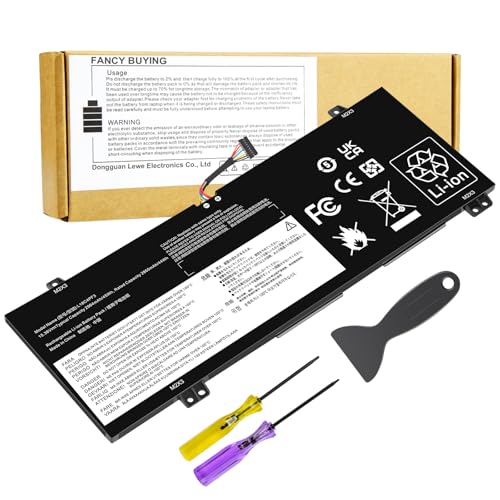
♣Specification: Battery type:Li-ion Voltage:15.36V Capacity: 45Wh Cells:4 cell. Recharge cycles:500; The battery is durable and has overcurrent protection, anti-overcharge, anti-overdischarge and temperature control functions.
Safety Precautions
- Power Off: Always power off your laptop completely before removing the battery. This prevents electric shock and protects internal components.
- Unplug the Charger: Disconnect the charger to eliminate the risk of power surges while handling the battery.
- Ground Yourself: Use an anti-static wrist strap or regularly touch a metal surface. This technique helps dissipate static electricity that could damage sensitive parts.
- Work in a Clean Area: Pick a clutter-free workspace. A neat environment minimizes the chance of losing screws or damaging components.
Reasons for Battery Removal
- Troubleshooting: If your laptop experiences issues like not charging or unexpected shutdowns, removing and reseating the battery often resolves the problem.
- Replacing a Faulty Battery: A malfunctioning battery affects overall performance. Removing it is necessary when replacing it with a new one.
- Cleaning: Dust and debris can accumulate inside your laptop. Removing the battery allows you to clean the area around it, ensuring proper ventilation.
- Resetting Hardware: Sometimes, resetting the battery can help restore functionality in your laptop. Disconnecting it from the power source for a short duration helps reset hardware components.
These steps ensure a smoother process for maintaining your Lenovo Ideapad 100, enhancing your overall user experience.
Step-by-Step Guide to Remove the Battery
Follow these steps to properly remove the battery from your Lenovo Ideapad 100. This process ensures a safe and effective battery removal, aiding in troubleshooting and maintenance.
Tools Required
- Phillips-head screwdriver
- Plastic prying tool (optional)
- Anti-static wrist strap (optional)
Preparing the Laptop
- Power off the laptop completely.
- Unplug the charger from the laptop.
- Disconnect any attached peripherals such as USB devices.
- Place the laptop on a flat, clean surface.
- Ground yourself to avoid static discharge by using an anti-static wrist strap or touching a metal surface.
Removing the Battery
- Flip the laptop over so the bottom faces up.
- Locate the battery release latches; they are usually on the bottom panel.
- Slide the battery release latch to the unlocked position, typically indicated by a small icon.
- Gently push the battery away from the laptop while lifting it out of its compartment.
- If necessary, use a plastic prying tool to carefully loosen any stubborn edges.
- Store the battery in a safe location away from direct sunlight or moisture.
Following these detailed steps allows for effective battery removal on the Lenovo Ideapad 100, facilitating further maintenance and troubleshooting tasks.
Tips for Battery Maintenance
- Keep the Battery Charged: Maintain a charge between 20% and 80%. This range prolongs battery life and prevents deep discharges.
- Avoid Extreme Temperatures: Store and operate your laptop in environments between 32°F and 95°F (0°C and 35°C). Extreme heat or cold can damage battery cells.
- Use Battery Saver Mode: Activate battery saver mode during low-power tasks. This setting reduces background activity and saves power.
- Update Software Regularly: Ensure your operating system and applications receive updates. Optimized software can improve battery efficiency.
- Remove Peripherals: Disconnect unnecessary devices, like USB drives or external hard drives, when not in use. These devices draw power from your battery.
- Clean Battery Contacts: Inspect and gently clean battery contacts every few months. Dust and debris can hinder performance.
- Charge with Caution: Use the original charger designed for your Lenovo Ideapad 100. Third-party chargers may not supply the correct voltage or current.
- Perform Battery Calibration: Occasionally, fully discharge and recharge your battery. This process recalibrates the battery meter and helps maintain accurate charge levels.
- Monitor Battery Health: Use built-in tools or third-party apps to track battery health. Recognizing signs of wear early helps in timely replacements.
- Limit Heavy Usage While Charging: Avoid intensive tasks, like gaming or video editing, when charging. These tasks generate heat and can stress the battery.
Conclusion
Removing the battery from your Lenovo Ideapad 100 can be a straightforward process when you follow the right steps. By understanding the importance of proper battery maintenance and troubleshooting, you can keep your laptop running smoothly.
Remember to prioritize safety by powering off your device and working in a clean environment. With the right tools and a little patience, you’ll be able to address any battery issues effectively.
Taking care of your laptop not only enhances its performance but also extends its lifespan. So go ahead and give your Ideapad the attention it deserves, and enjoy a better user experience!
Frequently Asked Questions
Why is my Lenovo Ideapad 100 not charging?
The Lenovo Ideapad 100 may not charge due to various reasons, including a faulty charger, battery issues, or hardware malfunctions. Check the charger for damage, ensure the power outlet is functional, and inspect the battery for signs of wear. If these checks don’t resolve the problem, consider troubleshooting further or replacing the battery.
How do I remove the battery from my Lenovo Ideapad 100?
To remove the battery, first power off your laptop and unplug the charger. Use a Phillips-head screwdriver to remove the screws on the back cover. Carefully locate and disconnect the battery connector before gently lifting the battery out of its compartment. Make sure to follow safety precautions to avoid damage.
What tools do I need for battery removal?
You will need a Phillips-head screwdriver to remove screws from the back cover. Optional tools include a plastic prying tool to avoid damage and an anti-static wrist strap for safety. Ensure you have a clean workspace and are grounded before starting the process.
How can I maintain my laptop battery?
To extend your battery’s life, keep it charged between 20% and 80%, avoid extreme temperatures, and use battery saver mode when needed. Regularly clean battery contacts, disconnect unnecessary devices, and charge with the original charger. Monitoring battery health and performing calibration can also help maintain performance.
What should I do if my battery is faulty?
If your battery is faulty, consider replacing it. First, confirm the issue by troubleshooting and determining if the battery is the problem. If so, choose a compatible replacement from a reliable source. Follow the article’s guidelines for safely removing and installing a new battery to avoid damage.
Is the Lenovo Ideapad 100 good for students?
Yes, the Lenovo Ideapad 100 is suitable for students as it offers versatility for tasks like web browsing, video streaming, and document handling. Its lightweight design, comfortable keyboard, and sufficient battery life make it an excellent option for educational use and casual activities.
