

Key Takeaways
- Know Your Model: Always identify your specific ASUS laptop model as battery types and removal methods vary between models.
- Types of Batteries: ASUS laptops feature either removable batteries with latches or built-in batteries that require tools for access.
- Essential Tools for Removal: Prepare a precision screwdriver, plastic pry tool, anti-static wrist strap, soft cloth, and flashlight to ensure a safe process.
- Follow Safety Precautions: Always power off your laptop, disconnect external devices, ground yourself, and work in a well-lit, dry area before removing the battery.
- Step-by-Step Process: Ensure a thorough battery removal by following a clear step-by-step guide, including shutting down the laptop, removing the back panel, disconnecting the battery, and carefully taking it out.
- Replacement Considerations: When replacing the battery, ensure compatibility by referencing your model number, and consider purchasing from reputable sources to maintain quality.
Have you ever found yourself struggling with a laptop that just won’t turn on? It can be frustrating, especially if you suspect the battery might be the issue. Whether you’re trying to troubleshoot or simply replace an old battery, knowing how to safely remove it from your ASUS laptop is essential.
Understanding Your Asus Laptop Model
Knowing your specific Asus laptop model is vital for safe battery removal. Different models feature various battery types and configurations, which can influence how you handle battery maintenance.
Different Battery Types
Asus laptops utilize two primary battery types:
- Removable Batteries: These batteries detach from the laptop easily. They usually feature a latch or buttons to release the battery.
- Built-in Batteries: These batteries remain fixed within the laptop casing. For these, you need tools to access the battery, usually requiring you to remove screws from the bottom panel.
Identifying Your Laptop Model
You can identify your Asus laptop model through several methods:
- Check the Bottom of the Laptop: Look for a sticker that displays the model number. This is often the fastest method.
- Access System Information: Click on the Start menu, type “System Information,” and press Enter. This tool shows your model details under “System Model.”
- Use Asus Support Tools: Asus offers a utility called “MyASUS” that provides essential device information, including the model number.
Understanding your laptop model helps you find the right instructions and tools for battery removal, ensuring a smoother process.
Preparing for Battery Removal
Before starting the battery removal process, ensure you’re prepared with the right tools and take necessary safety precautions.
Recommended Products

HIGH QUALITY: Thin flexible steel blade easily slips between the tightest gaps and corners.

Battery type: Li-ion; Cells: 6-cell; Capacity: 5200mAh; Voltage: 11.1V. The battery is durable and has overcurrent protection, anti-overcharge, anti-overdischarge and temperature control functions.

【Specifications】Model:C41N1731-2 // Battery type: Li-ion // Voltage:15.4V // Capacity:66Wh/4335mAh// 100% New from Manufacturer. Top circuit boards and smart chip.
Necessary Tools and Equipment
- Screwdriver: Use a precision screwdriver set, ideally a Phillips or flathead, depending on your ASUS model.
- Plastic Pry Tool: A plastic pry tool helps separate connectors without damaging components.
- Anti-static Wrist Strap: Wear an anti-static strap to prevent static discharge that could harm internal parts.
- Soft Cloth: Use a soft, clean cloth as a cushion for your laptop when it’s flipped upside down.
- Flashlight: A flashlight aids visibility in tight spaces, ensuring you can see connections clearly.
Safety Precautions
- Power Off the Laptop: Shut down your laptop completely and unplug it from any power source.
- Remove External Devices: Unplug all external devices such as USB drives, mouse, and keyboard to avoid accidental interference.
- Ground Yourself: Ground yourself by touching a metal object or using an anti-static wrist strap to prevent static buildup.
- Avoid Operating Near Fluids: Keep the workspace dry and free from any liquids to prevent spills or accidents.
- Work in a Well-lit Area: Use adequate lighting to see small screws and connectors easily, ensuring no parts get lost or damaged during the process.
Following these preparations helps ensure a safe and efficient battery removal experience.
Step-by-Step Guide on How to Remove Battery on Asus Laptop
Follow these steps to safely remove the battery from your ASUS laptop. This guide covers everything from powering off the device to disconnecting the battery.
Recommended Products
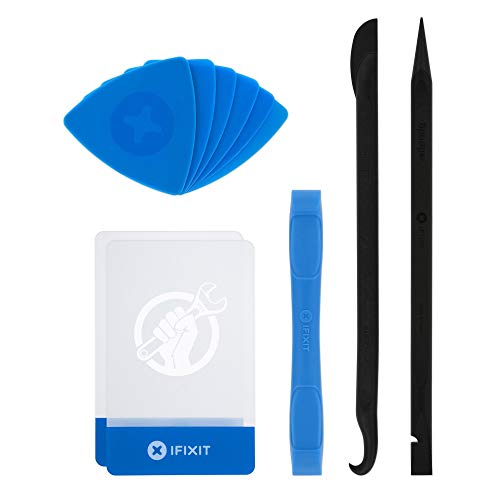
EFFECTIVE: Open your tech device and safely remove components with ease. Essential for DIY repairs like displays, batteries, motherboards, headphone jacks, joysticks, and more.

Versatile Screen Disassembler Pry Tool: Includes ultra-thin metal opening picks, 3 non-slip metal spudgers, and 2 pry tools with clear markings for various repair tasks on laptops,cell phones, and more.

【High-quality material】This tool set are made of sturdy and durable carbon steel with an anti slip handle in the middle, it has high hardness and toughness, these pry tools make it easier to disassemble repair kits for electronics, smartphones, computers, and tablets
Shutdown and Unplug the Laptop
First, ensure your laptop is completely powered off. After shutting down, unplug the power cord from the laptop. If any external devices are connected, like USB drives or additional monitors, disconnect them as well. This step minimizes the risk of electrical issues during the battery removal process.
Removing the Back Panel
Next, prepare to access the battery by removing the back panel.
- Gather Tools: Use a precision screwdriver to unscrew any screws securing the back panel.
- Locate Screws: Look for screws on the bottom of your laptop. Some ASUS models may have hidden screws beneath rubber feet or stickers.
- Pry Open the Panel: Once unscrewed, use a plastic pry tool to gently lift the back panel. Be cautious not to damage the clips holding it in place.
Disconnecting the Battery
Now you can safely disconnect the battery.
- Identify the Battery: Locate the battery inside your laptop. It typically resembles a flat rectangular shape with wires attached.
- Remove Connectors: Carefully unplug the battery connector by pulling it straight out. Avoid tugging on the wires.
- Take Out the Battery: If your model has a removable battery, it may lift out easily. For built-in batteries, additional screws may hold it in place. Unscrew them and gently lift out the battery.
By following these steps, you’ll successfully remove the battery from your ASUS laptop. Always refer to your specific model’s manual for any unique instructions or configurations.
Troubleshooting Common Issues
When removing a battery from your ASUS laptop, you might encounter a few common problems. Here’s how to handle those issues effectively.
Battery Not Detaching
If the battery refuses to detach from your laptop, ensure the release latch is fully disengaged. Different models may require unique methods. For specific guidance, consult your user manual. If the battery still won’t budge, wiggle it gently to loosen any stuck connectors. Avoid using excessive force, as that could damage the components.
Difficulty in Accessing the Battery
In some ASUS laptop models, accessing the battery can be tricky. Look for a panel secured by screws or clips on the underside of the laptop. Use a small screwdriver to remove screws, keeping them organized for easy reassembly. If clips are present, use a plastic opening tool to carefully pop the panel off. If you can’t find the battery, check the specifications online to locate detailed information about your specific model.
Replacing the Battery
Replacing the battery in your ASUS laptop is a straightforward process if you follow the right steps. Here’s how to ensure a smooth transition to a new battery.
Recommended Products

【Customer First】24 x 7 email support. We specialize in providing quality power products. (Note: Amazon return windows will close after one month, If you have any problem with battery, please Contact us - in “YOUR ORDER” options click the “contact seller”.)

Battery Model : B31N1912 Voltage: 11.55V Capacity: 42Wh Li-ion polymer Battery

Specifications:Model:B31N1637; Voltage:11.52V;Capacity:42Wh;Cell:3Cells;100% brand new from manufacture. Grade A cells ensure fast charges and low power consumption.
Choosing the Right Replacement Battery
Choosing the correct replacement battery is crucial for your laptop’s performance. Check the model number of your ASUS laptop, which can typically be found on the bottom of the device or in the user manual. Match this number with compatible batteries sold by reputable retailers. Look for specific details like voltage and capacity to avoid compatibility issues. Consider purchasing from ASUS or authorized resellers to ensure quality and reliability.
Conclusion
Removing and replacing the battery on your ASUS laptop can seem daunting but with the right approach it’s manageable. By following the steps outlined you can troubleshoot common issues and ensure your laptop gets the power it needs.
Always remember to handle the battery with care and double-check compatibility when purchasing a replacement. Taking the time to understand your specific model will save you headaches down the road.
With a little patience and the right tools you’ll have your laptop running smoothly again in no time. Happy troubleshooting!
Frequently Asked Questions
What should I do if my ASUS laptop won’t turn on?
If your ASUS laptop won’t turn on, start by checking the power supply and battery. Ensure the charger is connected properly and the outlet is functioning. If the battery is detachable, try removing it and holding the power button for 15 seconds to reset the system. Then, reconnect the battery and try turning on the laptop again.
How can I remove the battery from my ASUS laptop?
To remove the battery from your ASUS laptop, first ensure the laptop is powered off. Locate the release latch and make sure it’s fully disengaged. If the battery doesn’t come out easily, consult your user manual for instructions specific to your model, as some may have screws or clips that need to be removed.
What if the battery doesn’t detach from my ASUS laptop?
If the battery won’t detach, double-check that the release latch is completely turned. Sometimes, a bit of gentle wiggling can help. If it still won’t budge, refer to your user manual for model-specific instructions, as different models may have different removal mechanisms.
How do I find a replacement battery for my ASUS laptop?
To find a replacement battery, check the model number of your ASUS laptop, usually found on the bottom of the device or in the user manual. Match this number with compatible batteries from reputable retailers. Ensure the new battery’s voltage and capacity match your original to avoid compatibility issues.
Where is the best place to buy an ASUS laptop battery?
The best places to buy an ASUS laptop battery are from ASUS directly or authorized resellers. This ensures that you receive a high-quality and reliable product. Always verify compatibility by checking your laptop’s model number before purchasing.
