

Key Takeaways
- Recognize Battery Types: Samsung Galaxy tablets use lithium-ion batteries, typically ranging from 4,000 mAh to 7,000 mAh, impacting usage time and performance.
- Identify Battery Issues: Look for signs of a failing battery, including rapid discharge, overheating, swelling, and unexpected shutdowns to determine when replacement is needed.
- Gather Necessary Tools: Use a small Phillips screwdriver, plastic opening tools, tweezers, suction cup tool, and anti-static wrist strap for safe battery removal.
- Follow Safety Precautions: Always power down the device, work in a clean area, avoid metal tools, handle the battery carefully, and dispose of old batteries responsibly.
- Execute Battery Removal Steps: Power down, open the back cover carefully, disconnect the battery, and finally, lift the battery out without causing damage.
- Ensure Proper Replacement: Align and connect the new battery securely, test the device, reattach the back cover, and conduct final checks to ensure reliability.
Have you ever found yourself needing to remove the battery from your Samsung Galaxy tablet? Whether it’s for a replacement or troubleshooting, this task can seem daunting if you’re not sure where to start.
You’re not alone in this; many people face the same challenge when their device isn’t performing as it should. Fortunately, removing the battery isn’t as complicated as it appears. This article will guide you through the steps, making the process simple and stress-free.
Understanding Your Samsung Galaxy Tablet
Your Samsung Galaxy tablet features a lithium-ion battery, designed for optimal performance and longevity. Knowing its specifications and recognizing battery failure signs can enhance your tablet experience.
Battery Type and Specifications
Samsung Galaxy tablets use lithium-ion batteries, known for their lightweight and efficient energy storage. These batteries typically range in capacity from 4,000 mAh to 7,000 mAh, depending on your tablet model. Higher capacity translates to longer usage times, but keep in mind that all lithium-ion batteries naturally degrade over time.
For example, a tablet with a 6,000 mAh battery may last up to 12 hours of regular use. Users often find information on battery specifications in the device settings under “About tablet” or in the user manual.
Common Signs of a Failing Battery
You can identify a failing battery by observing several key signs. Look for:
- Rapid Discharge: If your tablet’s battery drains faster than usual, it may signal aging or damage.
- Overheating: Excessive heat during charging or normal use can indicate battery problems.
- Swelling: Any visible swelling of the tablet casing around the battery area is a serious concern that requires immediate attention.
- Unexpected Shutdowns: If your tablet shuts down without warning, even with remaining charge, it’s a potential red flag.
Recognizing these signs early can help you maintain your tablet effectively and decide when battery replacement becomes necessary.
Preparing for Battery Removal
Preparing for battery removal requires the right tools and safety measures. Follow these guidelines to ensure a smooth process.
Recommended Products

Replacement For Laptop: Fit for Samsung Galaxy Tab A7 Lite 8.7 2021 SM-T220 SM-T225 SM-T225C SM-T225N.

【Stylus for Touch Screen】This stylus can be used on touch screen, designed to replace your fingers, the stylus can free up your fingers and provide higher sensitivity and response on the screen.
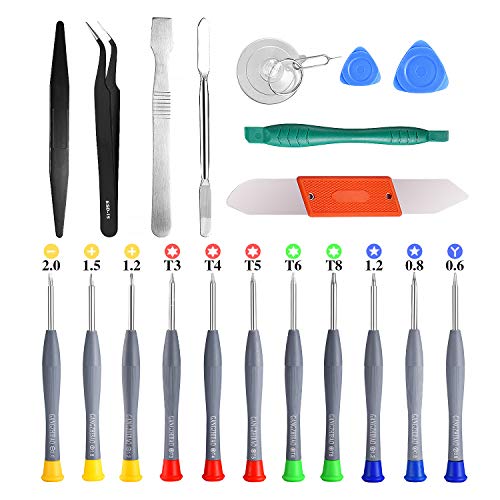
PentalobeScrewdriver Set: p5 Pentalobe screwdriver,PH000 Phillips Screwdriver, Pentalobe T5 Pentalobe T6 Screwdrivers Repair Tool Kit for Apple MacBook Mac Retina Pro Air,T5 for Macbook air & pro repair, it can remove fan screws, including SSD or hard disk replacement. The improved T5 has curved corner tip, which are different from the previous straight corner tip, It will not damage the screws and is more durable
Tools Needed
- Small Phillips screwdriver: Use this for removing screws securing the back cover.
- Plastic opening tools: These help pry open the device without causing damage.
- Tweezers: Helpful for handling small battery connectors or screws.
- Suction cup tool: Assists in lifting the back cover off the device.
- Anti-static wrist strap: Prevents static electricity from damaging sensitive components.
Gather these tools before starting to streamline the battery removal process.
Safety Precautions
- Turn off your tablet: Always power down the device before battery removal to prevent short circuits.
- Work in a clean area: Keep your workspace clutter-free to avoid losing small parts.
- Avoid metal tools: These can scratch or damage the internal components of the tablet.
- Handle the battery carefully: Inspect it for signs of swelling or damage; these can pose safety risks.
- Dispose of the old battery properly: Follow local regulations for battery disposal to protect the environment.
Taking these precautions ensures both your safety and the device’s integrity during the battery replacement process.
Steps to Remove the Battery
Removing the battery from your Samsung Galaxy tablet involves several straightforward steps. Follow this guide to ensure a smooth process.
Recommended Products

Guaranteed for One Full Year - Includes Video Instructions, Free Special Tools, and Long Life Battery

【Suitable for TV models】: Compatible with Samsung screwless TVs.

Specifications: Battery type: Li-ion Polymer Battery Color: White. Voltage: 3.85V. Capacity: 27.1Wh/7040mAh
Powering Down the Device
- Press and hold the power button until the power menu appears.
- Select “Power off” and confirm to turn off the tablet completely.
- Wait a few moments to ensure the device powers down fully.
Opening the Back Cover
- Use a plastic opening tool to carefully pry open the back cover. Start at a corner and work your way around the edges.
- Apply gentle pressure; avoid using metal tools to prevent damage.
- Once you’ve loosened the edges, lift the cover off to expose the internal components.
Disconnecting the Battery
- Locate the battery connector on the circuit board.
- Use a pair of tweezers to gently lift the connector from its socket.
- Take care not to pull on the wires, as this could cause damage.
Removing the Battery
- Find the battery’s adhesive located around its edges.
- Use a suction cup tool to lift the battery slightly, working it free from the adhesive.
- Once detached, carefully lift the battery out of the tablet.
By following these steps, you can successfully remove the battery from your Samsung Galaxy tablet.
Replacing the Battery
Replacing the battery in your Samsung Galaxy tablet involves a few straightforward steps. Following this guide ensures you can successfully install a new battery and seal the device securely.
Recommended Products

Replacement For Tablet: Fit for Samsung Galaxy Tab A8 10.5 Inch SM-X200 SM-X205 SM-X200N SM-X205N SM-X205NZAAEUE SM-X200NZAAEUA Tablet.

【Battery Specifications】Model:SCUD-WT-N19; Battery Type: Rechargeble Lithium polymer; Capacity:27.1 Wh 7040 mAh; Voltage:3.85V; Battery life: Up to 500 recharge cycles.

【Battery Specifications】Model:SCUD-WT-N19 Rechargeable Battery/Capacity:27.1Wh/Voltage: 3.85V/Cycle life: Up to 500 recharge cycles.
Installing a New Battery
- Align the Battery: Position your new battery so that the connectors match up with the circuit board. Ensure the battery fits snugly into place, adhering to any alignment notches.
- Connect the Battery: Use your fingers or tweezers to connect the battery connector to the circuit board. Press gently until it snaps into place. A secure connection prevents power issues.
- Test the Device: Before sealing the tablet, power it on to confirm the new battery functions correctly. Hold the power button and check for any signs of operation. If the tablet doesn’t power on, recheck the connection.
Sealing the Device
- Reattach the Back Cover: Once you’ve verified the new battery works, place the back cover onto the device. Align it with the edges and press down firmly until you hear clicks indicating that it’s secured.
- Secure with Screws: If your tablet has screws along the edges, use the small Phillips screwdriver to tighten them. Ensure all screws are fastened but avoid overtightening, which can damage the casing.
- Final Checks: Inspect the device to ensure there are no gaps between the cover and the tablet body. This step prevents dust and moisture from entering.
- Power On the Device: Lastly, power on your tablet again. Check its performance to ensure everything is functioning well with the new battery.
By following these steps, you can easily replace your Samsung Galaxy tablet’s battery and seal it properly for continued use.
Conclusion
You’ve now got the knowledge and tools to tackle battery removal on your Samsung Galaxy tablet. With a little patience and the right approach, you can ensure your device runs smoothly for years to come. Remember to always prioritize safety and handle the battery with care.
Don’t hesitate to revisit this guide whenever you need a refresher. Keeping your tablet in top shape is just a few steps away. Enjoy your refreshed device and the extended usage that comes with a new battery!
Frequently Asked Questions
How do I know if my Samsung Galaxy tablet battery needs to be replaced?
If your tablet shows signs such as rapid battery drain, overheating, swelling, or unexpected shutdowns, these are indicators that the battery may need replacement. Recognizing these symptoms early can help maintain your device’s performance.
What tools do I need to replace the battery in my Samsung Galaxy tablet?
To replace your tablet’s battery, you’ll need a small Phillips screwdriver, plastic opening tools, tweezers, a suction cup tool, and an anti-static wrist strap. These tools ensure a safe and effective battery replacement process.
Is it safe to replace the battery in my Samsung Galaxy tablet at home?
Yes, it is safe to replace the battery at home as long as you follow the correct procedures. Make sure to turn off your device, work in a clean area, and handle the battery carefully to minimize risks.
Can I recycle the old battery after replacement?
Yes, you can and should recycle the old battery. Many electronic stores and recycling centers accept lithium-ion batteries for proper disposal. Check local regulations for specific recycling options in your area.
What steps should I follow to safely remove my tablet’s battery?
Start by powering off your device. Use a plastic opening tool to gently pry open the back cover, disconnect the battery connector with tweezers, and then remove the battery using a suction cup tool. Follow safety precautions throughout the process.
