Close Menu
Battery Spotlight
    Battery Spotlight
    • Home
    • Phone Batteries
    • Laptop Batteries
    • Car Batteries
      • Golf Cart Batteries
    • Battery Info
      • Battery Chargers
      • Battery Life
      • Battery Maintenance
      • Marine Batteries
      • Rechargeable Batteries
      • Solar Batteries
    • About Us
      • Contact
    Battery Spotlight
    Navigation: Home » Phone Batteries » Android Batteries » How to Remove Battery from Lenovo IdeaPad 330: A Step-by-Step Guide for Safe Removal
    Android Batteries

    How to Remove Battery from Lenovo IdeaPad 330: A Step-by-Step Guide for Safe Removal

    Leo HudsonBy Leo HudsonApril 24, 20258 Mins Read
    Share Facebook Twitter Pinterest LinkedIn Tumblr Email WhatsApp Copy Link
    Share
    Facebook Twitter LinkedIn Pinterest Email Copy Link

    Key Takeaways

    • Understanding the Device: The Lenovo IdeaPad 330 is a versatile laptop suitable for various tasks, featuring customizable processors and a 15.6-inch display.
    • Tools for Battery Removal: Essential tools include a Phillips screwdriver, plastic pry tool, anti-static wrist strap, flashlight, and a small container for screws.
    • Safety First: Always power off the laptop, unplug it, and ground yourself before attempting any hardware changes to avoid damage or injury.
    • Step-by-Step Process: Follow a clear guide to remove the battery, including powering off, disconnecting the charger, unscrewing the back panel, and carefully extracting the battery.
    • Common Issues: Familiarize yourself with troubleshooting common battery-related problems such as charging issues, power failures, overheating, and battery life deterioration.
    • Maintenance Tips: Regularly check battery health with software tools and adjust power settings to prolong battery life and enhance laptop performance.

    Have you ever found yourself needing to replace or troubleshoot your Lenovo IdeaPad 330’s battery? It can be frustrating when your laptop isn’t performing as it should, and sometimes, removing the battery is the first step to fixing the issue.

    Table of Contents

    Toggle
    • Key Takeaways
    • Overview of Lenovo Ideapad 330
    • Key Specifications:
    • Design and Build:
    • Connectivity:
    • Battery Life:
    • Tools Needed for Battery Removal
    • Recommended Tools
    • Safety Precautions
    • Step-by-Step Guide to Remove Battery
    • Power Off the Device
    • Disconnecting Power Source
    • Unscrewing the Back Panel
    • Removing the Battery
    • Common Issues and Troubleshooting
    • Battery Not Charging
    • Laptop Doesn't Power On
    • Overheating
    • Battery Life Deterioration
    • Conclusion
    • Frequently Asked Questions
    • How do I safely remove the battery from my Lenovo IdeaPad 330?
    • What tools do I need to remove the battery?
    • What should I do if my Lenovo IdeaPad 330 battery is not charging?
    • How long does the battery last on Lenovo IdeaPad 330?
    • What are some common battery issues with the Lenovo IdeaPad 330?
    • Can I replace the battery myself for Lenovo IdeaPad 330?

    In this article, you’ll learn how to safely and easily remove the battery from your device. Whether you’re looking to replace a worn-out battery or just want to reset your laptop, this guide will walk you through each step. With clear instructions and helpful tips, you’ll be back to using your laptop in no time.

    Overview of Lenovo Ideapad 330

    The Lenovo Ideapad 330 is a versatile laptop designed for everyday use. It features various options for processors, including Intel and AMD, making it suitable for tasks like browsing, streaming, and light gaming. With a display size of 15.6 inches, it balances portability and usability.

    Key Specifications:

    • Processor Options: Intel Core i3/i5/i7 or AMD Ryzen 3/5
    • RAM: 4GB to 12GB, upgradeable in many models
    • Storage: SSD or HDD options, ranging from 128GB to 1TB
    • Operating System: Windows 10, with upgrade paths available

    Design and Build:

    The laptop sports a sleek design with a durable plastic chassis. It weighs approximately 4.8 pounds, making it easy to carry. The keyboard provides a comfortable typing experience, and the touchpad supports multi-touch gestures for intuitive navigation.

    Connectivity:

    The Ideapad 330 includes several ports for your connectivity needs:

    • USB 3.0 ports (2)
    • USB Type-C port (1)
    • HDMI port (1)
    • Ethernet port (1)
    • Audio jack

    These options allow you to connect multiple peripherals, displays, or networks seamlessly.

    SEE ALSO  What Android Phone Has the Best Battery Life for Your Daily Needs and Activities

    Battery Life:

    The battery life on the Ideapad 330 varies based on usage but averages about 5 to 7 hours. This makes it suitable for working on-the-go or during classes. If performance issues arise, replacing the battery plays a significant role in restoring efficiency and usability.

    Understanding these aspects of the Lenovo Ideapad 330 helps you manage its features effectively. Keeping the laptop’s performance in check ensures it serves your daily computing needs well.

    Tools Needed for Battery Removal

    Gathering the right tools ensures a smooth battery removal process for your Lenovo IdeaPad 330. You only need a few common items to get started.

    Recommended Products

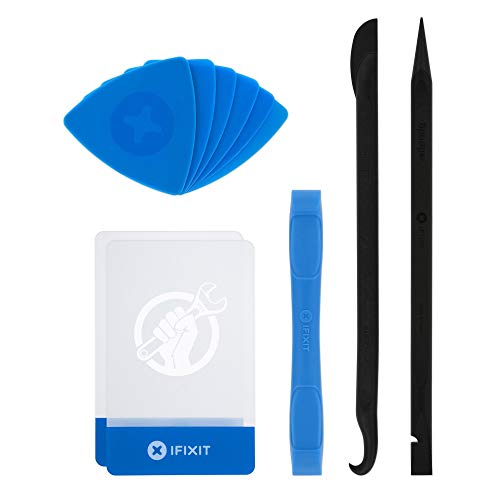
    Kaisi Professional Electronics Opening Pry Tool Repair Kit with Metal Spudger Non-Abrasive Nylon Spudgers and Anti-Static Tweezers for Cellphone iPhone Laptops Tablets and More, 20 Piece
    Kaisi Professional Electronics Opening Pry Tool Repair Kit with Metal Spudger Non-Abrasive Nylon Spudgers and Anti-Static Tweezers for Cellphone iPhone Laptops Tablets and More, 20 Piece

    Kaisi 20 pcs opening pry tools kit for smart phone,laptop,computer tablet,electronics, apple watch, iPad, iPod, Macbook, computer, LCD screen, battery and more disassembly and repair

    VIEW LATEST PRICE

    As an affiliate, we earn on qualifying purchases.

    0.1mm Ultra Thin Flexible Metal Spudger Curved Screen Pry Opening Tool for Mobile Phone Laptop Disassemble Screen Repair Tools
    0.1mm Ultra Thin Flexible Metal Spudger Curved Screen Pry Opening Tool for Mobile Phone Laptop Disassemble Screen Repair Tools

    0.1mm ultra thin opening card, excellent for prying and opening task.

    VIEW LATEST PRICE

    As an affiliate, we earn on qualifying purchases.

    STREBITO Spudger Pry Tool Kit 11 Piece Opening Tool, Plastic & Metal Spudger Tool Kit, Ultimate Prying & Open Tool for iPhone, Laptop, iPad, Cell Phone, MacBook, Tablet, Computer, Electronics Repair
    STREBITO Spudger Pry Tool Kit 11 Piece Opening Tool, Plastic & Metal Spudger Tool Kit, Ultimate Prying & Open Tool for iPhone, Laptop, iPad, Cell Phone, MacBook, Tablet, Computer, Electronics Repair

    【Universal】These spudger kit and pry tools professional designed for disassembling a variety of electronics - iPhone, android phone, laptop, tablet, apple watch, iPad, iPod, Macbook, computer, LCD screen, battery and more

    VIEW LATEST PRICE

    As an affiliate, we earn on qualifying purchases.

    Recommended Tools

    • Screwdriver Set: A Phillips head screwdriver is essential for removing screws. You might also need a flathead screwdriver for prying if necessary.
    • Plastic Pry Tool: This tool helps avoid damage to your laptop’s casing while opening it.
    • Anti-Static Wrist Strap: This strap prevents static electricity from damaging the laptop’s internal components. It’s a simple safeguard when working with electronics.
    • Flashlight: A flashlight aids in seeing screws and connections clearly, especially in low-light areas.
    • Small Container: Use a container to keep screws organized and prevent them from getting lost.

    Safety Precautions

    Prioritizing safety during the battery removal process protects both you and your device. Follow these guidelines:

    • Power Off the Laptop: Always shut down your laptop completely before starting the battery removal.
    • Unplug the Charger: Disconnect any power source to ensure no electricity can flow while you work.
    • Ground Yourself: Wear an anti-static wrist strap or touch a metal surface to discharge any static electricity before handling laptop components.
    • Handle the Battery Carefully: Avoid puncturing or applying excessive pressure to the battery, as this can cause leaks or damage.
    • Follow Instructions: Stick to the manufacturer’s guidelines to prevent accidental damage to your laptop.

    With these tools and precautions, you’re ready to safely remove the battery from your Lenovo IdeaPad 330.

    Step-by-Step Guide to Remove Battery

    Follow these steps to safely remove the battery from your Lenovo IdeaPad 330.

    SEE ALSO  Why Is My Motorola Battery Draining So Fast and How to Fix It for Longer Life

    Recommended Products

    OUWEE L17M2PF0 Laptop Battery Compatible with Lenovo ideapad 330 Touch-15ARR 330-15ARR 330-15ICN Series L17D2PF1 L17L2PF2 5B10Q62138 L17M2PF2 5B10Q62139 5B10Q41211 L17L2PF0 L17M2PF1 7.5V 35Wh 4670mAh
    OUWEE L17M2PF0 Laptop Battery Compatible with Lenovo ideapad 330 Touch-15ARR 330-15ARR 330-15ICN Series L17D2PF1 L17L2PF2 5B10Q62138 L17M2PF2 5B10Q62139 5B10Q41211 L17L2PF0 L17M2PF1 7.5V 35Wh 4670mAh

    【Battery type】Li-ion. Voltage: 7.5V. Capacity: 35Wh 4670mAh .

    VIEW LATEST PRICE

    As an affiliate, we earn on qualifying purchases.

    L17L3P61 L17M3P61 L17C3P61 Laptop Battery for Lenovo IdeaPad 320S-13IKB Yoga 330-11IGM 720-12IKB Flex 6-11IGM Xiaoxin 7000-13 V330S-13IKB Series 5B10N87357 5B10N87358 5B10N87359 11.58V 36Wh (Type A)
    L17L3P61 L17M3P61 L17C3P61 Laptop Battery for Lenovo IdeaPad 320S-13IKB Yoga 330-11IGM 720-12IKB Flex 6-11IGM Xiaoxin 7000-13 V330S-13IKB Series 5B10N87357 5B10N87358 5B10N87359 11.58V 36Wh (Type A)

    Battery type: Li-ion; Voltage: 11.52V/11.58V; Capacity: 36Wh; Cells: 3-cell

    VIEW LATEST PRICE

    As an affiliate, we earn on qualifying purchases.

    Power Off the Device

    Power off your laptop completely. Close all applications and shut down the device. Wait for 30 seconds to ensure all power drains from the system.

    Disconnecting Power Source

    Unplug the charging adapter from the laptop. Make sure there are no cables connected before proceeding. This prevents any accidental power surge during the battery removal process.

    Unscrewing the Back Panel

    Use a Phillips head screwdriver to remove the screws from the back panel. Keep track of each screw by placing them in a small container. Lift the back panel gently once all screws are out. If the panel is stuck, use a plastic pry tool to carefully separate it from the laptop.

    Removing the Battery

    Locate the battery after removing the back panel. Release the battery latch by sliding it to the unlock position. Hold the edges of the battery and pull gently to remove it from the compartment. Ensure you handle the battery carefully to avoid damage.

    By following these steps, you can successfully remove the battery from your Lenovo IdeaPad 330.

    Common Issues and Troubleshooting

    Battery-related problems can affect your Lenovo IdeaPad 330’s performance. Here are some common issues and troubleshooting steps.

    Recommended Products

    L16C2PB2 Battery for Lenovo IdeaPad 330 320 S145 330-15ikb 330-15igm 330-15ast 320-15ikb 320-17ikb 320-15abr 320-15iap s145-15iwl s145-15ast L16M2PB2 L16M2PB1 L17L2PF1 L16C2PB1 L16L2PB2 L16L2PB3
    L16C2PB2 Battery for Lenovo IdeaPad 330 320 S145 330-15ikb 330-15igm 330-15ast 320-15ikb 320-17ikb 320-15abr 320-15iap s145-15iwl s145-15ast L16M2PB2 L16M2PB1 L17L2PF1 L16C2PB1 L16L2PB2 L16L2PB3

    WHAT CAN YOU GET: Packages includes: 1PC L16M2PB2 laptop battery(with two screwdrivers and user manual for easy installation). 24x7 Email Support. 60 days money refund / 12 months replacement supported if any issues. We always stand behind our customers to offer you a solution if you need help

    VIEW LATEST PRICE

    As an affiliate, we earn on qualifying purchases.

    L16L2PB2 L16L2PB1 L16S2PB1 L16C2PB1 L16C2PB2 L16M2PB1 Battery for Lenovo IdeaPad 330 320-17IKB 320-14AST 320-14IAP 320-14IKB 320-14ISK 320-15ABR 320-15AST 320-15IAP 330-15IKB 320-15IKB S145-15AST
    L16L2PB2 L16L2PB1 L16S2PB1 L16C2PB1 L16C2PB2 L16M2PB1 Battery for Lenovo IdeaPad 330 320-17IKB 320-14AST 320-14IAP 320-14IKB 320-14ISK 320-15ABR 320-15AST 320-15IAP 330-15IKB 320-15IKB S145-15AST

    Voltage:7.5V Capacity: 30Wh Cell:2 Cells . The battery is durable and has overcurrent protection, anti-overcharge, anti-overdischarge and temperature control functions.

    VIEW LATEST PRICE

    As an affiliate, we earn on qualifying purchases.

    ASUNCELL L16M2PB1 L16C2PB1 L16L2PB1 L16L2PB2 L16L2PB3 L16M2PB2 L16M2PB3 L16S2PB1 Laptop Battery for Lenovo IdeaPad 330 320 320-14AST 320-14IAP 320-14IKB 320-14ISK 320-15ABR 320-15AST 320-15IA 30WH
    ASUNCELL L16M2PB1 L16C2PB1 L16L2PB1 L16L2PB2 L16L2PB3 L16M2PB2 L16M2PB3 L16S2PB1 Laptop Battery for Lenovo IdeaPad 330 320 320-14AST 320-14IAP 320-14IKB 320-14ISK 320-15ABR 320-15AST 320-15IA 30WH

    【Specification】Replacement Battery Type: Li-ion; Voltage: 7.4V/7.5V/7.56V/7.6V; Capacity: 4050mAh/30Wh

    VIEW LATEST PRICE

    As an affiliate, we earn on qualifying purchases.

    Battery Not Charging

    • Check Connections: Ensure the charging cable’s securely connected to both the laptop and the wall outlet.
    • Inspect Charger: Look for any visible damage on the charger or cable. Try using a different charger if available.
    • Reset Power: Disconnect the charger, remove the battery, and hold the power button for 15 seconds. Reinsert the battery and reconnect the charger.
    SEE ALSO  How Long Does a Samsung Galaxy Watch Battery Last and Tips to Extend Its Lifespan

    Laptop Doesn’t Power On

    • Remove Battery: If the laptop won’t turn on, remove the battery and try powering it using the charger alone.
    • Check RAM: Improperly seated RAM can cause power issues. Reseat the RAM if you’re comfortable doing so.
    • LED Indicators: Observe any LED indicators when pressing the power button. A blinking light may indicate a specific issue.

    Overheating

    • Clean Vents: Dust accumulation can block airflow. Use compressed air to clean the vents and fans.
    • Monitor Processes: High CPU usage can cause overheating. Use Task Manager to identify and close unnecessary applications.
    • Use Laptop on Hard Surfaces: Avoid using your laptop on soft surfaces like beds or couches, as they can block airflow.

    Battery Life Deterioration

    • Adjust Power Settings: Use Windows’ power-saving modes to extend battery life. Choose the “Power saver” plan for less demanding tasks.
    • Close Background Apps: Exit unused applications that may drain battery life.
    • Check Battery Health: Use Lenovo Vantage software to check the health status of your battery. If it shows significant wear, consider replacing it.

    These straightforward troubleshooting steps can help resolve issues quickly and ensure your Lenovo IdeaPad 330 functions optimally.

    Conclusion

    You’ve now got the knowledge to safely remove the battery from your Lenovo IdeaPad 330. Whether you’re troubleshooting issues or planning to replace an old battery this process is straightforward and can help keep your laptop running smoothly.

    Remember to always prioritize safety by following the tips provided. With a little care and attention you can handle battery removal like a pro. Now you’re one step closer to ensuring your Lenovo continues to meet your everyday computing needs. Happy tinkering!

    Frequently Asked Questions

    How do I safely remove the battery from my Lenovo IdeaPad 330?

    To safely remove the battery, first power off your laptop and unplug it. Then, use a Phillips head screwdriver to unscrew the back panel. Carefully lift the panel with a plastic pry tool if needed. Locate the battery, release the latch, and gently pull it out. Ensure you follow safety precautions like grounding yourself to avoid static damage.

    What tools do I need to remove the battery?

    You will need a Phillips head screwdriver, a plastic pry tool, an anti-static wrist strap, a flashlight, and a small container to keep screws organized. These tools will help you safely and effectively remove the battery from your Lenovo IdeaPad 330.

    What should I do if my Lenovo IdeaPad 330 battery is not charging?

    If the battery is not charging, check the power connection and the charger. Try using a different outlet or charger to see if the issue persists. Additionally, inspect the battery for any visible damage and consider resetting the laptop’s power or using Lenovo Vantage software to assess battery health.

    How long does the battery last on Lenovo IdeaPad 330?

    The Lenovo IdeaPad 330 offers a battery life of approximately 5 to 7 hours, depending on usage. Factors such as display brightness, application load, and power settings can influence overall battery performance.

    What are some common battery issues with the Lenovo IdeaPad 330?

    Common battery issues include the laptop not powering on, battery not charging, overheating, and reduced battery life. Each of these problems can often be resolved by checking connections, inspecting the charger, resetting power settings, or using Lenovo Vantage software for diagnostics.

    Can I replace the battery myself for Lenovo IdeaPad 330?

    Yes, you can replace the battery yourself if you follow the correct steps and safety precautions. Make sure to power off the laptop and use the right tools. If you’re cautious and follow the manufacturer’s guidelines, you can successfully replace the battery to improve your laptop’s performance.

    Share. Facebook Twitter Pinterest LinkedIn Tumblr Email WhatsApp Copy Link
    Leo-Hudson
    Leo Hudson

      Technical writer with 3+ years of experience. Bachelor of Arts in Environmental Studies from UC Santa Cruz. Passionate about sustainability and providing clear, concise how-to guides for common battery problems.

      Related Posts

      Android Batteries

      How to Replace Battery in Samsung Phone: A Step-by-Step Guide for Easy Replacement

      October 25, 2025
      Android Batteries

      How to Remove Battery from Samsung Smart TV Remote: A Step-by-Step Guide for Easy Replacement

      October 25, 2025
      Android Batteries

      How to Check Your Battery Health on Samsung: Simple Methods to Extend Your Phone’s Lifespan

      October 25, 2025
      Android Batteries

      How Much Is a Battery for a Samsung Galaxy S6: Pricing and Replacement Options Explained

      October 25, 2025
      Android Batteries

      How to Remove Battery from Samsung Galaxy S7: A Step-by-Step Guide for Easy DIY Fixes

      October 25, 2025
      Android Batteries

      Why is My Battery Going Down While Charging Android – Effective Solutions to Fix the Issue

      October 25, 2025
      Add A Comment
      Leave A Reply Cancel Reply

      Search
      Affiliate Disclaimer

      As an Amazon Associate I earn from qualifying purchases.

      Latest Articles

      How to Replace Battery in Samsung Phone: A Step-by-Step Guide for Easy Replacement

      Android Batteries

      How to Remove Battery from Samsung Smart TV Remote: A Step-by-Step Guide for Easy Replacement

      Android Batteries

      How to Check Your Battery Health on Samsung: Simple Methods to Extend Your Phone’s Lifespan

      Android Batteries

      How Much Is a Battery for a Samsung Galaxy S6: Pricing and Replacement Options Explained

      Android Batteries

      How to Remove Battery from Samsung Galaxy S7: A Step-by-Step Guide for Easy DIY Fixes

      Android Batteries

      Why is My Battery Going Down While Charging Android – Effective Solutions to Fix the Issue

      Android Batteries
      Battery Spotlight

      Battery Spotlight is a website dedicated to helping you solve common battery problems.

      Read more about us here

      Affiliate Disclaimer
      As an Amazon Associate I earn from qualifying purchases.

      Site Navigation
      • Above Mirror Bathroom Lighting
      • Android Batteries
      • Bathroom Pendant Lighting
      • Battery Chargers
      • Battery Life
      • Battery Maintenance
      • Car Batteries
      • Ceiling Lighting Ideas
      • Golf Cart Batteries
      • Japandi Lighting
      • Laptop Batteries
      • Marine Batteries
      • Mood Lighting Living Room
      • Phone Batteries
      • Rechargeable Batteries
      • Reviews
      • Solar Batteries
      • Uncategorized
      • Vaulted Ceiling Lighting
      Latest Articles

      How to Replace Battery in Samsung Phone: A Step-by-Step Guide for Easy Replacement

      How to Remove Battery from Samsung Smart TV Remote: A Step-by-Step Guide for Easy Replacement

      How to Check Your Battery Health on Samsung: Simple Methods to Extend Your Phone’s Lifespan

      How Much Is a Battery for a Samsung Galaxy S6: Pricing and Replacement Options Explained

      How to Remove Battery from Samsung Galaxy S7: A Step-by-Step Guide for Easy DIY Fixes

      • Home
      • About
      • Contact
      • Privacy Policy
      • Editorial Policy
      • Disclaimer
      • Terms and Conditions
      • Affiliate Disclosure
      © 2026 Battery Spotlight

      Type above and press Enter to search. Press Esc to cancel.