

Key Takeaways
- Power Down Your Device: Always ensure your Lenovo Ideapad 110 is completely powered off and unplugged before attempting to remove the battery to prevent electrical damage.
- Gather Necessary Tools: Have the right tools, including a Phillips head screwdriver, plastic pry tool, tweezers, and safety equipment like safety glasses and an anti-static wrist strap, readily available for a smooth battery removal process.
- Locate and Detach the Battery: Identify the battery compartment, slide the release latch to unlock it, and gently lift the battery using a plastic pry tool to avoid damaging the casing.
- Practice Safe Handling: Handle the battery and device components with care, keep all screws organized, and work on a stable, dry surface to prevent accidents or damage.
- Inspect and Store Batteries Properly: Check for physical damage such as swelling before handling batteries, and store any unused batteries in a cool, dry place away from sunlight to prolong their lifespan.
- Follow Environmental Guidelines for Disposal: When disposing of old batteries, adhere to local regulations to ensure responsible recycling and environmental safety.
Have you ever faced the frustrating moment when your Lenovo Ideapad 110 won’t turn on? Sometimes, a simple battery removal can breathe new life into your laptop. Whether you’re troubleshooting a power issue or just need to replace an old battery, knowing how to safely remove it is essential.
Understanding Lenovo Ideapad 110
The Lenovo Ideapad 110 is a versatile laptop designed for everyday tasks. It’s essential to know its components, especially the battery, to troubleshoot issues effectively.
Overview of the Device
The Lenovo Ideapad 110 features an Intel or AMD processor, varying storage options, and a display that supports HD resolution. Ports include USB, HDMI, and audio jacks, making connectivity straightforward. Understanding these components helps in effective troubleshooting and upgrades.
Importance of Battery Removal
Removing the battery can solve various issues, including startup failures and charging problems. Disconnecting the battery allows for a hard reset, which often restores functionality. Regular battery removal aids in maintenance, ensuring that connections stay clean and functional.
Tools Required for Battery Removal
To safely remove the battery from your Lenovo Ideapad 110, gather the following tools and equipment.
Safety Equipment
- Safety Glasses: Protect your eyes from any small debris that might arise during the process.
- Anti-Static Wrist Strap: Use this to prevent static electricity from damaging internal components. It’s especially useful if you’re working in a dry environment.
Necessary Tools
- Phillips Head Screwdriver: You’ll need this to remove the screws holding the battery in place. Select a size that fits securely to avoid stripping the screws.
- Plastic Pry Tool: This tool helps gently lift the battery away from the laptop casing without causing damage. Avoid using metal tools, as they can scratch or crush components.
- Tweezers: Use tweezers if you need to grasp small connectors or screws that are difficult to reach.
Having these tools on hand makes the battery removal process straightforward and ensures a safe operation.
Step-by-Step Guide on How to Remove Battery from Lenovo Ideapad 110
Follow these steps to safely remove the battery from your Lenovo Ideapad 110.
Powering Down the Device
- Shut down your Lenovo Ideapad 110 completely. Close all applications and select “Shut Down” from the Start menu.
- Unplug the power adapter from the laptop to ensure there’s no external power source connected.
Locating the Battery Compartment
- Turn your laptop over carefully. Place it on a stable surface with the bottom facing up.
- Look for the battery compartment. It’s usually located at the rear of the laptop, marked with a battery icon or latch.
Detaching the Battery
- Identify the battery release latch. Slide the latch to the unlock position. This action may require a small amount of force.
- While holding the latch, gently lift the battery upwards. If it feels stuck, use a plastic pry tool to help lift it carefully, avoiding damage to the laptop casing.
- Once the battery is free, set it aside in a safe place.
These steps ensure a smooth and safe battery removal process. Always handle components gently to prevent damage.
Tips for Safe Battery Handling
Safe battery handling ensures both your laptop and your well-being. Follow these tips to prevent accidents and damage during the battery removal process.
Recommended Products
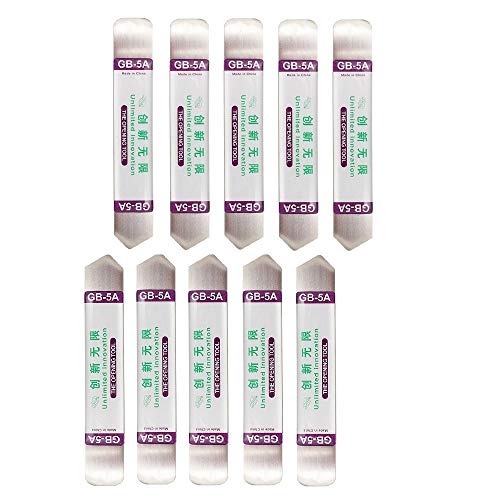
Ideal For Opening: iPhone, Smart phone, iPad, Tablet, Laptop, PC, LCD and other plastics or metals

Kaisi 20 pcs opening pry tools kit for smart phone,laptop,computer tablet,electronics, apple watch, iPad, iPod, Macbook, computer, LCD screen, battery and more disassembly and repair

Versatile Screen Disassembler Pry Tool: Includes ultra-thin metal opening picks, 3 non-slip metal spudgers, and 2 pry tools with clear markings for various repair tasks on laptops,cell phones, and more.
Preventing Damage to the Device
- Power down the laptop: Always turn off your Lenovo Ideapad 110 completely before removing the battery. Unplugging the power adapter reduces the risk of electrical damage.
- Work on a flat surface: Use a stable, non-static surface. This prevents your device from slipping and minimizes the chance of dropping components.
- Keep screws organized: Use a small container to keep screws safe and organized during the process. Misplaced screws can lead to assembly issues when putting the device back together.
- Use gentle pressure: Leverage the plastic pry tool cautiously to lift the battery. Excessive force could crack the casing or damage internal components.
- Avoid moisture: Ensure your workspace is dry. Moisture can cause short-circuiting or corrosion.
Handling Lithium-Ion Batteries
- Wear protective gear: Safety glasses protect your eyes from debris while you work. An anti-static wrist strap guards against static discharge, which can harm electronic components.
- Handle with care: Never puncture or crush the battery. Doing so can release harmful chemicals or result in a fire hazard.
- Store batteries properly: If you’re not using the battery immediately, store it in a cool, dry place away from direct sunlight. This prolongs battery health and performance.
- Check for swelling: Inspect the battery for any signs of swelling or damage. A physically compromised battery poses risks during handling or use.
- Recycle responsibly: When disposing of old batteries, follow local regulations for battery recycling. This practice ensures environmental safety and compliance with local laws.
Conclusion
Removing the battery from your Lenovo Ideapad 110 can be a simple yet effective way to tackle power issues and enhance your laptop’s performance. By following the right steps and using the proper tools you can ensure a safe and successful battery removal process.
Remember to always handle the battery with care and take the necessary precautions to protect both yourself and your device. Regular maintenance like this can help keep your laptop running smoothly for years to come. So whether you’re troubleshooting or planning a battery replacement you now have the knowledge to do it confidently. Happy computing!
Frequently Asked Questions
What should I do if my Lenovo Ideapad 110 won’t turn on?
If your Lenovo Ideapad 110 won’t turn on, try removing the battery and then reinserting it. This often resolves startup failures by allowing a hard reset, which can restore functionality.
How do I safely remove the battery from my Lenovo Ideapad 110?
To safely remove the battery, power down the laptop, unplug it, and gather the necessary tools such as a Phillips head screwdriver and a plastic pry tool. Follow the step-by-step guide in the article for detailed instructions.
What tools do I need to remove the battery?
You will need a Phillips head screwdriver, a plastic pry tool, tweezers, and safety glasses. An anti-static wrist strap is also recommended to prevent static damage during the process.
Why is it important to remove the battery regularly?
Regular battery removal helps maintain clean and functional connections, and it can prevent potential power issues. It’s also a good practice for troubleshooting startup or charging problems.
What precautions should I take when handling my laptop battery?
Always power down your laptop and work on a clean, flat surface. Keep screws organized, use gentle pressure, check for swelling, and communicate care when dealing with lithium-ion batteries to ensure safety.
