

Key Takeaways
- Understanding Battery Components: Familiarize yourself with the key components of the Android tablet battery, such as cells, protective circuits, and connection points, to better comprehend the removal process.
- Recognizing Battery Issues: Be aware of common battery problems, including fast drainage, bulging, and overheating, which can signal the need for removal or replacement.
- Essential Tools for Removal: Gather the necessary tools, including a screwdriver set, plastic pry tool, tweezers, and antistatic wrist strap, to ensure a safe and efficient battery removal experience.
- Step-by-Step Removal Process: Follow a detailed, step-by-step guide covering preparation, back cover removal, battery disconnection, and battery extraction to avoid damage and ensure safety.
- Safety Precautions: Prioritize safety by using protective gear, working in a well-ventilated and clean environment, and handling the battery with care to prevent accidents.
- Proper Disposal of Batteries: Always dispose of old lithium-ion batteries according to local regulations and recycling guidelines to minimize environmental impact and adhere to safety standards.
Ever found yourself frustrated with a sluggish Android tablet? Maybe it’s time to replace that old battery. You might think removing the battery is a daunting task, but it doesn’t have to be. Whether you’re facing performance issues or just want to give your device a new lease on life, knowing how to safely remove the battery is a valuable skill.
Understanding Your Android Tablet Battery
Understanding the Android tablet battery helps you make informed decisions about removal and replacement. Most tablets use lithium-ion batteries, known for their efficiency and long life.
Battery Components
- Cells: Each battery contains multiple cells, usually three or four, that produce voltage.
- Protective Circuit: This circuitry safeguards against overvoltage, overheating, and short circuits.
- Connection Points: These points connect the battery to the tablet’s motherboard, enabling power flow.
Common Battery Issues
- Draining Fast: Fast battery drainage often indicates age or damage.
- Bulging: A bulging battery poses safety risks and requires immediate removal.
- Overheating: Overheating can signal a malfunction. Handle carefully and consider replacement.
Battery Lifespan
Lithium-ion batteries typically last between 2 to 3 years with average use. Factors affecting lifespan include:
- Charge Cycles: Each full discharge and recharge counts as one cycle.
- Heat Exposure: High temperatures can accelerate wear.
- Usage Habits: Intensive app usage can lead to faster depletion.
Signs You Need a Replacement
- Device Won’t Charge: If your tablet fails to charge, the battery may be degraded.
- Unexpected Shutdowns: Random shutdowns during use often indicate a failing battery.
- Performance Lag: Sluggish performance, especially when multitasking, may connect to battery issues.
Recognizing these indicators allows you to determine when it’s time for a battery check or replacement.
Tools Required for Battery Removal
You’ll need certain tools to remove the battery from your Android tablet. Using the right tools makes the process easier and safer.
Recommended Products

Kaisi 20 pcs opening pry tools kit for smart phone,laptop,computer tablet,electronics, apple watch, iPad, iPod, Macbook, computer, LCD screen, battery and more disassembly and repair

【Universal】These spudger kit and pry tools professional designed for disassembling a variety of electronics - iPhone, android phone, laptop, tablet, apple watch, iPad, iPod, Macbook, computer, LCD screen, battery and more

LMQ 22 pcs opening pry tools kit for smart phone,laptop,computer tablet,electronics, apple watch, iPad, iPod, computer, LCD screen, battery and more disassembly and repair.
Essential Tools
- Screwdriver Set
Use a small Phillips or torx screwdriver to remove screws from the tablet casing. Different models may require different screw types.
- Plastic Pry Tool
A plastic pry tool helps you safely open the tablet without damaging the casing. Metal tools can scratch or dent surfaces.
- Tweezers
Tweezers assist in handling small components, especially during battery disconnection. It allows for precise movements in tight spaces.
- Antistatic Wrist Strap
An antistatic wrist strap protects electronic components from static electricity damage. Secure it to your wrist and a grounded object during the battery removal process.
Optional Tools
- Suction Handle
A suction handle can make it easier to lift the screen from the tablet’s body, especially in tightly fitted designs. It provides a strong grip on smooth surfaces.
- Heat Gun or Hair Dryer
Applying gentle heat softens adhesive holding the tablet’s screen, making it easier to open. Use it to warm the edges for a short period, but ensure it’s not too hot.
- Magnifying Glass
Using a magnifying glass helps inspect small details or check the battery and connections. This can be quite useful if you notice any anomalies during your inspection.
- Multi-meter
A multi-meter measures the voltage of the battery. Checking battery condition can confirm if replacement is necessary based on voltage readings.
Gathering these tools before starting the battery removal process ensures a smooth experience.
Step-by-Step Guide to Remove Android Tablet Battery
Follow these steps to safely remove the battery from your Android tablet. Proper knowledge of the process helps maximize safety and efficiency.
Recommended Products

The original electronics toolkit: Designed for computer, smartphone, tablet, and gaming repair, backed by thousands of free instructions.
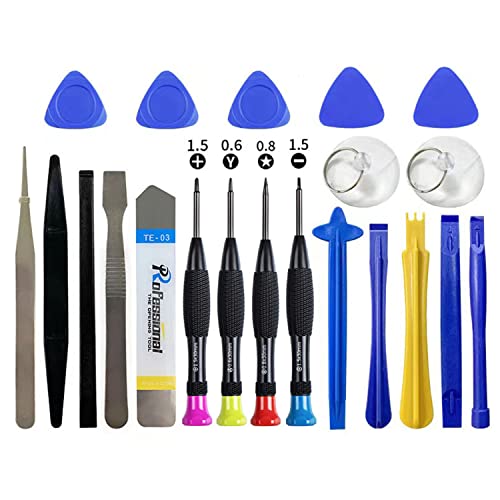
Widely Used: This 21 Pieces Repair KIt suitable for iPhone 14 13 12 11Pro Max/XS/XR/X/8 Plus/7 Plus/6S 6 Plus, and Opening Pry Tool is suitable for opening smartphone, tablet, laptop screens and more.

【Wide Application】This precision screwdriver set has 120 bits, complete with every driver bit you’ll need to tackle any repair or DIY project. In addition, this repair kit has 22 practical accessories, such as magnetizer, magnetic mat, ESD tweezers, suction cup, spudger, cleaning brush, etc. Whether you're a professional or a amateur, this toolkit has what you need to repair all cell phone, computer, laptops, SSD, iPad, game consoles, tablets, glasses, HVAC, sewing machine, etc
Preparing Your Tablet
- Turn off your tablet completely. Hold the power button, then choose “Power Off.”
- Gather your tools in a clear space. Ensure you have all necessary items, like the screwdriver set, plastic pry tool, tweezers, and an antistatic wrist strap.
- Place your tablet on a soft surface. This minimizes scratches during the process.
Removing the Back Cover
- Locate the small screws on the back cover. Use the appropriate screwdriver to remove them.
- Insert the plastic pry tool into the gap around the edges. Gently lift and work along the edges until the back cover detaches.
- Keep track of all screws. Use a small container to avoid losing them during the process.
Disconnecting the Battery
- Identify the battery connector. It’s usually a small ribbon cable connected to the motherboard.
- Use tweezers to carefully lift the connector. Gently pull it away from the socket to disconnect the battery.
- Ensure no force is applied. Fragile components can break easily if handled improperly.
Removing the Battery
- Look for any additional screws holding the battery in place. Remove these screws with your screwdriver.
- If the battery feels stuck, use the plastic pry tool to gently lift the sides. Apply minimal pressure to avoid damage.
- Once loose, carefully lift the battery out of the compartment. Dispose of it according to local regulations, especially since lithium-ion batteries can be hazardous.
Perform these steps with care to ensure safety and success in removing your tablet’s battery.
Safety Precautions to Consider
Prioritizing safety is essential when removing the battery from your Android tablet. Follow these precautions to ensure a safe and successful process.
Wear Protective Gear
- Eye protection: Use safety glasses to shield your eyes from potential debris.
- Gloves: Wear gloves to protect your hands from sharp edges and accidental contact with battery chemicals.
Work in a Safe Environment
- Flat surface: Choose a clean, flat workspace to avoid losing small parts.
- Well-ventilated area: Ensure good airflow to prevent inhaling any harmful fumes.
Disconnect Power Sources
- Turn off the device: Always power down the tablet to decrease the risk of electric shock.
- Unplug any chargers: Disconnect the charger to eliminate any current running through the device.
Be Cautious with Tools
- Use the right tools: Select appropriate, non-conductive tools to reduce the risk of shorts.
- Inspect tools: Check that tools are in good condition before use to avoid injuries.
Handle the Battery With Care
- Avoid punctures: Do not use excessive force while removing the battery to prevent puncturing it.
- Look for signs of swelling: If the battery appears swollen, handle it very carefully and consider seeking professional help.
Dispose of the Battery Properly
- Follow local regulations: Research local guidelines for disposing of lithium-ion batteries.
- Use designated recycling points: Take the old battery to a recycling center for safe disposal, reducing environmental impact.
Following these safety precautions promotes a smoother battery removal process and protects you from potential hazards.
Replacing the Battery
Replacing the battery in your Android tablet can rejuvenate its performance. Follow these steps to ensure a smooth replacement process.
Recommended Products

【Stylus for Touch Screen】This stylus can be used on touch screen, designed to replace your fingers, the stylus can free up your fingers and provide higher sensitivity and response on the screen.

Wacom Intuos Small Graphics Drawing Tablet: Enjoy industry leading tablet performance in superior control and precision with Wacom's EMR, battery free technology that feels like pen on paper

【High Quality】passed through a series strict tests before shipping out and have been well-packed,if installed correctly, will have exactly the same functionality as before.
Gather Necessary Tools
You’ll need specific tools to replace the battery. Here’s a list of what to gather:
- Screwdriver Set: Magnetic and precision screwdrivers work best.
- Plastic Pry Tool: Helpful for opening the back cover without damage.
- Tweezers: Ideal for handling small components.
- Antistatic Wrist Strap: Prevents static electricity from damaging internal parts.
- Optional Tools:
- Suction Handle: Assists in lifting the screen.
- Heat Gun: Softens adhesive for easier cover removal.
- Magnifying Glass: Useful for inspecting small parts.
- Multi-Meter: Tests battery voltage.
Prepare Your Workspace
Creating a clean, organized workspace enhances focus and safety. Choose a flat, soft surface to avoid scratches. Keep all tools within reach to expedite the process.
Power Down the Tablet
Always turn off your tablet before starting any repair. Unplug any cords or accessories. This step minimizes risks associated with electric shock.
Remove the Back Cover
Carefully insert the plastic pry tool along the edges of the tablet. Gently pry the back cover off, taking care not to apply too much pressure. Use a heat gun if the adhesive is stubborn, but avoid overheating.
Disconnect the Battery
Locate the battery connector on the motherboard. Use tweezers to gently lift it away from the board, ensuring not to damage nearby components. Double-check for additional screws securing the battery; remove those first.
Replace the Battery
Remove the old battery by lifting it from its compartment. Slide the new battery into place, ensuring it fits snugly. Reconnect the battery to the motherboard. Make sure the connector clicks into place.
Reattach the Back Cover
Align the back cover carefully over the tablet. Press firmly around the edges to ensure it snaps back into position. If you used adhesive, allow time for it to set as per manufacturer instructions.
Proper Disposal
Dispose of the old battery responsibly. Take it to a designated recycling center or follow local regulations for hazardous waste. Never throw it in regular trash due to environmental concerns.
Conclusion
Replacing your Android tablet battery can breathe new life into your device and improve its performance. With the right tools and a little patience you can tackle this task confidently. Remember to prioritize safety by wearing protective gear and working in a clean space.
Once you’ve successfully replaced the battery don’t forget to dispose of the old one responsibly. By following these steps you’re not only enhancing your tablet’s longevity but also contributing to a more sustainable environment. Enjoy the renewed speed and efficiency of your tablet as you dive back into your favorite apps and activities!
Frequently Asked Questions
What are the signs that my Android tablet needs a battery replacement?
If your Android tablet won’t hold a charge, shuts down unexpectedly, or has noticeable performance lag, it may be time for a battery replacement. Other signs include battery swelling or overheating. Recognizing these symptoms can help improve your device’s performance.
How long do lithium-ion batteries typically last in tablets?
Lithium-ion batteries generally last between 2 to 3 years. Their lifespan can vary based on usage habits, charge cycles, and exposure to heat. Proper care can help extend their longevity.
What tools do I need to replace my Android tablet’s battery?
To replace your Android tablet’s battery, you will need a screwdriver set, a plastic pry tool, tweezers, and an antistatic wrist strap. Optional tools like a suction handle, heat gun, and magnifying glass can also be helpful.
Is it safe to replace the tablet battery myself?
Yes, replacing a tablet battery can be safe if you follow correct procedures. Ensure your tablet is powered down, use appropriate tools, wear protective gear, and work in a clean environment to minimize risks.
How do I dispose of an old lithium-ion battery properly?
To dispose of an old lithium-ion battery, take it to a designated recycling center or follow local regulations for hazardous waste. Proper disposal helps prevent environmental harm and promotes safety.
Can a new battery significantly improve my tablet’s performance?
Yes, a new battery can greatly enhance your tablet’s performance. It can resolve issues like fast drainage and unexpected shutdowns, making your device more reliable and efficient for everyday use.
