

Key Takeaways
- Understanding Battery Icon Size: The battery icon on Samsung devices can be small due to screen size and default minimalist settings, impacting visibility.
- Benefits of a Larger Icon: Enlarging the battery icon improves clarity, aids in tracking battery life, and enhances overall aesthetics.
- Methods to Increase Icon Size: Users can adjust display settings, particularly font size, or use third-party apps from the Galaxy Store to customize the battery icon’s size.
- Accessibility Considerations: A larger battery icon makes devices more accessible for users with visual impairments, ensuring everyone can easily monitor battery status.
- Common Issues: Users may face challenges with settings not saving or third-party apps not functioning. Troubleshooting methods include checking settings, updating software, and reinstalling apps.
Ever find yourself squinting at your Samsung phone, trying to figure out how much battery you have left? You’re not alone! Many users struggle with tiny icons that can be hard to read, especially when you’re in a hurry or out in bright sunlight.
Understanding The Battery Icon Size
The battery icon on a Samsung device often appears smaller than what some users prefer. A small icon can make it challenging to quickly check battery status, especially in bright environments. This difficulty can lead to missed notifications about battery levels.
Reasons for Small Battery Icons:
- Screen Size: Smaller screens naturally have limited space, leading to smaller icons. Devices like the Galaxy S series optimize for compactness, which may reduce icon visibility.
- Settings Configuration: Default settings on your Samsung device might favor a minimalist appearance, affecting the size of icons, including the battery icon.
Benefits of a Larger Icon:
- Improved Visibility: A larger battery icon enhances clarity, making it easier to read while on the move or in bright light.
- Better Tracking: With a larger icon, you can manage battery life more effectively, preventing situations where your device unexpectedly powers down.
Methods to Increase Battery Icon Size:
- Display Settings: Check your device’s display settings. Options like “Screen Zoom” or “Font Size” adjustment may influence icon size.
- Third-Party Apps: Some applications available in the Galaxy Store offer customization features that allow you to enlarge system icons, including the battery icon.
Final Considerations:
Adjusting the size of your battery icon contributes to a better user experience. Utilize the device’s built-in settings and explore external applications to achieve optimal visibility.
Steps To Make The Battery Icon Bigger On Samsung
You can enhance the visibility of the battery icon on your Samsung device through a couple of simple methods. These steps focus on adjusting display settings and using third-party applications.
Recommended Products

This battery is compatible with Samsung Galaxy SCH-U360 a870 a930 U310, to ensure that the battery you purchase is a perfect match for your device, be sure to check the model number of your device before ordering (you can check the model number of your device in the ‘Settings’ of your device).

Brand NEW OEM Samsung Standard Replacement Battery 2600mAh (1 Pac) Manufacturer: Samsung Compatibility: all Grand Prime And J3 Prime Variants from All Carriers
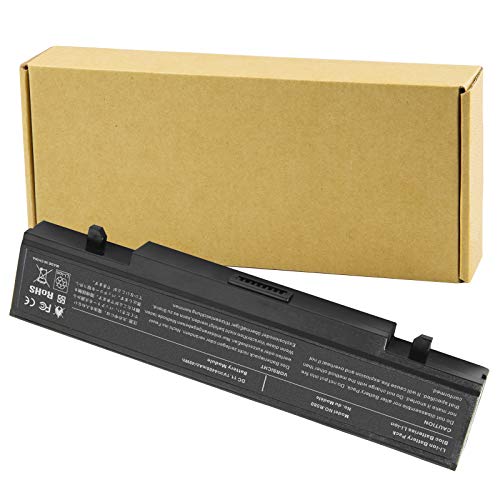
Specifications: Li-ion battery, Rated at 11.1V(10.8V Compatible) 5200mAh
Adjusting Display Settings
- Access Settings: Open the Settings app on your device.
- Select Display: Tap on “Display” from the menu options.
- Adjust Font Size: Locate and select “Font size and style.” Adjust the font size slider to make text larger. This can indirectly increase the visibility of the battery icon.
- Toggle Icon Visibility: If your device offers additional icon customization, enable options for larger status bar icons or a high-contrast mode to make the battery icon stand out more.
Utilizing Third-Party Apps
- Open Galaxy Store: Launch the Galaxy Store on your phone.
- Search for Battery Icon Apps: In the search bar, type “battery icon” or “battery widget” to find relevant applications.
- Choose an App: Look for apps with good ratings and read reviews to ensure reliability. Consider apps that allow customization of icons and sizes.
- Install the App: Download and install the chosen app on your device.
- Customize Icon Size: Open the app and find settings that let you adjust the battery icon size. Follow the app’s instructions to place the new icon on your home screen for easy access.
By following these steps, you can make the battery icon more prominent, improving your overall experience on your Samsung device.
Benefits Of A Larger Battery Icon
A larger battery icon offers several advantages that enhance user experience.
Improved Visibility
Larger icons present better visibility. It’s easier to spot battery levels at a glance, especially in situations with bright screens or direct sunlight. You’ll no longer squint or strain your eyes just to check the battery status.
Better Tracking
Tracking battery life becomes more straightforward. A bigger icon helps you monitor your battery percentage effectively. This awareness allows you to manage your device’s usage more efficiently, preventing sudden shutdowns.
Enhanced Aesthetics
A visually appealing interface contributes to overall satisfaction. A larger battery icon can complement or enhance your device’s appearance. You can personalize your device according to your taste, lending it a distinctive look.
Accessibility for All Users
Larger icons increase accessibility for users with visual impairments. Clearer visuals accommodate a wider range of needs, making smartphones user-friendly for everyone.
Increased Focus on Important Information
A prominent battery icon emphasizes its importance. You’ll notice battery alerts or warnings without distraction, ensuring timely actions before your device runs low on power.
These benefits make adjusting the battery icon size a worthwhile consideration for enhancing your Samsung experience.
Common Issues And Troubleshooting
You may encounter several issues while trying to enlarge the battery icon on your Samsung device. Understanding these can help you resolve them effectively.
Recommended Products

NOTE:This case does NOT fit Samsung Galaxy S8 Plus.

[PLS CONFIRM DEVICE MODEL]-- Please verify your old battery part number and model before purchasing this replacement battery. Compatible with Samsung Galaxy J3 J320A J320V J320F J327A J327P, Galaxy Grand Prime SM-G530 J5-G530P G530T G530H G530R G530AZ, EB-BG530BBE EB-BG530BBC EB-BG530BBU EB-BG530CBB EB-BG530CBZ EB-BG530CBE EB-BG531BBE EB-BG531BBK.

Massive 20,000mAh capacity delivers extended power for smartphones, tablets, and USB-C devices, ideal for travel, commuting, and backup charging without worrying about battery drain throughout the day
Battery Icon Not Changing Size
If the battery icon doesn’t appear larger after adjusting settings, verify the following:
- Settings Confirmation: Ensure you’ve saved changes in the Settings app.
- Software Update: Check for software updates that may include fixes for display issues.
- Reboot Device: Restart the phone to apply changes or to clear temporary glitches.
Third-Party Apps Not Working
When third-party apps don’t change the battery icon size as expected, consider these steps:
- App Compatibility: Confirm the app is compatible with your device model and software version.
- Permissions: Check if the app has necessary permissions, such as access to display settings.
- Reinstall App: Uninstall and then reinstall the app to resolve any installation issues.
Visual Impairment Adjustments
If you’re using accessibility features and still find the battery icon small, try this:
- High Contrast Mode: Enable high contrast mode to enhance overall visibility.
- Font Resizing: Increase overall font size in display settings, which may also affect icon size.
Persistent Display Issues
For ongoing display issues that aren’t resolved through these steps, further actions may help:
- Factory Reset: If problems persist, consider a factory reset. Backup your data first.
- Contact Support: Reach out to Samsung support for specialized assistance.
By addressing these common issues, you can enjoy a more visible battery icon, improving your overall smartphone experience.
Conclusion
You’ve got the tools to make your battery icon more visible on your Samsung device. By adjusting display settings or exploring third-party apps you can enhance your experience and keep track of your battery life with ease.
Don’t forget to troubleshoot any issues that might pop up along the way. Whether it’s confirming settings or checking for updates, a little patience goes a long way.
With these simple adjustments you’ll not only improve visibility but also add a personal touch to your device. Enjoy a more user-friendly experience and stay connected without the hassle of squinting at that tiny icon.
Frequently Asked Questions
Why is my Samsung phone’s battery icon so small?
The battery icon on Samsung phones can appear small due to design choices favoring a minimalist look, screen size, and default settings. In certain conditions, like bright sunlight or when in a hurry, this can make it difficult to read the battery level quickly.
How can I make the battery icon larger on my Samsung phone?
To increase the visibility of the battery icon, go to Settings > Display and adjust the font size. You can also enable options for larger status bar icons or high-contrast modes, depending on your device’s capabilities.
Are there any apps to help enlarge the battery icon?
Yes, you can find various third-party battery icon apps in the Galaxy Store that allow customization of the icon size. Look for reliable options and easily adjust the icon size through the app’s settings.
What if the battery icon size doesn’t change?
If the icon size remains unchanged, check your settings to ensure changes were saved, verify that your device software is up to date, and try rebooting your device to apply the settings.
How can I troubleshoot third-party apps for the battery icon?
If you experience issues with third-party apps, verify their compatibility with your device, check the necessary permissions, or reinstall the app. This often resolves common problems with icon display.
What should I do if I have visual impairments?
For users with visual impairments, enabling high contrast mode and increasing the overall font size can help improve readability. These settings enhance visibility, making it easier to see important icons, including the battery icon.
What are the benefits of a larger battery icon?
A larger battery icon improves visibility for quick checks, enables better tracking of battery life, and enhances aesthetics. It also increases accessibility for users with visual impairments, making important battery information more noticeable.
What can I do if I still face display issues?
If persistent display issues occur, consider performing a factory reset on your device or contacting Samsung support for further assistance. These steps can help resolve any underlying problems affecting the battery icon display.
