

Key Takeaways
- Understanding Battery Life: Familiarize yourself with how battery life works and its impact on your Samsung tablet experience to make informed decisions.
- Regular Maintenance: Regularly calibrate your battery by charging it at specific levels and utilizing battery-saving modes to enhance longevity and performance.
- Display Adjustments: Lower screen brightness, enable Dark Mode, and shorten screen timeout to significantly improve battery life.
- App Management: Close unused apps, monitor battery usage in settings, and disable background data for apps to reduce unnecessary battery drain.
- Utilizing Power Saving Features: Activate Battery Saver Mode and Adaptive Battery to limit background activity and optimize battery consumption.
- Keep Software Updated: Regularly check for firmware and app updates to benefit from the latest optimizations and improvements for better battery health.
Are you tired of your Samsung tablet dying just when you need it most? You’re not alone. Many users face the frustration of a dwindling battery, especially during long commutes or while binge-watching your favorite shows.
Understanding Battery Life on Samsung Tablets
Battery life significantly impacts your Samsung tablet experience. Understanding how it works helps you make informed choices to maximize it.
Importance of Battery Maintenance
Battery maintenance plays a vital role in ensuring longevity and optimal performance. Regularly calibrating your battery can prevent issues like inaccurate charge readings. Charge your tablet when it drops below 20%, and unplug it once it reaches 100% to avoid overcharging. You can also use battery-saving modes available in your settings menu, which adjust performance and background activity to prolong battery life.
Common Battery Issues in Tablets
Several common battery issues affect Samsung tablets. Rapid drain often occurs due to high screen brightness or excessive background app activity. Using multiple apps simultaneously can also lead to overheating, which reduces battery efficiency. Additionally, outdated software may not optimize battery performance. Make sure to update your tablet’s firmware regularly to benefit from the latest battery management features.
Tips to Enhance Battery Life
Improving battery life on your Samsung tablet involves making a few simple adjustments. These tips help you maximize usage between charges.
Recommended Products

【Battery Specifications】Model:SCUD-WT-N19; Battery Type: Rechargeble Lithium polymer; Capacity:27.1 Wh 7040 mAh; Voltage:3.85V; Battery life: Up to 500 recharge cycles.
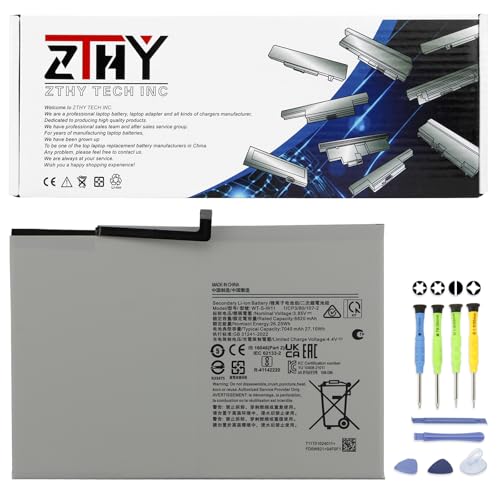
Specifications: Battery type: Li-ion. Color: White. Voltage: 3.85V. Capacity: 27.1Wh. New from Manufacturer

Adjusting Display Settings
Adjusting your display settings significantly boosts battery performance. Lower your screen brightness to 50% or less. You can also switch to Adaptive Brightness, which adjusts brightness based on ambient light. Enable Dark Mode, as it uses less power on AMOLED screens. Lastly, shorten the screen timeout duration to 30 seconds or less.
Managing Apps and Background Processes
Managing apps helps reduce battery drain caused by background activities. Close unused apps by swiping them off the recent apps list. Check the Battery Usage section in Settings to identify apps consuming the most power. Consider uninstalling or disabling unused applications. You can also restrict background data for specific apps under your Data Usage settings.
Enabling Battery Saver Mode
Enabling Battery Saver Mode optimizes your tablet for longer use. You can turn this feature on via Settings > Battery. Choose between Medium or Maximum power saving modes to limit background activity. This mode reduces screen brightness, limits performance, and disables non-essential features. Use this setting during critical times to extend battery life.
Advanced Techniques for Battery Conservation
Improving your Samsung tablet’s battery life involves more than basic settings. Advanced techniques can significantly enhance performance and endurance.
Recommended Products
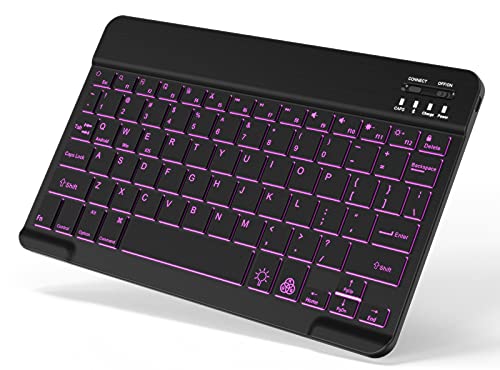
7-Color LED Backlit: This Bluetooth keyboard has a 7 colors backlight mode, 1 breathing light mode, and 3 brightness levels. Even in the dark, it makes your typing more easily and conveniently. You can turn the lights on/off and adjust the backlight mode by the light bulb key, and switch colors among red, yellow, purple, green, ice blue, blue, and white by the RGB key. When the keyboard is idle, the light will automatically turn off to save power.

Kastar 2-pack high-capacity BP-70A batteries with slim USB charger. Compatible with Samsung BP-70A / BP70A / EA-BP70A cameras (full model list in description). Each battery: 3.7 V, 1400 mAh, 5.2 Wh; approx. 1.0 oz. (39.4 × 31 × 5.8 mm / 1.55 × 1.22 × 0.23 in). Includes 2 batteries + 1 USB charger + 1 battery case.

Replacement For Tablet: Fit for ①Samsung Galaxy Tab A7 10.4 2020 SM-T500 SM-T500N Series; ② SM-T505 SM-T505N Series; ③ SM-T503 SM-T507 Series; ④ SM-T500NZDAXAR SM-T500NZSAXAR Series.
Optimizing System Settings
Optimizing system settings plays a crucial role in battery conservation. Follow these steps for better results:
- Display Resolution: Lower the display resolution. Navigate to Settings > Display > Screen resolution. Choose a lower resolution to save power.
- Screen Timeout: Reduce the screen timeout duration. Go to Settings > Display > Screen timeout and select a shorter duration to ensure the screen turns off quickly when not in use.
- Updates: Enable automatic updates for apps. Regular updates improve performance and often include battery optimizations. Check Settings > Apps > Automatic updates.
- Location Services: Disable location services when not needed. Access Settings > Location and toggle it off. Use it only for specific apps or times to prevent unnecessary battery drain.
Utilizing Power Saving Features
Your Samsung tablet includes built-in power-saving features to extend battery life. Activate these features for better conservation:
- Battery Saver Mode: Activate Battery Saver Mode. Find it in Settings > Battery > Battery Saver. This mode restricts background processes and reduces performance in exchange for longer battery life.
- App Power Management: Use App Power Management. Go to Settings > Battery > App Power Management. Select apps to put to sleep during inactivity, reducing their impact on battery life.
- Adaptive Battery: Enable Adaptive Battery. Head to Settings > Battery > Adaptive Battery. This feature limits power to apps used infrequently, optimizing battery usage based on habits.
- Dark Mode: Switch to Dark Mode. Activate it via Settings > Display > Dark mode. Dark Mode uses less power on OLED screens, extending battery life during use.
Implementing these advanced techniques can noticeably boost your Samsung tablet’s battery life. Regular maintenance and adjustments ensure a smoother experience while keeping your device charged longer.
Regular Maintenance Practices
Maintaining your Samsung tablet regularly enhances battery life and overall performance. Implementing a few simple practices can lead to significant improvements.
Recommended Products

Replacement For Tablet: Fit for Samsung Galaxy Tab A8 10.5 Inch SM-X200 SM-X205 SM-X200N SM-X205N SM-X205NZAAEUE SM-X200NZAAEUA Tablet.

Guaranteed for One Full Year - 5800 mAh Rechargeable Lithium Polymer Battery
Keeping Software Up to Date
Ensuring your software is current enhances battery efficiency. Updates often include optimizations that prolong battery life. To check for updates, go to Settings > Software update and tap Download and install. Regular updates help fix bugs and improve system stability, contributing to battery health. Schedule updates at a convenient time, ensuring minimal disruption to your day.
Cleaning Cache and Unused Apps
Clearing cache and uninstalling unused apps helps conserve battery. Cached data can consume resources, leading to faster battery drain. To clear cache, go to Settings > Apps. Select the app and tap Storage, then choose Clear cache.
Uninstalling apps you no longer use frees up system resources. Go to Settings > Apps, select the app, and tap Uninstall. Regularly cleaning your tablet of clutter keeps it running smoothly and enhances battery longevity.
Conclusion
Improving your Samsung tablet’s battery life doesn’t have to be a daunting task. With a few simple tweaks and habits you can make a significant difference in how long your device lasts throughout the day. By adjusting your settings and managing apps effectively you can enjoy a smoother experience without the constant worry of running out of power.
Remember to keep your software updated and regularly maintain your tablet. These small steps can lead to a more efficient device that meets your needs. So go ahead and implement these tips to keep your tablet charged and ready for whatever your day brings. Happy browsing and streaming!
Frequently Asked Questions
What causes battery drain on Samsung tablets?
Battery drain on Samsung tablets can be caused by various factors, including high screen brightness, excessive background app activity, outdated software, and not managing power settings. High usage of resource-intensive apps can also contribute significantly to battery consumption.
How can I improve my Samsung tablet’s battery life?
To improve battery life, lower screen brightness, enable Adaptive Brightness, activate Battery Saver Mode, and limit background app activity. Regularly updating software and using Dark Mode on OLED screens can also enhance battery longevity.
When should I charge my Samsung tablet?
It is best to charge your Samsung tablet when the battery drops below 20%. Avoid overcharging by unplugging the device once it reaches 100% to maintain battery health and longevity.
What is battery calibration, and how do I do it?
Battery calibration ensures accurate battery level readings. To calibrate your Samsung tablet’s battery, fully charge it to 100%, then use it until it runs out of power. Recharge it to 100% without interruption. Repeat periodically for best results.
What settings can I adjust to save battery?
To save battery, lower screen brightness, reduce screen timeout duration, disable location services when not needed, and turn off background app data for unused applications. Also, enable Dark Mode if your device has an OLED screen.
How do I check battery usage on my tablet?
To check battery usage on your Samsung tablet, go to Settings > Battery and Device Care > Battery. This will show you which apps are consuming the most power, allowing you to manage and control usage effectively.
How often should I update my device’s software?
You should check for software updates regularly, ideally every few weeks. Updating your device ensures that you have the latest optimizations and features, which can help enhance battery performance and overall device efficiency.
What is Battery Saver Mode?
Battery Saver Mode is a feature that limits background activity, reduces screen brightness, and pauses unnecessary updates for apps. Enabling this mode can extend your battery life when you need it most, especially during low battery situations.
