

Key Takeaways
- Understanding Wireless PowerShare: Samsung devices allow battery sharing through Wireless PowerShare, utilizing Qi technology for seamless power transfer.
- Compatibility Check: Ensure both devices support Wireless PowerShare; most recent Samsung models and Qi-compatible devices can share power effectively.
- Battery Level Requirements: Start with at least 30% battery on the sharing device to avoid shutdowns during the transfer.
- Proper Alignment: Position the devices back-to-back for optimal alignment, which is essential for the charging process to initiate successfully.
- Monitoring and Disabling: Keep an eye on the charging progress and disable Wireless PowerShare once finished to conserve battery life.
- Safety Precautions: Be cautious when sharing battery power, especially in extreme weather, and avoid power sharing when battery levels are critically low.
Ever found yourself in a pinch with a low battery while your friend’s Samsung phone is running strong? It’s a common situation that can leave you scrambling for a charger. Luckily, sharing battery power between Samsung devices is easier than you might think.
Understanding Battery Sharing on Samsung Devices
Battery sharing on Samsung devices, often called Wireless PowerShare, allows you to transfer power from your phone to another compatible device. This feature provides a convenient option for charging when a power source isn’t available.
How Battery Sharing Works
Battery sharing uses Qi wireless charging technology. When activated, your Samsung device acts as a charging pad. Simply place the other device, like a friend’s smartphone or smartwatch, on the back of your phone to start the transfer.
Step-by-Step Instructions
- Enable Wireless PowerShare: Swipe down from the top of the screen to access Quick Settings. Look for the Wireless PowerShare icon and tap it to enable the feature.
- Align Devices: Place the device needing a charge face down on the back of your Samsung phone. Ensure they align correctly for optimal charging.
- Monitor Charging: Once connected, a notification will appear, indicating the charging process. You can check the power transfer percentage in the notification shade.
Compatible Devices
Most recent Samsung smartphones support this feature, including the Galaxy S series, Galaxy Note series, and Galaxy Z series. Non-Samsung devices that support Qi charging can also receive power.
Safety Precautions
Battery sharing can drain your device’s battery. Ensure you share power only when your device’s battery level is sufficient. If your battery dips below 30%, consider refraining from sharing.
Troubleshooting Tips
- Check Compatibility: Ensure both devices are compatible with Wireless PowerShare.
- Adjust Position: If charging doesn’t start, adjust the position of the devices for better alignment.
- Restart Devices: Sometimes a simple restart of both devices can resolve issues.
Using these guidelines, you can efficiently share battery power between Samsung devices, keeping both your phones charged and connected.
Requirements for Battery Sharing
To share battery power using Wireless PowerShare, certain requirements must be met to ensure a smooth process.
Recommended Products

POWER ANYWHERE YOU WANT IT: Charge up any of your devices with the Galaxy Magnetic Wireless Battery Pack. Whether you want to plug in to the USB-C port or use the built-in magnetic wireless charger, the 5,000mAh battery is waiting to power you up throughout the whole day.

Extensive Compatibility: 15W Samsung wireless charger fast charging compatible with Samsung Galaxy S25 Ultra/S25 Plus/S25 edge/S25/S24 FE/S24 Plus/S24 Ultra/S23 Ultra/S23 FE/ Google Pixel 10/10 Pro/10 Pro XL/9a/9/9 Pro XL/9 Pro/8a/8Pro/8/7A/7/7 Pro/6/Motorola razr+ 2024/razr 2024/Edge/G Stylus 5G/G Power 2024 2023 2022, Edge 50 Ultra Pro, X50 Ultra X40, Razr 50 Ultra, Razr 2023-2022. 10W Fast wireless charging mats compatible with Samsung Galaxy S22/S21/S20/S10/S9/S8 . 7.5W wireless Charging docks for iPhone 16/16 Pro Max/16 Plus/15/15 Pro Max/14/13/12. 5W standard wireless charger for Airpods 3/2/Pro. Note:Pls ensure your phone model can support wireless charging.
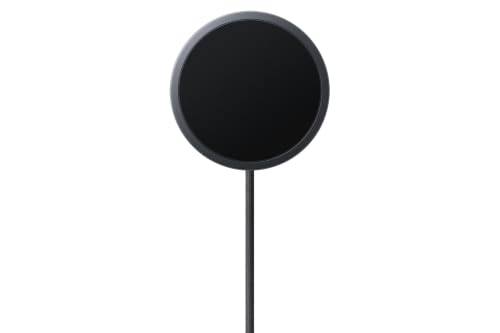
Qi2 Magnetic Technology: Official Qi2 certified wireless charger with built-in magnets for perfect alignment and secure attachment to compatible devices
Compatible Devices
Ensure both devices support Wireless PowerShare. Most recent Samsung smartphones, such as the Galaxy S series, Note series, and Z series, allow this feature. Additionally, any Qi-compatible devices can accept the shared power. Check the specifications of the devices involved to confirm compatibility.
Battery Capacity Considerations
Consider the battery levels of both devices before starting. Your phone should have at least a 30% battery charge to share power effectively. Sharing from a device with low battery might lead to unfortunate shutdowns. Remember, the higher the battery capacity, the more power can be shared efficiently. If your device’s battery is low, use caution and avoid extensive power sharing.
Step-by-Step Guide to Giving Battery to Another Samsung
Sharing battery power between Samsung devices using Wireless PowerShare is straightforward. Follow this guide for an efficient power transfer process.
Recommended Products

WIRELESS POWER ON THE GO: With a convenient wireless charger, simply place your device on the wireless battery pack to receive a boost¹
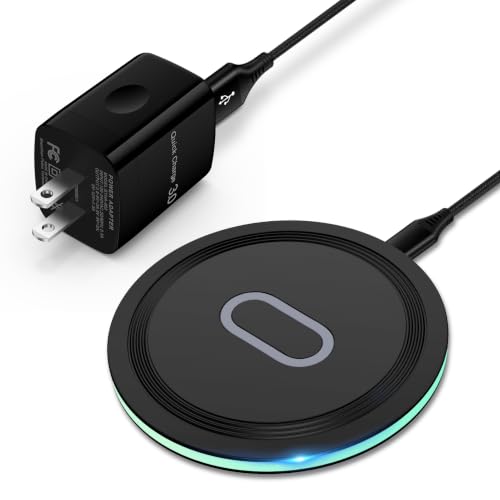
15W Samsung Wireless Charger: Put your phone on the wireless charger samsung Charging Pad Station to get started Charging, up to 1.8X faster than standard wireless charger, 3X faster than the original 5W charger. Wireless charging station provides 15W for Samsung Galaxy S26 S25 S24 S23 S22 S21, 10W for Samsung Galaxy Note 10, 7.5W output for iPhone 14 13 12 11 Series, and 5W for other smartphones and AirPods & Galaxy Buds.The wireless iPhone charger comes with a QC 3.0 18W adapter for a stable power supply.

Kastar 2-pack high-capacity BP-70A batteries with slim USB charger. Compatible with Samsung BP-70A / BP70A / EA-BP70A cameras (full model list in description). Each battery: 3.7 V, 1400 mAh, 5.2 Wh; approx. 1.0 oz. (39.4 × 31 × 5.8 mm / 1.55 × 1.22 × 0.23 in). Includes 2 batteries + 1 USB charger + 1 battery case.
Preparing Your Device
- Check Battery Level: Ensure your device has at least a 30% charge. Lower levels may lead to shutdowns during the transfer.
- Enable Wireless PowerShare: Swipe down from the top of the screen to access Quick Settings. Look for the Wireless PowerShare icon and tap it to activate the feature.
- Align Devices: Position your Samsung device back-to-back with the recipient device. This alignment is crucial for efficient charging.
Sharing the Battery
- Select Sending Device: Confirm you’re using the device with the higher battery level.
- Initiate Power Transfer: Once aligned, the receiving device should prompt you to confirm the power transfer. Accept the prompt to start sharing power.
- Monitor Charging: Keep an eye on both devices during the transfer. The charging progress will appear on the screen.
Checking Battery Status After Sharing
- Check Remaining Battery: After sharing, check your device’s battery status. Swipe down to view the current charge percentage.
- Confirm Receiver’s Charge: Ask the recipient to verify their device’s battery level to ensure successful charging.
- Disable Wireless PowerShare: Once done, remember to turn off Wireless PowerShare. Swipe down, tap the icon again, and deactivate it to conserve your battery.
Following these steps makes sharing battery power simple and hassle-free, helping you and your friends stay connected when it matters most.
Tips for Effective Battery Sharing
Battery sharing can be a lifesaver in moments of need. Follow these practices to optimize your experience.
Best Practices
- Check Compatibility: Confirm both devices support Wireless PowerShare. Most Samsung Galaxy S, Note, and Z series models work well. Qi-compatible devices can also share power.
- Ensure Sufficient Charge: Start with at least a 30% battery level on the sharing phone. This prevents unexpected shutdowns during the transfer.
- Align Devices Properly: Place the phones back-to-back, aligning them accurately for optimal power transfer.
- Monitor Charging Status: Keep an eye on the recipient’s battery level during the transfer. If the battery fills up quickly, disable Wireless PowerShare to save energy.
- Disable Post-Transfer: Turn off Wireless PowerShare after use. This feature can drain your battery if left on unnecessarily.
Common Mistakes to Avoid
- Ignoring Battery Levels: Sharing with a low battery can lead to shutdowns. Always check levels before starting.
- Not Aligning Correctly: Misalignment can disrupt charging. Make sure both devices touch properly.
- Overlooked Safety Precautions: Avoid sharing power in extreme weather conditions, as it can affect performance.
- Neglecting to Disable: Forgetting to turn off Wireless PowerShare can lead to unintentional battery drain.
- Failing to Test: Always run a quick test with another device if it’s your first time. This helps ensure compatibility and functionality.
Conclusion
Sharing battery power between Samsung devices is a simple and effective way to stay connected when you need it most. With Wireless PowerShare you can easily lend a helping hand to a friend or get a boost for your own device. Just remember to keep an eye on your battery levels and follow the steps for a smooth transfer.
By being mindful of compatibility and safety precautions you can make the most of this handy feature. So next time you’re in a pinch don’t hesitate to use your Samsung to share some power. It’s a great way to keep everyone charged up and ready to go!
Frequently Asked Questions
What is Wireless PowerShare?
Wireless PowerShare is a feature available on select Samsung devices that allows users to share battery power wirelessly with other compatible devices. It uses Qi wireless charging technology to transfer power, making it easy to charge another device without needing cables.
Which Samsung devices support Wireless PowerShare?
Most recent Samsung smartphones, including models from the Galaxy S, Note, and Z series, support Wireless PowerShare. Additionally, any device that is Qi-compatible can receive power when aligned properly.
How do I enable Wireless PowerShare on my Samsung phone?
To enable Wireless PowerShare, swipe down on your home screen to access Quick Settings. Look for the Wireless PowerShare icon and tap it to turn the feature on. Ensure your phone’s battery is above 30% for optimal performance.
How do I share battery power with another device?
To share battery power, place both devices back-to-back, with the back of your Samsung phone aligned with the other device. Once both devices recognize each other, the charging process will start automatically.
What safety precautions should I take when using Wireless PowerShare?
Before sharing power, ensure your phone has at least a 30% charge to prevent potential shutdowns. Avoid sharing when your phone’s battery is low, and only share with compatible devices to ensure safety and efficiency.
What troubleshooting steps can I take if Wireless PowerShare isn’t working?
If Wireless PowerShare isn’t working, check that both devices are compatible and positioned correctly. Ensure that your phone’s battery has enough charge, and try restarting both devices. If issues persist, refer to the user manual for further guidance.
How can I monitor the charging process during Wireless PowerShare?
While using Wireless PowerShare, you can monitor the charging status on the screen. Your phone will display a notification to indicate that power is being transferred, along with the recipient’s battery level.
When should I disable Wireless PowerShare?
It’s advisable to disable Wireless PowerShare after use to conserve battery life. You can do this by tapping the Wireless PowerShare icon in Quick Settings again, ensuring your phone is ready for future needs.
What are common mistakes to avoid with Wireless PowerShare?
Avoid ignoring battery levels, misaligning devices, neglecting safety precautions, and failing to disable the feature after use. Additionally, always confirm compatibility with the receiving device before attempting a charge.
