

Key Takeaways
- Identify the Causes: Battery drain is often caused by background apps, high screen brightness, location services, poor network conditions, outdated software, and resource-heavy widgets or live wallpapers.
- Monitor Battery Usage: Keep an eye on battery usage statistics in your settings to identify which apps or features are consuming the most power.
- Adjust Display Settings: Lowering screen brightness and setting a shorter screen timeout can significantly conserve battery life.
- Manage Location Services: Disable location services when they are not needed and adjust settings to limit background access by apps.
- Utilize Battery Saver Mode: Activate Battery Saver Mode to conserve power when your battery is low, restricting background activities and optimizing app usage.
- Consider Third-Party Apps: Use reliable battery management apps like Greenify, Power Battery, and AccuBattery for additional optimization and monitoring of battery health.
Are you tired of your Android phone dying on you when you need it most? You’re not alone. Many people face the frustrating issue of battery drain, often wondering why their device can’t hold a charge like it used to.
Understanding Battery Drain Issues
Battery drain in Android devices often stems from various factors. Identifying these causes helps you manage battery life more effectively.
Common Causes of Battery Drain
- Background Apps: Apps running in the background consume power. Check your settings to see which apps use the most battery and close unnecessary ones.
- Screen Brightness: High screen brightness significantly drains battery. Lower brightness settings or enable adaptive brightness.
- Location Services: Constant use of GPS and location services impacts battery life. Turn off location when not in use or set it to battery-saving mode.
- Poor Network Conditions: Weak cellular or Wi-Fi signals require more power to maintain a connection. Switch to airplane mode in low signal areas or use Wi-Fi over mobile data.
- Outdated Software: Not updating your device can cause performance issues that strain battery life. Regularly check for system updates and install them.
- Widgets and Live Wallpapers: Animated elements consume battery. Limit widgets and opt for static wallpapers to conserve energy.
Signs of Battery Drain Problems
- Rapid Battery Percentage Drop: If your battery percentage drops significantly within a short time, this indicates a potential drain issue.
- Overheating: Devices running hot while idle suggest battery strain or malfunction. Monitor temperature and avoid prolonged charging.
- Unexpected Shutdowns: If your device shuts down suddenly despite a battery percentage reading, it signals battery degradation.
- Battery Health Warning: Some devices notify users of poor battery health. Heeding these alerts can prevent further battery issues.
- Frequent Charging Cycles: Constantly needing to recharge throughout the day points to a battery problem or power management inefficiency.
Tips to Fix Battery Drain in Android
Addressing battery drain in Android devices can significantly enhance your user experience. Here are some practical tips to help you manage your battery life effectively.
Adjusting Screen Brightness and Timeout
Adjust screen brightness to conserve battery. Access your device’s settings, navigate to Display, and choose Brightness Level. Lower the brightness or select Adaptive Brightness for automatic adjustments based on your surroundings.
Set the screen timeout to a shorter duration. Go to Display, select Sleep, and choose a time like 30 seconds or 1 minute. A quick timeout minimizes the time your screen stays active when not in use.
Managing Location Services
Turn off location services when not in use. Access Settings, select Location, and switch it off or set it to Battery Saving mode. This limits GPS usage and saves power.
For apps that need location access, adjust settings to “Use while app is in use” instead of “Always.” This restricts background location updates, which can drain battery life.
Limiting Background App Activity
Restrict background activity for apps. Go to Settings, select Apps, and choose an app. Tap on Battery and select Background Restriction. This stop apps from consuming resources when you’re not using them.
Check your battery usage. In Settings, navigate to Battery and review which apps drain power. If an app consumes excessive battery, consider uninstalling it or finding alternatives that are more energy-efficient.
Using Device Settings for Optimization
You can optimize your Android device’s settings to reduce battery drain effectively. Adjusting a few key configurations can extend your phone’s battery life significantly.
Recommended Products
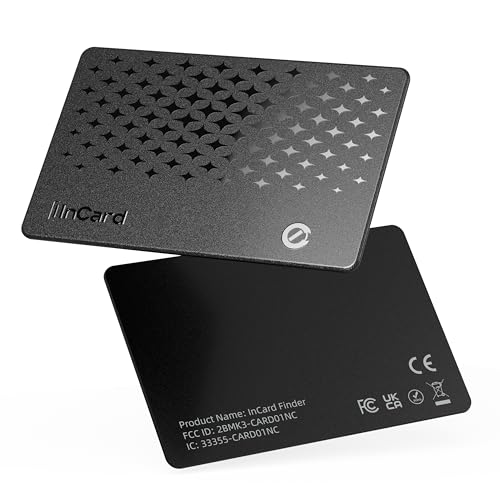
📱 Global Cloud Positioning – Works with both Google's Find Hub and Apple Find My (Not for GPS & Huawei)

📱 Global Cloud Positioning – Works with both Google's Find Hub and Apple Find My (Not for GPS & Huawei)
Enabling Battery Saver Mode
Enable Battery Saver Mode to conserve power during critical times. Access this feature through your device’s settings.
- Go to Settings.
- Tap on Battery.
- Select Battery Saver or Power Saving Mode.
- Turn it on.
This mode restricts background activity, reduces performance, and limits app usage when your battery reaches a specific percentage. It’s especially useful when you’re low on battery before finding a charger.
Checking Battery Usage Stats
Checking your battery usage stats reveals which apps drain the most power. Knowing this allows you to make informed decisions about app usage.
- Open Settings.
- Navigate to Battery.
- Tap Battery Usage.
You’ll see a detailed breakdown of battery consumption by apps. If you notice any app using an excessive amount of battery, consider updating, restricting its background activity, or uninstalling it if you rarely use it. Regularly reviewing these stats helps you identify and manage energy-hungry applications effectively.
Third-Party Apps and Tools
Third-party apps and tools can help manage battery drain on your Android device effectively. They provide options to optimize performance while extending battery life.
Recommended Battery Saving Apps
- Greenify: This app identifies and puts the apps that run in the background to sleep. It helps reduce their battery consumption and improves overall device responsiveness.
- Power Battery: Power Battery monitors your battery usage patterns. It provides tips for optimization, estimates battery life, and even shows which apps consume the most power.
- AccuBattery: AccuBattery measures battery health and usage. It helps you charge your device more efficiently, prolonging battery life over time.
- GSam Battery Monitor: GSam gives detailed information on your battery usage. It shows app and process stats, helping you make informed decisions about which apps to limit or uninstall.
Caution with Battery Management Tools
Using battery management tools can lead to unintended consequences. Always ensure you’re downloading reputable apps from trusted sources like the Google Play Store. Poor-quality apps can cause system instability or negatively impact performance.
Be cautious about aggressive battery savers that may restrict important tasks. Blocking notifications or preventing apps from running can result in missed messages or updates. Notice how battery apps interact with your device, and adjust settings accordingly to avoid unnecessary restrictions.
Conclusion
Dealing with battery drain can be a hassle but you’ve got the tools to tackle it. By understanding the causes and symptoms of battery issues you can take proactive steps to extend your device’s life.
Adjusting settings like screen brightness and managing background apps can make a noticeable difference. Don’t forget to explore battery-saving apps that can help you monitor and optimize your usage.
With a little effort and the right strategies you can enjoy a longer-lasting battery and a smoother experience on your Android device. So go ahead and implement these tips to keep your phone powered up and ready for whatever you throw at it.
Frequently Asked Questions
What causes battery drain in Android phones?
Battery drain in Android phones can be caused by several factors, including background applications, high screen brightness, constant use of location services, poor network conditions, outdated software, and the use of live wallpapers or widgets.
How can I tell if my Android phone is experiencing battery drain issues?
Signs of battery drain include rapid percentage drops, overheating, unexpected shutdowns, battery health warnings, and frequent charging cycles. If you notice these symptoms, your phone may have battery drain problems.
What are effective tips to manage battery life on an Android phone?
To manage battery life, adjust your screen brightness and timeout settings, turn off location services when not in use, limit background app activity, and enable Battery Saver Mode. Checking battery usage stats can also help identify power-hungry apps.
Are there apps that can help reduce battery drain?
Yes, several third-party apps can help manage battery drain effectively. Recommended options include Greenify, Power Battery, AccuBattery, and GSam Battery Monitor. Ensure to download reputable apps to avoid any system instability.
Should I be cautious when using battery-saving apps?
Yes, while battery-saving apps can be helpful, some may hinder important notifications or cause system instability. It’s important to choose well-reviewed apps and adjust their settings carefully to prevent unnecessary restrictions on your device.
