

Key Takeaways
- Identify Battery Drain Causes: Common culprits include background apps, high screen brightness, GPS usage, and frequent syncing; addressing these can lead to significant battery life improvements.
- Adjust Screen Settings: Lowering screen brightness and enabling features like auto-brightness and night mode can conserve battery power effectively.
- Manage Background Apps: Close apps running in the background regularly, limit background data, and review app permissions to reduce energy consumption.
- Utilize Power Saving Features: Activate Power Saving Mode and Battery Saver, and ensure your device and apps are regularly updated for optimal performance.
- Optimize App Settings: Customize app notifications, location access, and sync settings to minimize unnecessary battery use.
- Maintain Device Health: Regularly delete unused apps, clear caches, and restart your device to enhance efficiency and prevent battery drain.
Are you tired of your Android phone dying when you need it most? You’re not alone. Many people face the frustration of rapid battery drain, especially when they’re on the go or relying on their devices for important tasks.
In this article, you’ll discover practical tips and tricks to help you extend your battery life. From adjusting settings to managing apps, these simple solutions can make a big difference. By the end, you’ll have the tools you need to keep your phone charged and ready for whatever your day throws at you.
Understanding Battery Drain Issues
Android devices often experience battery drain that can disrupt daily activities. Identifying the reasons behind battery drain helps in applying the right fixes.
Common Causes of Battery Drain
- Background Apps: Apps running in the background consume battery power. Check for apps that you rarely use but keep active.
- Screen Brightness: High screen brightness affects battery life significantly. Lower brightness or enable adaptive brightness for better control.
- Location Services: GPS features can drain the battery quickly. Disable location services when not needed or set them to “Battery saving” mode.
- Syncing: Frequent syncing of emails and social media updates drains power. Adjust the sync frequency to reduce energy consumption.
Impact of Settings and Apps
- Power Saving Mode: Enabling this mode restricts background activities and reduces performance to save battery life. Activate it under Settings.
- Battery Optimization: Use built-in battery optimization settings to prioritize essential apps. Go to Settings > Battery > Battery optimization to configure settings.
- Unnecessary Features: Features like Bluetooth, Wi-Fi, and NFC consume battery when enabled unnecessarily. Turn off these features when not in use.
- Storage Management: Full storage can slow down your device, leading to increased battery usage. Regularly delete unnecessary files and uninstall unused apps.
Quick Fixes for Battery Drain
You can implement several quick fixes to combat battery drain on your Android device. These adjustments often lead to noticeable improvements in battery life.
Recommended Products

Bluetooth Call: Equipped with HD noise-reduction mic & Hi-Fi speaker, stable Bluetooth 5.0 for wrist call/dial, crystal-clear sound, free your hands during driving, workout, cooking or busy work

【Dual-Band GPS & 170+ Sports Modes】Equipped with advanced dual-band GPS positioning (support BDS/GPS /Galileo/GLONASS/QZSS), this watch delivers far more accurate and stable tracking than traditional single-GPS fitness watches. It effectively reduces signal drift and positioning errors in complex environments like urban high-rises, dense woods, and mountain trails, precisely recording your running, cycling, hiking and outdoor workout routes. Supporting 170+ professional sports modes, it covers nearly all indoor and outdoor workouts, including walking, running, cycling, row machine, elliptical and more.

【High Performance】URAO Android tablet features the latest operating system Android 15 and an 2.0 GHz octa-core processor ensure of excellent performance, seamless multitasking, getting rid of annoying ads, emphasizing privacy and security by designing enhanced app permissions, providing you complete management control.
Adjusting Screen Brightness
Lowering your screen brightness can significantly extend battery life. You can use the following methods:
- Auto-Brightness: Enable auto-brightness in your display settings. Your device adjusts brightness according to ambient light, saving energy.
- Manual Adjustment: Set brightness to a lower level manually, especially in darker environments. A 30-50% brightness level is generally sufficient for indoor use.
- Night Mode: Activate night mode or blue light filter. This setting reduces the strain on your eyes and can slightly reduce battery drain.
Managing Background Apps
Background apps contribute significantly to battery drain. Here’s how to manage them effectively:
- Recent Apps: Regularly close apps running in the background. Tap the recent apps button and swipe away unnecessary apps to free up resources.
- Background Data Limiting: Limit background data for specific apps. Navigate to Settings > Apps, select the app, and restrict background data usage.
- App Permissions: Review app permissions. Disable permissions that allow apps to run in the background unless necessary. You can find these settings under Apps in the privacy or security section.
Implement these quick fixes to see an improvement in your battery performance. Your device can last longer between charges with a few simple adjustments.
Advanced Solutions
Explore advanced solutions to address battery drain issues on your Android device. These steps can enhance battery performance significantly.
Recommended Products

【Folding Bluetooth Keyboard & Phone Stand Holder】Extremely thin design of the portable folding keyboard allows you to fold it up and put it in your pocket or bag without taking up too much space. The phone stand holder, best companion for folding keyboard, gives you perfect screen angle. Near-standard size design provides accurate, fast typing, just like the desktop keyboard you are used to. Quiet keys allow you to focus on your work. Perfect gift for travel and business trips!


【Why Choose This Magnetic Power Bank?】It packs an upgraded 10000mAh capacity, 20W fast charging, and a tiny body all in one. Unlike bulky chargers, it won't block your iPhone's rear camera. The strong magnetic grip holds your phone firmly – no slipping, no wobble. The smart LED display shows exact remaining battery percentage in real-time – so you're never caught off guard. Works with iPhone 18/17/16/15/14/13/12 series, giving you 1.8~2.5 full charges. When used with a magnetic phone case, it also supports fast wireless charging for Samsung Galaxy S26/S25/S25 Ultra, Huawei Mate 70/Pura 80 Pro and most Android phones, no need to remove the case.
Software Updates and Device Maintenance
Keep your Android device updated. Manufacturers frequently release software updates that optimize battery performance and fix bugs. To check for updates, follow these steps:
- Open Settings.
- Scroll to System.
- Tap Software update.
- Select Check for updates.
Install any available updates. Regularly clear your cache by going to Settings > Storage > Cached data and tapping Clear cache. This action helps increase device speed and efficiency, preventing unnecessary battery drain.
Using Battery Saver Mode
Activate Battery Saver Mode to extend battery life. This mode limits background activity, reduces visual effects, and restricts app usage. Here’s how to enable it:
- Go to Settings.
- Tap Battery.
- Select Battery Saver.
- Toggle the switch to activate.
You can also set it to turn on automatically at a specified battery percentage. Doing so ensures that your phone conserves energy when it’s running low, giving you extra time between charges.
Tips to Prevent Future Battery Drain
To maintain optimal battery performance, implement these strategies regularly.
Recommended Products


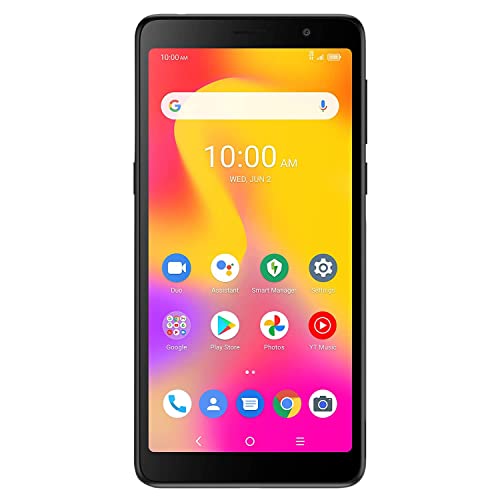
Compatible with the AT&T, T-Mobile and Verizon LTE networks. This device has been certified for use on the Verizon LTE network, if your device is not receiving messages or experiences an error when making phone calls on Verizon, your account may need to be provisioned to support “CDMA-less” devices. To do this, please contact Verizon’s technical support team or your account’s business representative for assistance. This device is not compatible with CDMA networks (such as, Sprint).
Optimizing App Settings
Optimize your app settings to lower battery consumption.
- Disable unused app notifications to prevent background activity.
- Limit location access for apps. Set apps to “While Using” instead of “Always.”
- Turn off auto-sync for email accounts and social media apps. Select manual sync to control when updates occur.
- Review battery usage in your settings to identify power-hungry apps. Uninstall or limit usage of those apps.
- Enable battery optimization for individual apps. Most smartphones provide an option in settings to manage this effectively.
Regular Device Cleaning
Keep your device clean for optimal performance.
- Regularly delete unused apps. Every app can consume resources.
- Clear app caches frequently. Caches can slow your device and increase battery drain.
- Remove unnecessary files from your device storage. Freeing up space can enhance efficiency.
- Restart your device regularly. A fresh start can reduce background processes that drain the battery.
- Update your apps frequently. Developers often release updates to improve efficiency and battery usage.
Conclusion
Taking control of your Android’s battery life doesn’t have to be a daunting task. By making a few simple adjustments and being mindful of your usage habits, you can keep your device running longer throughout the day.
Experiment with the tips you’ve learned to find what works best for you. Regularly checking your settings and managing your apps can make a significant difference.
With a little effort, you’ll enjoy a more reliable battery life and fewer worries about running out of power when you need it most. So go ahead and give these strategies a try—you’ll be glad you did!
Frequently Asked Questions
What causes rapid battery drain on Android phones?
Battery drain on Android phones can be caused by several factors, including background apps running, high screen brightness, location services being active, and frequent syncing of emails and social media updates. Identifying these issues is essential to apply the right fixes and extend battery life.
How can I extend my Android phone’s battery life?
To extend battery life, consider enabling power-saving mode, optimizing battery settings, turning off unnecessary features like Bluetooth and Wi-Fi, and adjusting screen brightness. Regularly managing your apps and storage can also help prevent slowdowns that lead to increased battery usage.
What quick fixes can I apply for battery drain?
Quick fixes include enabling auto-brightness, lowering brightness levels manually, and activating night mode. Additionally, regularly closing unnecessary background apps and limiting their data usage will help conserve battery life.
How does updating my Android phone software help battery performance?
Keeping your Android device updated with the latest software can optimize battery performance by fixing bugs and improving overall efficiency. Regular updates often include enhancements that can help reduce battery drain and enhance device performance.
What advanced solutions can help with battery drain issues?
Advanced solutions include activating Battery Saver Mode to limit background activity, clearing cache data, and ensuring the device has the latest software. These actions help reduce visual effects and unnecessary power consumption, leading to longer battery life.
How can I prevent future battery drain on my Android phone?
To prevent future battery drain, disable unused notifications, limit location access, and turn off auto-sync for apps. Regularly deleting unused apps, clearing cache, and restarting the device can also maintain optimal battery performance.
