

Key Takeaways
- Identify Symptoms: Look for signs like rapid battery drain, inconsistent charging, overheating, unexpected shutdowns, and physical damage to diagnose ASUS laptop battery issues effectively.
- Common Causes: Awareness of background processes, high display brightness, power-hungry software, malware, and old batteries can help in managing battery life.
- Troubleshooting Steps: Regularly check battery health through Windows settings, adjust power settings for efficiency, and perform hard resets to improve battery performance.
- Fix Methods: Update drivers and BIOS, replace old batteries, and utilize battery calibration tools to address ongoing issues with your ASUS laptop battery.
- Preventive Maintenance: Charge your battery between 20-80%, use the original charger, unplug when fully charged, and perform regular software updates to extend battery lifespan.
- Best Practices: Maintain clean ventilation, calibrate your battery periodically, and manage power consumption by adjusting brightness and closing unnecessary applications to ensure optimal performance.
Is your ASUS laptop battery draining faster than you can keep up with? You’re not alone. Many users face this frustrating issue, and it can really put a damper on your productivity. Whether you’re working from home or on the go, a reliable battery is essential for getting things done.
Understanding Asus Laptop Battery Issues
Asus laptop battery problems can disrupt your work and leisure activities. Identifying the symptoms and causes of these issues helps you address them effectively.
Common Symptoms of Battery Problems
- Rapid Battery Drain: If your laptop loses charge quickly even with minimal usage, it’s a sign of a battery issue.
- Inconsistent Charging: Observing the battery occasionally failing to charge, or fluctuating between charging and not charging, indicates potential problems.
- Overheating: A noticeable increase in laptop temperature during charging suggests battery stress, which can lead to further issues.
- Unexpected Shutdowns: If your laptop shuts down without warning, especially when the battery shows charge remaining, it’s a clear symptom of battery failure.
- Swelling or Physical Damage: If the battery appears swollen or shows signs of wear, it’s crucial to replace it immediately to prevent damage to the laptop.
Causes of Battery Drain in Asus Laptops
- Background Processes: Unnecessary applications running in the background consume power. Regularly check your task manager to close unused apps.
- High Display Brightness: Keeping brightness levels high drains the battery faster. Lowering your screen brightness can extend battery life.
- Power-Hungry Software: Some programs, especially heavy graphics applications, can drain the battery significantly. Consider using lighter alternatives for tasks when possible.
- Malware: Malicious software can hijack resources and power. Regular scans with a reliable antivirus program help keep your system clean.
- Old Battery: Over time, all batteries lose efficiency. If your battery is several years old, it may need replacement to maintain optimal performance.
Understanding these symptoms and causes enables you to pinpoint and address issues effectively, allowing you to keep your Asus laptop running smoothly.
Troubleshooting Steps
If your ASUS laptop battery shows signs of trouble, follow these troubleshooting steps to identify and fix the issue.
Recommended Products
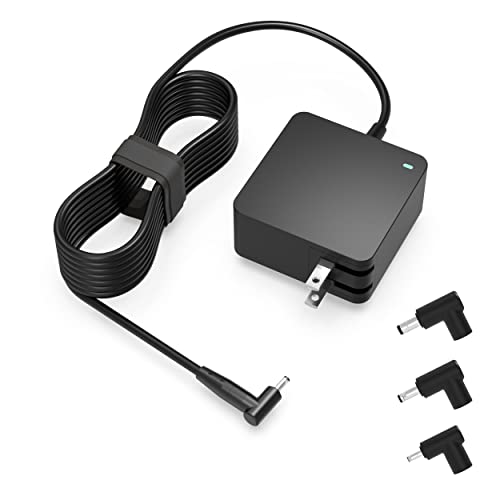
Exceptional compatibility--- Fit for Asus laptop 65W and under (incl. 45W and 33W) with round power connector. Fit for Vivobook 11 17 Flip 14 15, S14 S15 S13, fit for Zenbook UX, fit for Chromebook Flip, fit for Transformer, fit for Eeebook, fit for Imaginebook, fit for Expertbook series. A real 'One for All' solution that aims to make your life easier

【Customer First】24 x 7 email support. We specialize in providing quality power products. (Note: Amazon return windows will close after one month, If you have any problem with battery, please Contact us - in “YOUR ORDER” options click the “contact seller”.)

Specifications: 4 Cell, Li-ion battery, Rated at 14.8V 2200mAh
Checking Battery Health
- Access Windows Settings: Open your laptop’s settings by pressing the Windows key + I.
- Select System: Click on ‘System,’ then choose ‘Battery’ from the left sidebar.
- View Battery Usage: Check the battery usage by app to identify any power-hungry applications.
- Use Battery Report: Open Command Prompt as an administrator. Type
powercfg /batteryreportand hit Enter. This report gives insights into battery health, wear level, and usage patterns.
Power Settings Adjustments
- Open Control Panel: Search for ‘Control Panel’ in the taskbar and click on it.
- Navigate to Power Options: Select ‘Hardware and Sound,’ then ‘Power Options.’
- Choose a Power Plan: Opt for a balanced or power saver plan to increase battery efficiency.
- Adjust Advanced Settings: Click on ‘Change plan settings’ for your selected plan, then adjust settings like display brightness and sleep timers.
Performing a Hard Reset
- Disconnect Power Source: Unplug the charger and remove the battery if it’s removable.
- Press the Power Button: Hold down the power button for 15-20 seconds. This drains residual power.
- Reinsert the Battery: If you removed the battery, put it back in.
- Reconnect the Charger: Plug in your charger and turn on your laptop.
By following these steps, you can systematically address ASUS laptop battery concerns, ensuring better performance and longevity.
Methods to Fix Asus Laptop Battery
If you’re facing battery issues with your ASUS laptop, several methods can help you resolve the problem effectively.
Recommended Products

Compatible Models: A31-K53 / A32-K53 battery for Asus A53, K53, K54, K84, K93, N53, A43, A45, A83, A84, K43, P43, P43S, P53, X43, X44, X54, X84, and X84H series.

Battery Model : B31N1912 Voltage: 11.55V Capacity: 42Wh Li-ion polymer Battery

We use high quality battery,manufactured by Japanese battery giant to produce the CMOS battery.
Updating Drivers and BIOS
Updating your laptop’s drivers and BIOS often resolves battery issues. Start by visiting the ASUS support website. Look for drivers under the “Drivers & Tools” section. Download and install the latest version for your specific model. Also, check for BIOS updates. An up-to-date BIOS can enhance battery management and overall system performance.
Replacing the Battery
If your battery shows signs of wear or isn’t holding a charge, consider replacing it. Begin by purchasing a compatible battery model from a trusted retailer. Power off your laptop, disconnect the adapter, and remove the battery. Insert the new battery, reattach it securely, and connect the power. Turn the laptop on and check if it charges properly.
Using Battery Calibration Tools
Using battery calibration tools can help optimize your laptop’s battery performance. Several built-in and third-party tools are available. For Windows, navigate to “Settings” > “System” > “Battery” and look for battery report options. Follow the prompts to create a report. This process recalibrates your battery meter, giving it a better understanding of your battery’s actual capacity.
By implementing these methods, you can effectively address your ASUS laptop battery issues and prolong its lifespan.
Preventive Measures for Battery Longevity
Taking care of your ASUS laptop battery can significantly extend its lifespan. By following best practices for charging and regular maintenance, you can maintain optimal performance.
Recommended Products

This charger is designed for devices with power requirements up to 65W(45W 33W included). It is not fit for TUF Gaming A14 A15 17 F15 F17 A16. Not fit for ROG Strix G15 G16 G17 G18. Not fit for ROG Zephyrus G14 G15 M15 G16 S15 S17. Not fit for Vivobook Pro 15 15X 16X. Not compatible with Zenbook Pro 14 Duo 15 16X OLED. Not fit for ROG Flow X16 X13 Z13, ProArt StudioBook 15 16 17, ProArt P16 PX13. Not fit for Chromebook CX1 CX3 CR11 Flip CX5 CX9 and other models more than 65W

Output: 20V/12A 240W; Input: 100-240V 50-60Hz 3.5A; Connector Size: Rectangle Conn(as shown in the picture).

Battery type: Capacity: 2600mAh; Cells: 4-cell; Voltage: 14.8V.
Best Charging Practices
- Charge between 20-80%: Avoid letting your battery drop below 20% or exceeding 80% charge. Staying within this range helps reduce stress on the battery.
- Use the original charger: Always use the charger that came with your laptop. This ensures your battery receives the proper voltage and prevents damage.
- Unplug when fully charged: Remove the charger once the battery reaches 100%. Keeping it plugged in can generate excess heat that degrades battery health.
- Avoid prolonged charging: Limit extended charging sessions. If you frequently use your laptop while plugged in, consider setting your battery charge limit through ASUS software, if available.
Regular Maintenance Tips
- Update software regularly: Keep your operating system and drivers updated. This ensures your battery management software operates efficiently.
- Clean vents and fans: Dust buildup can cause overheating. Regularly clean the laptop’s ventilation areas to prevent thermal issues.
- Avoid extreme temperatures: Keep your laptop in environments between 32°F and 95°F. Extreme heat or cold can harm battery performance.
- Calibrate your battery: Perform calibration every few months. Charge your battery to 100%, then let it drain to 0% before recharging. This helps improve battery reporting accuracy.
- Practice power management: Adjust display brightness and turn off unnecessary apps. These steps reduce battery drain during use.
Implementing these best practices and maintenance tips supports your ASUS laptop battery’s health, ensuring reliable performance for years to come.
Conclusion
Taking care of your ASUS laptop battery doesn’t have to be a hassle. By understanding the signs of battery issues and knowing how to troubleshoot them, you can keep your laptop running smoothly. Implementing the steps and preventive measures discussed will help you extend your battery’s lifespan and enhance your overall experience.
Remember to stay proactive about maintenance and make adjustments to your usage habits. With a little effort, you can enjoy reliable performance and productivity wherever you are. Your ASUS laptop will thank you for it!
Frequently Asked Questions
What causes ASUS laptop batteries to drain quickly?
Rapid battery drain can be caused by several factors, including background processes, high display brightness, power-hungry software, malware, and the natural aging of the battery. Keeping an eye on these elements can help identify the culprits of fast battery depletion.
How can I check the health of my ASUS laptop battery?
You can check your ASUS laptop battery health by going to Windows Settings. Additionally, you can generate a battery report for detailed insights into usage patterns, helping you understand your battery’s state and performance.
What steps can I take to improve my battery’s performance?
To improve your battery’s performance, adjust your power settings to a balanced or power saver plan in the Control Panel, update your drivers and BIOS, and perform a hard reset. These steps can enhance efficiency and troubleshooting for battery-related issues.
How do I perform a hard reset on my ASUS laptop?
To perform a hard reset, first disconnect the power source. Next, drain any residual power by holding down the power button for about 15 seconds. Finally, reconnect the battery and charger before turning your laptop back on.
When should I consider replacing my ASUS laptop battery?
You should consider replacing your ASUS laptop battery if it shows signs of wear, such as swelling, frequent overheating, or rapid drainage after charging. A new battery can restore your laptop’s performance and ensure reliable use.
What are the best practices for ASUS laptop battery maintenance?
To maintain your ASUS laptop battery, keep a charge between 20-80%, use the original charger, unplug after fully charged, and avoid extreme temperatures. Regularly updating software and cleaning vents can also enhance battery longevity and performance.
