

Key Takeaways
- Access Battery Information Easily: Navigate to Settings > Battery and device care to view the current battery status, usage stats, and estimated time remaining on your Samsung device.
- Manage Battery-Draining Features: Adjust screen brightness, limit background app activity, and manage location services to enhance battery performance significantly.
- Optimize Battery Life: Enable Battery Saver Mode and set up power usage alerts to prolong your device’s battery life when you notice excessive drain.
- Utilize Diagnostic Tools: Use the Samsung Members app for comprehensive battery health reports and to identify apps that may be using excessive power.
- Consider Third-Party Apps: Explore apps like AccuBattery and GSam Battery Monitor for detailed insights into battery usage, helping identify energy-draining apps and optimize usage patterns.
- Regular Software Updates: Keep your device’s software updated to incorporate optimizations for battery performance and longevity.
Ever found yourself wondering how much battery life your Samsung device really has left? You’re not alone. Many of us have been in that moment of panic when our phone starts to lose power, and we’re not sure how much time we have before it dies.
Understanding Samsung Battery Life
Samsung battery life is crucial to keep your device running smoothly. You can easily check your battery’s remaining capacity and optimize its performance to extend its daily usage.
Checking Battery Status
- Access Settings: Open the Settings app on your Samsung device.
- Select Battery and Device Care: Scroll down and tap on “Battery and device care.”
- View Battery Usage: Tap on “Battery” to see remaining charge, usage statistics, and estimated time left.
Features Impacting Battery Life
Samsung devices include various features that affect battery performance. Understanding these helps you manage power better:
- Screen Brightness: High brightness drains battery faster. Consider reducing brightness or using adaptive brightness.
- Background Apps: Apps running in the background consume battery. Close unused apps to save power.
- Location Services: GPS and location tracking use considerable energy. Disable these features when not in use.
Optimizing Battery Life
- Battery Saver Mode: Enable Battery Saver Mode to limit background activity and extend use when battery levels are low.
- Power Usage Alerts: Set up alerts for excessive battery drain. This option lets you know when an app uses too much power.
- Updates: Keep your software updated. Manufacturers often release updates that improve battery efficiency.
Using Battery Usage Data
By reviewing your battery usage data, you can pinpoint which apps are draining your battery.
- Frequent Check-ins: Regularly check this data. It helps identify problematic apps that may require uninstallation.
- App Permissions: Adjust permissions for apps to limit their background activity, which improves overall battery longevity.
Stay informed and actively monitor these elements to ensure your Samsung device remains powered throughout the day.
Checking Battery Life Through Settings
You can easily check the battery life of your Samsung device through the Settings app. Following these steps helps you stay informed about your battery usage and manage it effectively.
Recommended Products
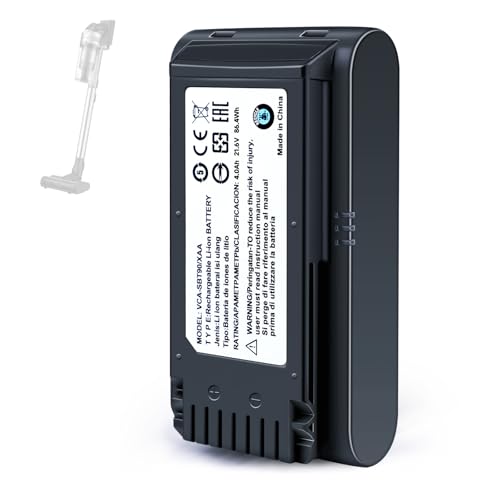
【Specifications】 Model:VCA-SBT90 ;Battery Type: Li_ion, Voltage:21.6V Capacity: 4000mAh ; Color: Gray and black


🔋 High-Capacity 6200mAh Battery for Galaxy S23 Plus Upgraded 6200mAh power delivers longer battery life than original (4700mAh). Enjoy all-day video streaming, gaming, or working without frequent recharging. Perfect for heavy users and travelers.
Accessing Battery Information
- Open the Settings app on your Samsung device.
- Scroll down and tap on Battery and device care.
- Select Battery to view essential battery information.
This section includes your battery percentage and estimated time remaining. You’ll also see options like Battery usage for a detailed view of what apps and services consume the most power.
Interpreting Battery Usage Stats
- Tap on Battery usage to see a breakdown of power consumption.
- Review the list of apps with their corresponding battery percentages.
This data highlights which apps use the most energy. For example, if you notice an unfamiliar app draining battery, consider uninstalling it or adjusting its permissions. Additionally, the stats include time spent on each app, helping you identify patterns that may contribute to quicker battery depletion.
Utilizing this information enables effective battery management, ensuring your Samsung device stays powered throughout the day.
Using Samsung Members App
The Samsung Members app provides a convenient way to check your device’s battery health and performance. You can easily access insights directly from your phone to better manage battery life.
Downloading the App
- Open the Google Play Store or Galaxy Store.
- Search for “Samsung Members.”
- Tap “Install” to download the app.
- Once installed, open the app and sign in with your Samsung account if prompted.
The app often comes pre-installed on most Samsung devices, making it quick to access.
Navigating Battery Diagnostics
- Open the Samsung Members app.
- Tap on “Get Help” at the bottom of the screen.
- Select “Battery.”
- Review the battery status and health report, which includes the current charge level, estimated battery usage, and any potential issues.
This diagnostic tool provides insights into your battery’s overall health, helping you identify problem areas. You might spot apps using excessive power, allowing you to adjust settings accordingly. Optimize your settings based on this data, enabling longer usage between charges.
Third-Party Apps for Battery Monitoring
Third-party apps can enhance your ability to monitor and manage battery life on your Samsung device. These apps often provide more detailed insights and customizable options than the built-in tools.
Recommended Apps
- AccuBattery
AccuBattery offers a comprehensive analysis of battery health, usage, and discharge rates. It measures the actual battery capacity, helping you identify apps that consume power unnecessarily.
- GSam Battery Monitor
GSam provides detailed stats on battery usage, including app-specific information and screen-on time. You can view historical data and customize alerts for significant battery drain.
- Battery Guru
Battery Guru focuses on optimizing battery performance, providing tips based on your device’s usage patterns. It features a gorgeous interface and offers widget options for quick access to battery stats.
Features to Look For
- Battery Health Monitoring
Look for apps that track battery health over time, providing insights into wear and degradation. Knowing your battery’s health helps in making informed decisions about replacements.
- Usage Statistics
Choose apps that give detailed usage statistics per app. This feature allows you to identify which apps drain your battery quickly and decide if you want to adjust their settings or usage.
- Customizable Alerts
Opt for apps that allow setting up alerts for low battery levels or specific usage patterns. This feature ensures you stay informed about your battery life without constantly checking your phone.
- Optimization Tips
Select apps that offer actionable tips for optimizing battery life based on your usage habits. These suggestions help you adjust settings for longer-lasting power throughout the day.
Tips for Optimizing Battery Life
Adjust Screen Brightness
Lower screen brightness extends battery life. Go to Settings, then Display, and adjust the Brightness level. Alternatively, enable Adaptive Brightness to let your device automatically adjust based on your surroundings.
Limit Background App Activity
Restricting apps from running in the background saves power. Navigate to Settings, tap on Battery and Device Care, then select Battery. From there, choose Background Usage Limit to control which apps can run while not in use.
Use Battery Saver Mode
Activate Battery Saver Mode for immediate battery saving. Open Settings, tap Battery and Device Care, then select Battery. Enable Power Saving mode to reduce performance and limit background activity.
Manage Location Services
Turn off location services when not in use. Go to Settings, select Location, then Toggle off Use Location. You can also customize location access for apps to utilize location only when necessary.
Update Your Software Regularly
Keep your software up to date. Software updates often include optimizations for battery performance. Go to Settings, tap on Software Update, then select Download and Install to check for updates.
Optimize App Settings
Configure individual app settings for efficiency. Open Settings, select Apps, then choose specific apps to adjust permissions like background activity and notifications. This minimizes their impact on battery life.
Monitor Battery Health Using Apps
Utilize the Samsung Members app or third-party apps. These tools provide insights on battery health and usage insights. Download apps like AccuBattery or GSam Battery Monitor to track performance over time.
Limit Use of Live Wallpapers and Widgets
Reduce or eliminate live wallpapers and unnecessary widgets. Static wallpapers and fewer widgets can help conserve battery power.
Enable Dark Mode
Switching to Dark Mode reduces power consumption, especially on AMOLED displays. Go to Settings, tap Display, and select Dark Mode to activate it.
Charge Appropriately
Avoid overcharging and deep discharging your battery. Aim to keep the charge between 20% and 80% for longevity. Use the original charger for optimal charging speeds.
Conclusion
Taking control of your Samsung device’s battery life is easier than you think. By regularly checking your battery status and usage statistics, you can identify what’s draining your power and make adjustments accordingly. Utilizing tools like the Samsung Members app or third-party battery management apps can provide you with valuable insights.
Don’t forget the simple tips for optimizing battery performance. Adjusting your screen brightness, limiting background activity, and enabling Battery Saver Mode can make a big difference. With a little effort, you can keep your device running smoothly throughout the day and enjoy peace of mind knowing you won’t be caught with a dead battery. Happy optimizing!
Frequently Asked Questions
How can I check the battery life on my Samsung device?
You can check your battery life by going to the Settings app, selecting “Battery and device care,” and then viewing the battery usage statistics. This will show you the battery percentage and estimated time remaining.
What features affect my Samsung device’s battery life?
Screen brightness, background apps, location services, and app settings can significantly impact your device’s battery life. Reducing brightness and limiting background activity can help conserve power.
What is Battery Saver Mode and how does it help?
Battery Saver Mode is a feature that limits background activity and reduces performance to extend battery life. Enabling this mode can significantly increase the time your device lasts on a single charge.
How can I use the Samsung Members app for battery management?
The Samsung Members app can be used to check battery health and performance. Go to “Get Help,” select “Battery,” and review your battery status and health report to identify potential issues.
Are there third-party apps for monitoring battery life?
Yes, apps like AccuBattery, GSam Battery Monitor, and Battery Guru offer features such as battery health analysis and usage statistics. These can help you optimize your device’s battery life effectively.
What tips can I follow to optimize my Samsung device’s battery life?
To optimize battery life, adjust screen brightness, limit background app activities, enable Battery Saver Mode, and manage location services. Regularly updating software and configuring app settings also helps.
How can I identify which apps drain my battery the most?
By checking the battery usage statistics in the Settings app, you can see a breakdown of power consumption by each app. This will help you identify and manage apps that use excessive battery power.
