

Key Takeaways
- Understand Battery Life Factors: Familiarize yourself with the hardware and software aspects that influence your Samsung watch’s battery performance.
- Manage Settings Effectively: Adjust settings such as screen brightness, always-on display duration, and sync frequency to minimize battery drain.
- Limit Background Activity: Reduce battery consumption by closing unused apps, disabling unnecessary notifications, and uninstalling rarely used applications.
- Utilize Power Saving Modes: Activate Battery Saver and Sleep Modes to prolong battery life during specific activities or overnight.
- Regular Maintenance: Keep your watch updated with the latest software, clean it regularly, and adopt proper charging techniques for optimal battery longevity.
Ever find yourself checking your Samsung watch only to see that dreaded low battery warning? You’re not alone. Many users struggle with battery life, especially when you rely on your watch for notifications, fitness tracking, and more.
Understanding Samsung Watch Battery Life
Samsung watches rely on a combination of hardware and software to function. Understanding how these elements affect battery life helps you make informed choices to maximize your usage.
Importance of Battery Management
Effective battery management extends your watch’s daily performance. Monitoring background apps and notifications helps limit battery drain. You can manage battery usage by adjusting settings like screen brightness, vibration intensity, and sync frequency. Regularly checking for software updates also ensures your watch runs efficiently, as manufacturers often include power-saving features in updates.
Common Battery Drain Issues
Several factors contribute to battery drain in Samsung watches.
- Background applications: Apps refreshing in the background can consume energy.
- High screen brightness: A bright display can quickly deplete the battery.
- Frequent notifications: Constant vibrations and alerts drain battery life.
- GPS usage: Using GPS for tracking workouts significantly lowers battery levels.
- Poor connectivity: Weak Bluetooth or Wi-Fi signals may cause the watch to work harder to maintain a connection.
Identifying these factors allows you to take proactive steps in preserving your battery power.
Tips to Extend Samsung Watch Battery Life
Improving your Samsung watch battery life involves a few straightforward adjustments. With the right settings, you can make a significant difference.
Recommended Products

【24/7 Personal Health Companion】Ideal for health-focused users and fitness enthusiasts, it accurately monitors heart rate, blood oxygen, sleep quality, and stress levels 24/7. Pair it with the VeryFit app to view detailed health reports and long-term trends.Compatible with Apple Health & Google Fit for unified health management, help you to maintain a balanced lifestyle.

KEEP YOUR GOALS ON TRACK: Workout to your full potential with fitness tracking* on Galaxy Watch6; Get insights on duration, distance, calories burned and more; Watch recognizes activities from running to swimming and tracks over 90 other exercises
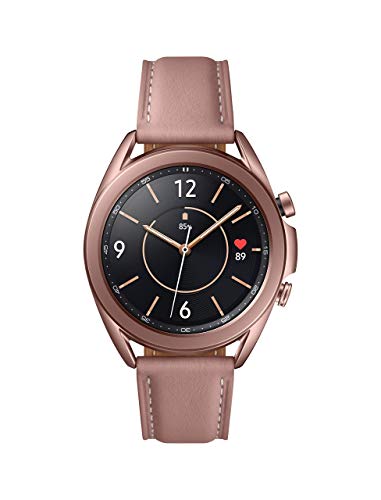
Galaxy Watch3 combines powerful technology with a premium, customizable design so you can manage the day-today from your wrist, beautifully.
Adjusting Display Settings
Adjust your display settings to conserve battery. Here are some effective changes:
- Lower Screen Brightness: Reduce the brightness level in the settings menu. This simple adjustment can save a considerable amount of battery.
- Shorten Always-On Display Duration: Set the always-on display to turn off during inactivity. This feature consumes extra power.
- Use a Dark Watch Face: Opt for darker watch faces. OLED displays consume less power when displaying darker colors.
Managing Notifications and Apps
Manage notifications and background apps to limit battery drain. Follow these steps:
- Limit Notifications: Disable unnecessary notifications. Fewer alerts reduce screen wake-ups and save battery life.
- Close Background Apps: Regularly close apps running in the background. Use the task manager to end apps that you aren’t using.
- Uninstall Unused Apps: Remove apps you rarely use. Fewer applications mean less activity, leading to longer battery life.
- Update Apps: Ensure your apps are up to date. Developers often release updates that enhance performance and battery efficiency.
By making these adjustments, you maximize your Samsung watch’s battery life and enjoy its features longer.
Utilizing Power Saving Modes
Power-saving modes significantly enhance the battery life of your Samsung watch. By making simple adjustments, you can get more out of each charge.
Exploring Battery Saver Mode
Battery Saver Mode helps maximize power efficiency. When activated, most background processes slow down or stop, extending your watch’s life significantly. To enable this mode:
- Open the Settings app on your watch.
- Scroll down and select Battery.
- Tap on Power Saving Mode.
- Confirm to activate.
In this mode, screen brightness decreases, and features like GPS may turn off. This change can stretch your battery life to several additional hours. Consider using this mode during long outings or specific times when you don’t need full functionality.
Activating Sleep Mode
Sleep Mode dims your watch further and limits notifications while you’re sleeping. This setting saves battery without sacrificing your watch’s core features.
- Open the Settings app.
- Navigate to Battery.
- Select Sleep Mode.
- Turn it on for set hours or manually.
With Sleep Mode activated, your watch conserves energy while you rest. You still receive essential alerts, but non-critical ones stay off, helping your watch last longer throughout the night.
Using these power-saving modes can significantly impact how long your Samsung watch stays powered throughout the day.
Maintenance and Care for Longevity
Maintaining your Samsung watch properly boosts battery life and enhances overall performance. Following a few straightforward practices ensures your device remains in top shape.
Regular Software Updates
Updating your watch’s software keeps it running efficiently. Software updates often contain optimizations that can improve battery life and fix bugs that may drain power. Check for updates weekly through the Settings app. Tap on “About Watch,” then select “Software Update.” If an update is available, install it to benefit from these improvements.
Cleaning and Proper Charging Techniques
Keeping your watch clean and charging it properly plays a crucial role in battery longevity. Use a soft, dry cloth to remove dust, sweat, or dirt, especially around the charging contacts. Cleanliness improves connectivity during charging, which reduces overcharging risks.
For charging, use only the original charging cable and dock. Avoid letting the battery drop below 20%, as deep discharges can shorten battery lifespan. Charge it when it’s around 30-40% for optimal performance. Additionally, remove the watch from the charger once it’s fully charged to prevent overheating.
Incorporating these maintenance and care tips ensures a longer-lasting battery and enhances your overall experience with your Samsung watch.
Conclusion
Taking control of your Samsung watch’s battery life can make a world of difference in your daily routine. By implementing the tips shared in this post you can enjoy longer usage without constantly worrying about recharging.
Remember to adjust your settings and manage your apps wisely. Regular maintenance and updates are key to keeping your watch running smoothly.
With just a few simple changes you can enhance your watch’s performance and make the most of its features. Enjoy your time with your Samsung watch and let it serve you longer between charges.
Frequently Asked Questions
How can I extend the battery life of my Samsung watch?
To extend your Samsung watch’s battery life, lower the screen brightness, reduce the always-on display duration, and use darker watch faces. Managing notifications by limiting alerts and closing background apps can also help. Regular software updates and utilizing power-saving modes will further enhance battery performance.
What are common reasons for battery drain on Samsung watches?
Common causes of battery drain include high screen brightness, continuous GPS usage, frequent notifications, background applications running, and poor connectivity. Monitoring these factors can help you manage your watch’s battery more effectively.
How do I activate Battery Saver Mode on my Samsung watch?
To activate Battery Saver Mode, go to the Settings app on your watch, find Battery settings, and select Battery Saver Mode. This feature reduces background processes and can significantly extend battery life for several hours.
Why is it important to update my Samsung watch’s software regularly?
Regular software updates are crucial for improving battery life and fixing bugs. Updates often include enhancements and power-saving features that can help optimize the overall performance of your Samsung watch.
What maintenance tips should I follow for my Samsung watch?
To maintain your Samsung watch, clean it regularly and use the original charging cable. Avoid letting the battery fully discharge, and always remove the watch from the charger once it’s fully charged to prevent overheating and battery health issues.
