

Key Takeaways
- Importance of Battery Percentage: Understanding the battery percentage is crucial for managing your Asus laptop and preventing unexpected shutdowns.
- Multiple Display Methods: You can monitor your battery percentage through various methods, including checking in Windows settings, using the Asus Battery Health Charging app, or accessing BIOS.
- Utilizing Third-Party Apps: Third-party applications like BatteryCare, HWMonitor, and AccuBattery enhance your ability to track battery status and health beyond default options.
- Troubleshooting Tips: If you experience issues with displaying battery percentage, check taskbar settings, restart your laptop, and ensure Windows is up to date.
- Adjusting Notifications: Customize notification settings in Windows to receive alerts on battery levels and optimize awareness of your power status.
- Battery Preservation: Simple actions like lowering screen brightness and closing unused applications can significantly extend your laptop’s battery life.
Have you ever found yourself scrambling for a charger because your laptop battery ran out unexpectedly? You’re not alone. Many Asus laptop users face the same frustration when they can’t see their battery percentage at a glance.
Understanding Battery Percentage on Asus Laptops
Knowing your battery percentage is essential for effective laptop management. Asus laptops feature several ways to display this information. You can adjust settings to keep track of your remaining power.
Checking Battery Percentage in Windows
- Locate the Taskbar: Look at the bottom-right corner of your screen.
- Identify the Battery Icon: Find the battery icon. A click reveals the exact battery percentage.
- Customize Quick Settings: Right-click the taskbar, select “Taskbar settings”, then choose “Turn system icons on or off”. Ensure the battery icon stays visible.
Using the Asus Battery Health Charging App
- Install the App: Download and install the Asus Battery Health Charging app from the Microsoft Store.
- Open the App: Launch the application. It displays battery usage and percentage.
- Track Charging Modes: Use the app to see different charging modes and their impact on health.
Accessing the BIOS
- Restart Your Laptop: Reboot your Asus laptop.
- Enter BIOS: Press F2 during startup to access BIOS settings.
- Check Battery Information: Navigate to the “Main” tab for battery details, including percentage and health status.
Adjusting Notifications
- Open Settings: Go to the Windows Start menu and select “Settings”.
- Navigate to System: Click on “System”, then choose “Notifications & actions”.
- Modify Notifications: Enable notifications for battery alerts to stay informed about your power level.
Tips for Battery Preservation
- Lower Screen Brightness: Dim your screen to save power.
- Close Unused Applications: Exit programs running in the background.
- Disconnect Peripherals: Remove devices like USB drives when not in use.
These methods ensure that you always know your battery percentage. Keep these steps handy to optimize your Asus laptop experience, prevent unexpected shutdowns, and prolong battery life.
Methods to Display Battery Percentage
You can easily check the battery percentage on your Asus laptop using different methods tailored to your needs.
Recommended Products

Battery Model : B31N1912 Voltage: 11.55V Capacity: 42Wh Li-ion polymer Battery

【Customer First】24 x 7 email support. We specialize in providing quality power products. (Note: Amazon return windows will close after one month, If you have any problem with battery, please Contact us - in “YOUR ORDER” options click the “contact seller”.)

Battery Type: Polymer. Voltage: 11.55V Capacity: 42Wh ; Cells: 3-cell; Color: Black, Packages includes: 1x B31N1912 battery , with auxiliary installation tool and user manual.
Using Windows Settings
- Open Settings: Click the Start button, then select the Settings icon.
- Navigate to System: In the Settings window, click on System.
- Select Battery: Choose the Battery option from the left sidebar.
- Enable Battery Percentage: Toggle on the setting that shows the battery percentage in the taskbar. This lets you monitor your battery level at all times.
Utilizing Asus Battery Widget
- Download the Asus Battery Health Charging App: Visit the Asus support website to find and download the app.
- Install the App: Follow the installation prompts to set up the application on your laptop.
- Launch the App: Open the app to access various battery settings, including the display of battery percentage.
- Customize Settings: Adjust notifications and battery charging options according to your preferences, ensuring you’re always informed about your battery status.
These methods streamline the monitoring of battery life, helping you manage your Asus laptop more efficiently.
Third-Party Applications for Battery Monitoring
Third-party applications enhance your ability to monitor your Asus laptop’s battery percentage. These apps provide additional features, settings, and visual indicators beyond the default options.
Recommended Products
Custom-Fit Design for Starlink Mini: This Starlink Mini power bank is custom-shaped to fit perfectly with the Starlink Mini. The snap-on buckle design ensures a secure connection—no need to mount or remove repeatedly. Weighing just 1.42 lbs, it aligns seamlessly with the unit for compact, all-in-one portability. Note: The power bank is compatible with Starlink Mini only, not other Starlink models. Includes 3 standard 1/4" screw holes for easy mounting on various tripods
![A1405 A1466 Laptop Battery for MacBook Air 13 inch A1466(Mid 2012, Mid 2013, Early 2014, Early 2015, 2017) A1369(Late 2010, Mid 2011 Version) fits A1496 A1377 [EMC :2925, 2469, 2559, 2392, 2632, 3178]](https://m.media-amazon.com/images/I/31Q3xP4WHkL._SL500_.jpg)
What You Get: Macbook Air Battery Replacement 13 inch A1466, User Manual for Macbook battery replacement. We offer a 60-day return. For assistance with the A1466 Battery , please visit our product detail page.
【𝐍𝐨 𝐀𝐩𝐩 & 𝐏𝐡𝐨𝐧𝐞 𝐑𝐞𝐪𝐮𝐢𝐫𝐞𝐝】This fitness tracker doesn't require any App or smartphone connections! It's as simple to use as a regular watch but smarter. Perfect for anyone who looking for an easy fitness tracker without the hassle of smartphone setups.
BatteryCare
- Functionality: BatteryCare offers detailed information about battery health, cycle count, and temperature.
- Installation: Download and install BatteryCare from its official website. Follow the prompts for a seamless setup.
- Usage: The app runs in the background, displaying real-time battery status in the system tray.
HWMonitor
- Functionality: HWMonitor tracks various hardware parameters, including battery voltage and current.
- Installation: Visit the HWMonitor website to obtain the application. Unzip the downloaded file and launch the executable.
- Usage: Open HWMonitor to view comprehensive battery data alongside other components like CPU and GPU.
BatteryBar
- Functionality: BatteryBar provides a visual representation of your battery status in the taskbar.
- Installation: Get BatteryBar from its official site and install it per the provided instructions.
- Usage: The application displays a colored bar that indicates battery level, allowing quick status checks.
BatteryInfoView
- Functionality: BatteryInfoView gives you detailed info about battery capacity, health, and technology type.
- Installation: Download BatteryInfoView from NirSoft’s website and extract the files.
- Usage: Launch the application to see in-depth battery statistics and save reports if needed.
AccuBattery
- Functionality: AccuBattery focuses on battery health over time and helps extend battery lifespan.
- Installation: Download AccuBattery from the Microsoft Store for easy installation.
- Usage: Use the app to analyze your charge cycles and determine optimal charging habits.
These applications provide diverse features, ensuring you stay informed about your Asus laptop’s battery status. Utilizing them promotes better battery management, helping you avoid unexpected shutdowns and maximizing battery longevity.
Troubleshooting Battery Percentage Issues
If you encounter issues displaying your battery percentage on your Asus laptop, follow these troubleshooting steps.
Recommended Products
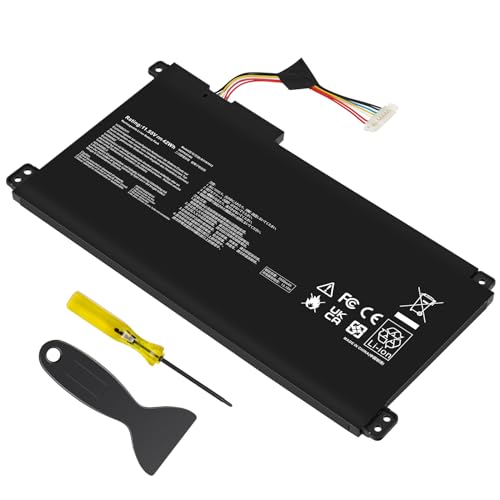
【Capacity】42Wh/3550MAH Cell: 3-Cell Voltage: 11.55V Battery type: Li-ion

Battery type: Capacity: 2600mAh; Cells: 4-cell; Voltage: 14.8V.

Specifications: Battery type: Li-ion. Color: Black. Voltage: 11.52V. Capacity: 42Wh. ZTHY specializes in Laptop and camera Accessories including Laptop Batteries, Tablet batteries, Camera Batteries, Camcorder Batteries, and chargers
Check Taskbar Settings
- Right-click on the taskbar.
- Select Taskbar settings.
- Look for Notification area and click Turn system icons on or off.
- Ensure the Power toggle is on.
Restart Your Laptop
- Click the Start menu.
- Select Power.
- Choose Restart. This action can resolve temporary glitches.
Update Windows
- Open the Settings app.
- Go to Update & Security.
- Click Check for updates. Install any pending updates, which can fix software-related battery issues.
Use the Asus Battery Health Charging App
- Download the Asus Battery Health Charging app from the official Asus website.
- Install and launch the app.
- Confirm whether the app displays the battery percentage correctly.
Test with Third-Party Applications
- Download options like BatteryCare or HWMonitor.
- Install one of these apps and check if they show your battery status accurately.
Adjust Power Settings
- Open the Control Panel.
- Navigate to Power Options.
- Ensure you’re using a balanced or recommended power plan, as power modes can affect battery visibility.
Restore System
- Search for System Restore in the Start menu.
- Choose a restore point before you noticed the issue.
- Follow the prompts to complete the restoration.
By following these steps, you can troubleshoot and resolve issues related to displaying your battery percentage on an Asus laptop effectively.
Conclusion
Knowing your battery percentage is essential for keeping your Asus laptop running smoothly. With the methods we’ve discussed you can easily check your battery status and make informed decisions about your usage. Whether it’s through the taskbar settings or the Asus Battery Health Charging app you have plenty of options at your fingertips.
Don’t forget to explore third-party applications for even more insights into your battery health. By staying proactive about your battery management you’ll avoid those frustrating moments when your laptop unexpectedly shuts down. Enjoy your time with your Asus laptop and keep that battery in check!
Frequently Asked Questions
How can I check the battery percentage on my Asus laptop?
You can check your battery percentage by looking at the taskbar in Windows. Simply click on the battery icon, and it will show you the remaining percentage.
What is the Asus Battery Health Charging app?
The Asus Battery Health Charging app allows you to monitor your battery’s status in detail. It provides insights into battery usage and helps manage your battery’s longevity effectively.
Can I enable battery percentage display in Windows settings?
Yes, you can enable the battery percentage display in Windows Settings. Navigate to “Settings” > “System” > “Battery” and turn on the option to show battery percentage in the taskbar.
What third-party apps can help monitor my Asus laptop battery?
Several third-party apps, like BatteryCare, HWMonitor, and AccuBattery, can enhance battery monitoring. They provide real-time data, health status, and optimal charging insights for better battery management.
What should I do if my battery percentage isn’t displaying correctly?
If your battery percentage isn’t displaying, try checking your taskbar settings, updating Windows, or using the Asus Battery Health Charging app. Restarting the laptop or adjusting power settings may also help resolve the issue.
