

Key Takeaways
- Importance of Battery Disconnection: Disconnecting the Asus laptop battery can resolve power issues, prevent electrical surges, and assist in regular maintenance, thus enhancing device longevity.
- Essential Tools Required: For safe battery disconnection, gather tools like a precise screwdriver set, plastic pry tool, flashlight, anti-static wrist strap, safety glasses, and gloves.
- Step-by-Step Disconnection Guide: Follow clear steps including powering off the laptop, removing the back panel, locating the battery, and safely disconnecting it to troubleshoot effectively.
- Safety Precautions: To prevent damage, touch a grounded object to release static electricity, consult your model’s manual for specific instructions, and inspect components for wear.
- Troubleshooting Common Issues: Be prepared to resolve problems like difficulty accessing the battery and detection issues post-reconnection by checking connections and inspecting for damage.
Have you ever found yourself in a situation where your Asus laptop just won’t turn on, and you suspect the battery might be the culprit? It can be frustrating when your device isn’t working as it should, especially if you rely on it for work or school.
Knowing how to disconnect your laptop battery can save you time and hassle. Whether you’re troubleshooting an issue or just doing some maintenance, this simple skill can help you get your laptop back on track. In this article, you’ll learn the easy steps to safely disconnect your Asus laptop battery, ensuring you’re prepared for any tech hiccup that comes your way.
Overview of ASUS Laptop Battery Disconnection
Disconnecting the battery from your ASUS laptop serves multiple purposes, including troubleshooting and preventive maintenance. Understanding the steps involved helps you address issues like power failures and can enhance the lifespan of your device.
Importance of Battery Disconnection
- Troubleshooting Power Issues: If your laptop doesn’t power on, disconnecting the battery and then reconnecting can reset the system. This often resolves temporary glitches.
- Preventing Electrical Surges: Disconnecting the battery during hardware upgrades or repairs protects it from power surges that could cause damage.
- Maintenance: Regularly disconnecting the battery can prevent swelling or overheating, keeping your laptop in optimal condition.
Steps to Disconnect ASUS Laptop Battery
- Power Off: Ensure your laptop is completely turned off. Unplug the power cord.
- Preparation: Find a clean, static-free workspace. Gather the necessary tools, such as a small Phillips screwdriver.
- Remove the Back Panel: Use the screwdriver to unscrew the back panel. Keep screws in a safe place for reassembly.
- Locate the Battery: Identify the battery, which is usually rectangular and marked. Familiarize yourself with its connector.
- Disconnect the Battery: Carefully unplug the battery connector from the motherboard. Note the orientation of the connection for reattachment.
- Reassemble: Replace the back panel and reinsert all screws. Make sure everything is secure before turning your laptop back on.
Safety Precautions
- Static Electricity: Touch a grounded metal object to discharge static electricity before working on your laptop.
- Follow Manufacturer Guidelines: Always consult your specific model’s manual for detailed instructions. Different models may have slight variations in the disconnection process.
- Watch for Damage: Inspect the battery and connectors for signs of wear or damage. If any issues arise, consider consulting a professional.
Following these steps ensures safe and effective disconnection of your ASUS laptop battery, enhancing your ability to troubleshoot and maintain your device.
Tools Required for Disconnection
To disconnect an Asus laptop battery, gather the following tools. These items ensure the process is safe and effective.
Recommended Products

【Universal】These spudger kit and pry tools professional designed for disassembling a variety of electronics - iPhone, android phone, laptop, tablet, apple watch, iPad, iPod, Macbook, computer, LCD screen, battery and more

Built for Laptop, Console, and PC Disassembly: Designed for opening bottom covers, releasing tight clips, and separating plastic housings during laptop, MacBook, computer, PS4, PS5, Xbox, Switch, and controller repair.
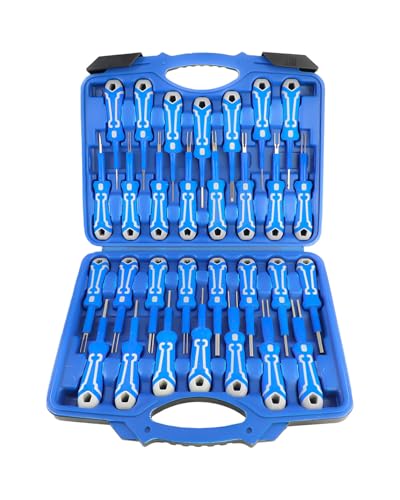
Nondestructive Removal Terminals: The tool accurately matches all kinds of slots, when encountering difficult to remove the plug, choose the right tool head to align the slot gently a top, hear the “click” unlocking sound can be a complete pull out the terminals, will not pry off the plastic clips, scratching the metal contacts, damage to the wires or connector shell, compared with the use of brute force, it can save time and frustration
Recommended Tools
- Screwdriver Set: Use a Phillips or flathead screwdriver to remove the back panel screws. A magnetic tip can assist in holding screws securely.
- Plastic Pry Tool: This tool helps pry off the back panel without damaging the casing. It’s safer than using metal tools.
- Flashlight: A flashlight makes it easier to see inside the laptop, especially in low-light conditions.
- Anti-static Wrist Strap: This strap grounds you to prevent static electricity from damaging internal components.
Safety Gear
- Safety Glasses: Wear safety glasses to protect your eyes from dust or debris during disconnection.
- Work Gloves: Use non-conductive gloves to avoid injury and ensure handling safety.
- Clean Workspace: Maintain a clutter-free area. This prevents losing screws and ensures focus during the process.
Having the right tools and safety gear enhances your ability to disconnect the battery efficiently and securely.
Step-by-Step Guide to Disconnect ASUS Laptop Battery
This section outlines the necessary steps for safely disconnecting your ASUS laptop battery. Following these instructions ensures an effective process, making troubleshooting easier.
Preparation Steps
- Power Off Your Laptop: Shut down your laptop completely. Ensure that it’s not in sleep or hibernation mode.
- Unplug All Cables: Remove the power adapter and any attached peripherals, like USB devices or external displays.
- Prepare a Clean Workspace: Use a flat surface that’s free of clutter. This helps avoid losing small parts during the process.
- Gather Essential Tools: Collect the following tools:
- Screwdriver set (appropriate for your laptop’s screws)
- Plastic pry tool
- Flashlight
- Anti-static wrist strap
- Safety glasses and work gloves for protection
Disconnecting the Battery
- Remove the Back Panel: Use the screwdriver to carefully remove the screws securing the back panel. Place the screws in a small container to avoid losing them.
- Locate the Battery: Once the back panel is off, find the battery. It typically has a rectangular shape and is connected to the motherboard with a cable.
- Disconnect the Battery Cable: Gently pull the battery cable connector out of its socket. Avoid pulling on the wires; use a plastic pry tool if needed.
- Remove the Battery: If necessary, unscrew or unclip the battery from its compartment. Lift it out carefully.
- Reassemble Your Laptop: After completing your tasks, place the battery back in its compartment, reconnect the cable, and secure the back panel using screws.
Following these steps makes battery disconnection straightforward, allowing you to manage your device effectively. Remember to handle each component carefully to avoid damage.
Troubleshooting Common Issues
You might face several issues when disconnecting the ASUS laptop battery. Here are some common problems and their solutions.
Difficulty Accessing the Battery
If you have trouble reaching the battery, ensure you follow these steps:
- Work in a well-lit area: Good lighting makes it easier to see small components.
- Use the right tools: A precision screwdriver set helps avoid stripping screws.
- Carefully remove the back panel: Apply gentle pressure with a plastic pry tool to avoid damaging the casing.
- Check for additional screws: Some models may have hidden screws secured with stickers or rubber feet. Look closely before proceeding.
Sometimes, a stubborn back panel or screws can hold you back, so patience is key.
Battery Not Detected After Reconnection
If your laptop doesn’t recognize the battery after you reconnect it, try these solutions:
- Double-check connections: Ensure the battery connector is firmly seated in its slot.
- Inspect for damage: Look for any bent pins or misaligned connectors that might cause detection issues.
- Power cycle your laptop: Remove the battery, hold the power button for 15 seconds, and then reconnect the battery, followed by powering on the laptop.
- Update drivers: Ensure your battery drivers are up-to-date via Device Manager. Look for any errors or warnings that may indicate a problem.
These steps typically resolve detection issues. Maintaining a routine of checking connections can prevent future problems.
Conclusion
You’ve now got the tools and knowledge to safely disconnect your Asus laptop battery. This skill not only helps you troubleshoot issues but also keeps your device running smoothly. Remember to take your time and follow the steps carefully.
With a little practice, you’ll feel more confident in handling your laptop’s maintenance tasks. So whether you’re dealing with power problems or just want to upgrade your hardware, you’ve got this! Enjoy the peace of mind that comes with knowing how to take care of your tech.
Frequently Asked Questions
Why won’t my Asus laptop turn on?
If your Asus laptop won’t turn on, it may be due to a dead battery, faulty power adapter, or hardware issues. A common step is to check if the battery needs disconnecting or replacing. Following the article’s troubleshooting steps can help identify the problem.
How do I safely disconnect the battery on my Asus laptop?
To safely disconnect the battery, start by powering off the laptop and unplugging it. Prepare a clean workspace and gather the necessary tools. Remove the back panel, locate the battery, disconnect the battery cable, and then reassemble the laptop.
What tools do I need to disconnect my Asus laptop’s battery?
You’ll need a screwdriver set, a plastic pry tool, a flashlight, and an anti-static wrist strap. Safety glasses and work gloves are also recommended to protect yourself while handling electronic components.
What should I do if my laptop doesn’t detect the battery after reconnection?
If your laptop doesn’t detect the battery after reconnecting, ensure the battery cable is properly connected. Inspect for any damage, perform a power cycle, and update drivers if necessary. Following these steps often resolves detection issues.
Are there any safety precautions I should take when disconnecting the battery?
Yes, ensure you discharge any static electricity by using an anti-static wrist strap. Always follow manufacturer guidelines, work in a clean environment, and inspect your components for any visible damage before proceeding with battery disconnection.
