

Key Takeaways
- Understanding Battery Health: Assessing your Android battery’s health is essential for maintaining optimal performance and extending your device’s lifespan.
- Recognizing Symptoms: Common signs of battery issues include rapid drain, inconsistent performance, overheating, charging problems, and fluctuating battery percentages.
- Built-In Features: Use your Android device’s built-in settings to monitor battery usage and identify apps that consume excessive power.
- Third-Party Apps: Apps like AccuBattery, GSam Battery Monitor, BatteryGuru, and Ampere can provide deeper insights into your battery’s health and usage patterns.
- Manual Testing Techniques: Calibrate your battery and check voltage to gain clarity on its performance and health status; healthy lithium-ion batteries typically range between 3.7V and 4.2V.
- Regular Monitoring: Regularly check your battery health and follow recommended optimizations to ensure efficient usage and prolong battery life.
Ever wondered why your Android phone seems to lose power faster than it should? You’re not alone. Many people face this frustrating issue, often without knowing if it’s a battery problem or something else.
Understanding Battery Health
Battery health plays a crucial role in your Android phone’s performance and longevity. Knowing how to assess it allows you to make informed decisions about your device.
Importance of Battery Health
Battery health directly affects your phone’s daily usability. A healthy battery runs efficiently, minimizes charging time, and maximizes usage between charges. When the battery degrades, it can lead to unexpected shutdowns, slower performance, and a diminished overall experience. Keeping track of battery health ensures optimal functionality and extends the lifespan of your phone.
Common Symptoms of Battery Issues
Recognizing battery issues early can prevent further problems. Here are common symptoms to look for:
- Rapid Drain: If your phone loses charge significantly faster than usual.
- Inconsistent Performance: If apps crash unexpectedly or your phone slows down during use.
- Overheating: If the device gets excessively hot during charging or even when idle.
- Charging Problems: If your phone doesn’t charge properly, takes longer than usual, or stops charging mid-way.
- Battery Percentage Fluctuations: If the battery percentage jumps around, showing different levels of charge without a clear reason.
Monitoring these indicators can help you assess your battery’s health effectively and decide on necessary actions.
Using Built-In Android Features
Android devices come with built-in features that help you check battery health. These features provide valuable insights into your battery’s condition and performance.
Accessing Battery Settings
- Open the Settings app on your device.
- Scroll down and tap on Battery.
- In this section, you’ll find information about battery usage and charging habits.
Accessing these settings offers immediate insights into how your battery performs over time.
Battery Usage Statistics
- From the Battery menu, tap on Battery Usage.
- Here, you’ll see a list of apps and their battery consumption percentages.
- Examine the statistics to identify apps that drain your battery the most.
This information helps you manage app usage effectively. For instance, if a particular app consumes excessive power, consider limiting its background activity or uninstalling it if it’s not necessary.
Third-Party Apps for Battery Testing
Third-party apps provide a reliable method to assess your Android battery’s health. These applications can offer more detailed insights than built-in features.
Recommended Products

REVOLUTIONARY HERZP1 SMART RING HEALTH TRACKER - The Herz P1 Smart Ring for women & men is a game-changer in the wearable tech industry. This sleek, lightweight ring provides accurate health metrics including heart rate, temperature, blood oxygen levels, activity, and stress levels. It's not just a fitness tracker, it's the next generation of wearable health tech, designed to fit effortlessly into your life.

Power Saver and Optimizer

Recommended Battery Health Apps
- AccuBattery
AccuBattery measures battery capacity and gives detailed reports on usage patterns. It tracks charging cycles and estimates battery wear over time.
- GSam Battery Monitor
GSam provides an in-depth look at your battery usage, including which apps drain the most power. It features customizable widgets for quick monitoring.
- BatteryGuru
BatteryGuru optimizes battery usage. It analyzes your habits and provides personalized suggestions to extend battery life.
- Ampere
Ampere checks charging speed and battery health. It displays information on the charging current and voltage, helping you understand your battery’s performance.
How to Use Battery Testing Apps
- Download an App
Search for your chosen app in the Google Play Store, then tap ‘Install’.
- Open the App
Launch the app after installation. Follow any initial setup prompts to customize settings.
- View Data
Navigate to the various sections within the app to view battery health, usage statistics, and charging details. Examine any suggested optimizations.
- Monitor Regularly
Check your battery health periodically. Regular monitoring helps you identify significant changes in performance or health.
- Implement Recommendations
Follow the app’s advice for optimizing battery usage. This may include closing background apps or adjusting settings for power management.
By utilizing these apps effectively, you gain a clearer understanding of your battery’s condition, ensuring you make informed decisions about maintenance and usage.
Manual Testing Techniques
You can manually check your battery’s condition using a couple of straightforward techniques. These methods help identify whether your battery is functioning properly or if it requires attention.
Recommended Products
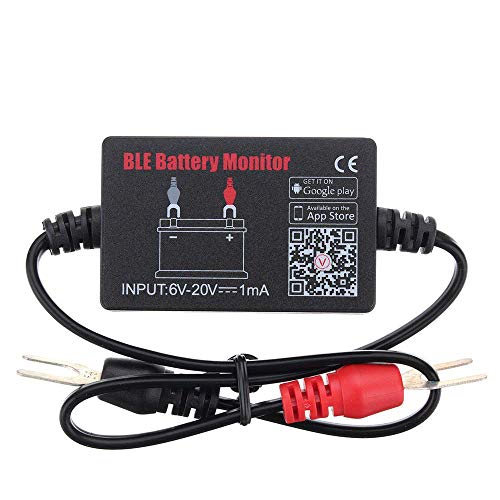
SIMULTANEOUSLY MONITOR UP TO 4 OF 12V BATTERIES: Download APP "BM2", you can monitor 1 of 12v batteries. If you have more batteries, please Download APP "BM3", you can simultaneously monitor up to 4 of these devices(APP BM2/FREE,APP BM3/ NOT FREE)

Test rechargeable and alkaline batteries

Applicable Product Model: IP5‑15 series ,for Android models Mate 60+ 5G/5S/6/6P/7/7P/8/8P/X/XS forMax/XR/11/11 Pro/11 Pro Max. 12/12min/12 Pro/12 Pro for Max/13/13mini/13 Pro/13 Pro for Max, 14 15promax
Performing a Battery Calibration
Calibrating your battery can provide a clearer picture of its health. Here’s how to do it:
- Charge Your Phone: Plug your phone in and charge it to 100%. Leave it connected for at least 30 minutes after reaching full charge.
- Use Your Phone: Disconnect the charger and use your phone until it turns off due to low battery.
- Leave It Off: Keep your phone turned off for about 6-8 hours.
- Recharge: After this period, charge your phone back to 100% without interruption.
This process helps reset the battery’s charging capacity and improves accuracy in battery percentage readings.
Checking Battery Voltage
Battery voltage is a crucial indicator of battery health. To check the voltage on your Android device:
- Open Settings: Go to your phone’s Settings app.
- Access Battery Info: Navigate to the Battery section.
- Check Voltage: Some devices display battery voltage here; if not, consider using a third-party app like AccuBattery, which shows detailed statistics, including voltage.
A healthy lithium-ion battery should generally show a voltage between 3.7V and 4.2V while in use. If the readings consistently fall outside this range, your battery may be nearing the end of its life.
Conclusion
Taking the time to check your battery’s health can make a world of difference in your Android experience. By recognizing the signs of a struggling battery and using the built-in features or third-party apps, you can stay ahead of potential issues.
Don’t forget about manual testing techniques like calibration and voltage checks to ensure your battery is performing at its best. With a little effort, you can keep your phone running smoothly and enjoy longer usage between charges. Remember that a healthy battery means a happier you and a more reliable device.
Frequently Asked Questions
What causes Android phones to lose power quickly?
Android phones may lose power quickly due to various factors, including a degraded battery, excessive background app activity, high screen brightness, or outdated software. Users should regularly check battery health and monitor app usage to identify and resolve these issues.
How can I check the battery health on my Android device?
You can check battery health by opening the Settings app, navigating to the Battery section, and reviewing battery usage statistics. This gives insights into battery performance and identifies power-hungry apps.
Are there apps that help me monitor battery health?
Yes, there are several third-party apps that can provide detailed insights into battery health, such as AccuBattery, GSam Battery Monitor, BatteryGuru, and Ampere. These apps allow you to track performance and optimize battery usage.
How do I calibrate my Android phone’s battery?
To calibrate your battery, fully charge your phone, use it until it turns off, leave it off for several hours, and then recharge it back to 100%. This process helps reset the battery’s charging capacity and improves percentage accuracy.
What is the normal voltage range for a healthy battery?
A healthy lithium-ion battery typically shows a voltage between 3.7V and 4.2V. Consistent readings outside this range may indicate that the battery is degrading or nearing the end of its life.
