

Key Takeaways
- Battery Awareness: Knowing your Sony headphones’ battery percentage prevents unexpected interruptions during use.
- Check Battery Status: Use various methods like power button indicators, LED lights, Bluetooth settings, and the Sony Headphones Connect app to easily monitor battery levels.
- Troubleshoot Common Issues: Learn to identify and resolve common battery-related problems such as inaccurate readings or quick draining to enhance your audio experience.
- Maintain Battery Health: Charge regularly, use power-saving features, and monitor usage habits to prolong battery life and performance.
- Firmware Updates: Keep your headphones updated to improve functionality and battery efficiency through the latest firmware available.
Have you ever been in the middle of your favorite playlist only to have your Sony headphones die on you? It’s frustrating when you’re not sure how much battery life you have left. Knowing your battery percentage can save you from unexpected interruptions and help you plan your listening sessions better.
Overview of Sony Headphones
Sony headphones come in various models, each featuring unique capabilities. These headphones often deliver high-quality audio, noise-canceling technology, and user-friendly designs.
- Types of Sony Headphones
Sony offers different types of headphones, including over-ear, on-ear, and in-ear models. Each type suits specific preferences and use cases. For instance, over-ear headphones provide immersive sound and comfort, while in-ear models offer portability.
- Battery Life
The battery life of Sony headphones varies by model. Some models last up to 30 hours on a single charge, while others may provide around 10 hours. Checking the battery status helps you plan your listening sessions effectively.
- Connectivity Options
Sony headphones support various connectivity options, including Bluetooth and wired connections. Bluetooth allows for wireless freedom, while wired connections often ensure a stable link, especially for high-fidelity sound.
- Features and Controls
Many Sony headphones come with integrated controls for volume, track navigation, and voice assistants. Some models even have touch controls for seamless interaction. Familiarizing yourself with these features enhances your listening experience.
- Customization and App Integration
Certain Sony headphones integrate with apps that enable customization of sound profiles and settings. You can adjust equalizer settings and noise-canceling levels for a tailored audio experience.
Understanding these aspects of Sony headphones helps you optimize your listening experience and makes it easier to check the battery percentage effectively.
Methods to Check Battery Percentage
Checking the battery percentage on your Sony headphones is straightforward. Use the following methods to ensure you always know how much power you have left.
Recommended Products

Note! Select correct battery (headphone model is printed under charging tower). The backside of the HP800 battery has a cross bar in the center of the opening slot (see pics)

Neodymium magnets and 40 millimeter drivers for powerful, detailed sound.Specific uses for product : Professional audio system,Home audio system
Note! Select correct battery (headphone model is printed under charging tower). The backside of the HP800 battery has a cross bar in the center of the opening slot (see pics).
Using the Headphones Itself
- Power Button Indicator
Press and hold the power button. Most Sony headphones provide audio feedback. You’ll hear a voice saying the remaining battery life, such as “battery low” or “battery full.”
- LED Indicator
Look for the LED light on your headphones. A red light typically indicates low battery, while green or white signifies sufficient charge.
- Touch Control
Some models feature touch sensors. Swipe or tap on the touch panel, and the headphones may announce the battery level or flash the LED according to your battery status.
Using a Connected Device
- Bluetooth Settings on Mobile Devices
Open the Bluetooth settings on your smartphone or tablet. Find your headphones in the list of paired devices, and tap on them. The battery percentage often displays next to the device name.
- Sony Headphones Connect App
Download the Sony Headphones Connect app. Connect your headphones, and check the battery percentage on the main interface. The app may also provide tips to optimize battery life.
- Operating System Notifications
For Windows or Mac users, connect your headphones via Bluetooth. Look for the battery percentage in the Bluetooth settings or system tray icon. macOS may show this directly in the menu bar.
Utilize these methods to monitor your battery and ensure uninterrupted listening experiences.
Troubleshooting Battery Percentage Issues
Battery percentage issues can arise while using Sony headphones. Knowing how to identify and resolve these problems can enhance your listening experience.
Recommended Products
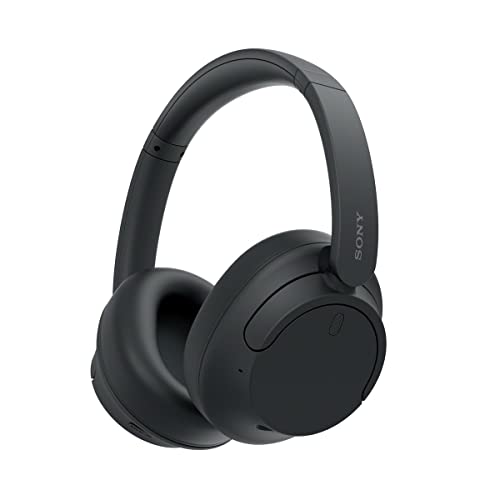
SONY’S LIGHTEST WIRELESS NOISE CANCELING HEADBAND EVER: Weighing just 192g, our lightest overhead wireless headphones with Noise Canceling yet, for incredible comfort without compromising on technology.

PREMIUM NOISE CANCELING: Get closer to your favorite music with dual noise canceling technology & V1 processor. The ULT WEAR headphones feature signature noise canceling found in our award-winning 1000X series headphones.

LONG-LASTING BATTERY & QUICK CHARGING: With up to 55 hours of battery life, the WH-CH530 headphones are built for long listening sessions, daily commutes, travel, and weekend plans. When you need power fast, a 3-minute quick charge gives you up to 1.5 hours of playback, so you can get back to listening with less downtime.
Common Problems
- Inaccurate Battery Readings: Sometimes, the battery indicator shows a higher percentage than the actual remaining power.
- Delay in Battery Status Update: You may notice a lag in the battery percentage change after repeated use.
- Device Connection Problems: Occasionally, your headphones may not connect properly to your device, leading to missing battery information.
- Battery Draining Quickly: Sudden drops in power percentage can occur even with moderate use.
Solutions
- Reset Device: Restart your headphones if you experience inaccurate readings. This can recalibrate the battery sensor.
- Update Firmware: Check for firmware updates through the Sony Headphones Connect app. Updates can fix bugs affecting battery status.
- Re-pair Headphones: Disconnect and reconnect your headphones to your device. This can resolve any connection issues that disrupt battery updates.
- Charge Properly: Ensure that your headphones charge fully. Use the recommended charger to avoid quick battery drainage.
- Monitor Usage: Keep track of your listening habits. For instance, using noise-canceling features for extended periods may drain battery faster. Adjust usage for better battery life.
By addressing these common problems and implementing solutions, you can effectively manage battery percentage issues with your Sony headphones.
Tips for Maintaining Battery Life
- Charge Regularly: Charge your Sony headphones regularly, even if they’re not fully discharged. Keeping battery levels between 20% and 80% maximizes longevity.
- Use Power-Saving Features: Activate any power-saving modes available in your headphones or the Sony Headphones Connect app. These features minimize battery use without sacrificing audio quality.
- Avoid Extreme Temperatures: Store and use your headphones away from extreme heat or cold. Extreme temperatures can negatively impact battery performance.
- Disconnect When Not in Use: Disconnect Bluetooth when you’re not using your headphones. This prevents unnecessary power drain.
- Update Firmware: Regularly check for firmware updates for your headphones. These updates often include performance improvements that optimize battery use.
- Limit Noise-Canceling Use: Turn off noise-canceling when it’s not needed. While this feature enhances sound quality, it can cause quicker battery depletion.
- Clean Charging Ports: Keep the charging ports free of dust and debris. A clean connection ensures efficient charging and prolongs battery life.
- Monitor Usage Habits: Track how long you use your headphones daily. Limiting extended listening sessions can help preserve battery health over time.
Conclusion
Knowing how to check the battery percentage on your Sony headphones can make a world of difference in your listening experience. By staying on top of your battery life you can prevent those annoying interruptions and enjoy your favorite tunes without worry.
With the various methods available—from using the headphones themselves to checking your connected devices—you’ve got plenty of options at your fingertips. Plus by following some simple maintenance tips you can extend the life of your headphones and keep them performing at their best.
So go ahead and make the most of your Sony headphones. Happy listening!
Frequently Asked Questions
What is the main issue with Sony headphones regarding battery life?
Many users experience unexpected interruptions while using Sony headphones due to low battery life. Knowing the battery percentage is essential to avoid these disruptions during listening sessions.
How can I check the battery percentage on my Sony headphones?
You can check the battery percentage by using audio feedback from the power button or observing LED indicators on the headphones. Additionally, you can view the battery status through the Sony Headphones Connect app or Bluetooth settings on your device.
What types of Sony headphones are available?
Sony offers various headphone types, including over-ear, on-ear, and in-ear models. Each type caters to specific preferences and use cases, such as superior sound quality or noise-canceling features.
How do I troubleshoot battery percentage issues with Sony headphones?
Common issues include inaccurate readings and rapid battery drainage. Solutions include resetting the headphones, updating firmware, re-pairing, ensuring proper charging, and monitoring usage habits.
What tips can help maintain the battery life of Sony headphones?
To maintain battery life, charge regularly to keep levels between 20% and 80%, use power-saving features, avoid extreme temperatures, and disconnect Bluetooth when not in use. Regular firmware updates and clean charging ports also help preserve battery health.
