

Key Takeaways
- Understanding Battery Life: Knowing your Samsung Note 10 Plus’s battery status is crucial for effective usage management, ensuring it remains functional when needed.
- Importance of Battery Health: Regularly checking battery health can prevent rapid discharges and extend the lifespan of your device.
- Common Battery Issues: Be aware of issues like rapid drain, overheating, inconsistent performance, and charging problems to address them promptly.
- Methods to Check Battery Life: Utilize built-in settings and the Samsung Members app to easily monitor battery percentage, usage patterns, and overall health.
- Analyzing Battery Usage: Regularly review which apps consume the most battery to make informed choices about limiting usage and enhancing efficiency.
- Tips to Extend Battery Life: Adjust display settings, manage background apps, and use Battery Saver Mode to maximize your device’s battery life throughout the day.
Ever found yourself wondering how much battery life is left on your Samsung Note 10 Plus? It’s a common worry, especially when you’re out and about, relying on your phone for navigation or staying connected. You don’t want to be caught off guard with a dead battery when you need it most.
Understanding Battery Life
Understanding your Samsung Note 10 Plus’s battery life helps you manage usage effectively. It ensures your device remains functional when you need it most.
Importance of Battery Health
Battery health directly impacts your device’s performance and longevity. A healthy battery not only lasts longer between charges but also enhances your phone’s efficiency. Regularly checking battery health helps you identify any issues early. For example, if you notice rapid discharges, it may indicate the battery’s wear over time. Keeping your battery in good condition can extend its lifespan, ensuring your Note 10 Plus remains reliable.
Common Battery Issues
Several common battery issues can affect your Samsung Note 10 Plus. Below are examples to watch for:
- Rapid Drain: This occurs when your battery empties quickly, often due to background apps consuming power.
- Overheating: Excessive heat can damage battery components and may originate from heavy app usage or faulty charging.
- Inconsistent Performance: If your phone shuts off unexpectedly, even with a decent charge left, the battery could be failing.
- Charging Problems: Difficulty in charging may stem from issues with the charging port or the cable.
Addressing these problems promptly can prevent further complications and help maintain your device’s performance.
Methods to Check Battery Life
Checking the battery life on your Samsung Note 10 Plus is straightforward. Several methods ensure you know your battery status and usage.
Recommended Products
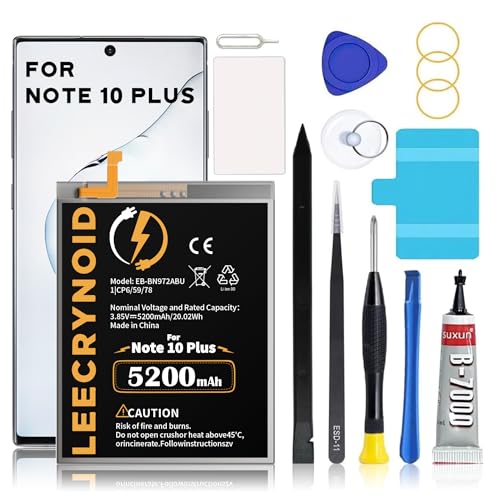
【Battery Compatible Model】: This Upgraded high capacity battery compatible with Samsung Galaxy Note 10 Plus SM-N975F SM-N975F/DS,please make sure your battery model before order
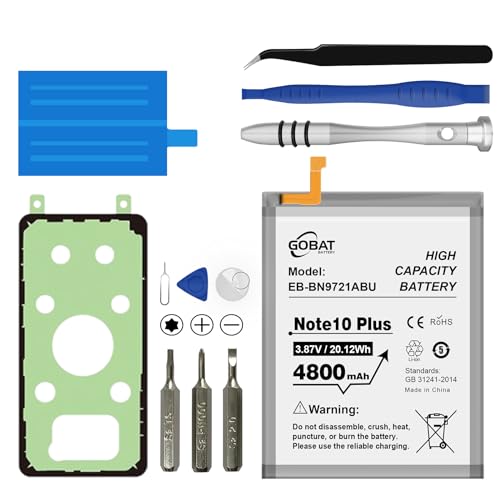
{COMPATIBLE MODELS}:This Replacement battery Compatible with Samsung Galaxy Note 10 Plus (Model: N970 N970V N970A).

COMPATIBILITY: This battery only fits for Samsung Galaxy Note 10 Plus, SM-N975F SM-N975F/DS SM-N975U SM-N975U1 SM-N975W SM-N9750/DS SM-N975N SM-N976F SM-N976U SM-N976N series. The battery does NOT work for Galaxy Note 10, please carefully confirm your phone model before purchase.
Using Built-In Settings
- Open Settings: Tap the gear icon on your home screen or app drawer.
- Select Device Care: Scroll down and find the “Device Care” option.
- Tap Battery: Here, you’ll see the current battery percentage, estimated time left, and usage patterns.
- View Usage Details: Tap on “Battery Usage” to explore which apps consume the most power. This allows you to manage settings and reduce drain.
Utilizing Samsung Members App
- Launch Samsung Members: Open the app from your app drawer.
- Select Get Help: Tap on the “Get Help” section at the bottom.
- Check Battery Status: You’ll see a battery health check option that provides insights on your battery’s condition and usage.
- Review Tips: Follow the personalized recommendations to optimize your battery performance.
Employ these methods regularly to monitor and manage your Samsung Note 10 Plus’s battery life effectively.
Analyzing Battery Usage
Understanding how your Samsung Note 10 Plus uses battery power can help you maximize its lifespan. Analyzing battery usage reveals which apps and functions drain your device, allowing you to make informed adjustments.
Recommended Products

Compatible Model: It is compatible with Samsung Galaxy Note 10+ Plus Only, Model: SM-N975, EB-BN972ABU. Not for Note 10. Please double identify and check your phone model matches before purchasing the battery.

* Integrated power switch allows you to turn on/off the battery case quickly. 4-light LED indicator shows the power status of the battery case. And each light represents 25% of the power. Installation: The phone is charged once it’s installed into the battery case. The charging will be stopped after fully charged. The battery case won’t automatically charge the phone when the phone battery runs low. Press the power button once to start charging. Press the power button twice to stop charging.

Pre-Customized Rear Back Cover/Battery Door adhesive/double sided tape/glue for Samsung Galaxy Note 10 Plus N975 N975U smartphone
Checking App Consumption
To check app consumption, follow these steps:
- Open Settings on your device.
- Tap Device care.
- Select Battery.
- Tap Battery usage.
Here, you’ll see a list of apps and their battery usage percentages. This data shows which apps consume the most power, helping you prioritize which to limit or monitor more closely.
Identifying Power-Hungry Apps
Identifying power-hungry apps aids in optimizing battery life. From the Battery usage screen, pay attention to apps that top the list. Focus on these aspects:
- Background Activity: Apps running in the background can drain your battery. Consider limiting background activity for high-consumption apps.
- Screen Time: If an app consumes a lot of battery during usage, check its screen-time statistics. Adjust usage patterns if necessary.
- Updates: Keeping apps updated can improve efficiency, reducing their battery impact.
If an app consistently drains battery despite your efforts, consider uninstalling or finding alternatives that require less power. Regularly reviewing battery usage helps maintain optimal function and prolongs your device’s battery life.
Tips to Extend Battery Life
Maximizing battery life enhances your overall experience with the Samsung Note 10 Plus. Implementing these strategies helps keep your device powered longer throughout the day.
Recommended Products

【Compatible With】For Samsung Galaxy Note 10+ SM-N975 .Attention: Don't fit Galaxy Note 10 .Professional technical installation required .There are multiple installation videos on YouTube

Compatibility: The Black USB charging port only for Samsung Galaxy Note 10 Plus N976U N976V N976N N976B replacement.(Not for Note 10 ) Please make sure your phone model before purchase.This product only for Galaxy Note 10 Plus dock connector replacement, not include other phone accessories. Please transfer them from old screen.

【Latest IC Chip Smart Power Housekeeper 】- Use the latest cost-effective smart IC chip on the market now which same as the original Galaxy Note 10 battery, combined with the latest science and technology at the same time, so that the battery has an exclusive smart power housekeeper which can intelligently control and distribute the power, maximize power conversion rate. Longer power life without bothering about running out of power and shut down some apps all the time.
Adjusting Display Settings
Adjusting your display settings can significantly impact battery performance.
- Reduce Screen Brightness: Lower brightness levels when indoors or in low-light conditions. You can do this in quick settings by swiping down from the top of the screen.
- Set a Shorter Screen Timeout: Decrease the time it takes for your screen to turn off when idle. Navigate to Settings > Display > Screen timeout and select a shorter duration.
- Enable Dark Mode: Activate Dark Mode to save battery life on OLED displays. Access this feature through Settings > Display, then toggle on Dark mode.
- Limit Always-On Display: If you don’t need it, turn off the Always-On Display feature. Go to Settings > Lock screen > Always On Display and toggle it off.
Managing Background Apps
Managing background apps ensures that unnecessary power consumption is minimized.
- Close Unused Apps: Regularly close apps running in the background. Swipe up from the bottom and hold, then tap the ‘X’ on apps you don’t need.
- Restrict Background Data: Limit background data for specific apps. Go to Settings > Apps, select the app, choose Mobile Data, and toggle off ‘Allow background data usage.’
- Use Battery Saver Mode: Activate Battery Saver Mode to curtail background activities. Access this feature via Settings > Device care > Battery, then toggle on Power saving mode.
- Monitor App Activity: Check battery usage by app in Settings > Device care > Battery > Battery usage. Identify which apps drain power most and adjust their settings or usage accordingly.
Implementing these tips improves your Samsung Note 10 Plus battery life, allowing more productivity without frequent recharging.
Conclusion
Keeping an eye on your Samsung Note 10 Plus battery life is essential for a seamless experience. By regularly checking your battery status and usage patterns you can avoid those frustrating moments when your phone suddenly dies.
Remember to identify any power-hungry apps and adjust your settings to enhance battery performance. With a few simple tweaks you can extend your device’s lifespan and enjoy all the features it has to offer without worrying about running out of juice.
So take a moment to monitor your battery health and make those adjustments. Your Note 10 Plus will thank you with reliable performance when you need it most.
Frequently Asked Questions
How can I check the battery life on my Samsung Note 10 Plus?
You can check the battery life by going to “Device Care” in your settings and tapping on “Battery.” This will show you the current battery percentage, estimated time remaining, and your usage patterns.
What are common battery issues with the Samsung Note 10 Plus?
Common issues include rapid battery drain, overheating, inconsistent performance, and charging problems. It’s important to address these issues promptly to maintain your device’s reliability.
How can I extend the battery life of my Samsung Note 10 Plus?
To extend battery life, reduce screen brightness, set a shorter screen timeout, enable Dark Mode, and manage background apps. You can also use Battery Saver Mode for optimal performance.
What should I do if an app is draining my battery?
If an app consistently drains your battery, try limiting its background activity, monitoring your screen time, and keeping it updated. If it continues to drain power, consider uninstalling it or finding a more efficient alternative.
How does battery health affect performance?
A healthy battery is crucial for optimal performance and longevity of your device. Regularly checking battery health can help you identify issues early, ensuring your Samsung Note 10 Plus runs smoothly.
