

Key Takeaways
- Understand Your Model: Familiarize yourself with your specific Sony headphone model to effectively check and manage battery life.
- Battery Life Indicators: Use built-in controls or the Sony Headphones Connect app to quickly check battery status and get accurate readings.
- Connection Techniques: To monitor battery life, check the indicator on connected devices (iPhone or Android) for real-time battery information while listening.
- Troubleshooting Issues: Address common problems such as inaccurate battery readings or connection issues by recalibrating, updating firmware, or resetting your headphones.
- Maintain Battery Health: Follow best charging practices, such as avoiding overcharging and storing headphones properly when not in use to prolong battery lifespan.
Ever found yourself in the middle of your favorite playlist only to realize your Sony headphones are about to die? It’s frustrating when you’re not sure how much battery life is left. Knowing how to check your headphones’ battery can save you from those unexpected interruptions.
Understanding Sony Headphones
Sony headphones offer a range of features and models, making them popular among music lovers. Knowing your model’s capabilities helps you manage battery life effectively.
Overview of Sony Headphone Models
Sony produces various headphone models, including:
- WH-1000XM Series: These noise-canceling over-ear headphones provide excellent sound quality and battery life, lasting up to 30 hours.
- WF-1000XM Series: These wireless earbuds combine active noise cancellation with a compact design, delivering around 24 hours of playback with the charging case.
- MDR Series: This range includes on-ear and over-ear headphones suited for different listening environments, with battery life varying by model.
Identifying your specific model helps you check battery life accurately.
Features of Sony Headphones
Sony headphones come with several features that enhance your listening experience, such as:
- Noise Cancellation: Many models include active noise cancellation, which helps block external sounds for immersive audio.
- Touch Controls: Some models allow you to control playback and manage calls with simple taps and swipes.
- Voice Assistant Compatibility: Certain headphones support integration with voice assistants like Google Assistant and Alexa, facilitating hands-free operation.
- Quick Charge: Features like quick charging capabilities let you get several hours of playback with just a few minutes of charging.
These features contribute to the overall user experience, making it essential to understand them to maintain your headphones.
Methods to Check Battery Life
Knowing how to check your Sony headphones’ battery life ensures uninterrupted listening. Here are three effective methods to do so.
Recommended Products

LONG BATTERY LIFE: With up to 50-hour battery life and quick charging, you’ll have enough power for multi-day road trips and long festival weekends. (USB Type-C Cable included)

Note : If the size of the earbud tips does not match the size of your ear canals or the headset is not worn properly in your ears, you may not obtain the correct sound qualities or call performance. Change the earbud tips to ones that fit more snugly in your ear

Note : If the size of the earbud tips does not match the size of your ear canals or the headset is not worn properly in your ears, you may not obtain the correct sound qualities or call performance. Change the earbud tips to ones that fit more snugly in your ear
Using the Headphone Controls
Use the built-in controls on your Sony headphones to check the battery status with ease. Simply press the power button and listen for a voice prompt that announces the remaining battery level. Alternatively, some models have indicators that light up in different colors to signify battery status. For instance, a green light may indicate a full charge, while red signals low battery.
Using the Sony Headphones Connect App
The Sony Headphones Connect app offers a convenient way to monitor battery life. Download the app from the Google Play Store or Apple App Store, then connect your headphones via Bluetooth. Once paired, open the app to view battery percentage directly on your device’s screen. The app also provides additional features like sound settings and firmware updates.
Checking Battery Life on Devices
When connected to a smartphone or tablet, check the battery life indicators in the device settings. On an iPhone, swipe down from the top-right corner to access the Control Center, where connected devices display their battery levels. For Android devices, swipe down from the top of the screen to find the battery status for your headphones. This functionality depends on your headphones being connected and compatible with the device’s operating system.
Common Issues and Troubleshooting
You might experience some common issues with your Sony headphones that affect battery life readings or connectivity. Understanding how to troubleshoot these problems can help maintain optimal performance.
Inaccurate Battery Readings
Inaccurate battery readings can frustrate your listening experience. Occasionally, headphones might display a higher or lower battery percentage than actual. To address this:
- Calibrate your headphones: Fully charge your headphones, then let them run until they power off. Charge them to 100% again. This process helps realign the battery meter.
- Check for updates: Ensure your headphones are running the latest firmware by using the Sony Headphones Connect app. Updates can fix bugs affecting battery readings.
- Reset your headphones: If problems persist, reset your headphones to restore original settings. Follow your model’s specific instructions for resetting.
Connection Problems
Connection issues often lead to unexpected battery drain or disconnection. If your headphones disconnect frequently or struggle to pair, try these solutions:
- Re-establish the connection: Disconnect your headphones from your device and reconnect. This may resolve temporary glitches.
- Forget and re-pair: On your device, forget the headphones in Bluetooth settings. Then, pair them again as a new device to create a fresh connection.
- Reduce interference: Keep your headphones and connected device within 30 feet of each other. Avoid obstacles like walls or other electronics that can interfere with the signal.
By following these steps, you can effectively troubleshoot common issues and enhance your experience with your Sony headphones.
Tips for Maintaining Battery Health
Maintaining battery health is essential for optimal performance from your Sony headphones. Here are some practical tips to help you keep your battery in top shape.
Recommended Products
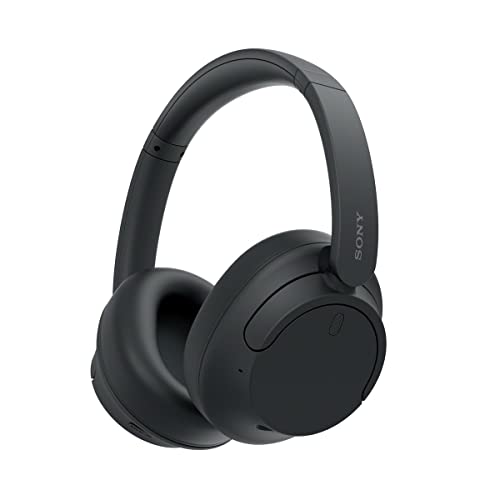
SONY’S LIGHTEST WIRELESS NOISE CANCELING HEADBAND EVER: Weighing just 192g, our lightest overhead wireless headphones with Noise Canceling yet, for incredible comfort without compromising on technology.
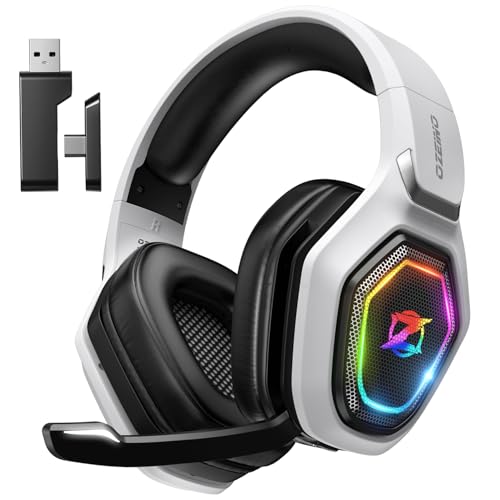
【Amazing Stable Connection-Quick Access to Games】Real-time gaming audio with our 2.4GHz USB & Type-C ultra-low latency wireless connection. With less than 30ms delay, you can enjoy smoother operation and stay ahead of the competition, so you can enjoy an immersive lag-free wireless gaming experience.

Compatible with Sony noise cancelling headphones WHXB900N WHXB700 WHH910N WHH800 WHCH710N WHCH510 WH1000XM4 WH1000XM3, and more.
Charging Practices
- Charge your headphones regularly. Avoid letting the battery fully deplete before charging.
- Use the original charging cable and adapter. Third-party chargers may not provide the correct voltage.
- Disconnect the charger once the battery reaches 100%. Overcharging can lead to reduced battery lifespan.
- Charge in a cool, dry place. Heat can damage battery components and reduce efficiency.
- Avoid frequent quick charges. Sustainable charging helps maintain overall battery health.
Long-term Storage
- Store your headphones in a cool and dry environment, away from direct sunlight.
- Charge the battery to around 50% before storing. This helps prevent battery degradation during inactivity.
- Check the battery every few months. If it drops significantly, recharge to maintain health.
- Avoid leaving them in extreme temperatures, such as a hot car or a cold garage.
- Keep the headphones in their carrying case to protect them from dust and physical damage.
Conclusion
Keeping track of your Sony headphones’ battery life can make all the difference in your listening experience. By using the methods outlined in the article you can easily monitor battery levels and avoid those frustrating moments when your music suddenly stops.
Remember to stay on top of maintenance tips to ensure your headphones perform at their best. With a little attention to battery health and troubleshooting techniques you’ll be able to enjoy your favorite tunes without interruptions. So go ahead and rock out knowing you’ve got the tools to keep your headphones charged and ready to go!
Frequently Asked Questions
How do I check the battery life on my Sony headphones?
You can check the battery life on your Sony headphones using built-in controls for voice prompts or indicator lights. Alternatively, the Sony Headphones Connect app provides a direct battery percentage display. Additionally, connected devices like smartphones can offer battery status information.
What features should I consider when buying Sony headphones?
When buying Sony headphones, consider features like noise cancellation, touch controls, voice assistant compatibility, and battery life. Models such as the WH-1000XM Series and WF-1000XM Series include these features, helping enhance your listening experience.
How can I resolve inaccurate battery readings on my Sony headphones?
To resolve inaccurate battery readings, try calibrating your headphones, checking for firmware updates, or resetting the device. These steps often help to refresh the battery status and improve accuracy.
What should I do if my Sony headphones won’t connect?
If your Sony headphones won’t connect, try forgetting the device on your Bluetooth settings and re-pairing them. You can also reduce interference by ensuring a clear line of sight between your headphones and the connected device.
How can I maintain my Sony headphones’ battery health?
To maintain battery health, charge your headphones regularly with the original cable and adapter, avoid overcharging, and store them in a cool, dry place. Charging to about 50% before long-term storage is also recommended.
