

Key Takeaways
- Understanding Battery Health: Monitoring battery health is crucial for maintaining optimal performance and longevity of your Samsung tablet, preventing unexpected shutdowns.
- Key Factors: Screen brightness, running applications, connectivity options, device age, and background processes significantly influence battery life.
- Methods to Check Battery: Access battery information via built-in settings, the Samsung Members app, or third-party applications for more detailed insights.
- Recommended Apps: Utilize apps like AccuBattery, GSam Battery Monitor, Battery Guru, and Hibernator to monitor battery health and optimize performance.
- Tips for Extending Battery Life: Adjust settings such as brightness, background data, and location services, and follow best practices like closing unused apps and keeping software updated to prolong battery life.
Ever found yourself wondering how much battery life your Samsung tablet has left? It’s a common worry, especially when you’re in the middle of something important. You don’t want to be caught off guard with a dead battery right when you need your device the most.
Understanding Battery Life
Knowing how to check battery life on your Samsung tablet involves understanding some key components of battery health and the factors that influence it. This knowledge helps you maintain optimal performance for your device.
Importance of Battery Health
Battery health directly affects your tablet’s performance and longevity. A healthy battery ensures consistent device operation without unexpected shutdowns. Regular monitoring can prevent deterioration, allowing you to use your tablet well into its expected lifespan. Keeping your battery healthy means you stay productive, whether for work or leisure activities.
Factors Affecting Battery Life
Several factors can impact battery life on your Samsung tablet:
- Screen Brightness: Higher brightness levels consume more power. Lowering brightness extends battery life.
- Running Applications: Background apps drain energy. Closing unused apps saves battery.
- Connectivity Options: Wi-Fi, Bluetooth, and mobile data usage affect battery consumption. Turning off unnecessary connections conserves power.
- Device Age: Older tablets often experience reduced battery efficiency. Battery replacements can restore performance.
- Operating System Updates: Software updates may include optimizations for battery life. Keeping your device updated ensures access to these improvements.
- Background Processes: Syncing, automatic updates, and location services use battery. Disabling these features when not needed helps boost longevity.
By understanding these aspects, you’ll gain better control over your tablet’s battery life and enhance your overall experience.
Methods to Check Battery Life on Samsung Tablet
You can easily check the battery life on your Samsung tablet using different methods available on the device.
Using Built-in Settings
- Open Settings: Tap the gear icon to open the Settings menu.
- Select Battery: Scroll down and tap on “Battery.” This section shows the remaining battery percentage and estimated time left.
- View Usage: Tap on “Battery usage.” It lists apps consuming the most power, helping you identify battery hogs.
Utilizing Samsung Members App
- Install Samsung Members: If not pre-installed, download it from the Galaxy Store.
- Launch the App: Open Samsung Members from your app drawer.
- Access Battery Diagnostic: Tap on “Get Help,” then select “Battery.” This feature gives you more in-depth information about battery health and performance metrics.
- Follow Recommendations: Review any tips provided. Using these suggestions can help extend the battery life.
Third-Party Applications
Third-party applications offer additional options for monitoring battery life on your Samsung tablet. These apps provide detailed insights and extra features that the built-in tools may not include. You can easily track battery health, usage patterns, and even charge cycles.
Recommended Apps for Battery Monitoring
- AccuBattery
AccuBattery measures battery health and estimates charge cycles. It provides notifications when charging is complete to prevent overcharging.
- GSam Battery Monitor
GSam Battery Monitor offers in-depth stats on battery consumption by apps and services. You can view historical data on battery usage to identify which apps drain power the most.
- Battery Guru
Battery Guru helps optimize battery life with tips based on your usage. It also tracks device temperature and charging habits for better battery management.
- Hibernator
Hibernator provides an easy way to close background apps that consume battery. You can enable auto-hibernation for apps that you rarely use, extending your tablet’s battery life.
How to Use These Apps
- Download and Install
Go to the Google Play Store, search for the app name, and hit “Install.”
- Grant Permissions
Open the app, and provide any necessary permissions for accurate monitoring. This usually includes access to battery statistics.
- Review Battery Stats
Explore the dashboard to view remaining battery percentage, usage statistics, and other relevant data. Each app will present information differently, so familiarize yourself with the layout.
- Set Notifications
Many apps allow you to set custom notifications for battery levels or charging reminders. Enable these to stay informed about your tablet’s status.
- Optimize Settings
Follow any optimization tips the app provides based on your usage patterns. Implement suggestions to enhance battery life effectively.
Using these third-party applications provides you with extra tools to monitor and manage your Samsung tablet’s battery life.
Tips for Extending Battery Life
You can take several steps to prolong the battery life of your Samsung tablet. Adjusting settings and adopting best practices greatly improve longevity.
Recommended Products

【Battery Specifications】Model:SCUD-WT-N19; Battery Type: Rechargeble Lithium polymer; Capacity:27.1 Wh 7040 mAh; Voltage:3.85V; Battery life: Up to 500 recharge cycles.
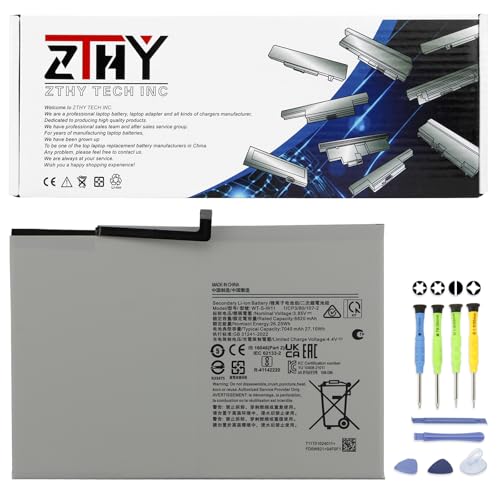
Specifications: Battery type: Li-ion. Color: White. Voltage: 3.85V. Capacity: 27.1Wh. New from Manufacturer

Adjusting Settings
- Lower Screen Brightness: Reduce the display brightness to save power. Use adaptive brightness to automatically adjust based on surroundings.
- Limit Background Data: Go to Settings > Connections > Data Usage. Disable background data for apps that don’t need constant access.
- Turn Off Location Services: Disable GPS when not in use. Navigate to Settings > Location and switch off location services.
- Enable Power Saving Mode: Access Settings > Battery > Power Saving Mode. This mode limits performance and background activity, extending battery duration.
- Disable Unused Features: Turn off Bluetooth, Wi-Fi, and mobile data when not required. You’ll find options in the quick settings panel.
Best Practices for Usage
- Close Unused Apps: Regularly check and close apps running in the background. Go to the recent apps screen and swipe away unnecessary ones.
- Avoid Live Wallpapers: Use static wallpapers instead of live ones. Static images consume less power.
- Manage App Notifications: Limit notifications from non-essential apps. Go to Settings > Notifications to adjust preferences.
- Keep Software Updated: Install updates promptly. Updates often contain optimizations that enhance battery performance.
- Use Airplane Mode: Activate Airplane Mode in low-signal areas. This mode prevents your tablet from using additional power to search for networks.
Implementing these settings and practices ensures your Samsung tablet’s battery lasts longer throughout the day, keeping you productive and connected.
Conclusion
Keeping an eye on your Samsung tablet’s battery life is essential for a smooth experience. By understanding how to check battery status and what factors impact its health, you can make informed choices that enhance your device’s performance.
Utilizing built-in settings and third-party apps gives you the tools to monitor usage effectively. Plus, adopting simple habits can significantly extend your battery life.
With these tips in hand, you can enjoy your tablet without the worry of running out of power when you need it most. Stay connected and productive by taking charge of your battery management today!
Frequently Asked Questions
How can I check the battery life on my Samsung tablet?
To check the battery life on your Samsung tablet, go to the “Settings” app, tap on “Battery,” and view the remaining battery percentage along with usage details. This section provides essential information about what is consuming your battery.
What factors affect battery life on Samsung tablets?
Battery life on Samsung tablets can be influenced by several factors, including screen brightness, background apps, connectivity options (Wi-Fi, Bluetooth), device age, and operating system updates. Managing these elements can help improve battery performance.
What apps can help monitor battery life on Samsung tablets?
Recommended apps for monitoring battery life include AccuBattery, GSam Battery Monitor, Battery Guru, and Hibernator. These apps provide detailed insights and functionalities not always available through the built-in battery settings.
How can I extend the battery life of my Samsung tablet?
To extend your tablet’s battery life, try lowering screen brightness, turning off location services, enabling power-saving mode, and closing unused apps. Also, keep your software updated and avoid using live wallpapers whenever possible.
What is the significance of maintaining a healthy battery?
Maintaining a healthy battery is crucial for your tablet’s performance and longevity. A well-functioning battery provides consistent operation, prevents unexpected shutdowns, and allows you to stay productive during important tasks.
