

Key Takeaways
- Monitor Battery Life Easily: Use the built-in battery settings and the Samsung Members app to check your phone’s battery percentage and app usage easily.
- Identify Power-Hungry Apps: Regularly review which apps consume the most battery through the Battery Usage in Settings to adjust or limit their usage.
- Utilize Power Saving Mode: Activate Power Saving Mode to extend battery life, especially when the battery level is low, by reducing background activity and limiting features.
- Adjust Screen Brightness: Lower screen brightness manually or enable adaptive brightness to conserve power effectively.
- Keep Software Updated: Regularly check for and install software updates to optimize battery performance and overall phone efficiency.
- Reduce Background Data: Limit background data for apps to decrease battery drainage and improve overall battery longevity.
Ever found yourself in a situation where your Samsung phone’s battery seems to drain faster than you expected? You’re not alone. Many people struggle with keeping track of their battery life, especially when you’re relying on your phone for everything from navigation to staying connected with friends.
Knowing how to check your battery life can save you from those panicky moments when your phone suddenly shuts off. In this article, you’ll learn simple steps to monitor your battery status and get tips on extending its life. With just a few quick checks, you’ll have the confidence to keep your phone powered up and ready for anything.
Understanding Battery Life on Samsung Phones
Battery life on Samsung phones varies due to several factors, including usage patterns and settings. Knowing how to manage and monitor your battery can enhance your phone’s performance.
Factors Affecting Battery Life
- Screen Usage: The display consumes significant energy. Higher brightness levels and longer screen-on time drain the battery faster. Using adaptive brightness can help adjust screen brightness automatically.
- Apps Running in the Background: Certain apps continue to run even when not in use, which can deplete battery life. Check for battery-hungry apps in your settings.
- Connectivity Features: Features like Wi-Fi, Bluetooth, and location services affect battery usage. Turning these off when not in use extends battery life significantly.
Monitoring Battery Life
Your Samsung phone includes built-in tools to monitor battery life effectively.
- Battery Settings: Navigate to Settings > Battery and device care > Battery. Here, you can see your battery percentage and usage patterns over time.
- Battery Usage by App: In the same section, tap on Battery usage. This area displays the percentage of battery consumed by each app over the last 24 hours. Identifying power-hungry apps allows you to manage their usage.
Extending Battery Life
Several strategies help maximize your Samsung phone’s battery lifespan:
- Lower Screen Brightness: Adjusting brightness manually or using adaptive brightness improves battery efficiency.
- Restrict Background Data: Limit background data for apps in Settings > Apps. Select an app, and toggle off the option for background data.
- Enable Power Saving Mode: Activate this mode through Settings > Battery and device care. This feature minimizes performance and restricts background activity to save battery.
- Keep Software Updated: Regular updates optimize battery performance. Check for updates in Settings > Software update.
- Uninstall Unused Apps: Removing apps that you rarely use reduces battery drain. Go to Settings > Apps and uninstall any unnecessary applications.
By understanding these factors and utilizing monitoring tools, you can effectively manage your Samsung phone’s battery life and ensure it meets your daily needs.
Methods to Check Battery Life
Checking your Samsung phone’s battery life is straightforward. You can use various built-in tools to monitor your battery status effectively.
Recommended Products

Sim Card Slot Count: single_sim; Display Type: AMOLED; Operating System: Android 13.0; Water Resistance Level: not_water_resistant


Through Device Settings
- Open Settings: Navigate to your phone’s home screen and tap on the gear icon for Settings.
- Select Battery and Device Care: Scroll down and select “Battery and Device Care.”
- Tap on Battery: Choose “Battery” to see details about your current battery life, percentage, and usage statistics.
- View App Usage: Check the “App Usage” section to find out which apps consume the most battery. Adjust settings or limit usage as needed.
Using Samsung Members App
- Download Samsung Members: If not already installed, download the Samsung Members app from the Google Play Store.
- Open the App: Launch Samsung Members and sign in if required.
- Access the Diagnostic Tools: Tap on the “Get Help” option, then select “Battery.”
- Check Battery Status: View the battery report for in-depth analysis, including estimated usage time and health.
By using these methods, you can easily keep track of your battery life and usage, ensuring your Samsung phone stays powered throughout your day.
Tips for Monitoring Battery Health
Monitoring your Samsung phone’s battery health helps maintain optimal performance. Here are effective strategies to keep an eye on your battery’s status.
Recommended Products

This battery is compatible with Samsung Galaxy SCH-U360 a870 a930 U310, to ensure that the battery you purchase is a perfect match for your device, be sure to check the model number of your device before ordering (you can check the model number of your device in the ‘Settings’ of your device).
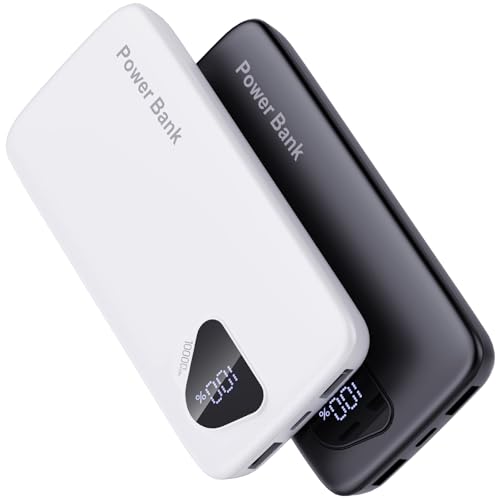
【Charge 4 Devices Simultaneously】Total 4 output ports (built-in 2 cabls,IOS cable and USB-C cable and 2 USB A), supports charging for 4 smart devices simultaneously, All in one portable charger, you would not need to carry various cables or adapter any more, save you time and no more waiting.

Recognizing Battery Drain Patterns
Recognizing common battery drain patterns can help you identify issues early. Track how quickly your battery discharges during specific activities. For example, video streaming often consumes more power than browsing the web. Notice fluctuation in usage after software updates or when installing new apps. You can also review the battery usage statistics under Settings > Battery > Usage to pinpoint which apps are draining your battery unexpectedly. Make adjustments accordingly, such as limiting app usage or closing resource-heavy applications.
Setting Up Power Saving Mode
Setting up Power Saving Mode can significantly extend your battery life on busy days. Access Power Saving Mode by going to Settings > Battery and selecting Power Saving Mode. You can customize settings based on your needs, such as reducing screen brightness, limiting background data, or turning off certain features like Always On Display. Enable this mode when your battery level drops below 20% to help preserve power and keep your phone running longer until you find a charger.
Adjust these settings as needed for optimal battery management, ensuring your phone stays functional throughout the day.
Conclusion
Keeping an eye on your Samsung phone’s battery life can make a world of difference in your daily routine. By regularly checking your battery status and understanding how different apps and settings impact performance, you can avoid those frustrating moments when your phone unexpectedly shuts down.
Remember to take advantage of the built-in tools and the Samsung Members app to track your battery health. With a few simple adjustments like lowering screen brightness and limiting background data, you’ll be on your way to extending your battery life.
Stay proactive and enjoy a reliable phone experience that keeps you connected throughout the day. You’ve got this!
Frequently Asked Questions
What causes battery drainage on Samsung phones?
Battery drainage on Samsung phones can be caused by various factors, including high screen usage, running multiple background apps, and connectivity features like Wi-Fi and Bluetooth. Additionally, outdated software and settings can also contribute to faster battery depletion.
How can I check my Samsung phone’s battery status?
You can check your Samsung phone’s battery status by navigating to Settings > Battery. Here, you can view detailed information about battery usage, including which apps are consuming the most power. The Samsung Members app also offers diagnostic tools for deeper insights.
What are some tips for extending my Samsung phone’s battery life?
To extend your Samsung phone’s battery life, consider lowering screen brightness, restricting background data, enabling power-saving mode, keeping your software updated, and uninstalling unused apps. These steps can significantly improve battery performance throughout the day.
How does screen brightness affect battery life?
High screen brightness can drain your Samsung phone’s battery quickly. Reducing the brightness level or using an adaptive brightness setting can help conserve energy and extend battery life, especially during prolonged use.
What is Power Saving Mode, and how can it help?
Power Saving Mode is a feature that optimizes your Samsung phone’s settings to reduce battery consumption. It limits background activity, lowers screen brightness, and restricts data usage, helping to extend battery life during busy days when charging may not be possible.
Why should I update my phone’s software regularly?
Regular software updates help improve your Samsung phone’s performance and security. They often include battery optimization fixes that can reduce drain and enhance overall battery life. Keeping your device updated ensures you benefit from the latest features and improvements.
How can I identify apps that drain my battery?
To identify battery-draining apps, go to Settings > Battery > Battery Usage. This section provides a breakdown of app usage over time, helping you see which apps consume the most power. You can then decide to limit or uninstall those apps.
What should I do if my Samsung phone battery drains too quickly?
If your Samsung phone battery drains quickly, first check battery usage stats to identify high-drain apps. Consider enabling Power Saving Mode, reducing screen brightness, and uninstalling unnecessary applications. If the problem persists, it may be worth consulting a technician for further diagnosis.
